> ## Documentation Index
> Fetch the complete documentation index at: https://docs.helpgenie.ai/llms.txt
> Use this file to discover all available pages before exploring further.
# Compose, Reply & Attachments
> Write new email, reply, and attach files
Write new email, reply or forward existing threads, and attach files.
## Writing mail
Click **Compose** to start a new email, or use **Reply**, **Reply All**, or **Forward** from an open thread.
 Add recipients and your message, attach any files you need, then click **Send**.
## Editing a suggested reply
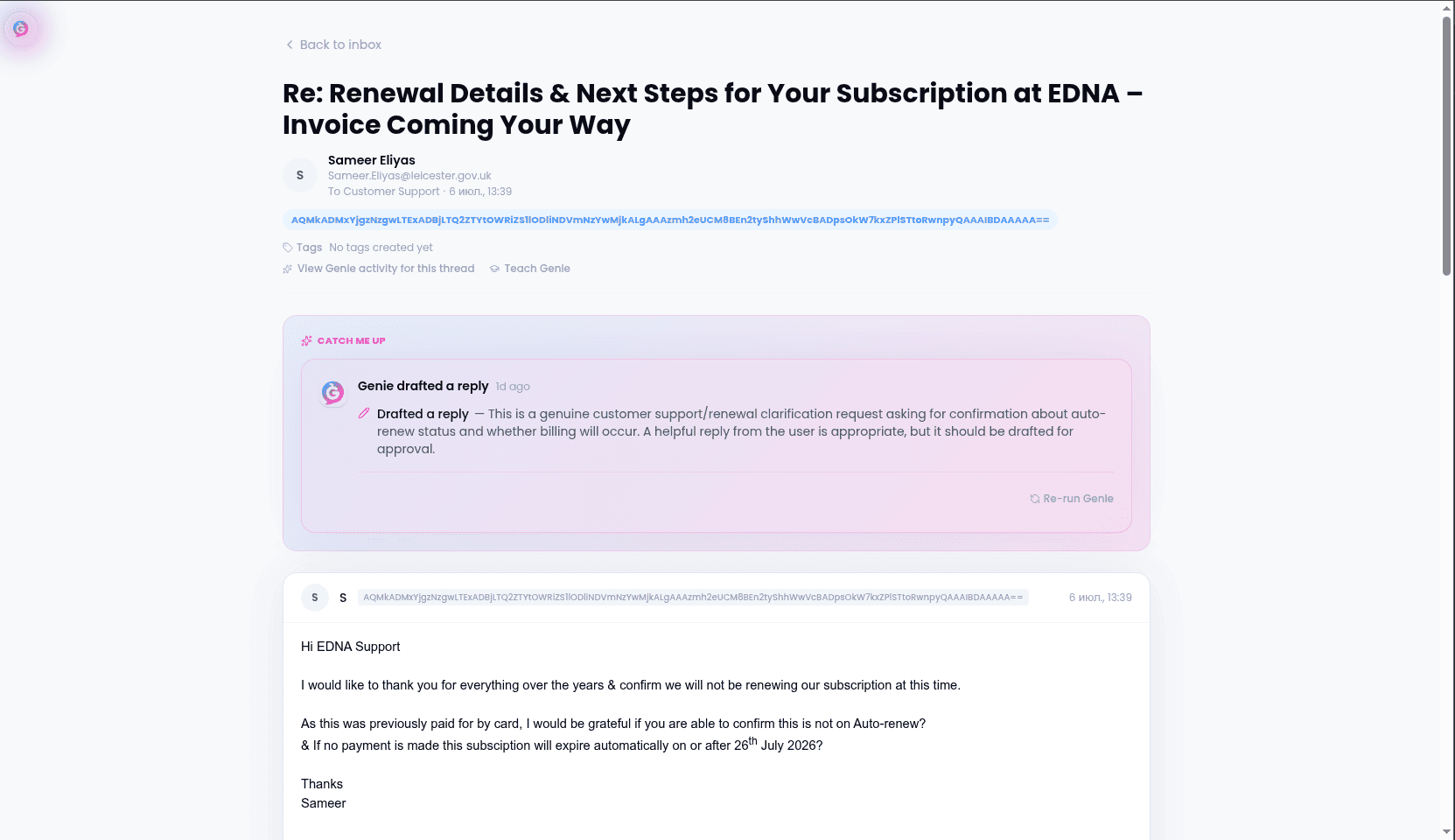
When editing an AI-suggested reply from the Genie feed, your changes replace the suggested text — only what you send goes out.
## Your sending style
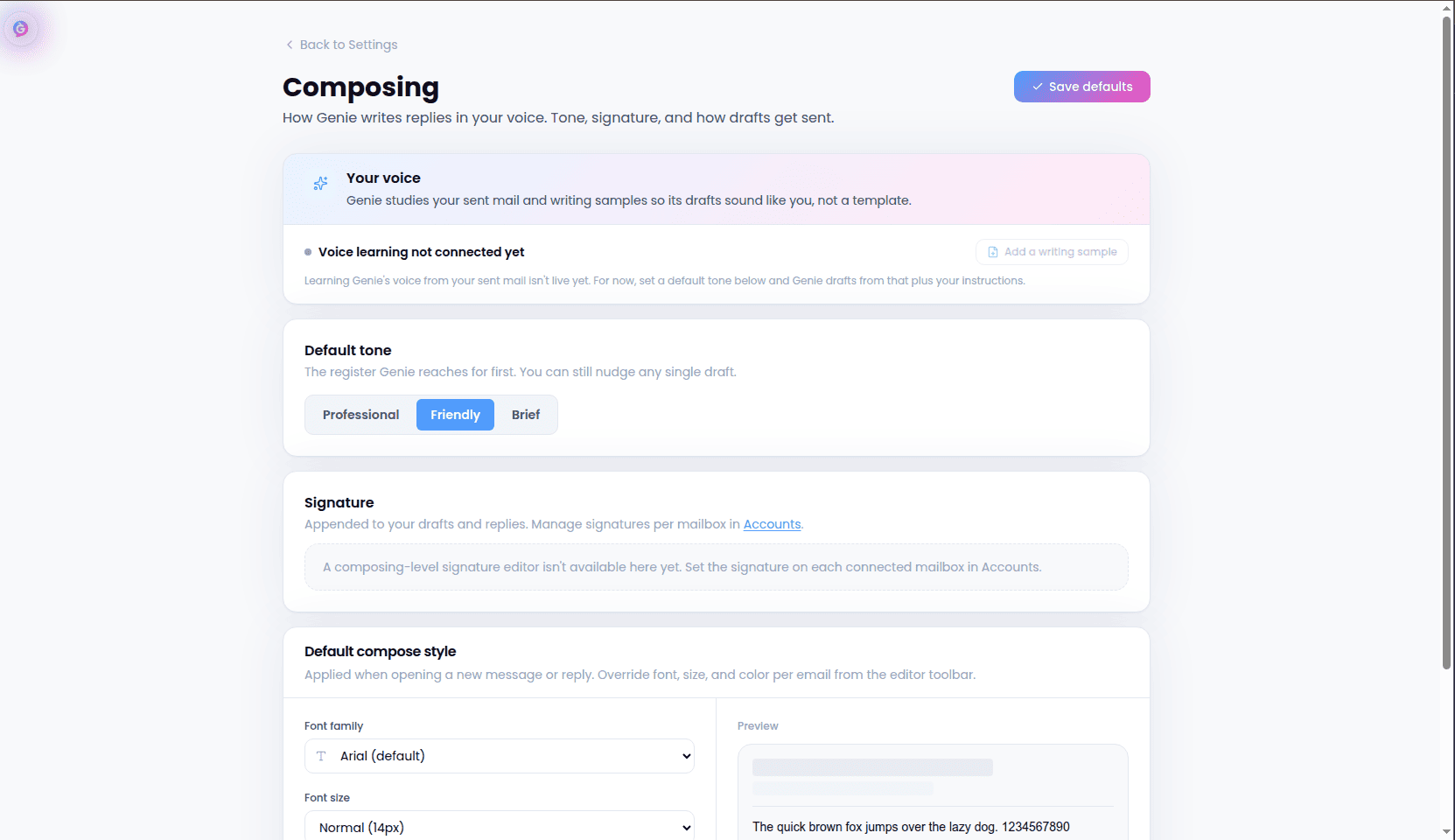
Set your preferred tone and reply style once in **Settings → Composing** so both manual drafts and suggested replies sound like you.
Add recipients and your message, attach any files you need, then click **Send**.
## Editing a suggested reply
When editing an AI-suggested reply from the Genie feed, your changes replace the suggested text — only what you send goes out.
## Your sending style
Set your preferred tone and reply style once in **Settings → Composing** so both manual drafts and suggested replies sound like you.