> ## Documentation Index
> Fetch the complete documentation index at: https://docs.helpgenie.ai/llms.txt
> Use this file to discover all available pages before exploring further.
# Connecting Your Email Account
> Link Gmail or Outlook to get started
Connecting your email account is the first step — mail and calendar can't sync until an account is linked.
## Steps
1. Go to **Settings → Accounts**.
2. Click **Connect Account** and choose Gmail or Outlook.
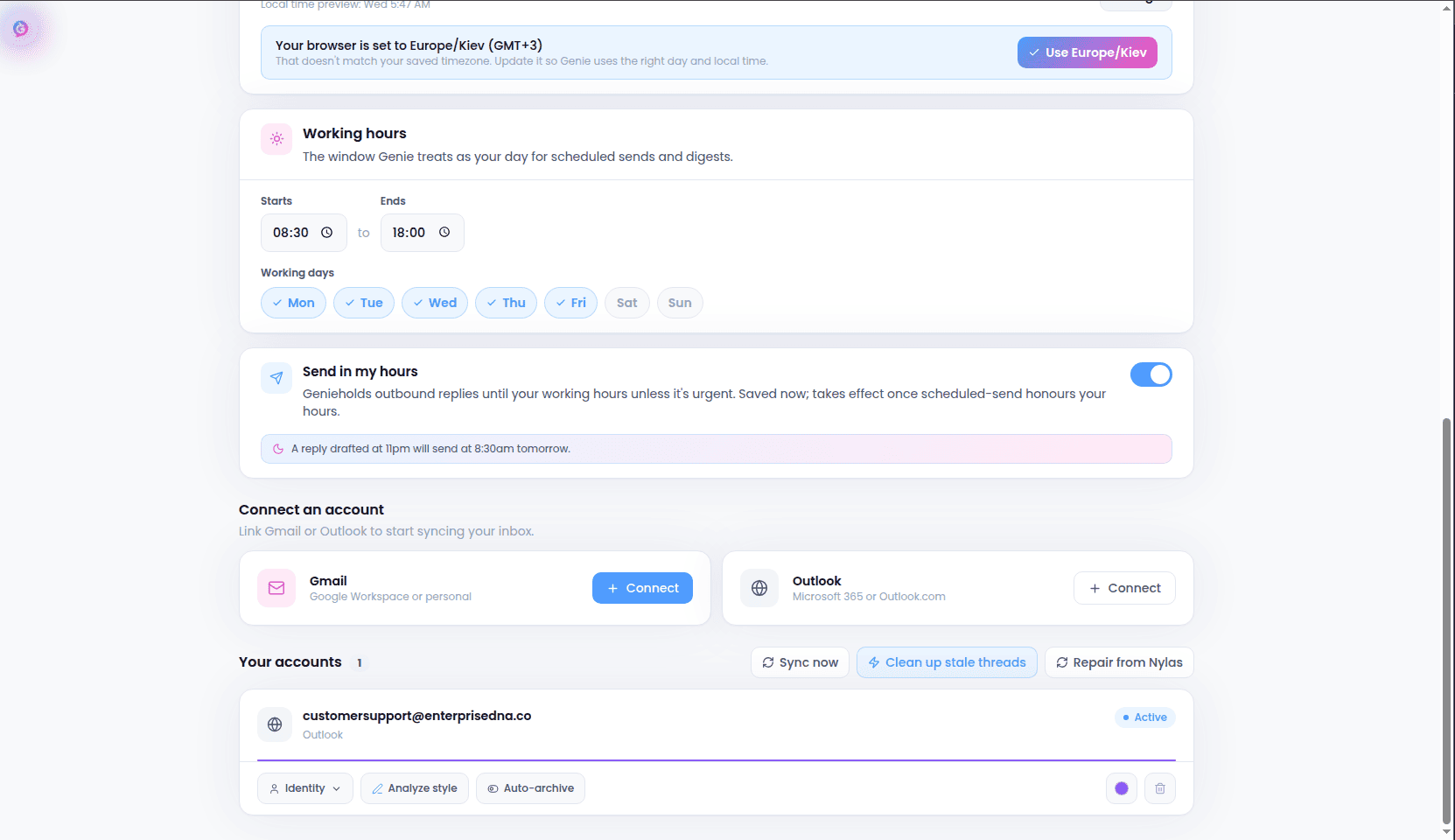 3. You'll be taken to your provider's official sign-in page. Sign in and approve the requested permissions there — your password is never seen or stored by us.
4. Once approved, you're returned to the app and syncing begins automatically.
## Managing connected accounts
You can connect multiple accounts, and disconnect any of them at any time from **Settings → Accounts**. Disconnecting stops sync and removes access, but never deletes mail from your provider.
3. You'll be taken to your provider's official sign-in page. Sign in and approve the requested permissions there — your password is never seen or stored by us.
4. Once approved, you're returned to the app and syncing begins automatically.
## Managing connected accounts
You can connect multiple accounts, and disconnect any of them at any time from **Settings → Accounts**. Disconnecting stops sync and removes access, but never deletes mail from your provider.