> ## Documentation Index
> Fetch the complete documentation index at: https://docs.helpgenie.ai/llms.txt
> Use this file to discover all available pages before exploring further.
# The Genie Feed
> Let AI triage your inbox and approve what it gets right
The Genie feed is your home screen. Instead of scrolling a plain inbox, incoming email is sorted into a feed of suggested actions — replies to approve, meetings to confirm, and messages worth your attention.
## How it works
Each card in the feed shows one suggested action along with a short explanation of why it was suggested.
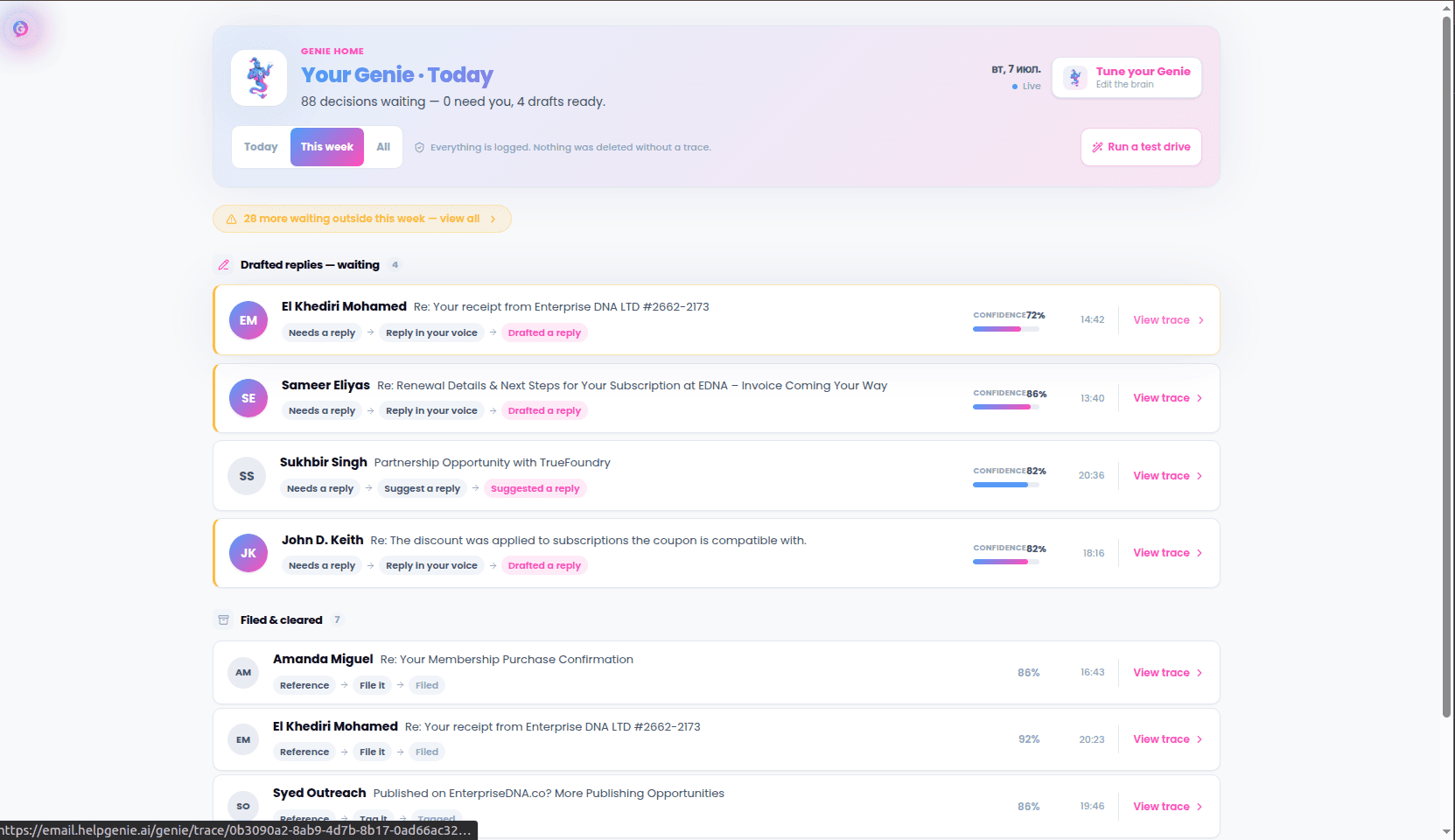 * **Approve** to send the suggested reply or action as-is
* **Edit** to tweak the wording before sending
* **Dismiss** if the suggestion isn't right
## Customize how it behaves
Open **Settings → Brain** to describe, in plain language, how you want your mail handled: tone, what should be sent automatically, and what should always wait for your review.
* **Approve** to send the suggested reply or action as-is
* **Edit** to tweak the wording before sending
* **Dismiss** if the suggestion isn't right
## Customize how it behaves
Open **Settings → Brain** to describe, in plain language, how you want your mail handled: tone, what should be sent automatically, and what should always wait for your review.
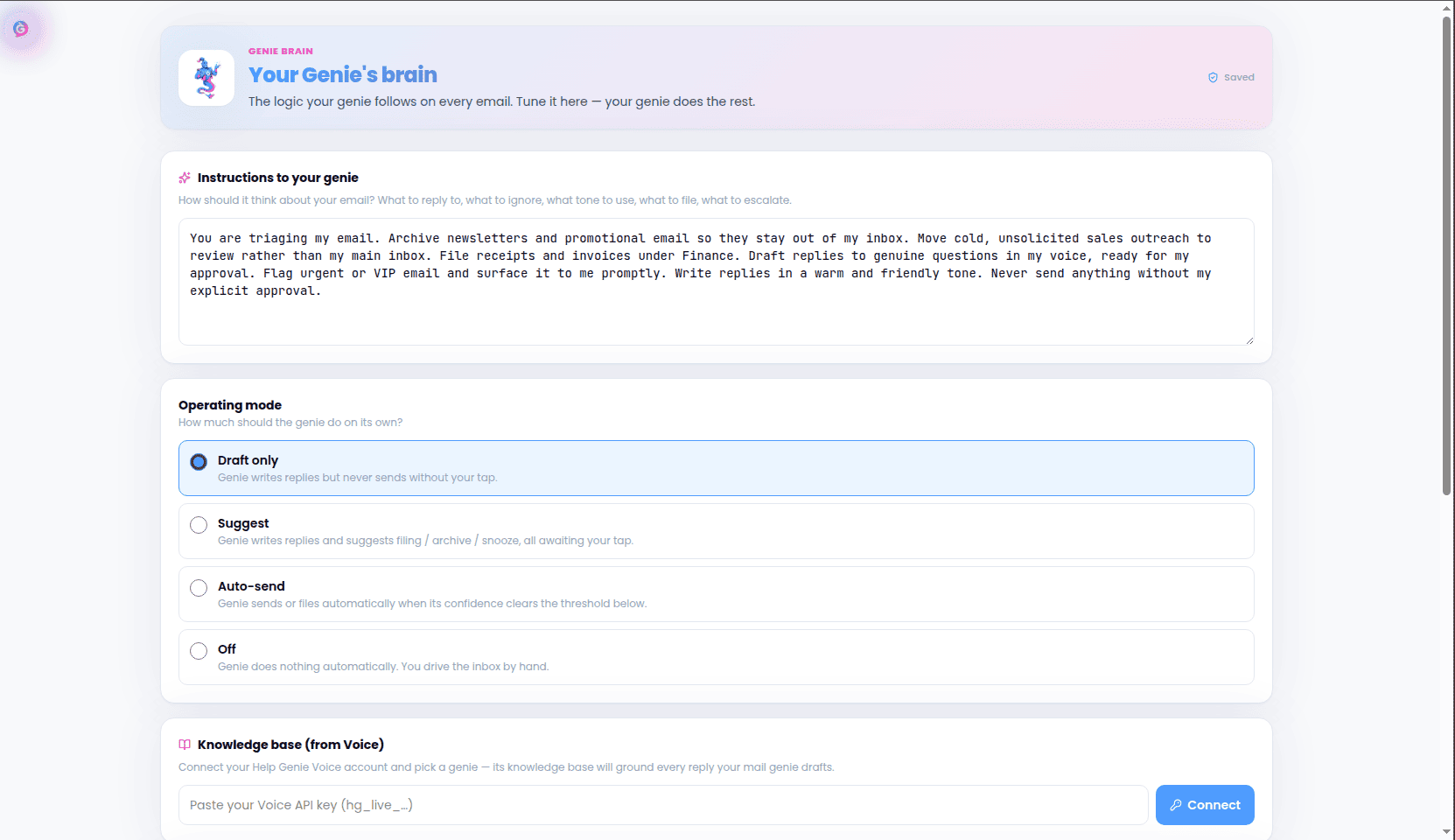 You can turn on automatic sending for suggestions the system is highly confident about, while everything else still waits for your approval.