> ## Documentation Index
> Fetch the complete documentation index at: https://docs.helpgenie.ai/llms.txt
> Use this file to discover all available pages before exploring further.
# Genies Home & Mailbox Detail
> Browse your Genies and manage a mailbox's activity, brain, and lifecycle
**Home** is where you find every Genie on your team. Click into one to see what its mailbox has been doing, tune how it behaves, and control whether it's running at all.
## The Genie directory
Open **Home** from the sidebar. Genies are grouped into **Mail connected** and **No mailbox yet**, each with a count.
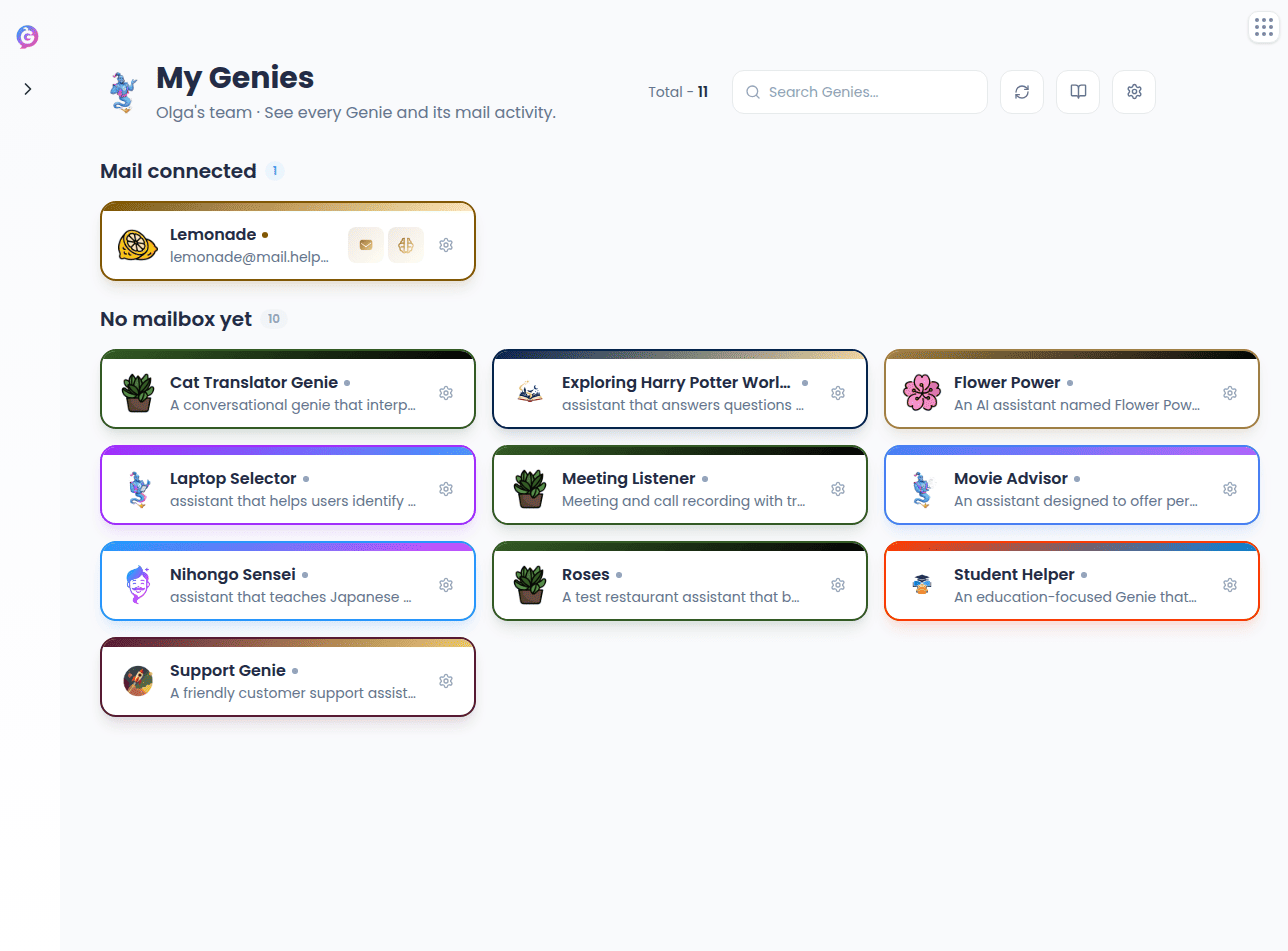 Each card shows a status dot, the mailbox address (or a description if it doesn't have one yet), quick links to that mailbox's Activity and Genie brain tabs, and a link out to Genie settings in Help Genie Voice. Search narrows the list by name, description, or email; **Sync** in the header re-pulls the latest roster and status from Help Genie Voice.
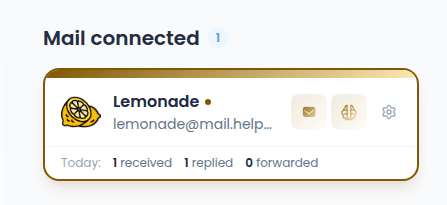
If a mailbox is active and has had activity, its card shows a stats row — how many emails it's received, replied to, and forwarded. It's labelled **Today** for activity so far today, and falls back to **Last 7 days** when today has been quiet. A mailbox with no activity in either window shows no stats row at all.
Each card shows a status dot, the mailbox address (or a description if it doesn't have one yet), quick links to that mailbox's Activity and Genie brain tabs, and a link out to Genie settings in Help Genie Voice. Search narrows the list by name, description, or email; **Sync** in the header re-pulls the latest roster and status from Help Genie Voice.
If a mailbox is active and has had activity, its card shows a stats row — how many emails it's received, replied to, and forwarded. It's labelled **Today** for activity so far today, and falls back to **Last 7 days** when today has been quiet. A mailbox with no activity in either window shows no stats row at all.
 ## Creating a Genie mailbox
A Genie mailbox can't be created from Mail — mailboxes are provisioned in Help Genie Voice.
For a card in the **No mailbox yet** group, the gear icon is the quickest route:
This opens the Genie's settings in Help Genie Voice with the **Messaging** section already selected.
**Create mailbox** is in the **Messaging** section. Voice provisions the mailbox for the Genie.
Once it's provisioned, the card moves into **Mail connected** the next time you sync.
You can also start from Voice directly: pick the Genie, open **Genie details → Messaging**, and click **Create mailbox**.
## Mailbox detail
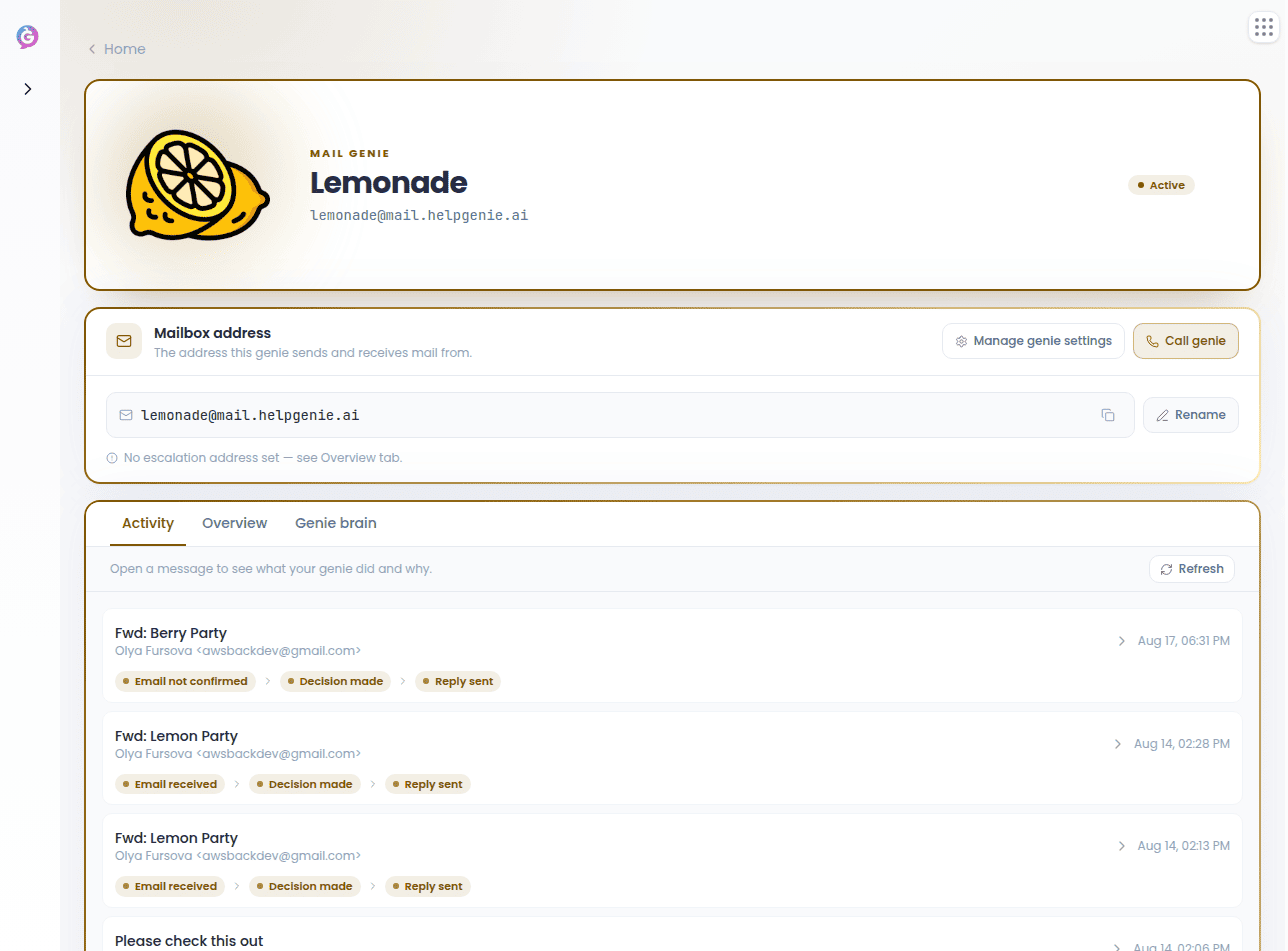
Click a Genie's name to open its mailbox page. At the top: the mailbox address (editable, with a copy button) and a status pill — **Active**, **Paused**, or **Setting up**.
### Activity
A feed of every email a Genie has processed for this mailbox. Click a row to open the **Decision Inspector** — what the Genie did and why.
## Creating a Genie mailbox
A Genie mailbox can't be created from Mail — mailboxes are provisioned in Help Genie Voice.
For a card in the **No mailbox yet** group, the gear icon is the quickest route:
This opens the Genie's settings in Help Genie Voice with the **Messaging** section already selected.
**Create mailbox** is in the **Messaging** section. Voice provisions the mailbox for the Genie.
Once it's provisioned, the card moves into **Mail connected** the next time you sync.
You can also start from Voice directly: pick the Genie, open **Genie details → Messaging**, and click **Create mailbox**.
## Mailbox detail
Click a Genie's name to open its mailbox page. At the top: the mailbox address (editable, with a copy button) and a status pill — **Active**, **Paused**, or **Setting up**.
### Activity
A feed of every email a Genie has processed for this mailbox. Click a row to open the **Decision Inspector** — what the Genie did and why.
 ### Overview
Ops stats for the last 7 days, an editable **Escalation address** (where a Genie forwards what it can't confidently handle), an editable **Genie signature**, and the mailbox's lifecycle actions.
### Overview
Ops stats for the last 7 days, an editable **Escalation address** (where a Genie forwards what it can't confidently handle), an editable **Genie signature**, and the mailbox's lifecycle actions.
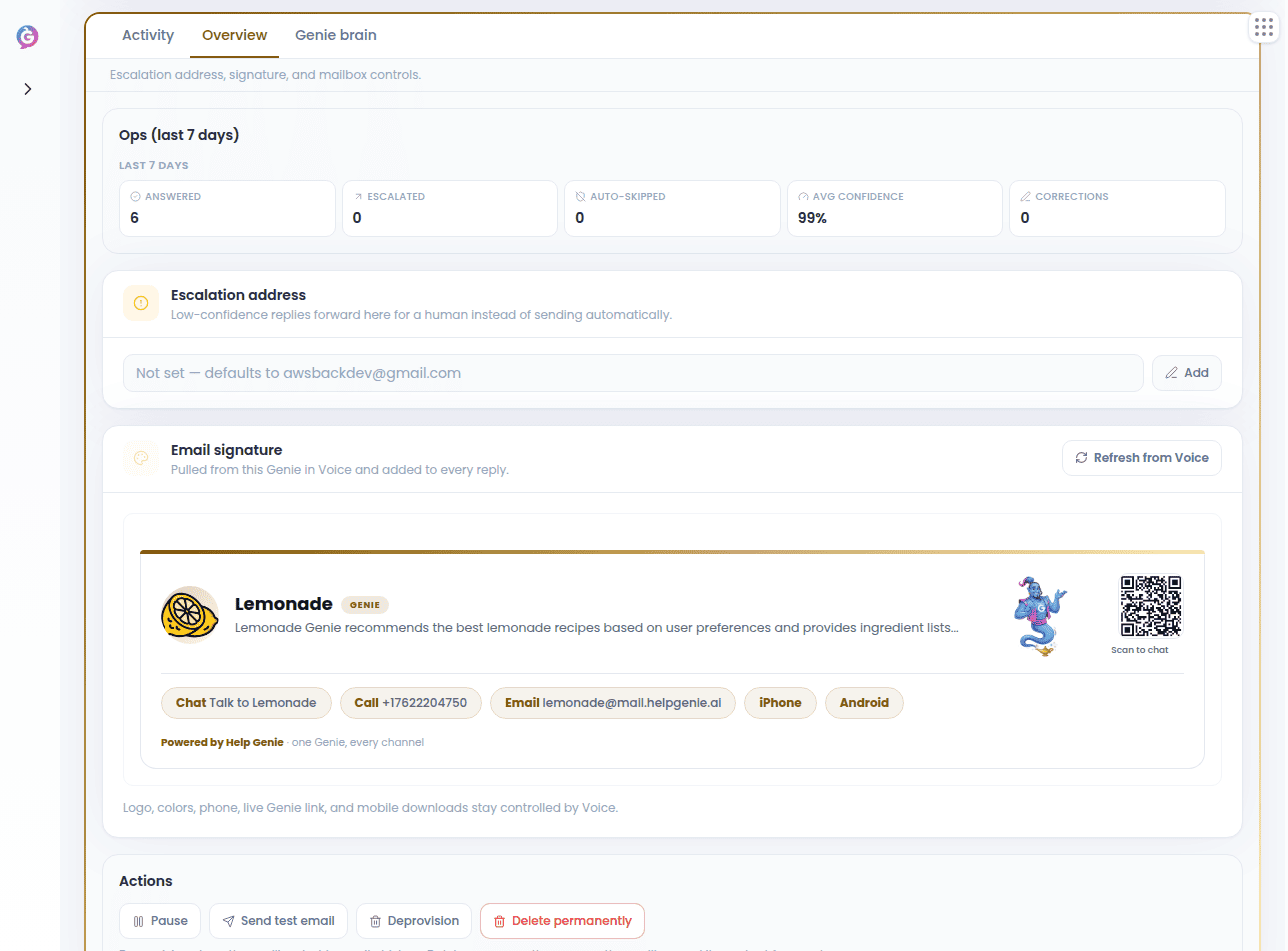 Stop or restart triage on new mail.
Send a real test message through the mailbox.
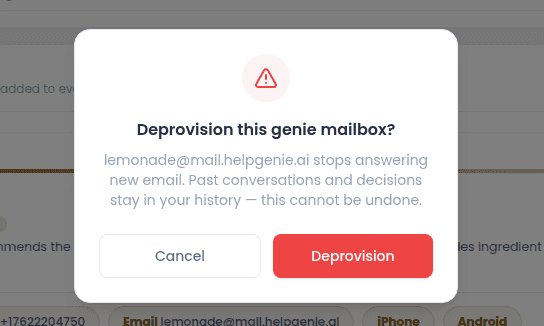
Stops the mailbox from answering new email; past conversations and decisions stay in your history. This can't be undone.
Removes the mailbox and all its content for good. You'll need to type the mailbox's exact email address to confirm. Only the audit trail (who did what) survives.
**Deprovision** and **Delete permanently** are different actions. Deprovision stops the mailbox but keeps its history; Delete permanently removes the mailbox and its content for good and cannot be undone.
Stop or restart triage on new mail.
Send a real test message through the mailbox.
Stops the mailbox from answering new email; past conversations and decisions stay in your history. This can't be undone.
Removes the mailbox and all its content for good. You'll need to type the mailbox's exact email address to confirm. Only the audit trail (who did what) survives.
**Deprovision** and **Delete permanently** are different actions. Deprovision stops the mailbox but keeps its history; Delete permanently removes the mailbox and its content for good and cannot be undone.
 ### Genie brain
The same brain editor used in Settings → Triage, scoped to this one mailbox: instructions, escalation address, reply caps, and rules. See [Genie Decisions & the Brain](/mail-guide/genie-feed) for what each field controls.
### Genie brain
The same brain editor used in Settings → Triage, scoped to this one mailbox: instructions, escalation address, reply caps, and rules. See [Genie Decisions & the Brain](/mail-guide/genie-feed) for what each field controls.