> ## Documentation Index
> Fetch the complete documentation index at: https://docs.helpgenie.ai/llms.txt
> Use this file to discover all available pages before exploring further.
# Signing In
> How to sign in to Help Genie Mail with the magic-link fallback
Most of the time, signing in to Help Genie Mail is silent — you land at [helpgenie.ai](https://helpgenie.ai), click through to Mail, and the hub signs you in on the way. This page is about the manual sign-in screen you land on when that silent path can't complete for you.
## When you'll see the manual sign-in screen
The magic-link screen at **/login/manual** — and the same screen shown at **/login** whenever there's an auth error — is the always-available fallback. You'll see it when:
* You open a magic link on a different device from the one that requested it (magic links are single-device for security).
* Your existing session has expired.
* The hub sign-in couldn't complete and asked you to request a fresh link.
* Support has walked you here to get you back in without waiting on the hub.
## Requesting a magic link
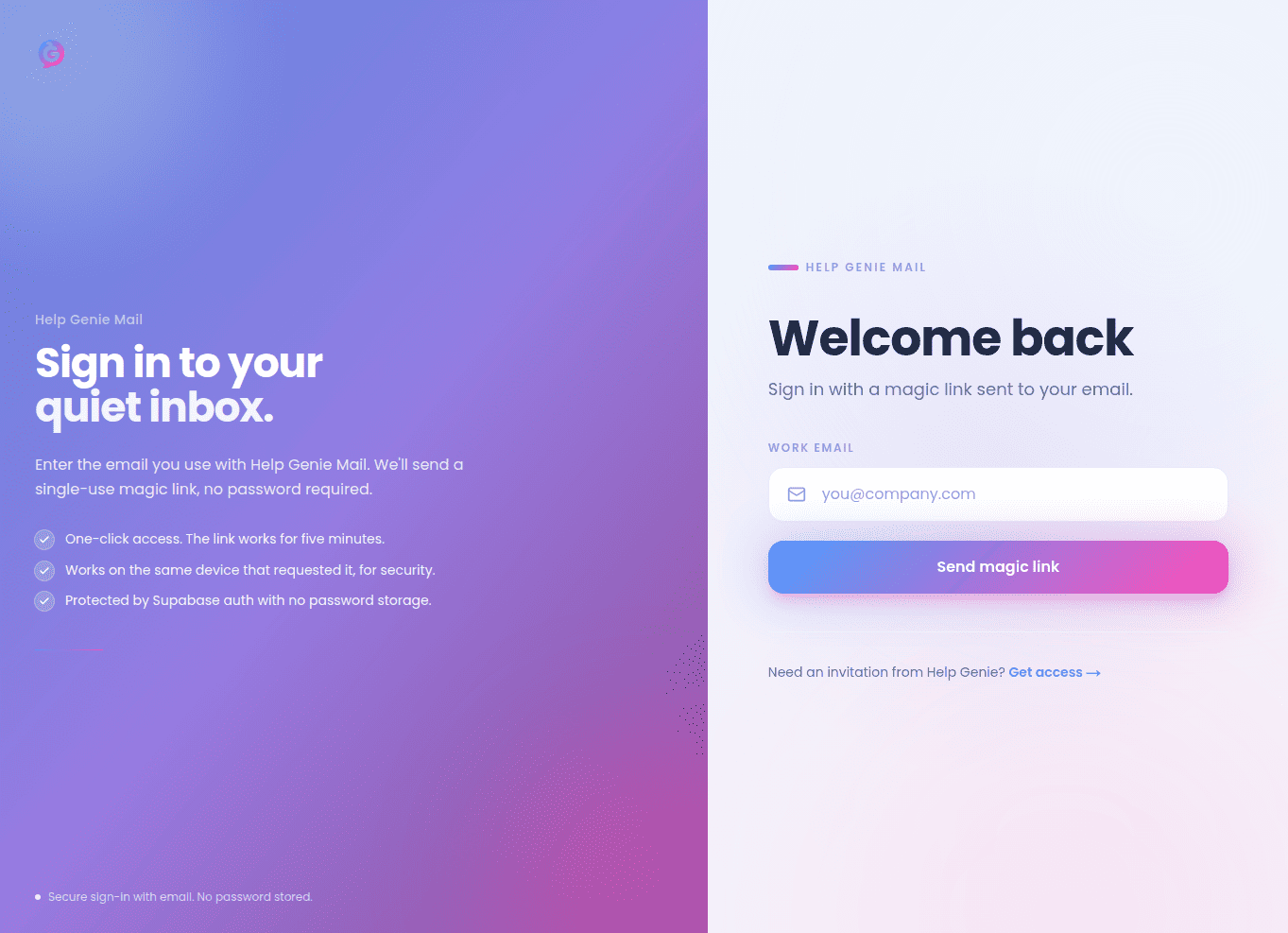 Type your work email into the **Work email** field.
Help Genie Mail sends a one-time sign-in link to that address. The screen confirms with **Check your email for the login link** once the request is accepted.
Open the email on the same device you requested it from and click the link — you'll land signed in.
If the email doesn't arrive after a minute, check your spam folder and request another link.
## Cross-device magic links
If you click a magic link on a phone but requested it on a laptop (or vice versa), you'll be sent back here with a message that reads:
> Magic link opened on a different device. For security, magic links can only be opened on the same device where they were requested. Enter your email below to get a new link for this device.
Request a fresh link from the device you actually want to sign in on. A link requested on one device will never complete the sign-in on another.
## Need an invitation?
Below the sign-in form, there's a link out to [helpgenie.ai/dashboard](https://helpgenie.ai/dashboard) for people who don't yet have access.
Help Genie Mail is invite-only — there's no self-serve signup here, and **/signup** on this site just bounces you back to the sign-in screen.
## Session basics
Once you're in, you'll stay signed in across visits until your session expires. There's no password to store or reset — every sign-in is a fresh magic link.
Type your work email into the **Work email** field.
Help Genie Mail sends a one-time sign-in link to that address. The screen confirms with **Check your email for the login link** once the request is accepted.
Open the email on the same device you requested it from and click the link — you'll land signed in.
If the email doesn't arrive after a minute, check your spam folder and request another link.
## Cross-device magic links
If you click a magic link on a phone but requested it on a laptop (or vice versa), you'll be sent back here with a message that reads:
> Magic link opened on a different device. For security, magic links can only be opened on the same device where they were requested. Enter your email below to get a new link for this device.
Request a fresh link from the device you actually want to sign in on. A link requested on one device will never complete the sign-in on another.
## Need an invitation?
Below the sign-in form, there's a link out to [helpgenie.ai/dashboard](https://helpgenie.ai/dashboard) for people who don't yet have access.
Help Genie Mail is invite-only — there's no self-serve signup here, and **/signup** on this site just bounces you back to the sign-in screen.
## Session basics
Once you're in, you'll stay signed in across visits until your session expires. There's no password to store or reset — every sign-in is a fresh magic link.