> ## Documentation Index
> Fetch the complete documentation index at: https://docs.helpgenie.ai/llms.txt
> Use this file to discover all available pages before exploring further.
# Teach Genie
> Correct a Genie's decision on a specific email so it learns for next time
If a Genie got a call wrong — or you just want to confirm it got one right — **Teach Genie** writes the correction straight into its instructions.
## Getting here
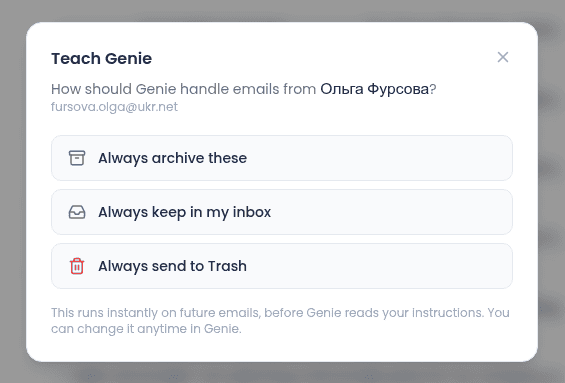
You'll usually land here from a specific email: the **Teach \[Genie name]** link inside an expanded **Genie reasoning** strip on a thread, or the Teach-sender action in the Inbox. You can also go straight to the Teach Genie page on its own.
 ## Making the correction
**What should your Genie have done?** — pick one:
* **Flag it for me**
* **Draft a reply**
* **Forward to my team**
* **Keep in inbox**
* **Archive, the Genie was right** — use this when the original action was actually correct.
Then select any **Why?** chips that explain the correction — things like *Existing customer*, *Time-sensitive*, or *Needs a human reply*.
## Making the correction
**What should your Genie have done?** — pick one:
* **Flag it for me**
* **Draft a reply**
* **Forward to my team**
* **Keep in inbox**
* **Archive, the Genie was right** — use this when the original action was actually correct.
Then select any **Why?** chips that explain the correction — things like *Existing customer*, *Time-sensitive*, or *Needs a human reply*.
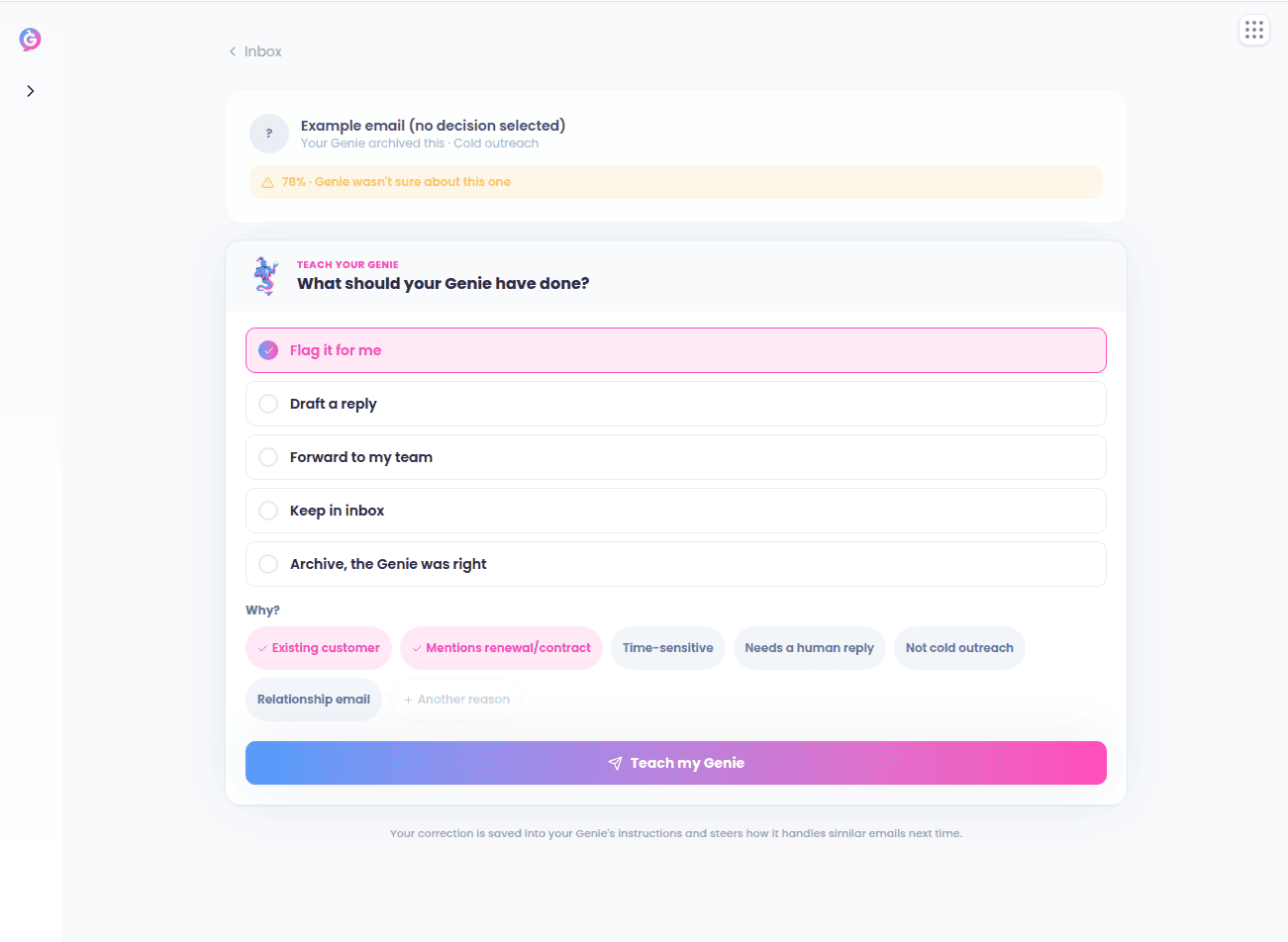 Click **Teach my Genie** to save it. Your correction becomes part of a Genie's instructions and shapes how it handles similar emails going forward.
## After you submit
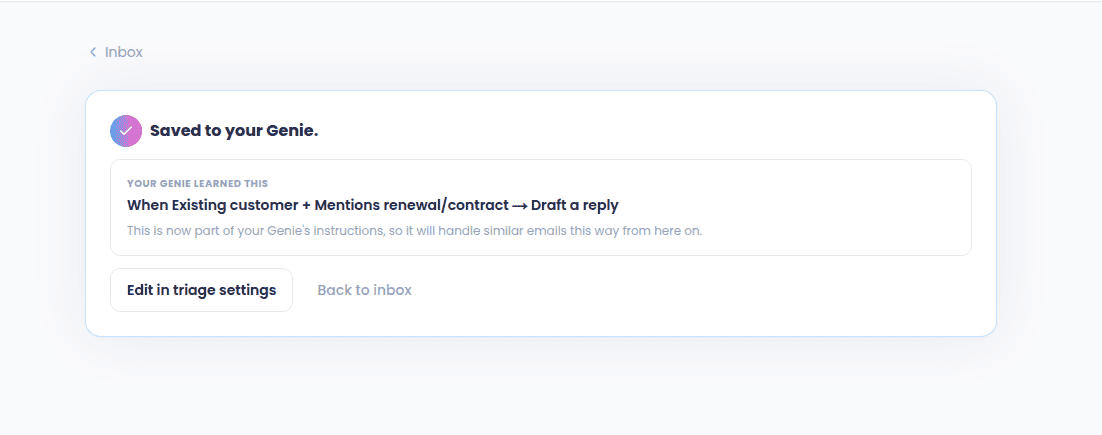
A confirmation screen spells out exactly what was learned — for example "When \[signals] → \[action]" — with links to **Edit in triage settings** or **Back to inbox**.
Click **Teach my Genie** to save it. Your correction becomes part of a Genie's instructions and shapes how it handles similar emails going forward.
## After you submit
A confirmation screen spells out exactly what was learned — for example "When \[signals] → \[action]" — with links to **Edit in triage settings** or **Back to inbox**.
 ## See also
* [Genie Decisions & the Brain](/mail-guide/genie-feed) — where else decisions and suggested replies show up.
* [Settings](/mail-guide/settings) — edit a Genie's instructions directly instead of through a correction.
## See also
* [Genie Decisions & the Brain](/mail-guide/genie-feed) — where else decisions and suggested replies show up.
* [Settings](/mail-guide/settings) — edit a Genie's instructions directly instead of through a correction.