> ## Documentation Index
> Fetch the complete documentation index at: https://docs.helpgenie.ai/llms.txt
> Use this file to discover all available pages before exploring further.
# Audiences and Contacts
> Import, review, and manage the lists your Genie calls
An audience is a list of your existing customers — missed calls, awaiting-callback
tickets, renewals, or bookings.
Outbound never supports cold-prospect lists; every contact must already have a
relationship with your business.
## The Contacts tab
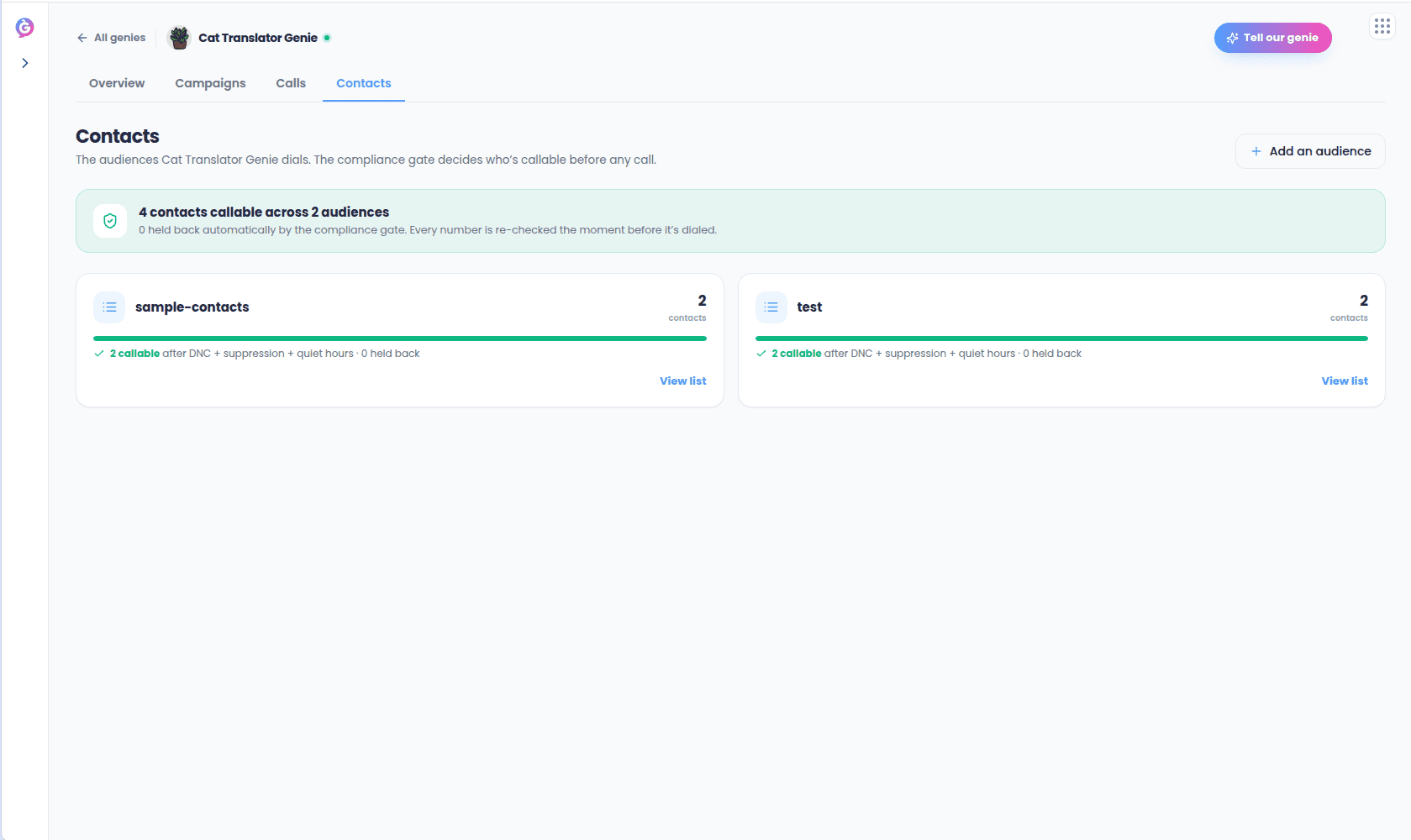
Your Genie's **Contacts** tab shows every audience as a card, with a reach banner across
the top tallying how many contacts are callable right now across all audiences after the
compliance gate (do-not-call screening, suppression, quiet hours). Choose **Add an
audience** to import a new list.
 ## Adding an audience
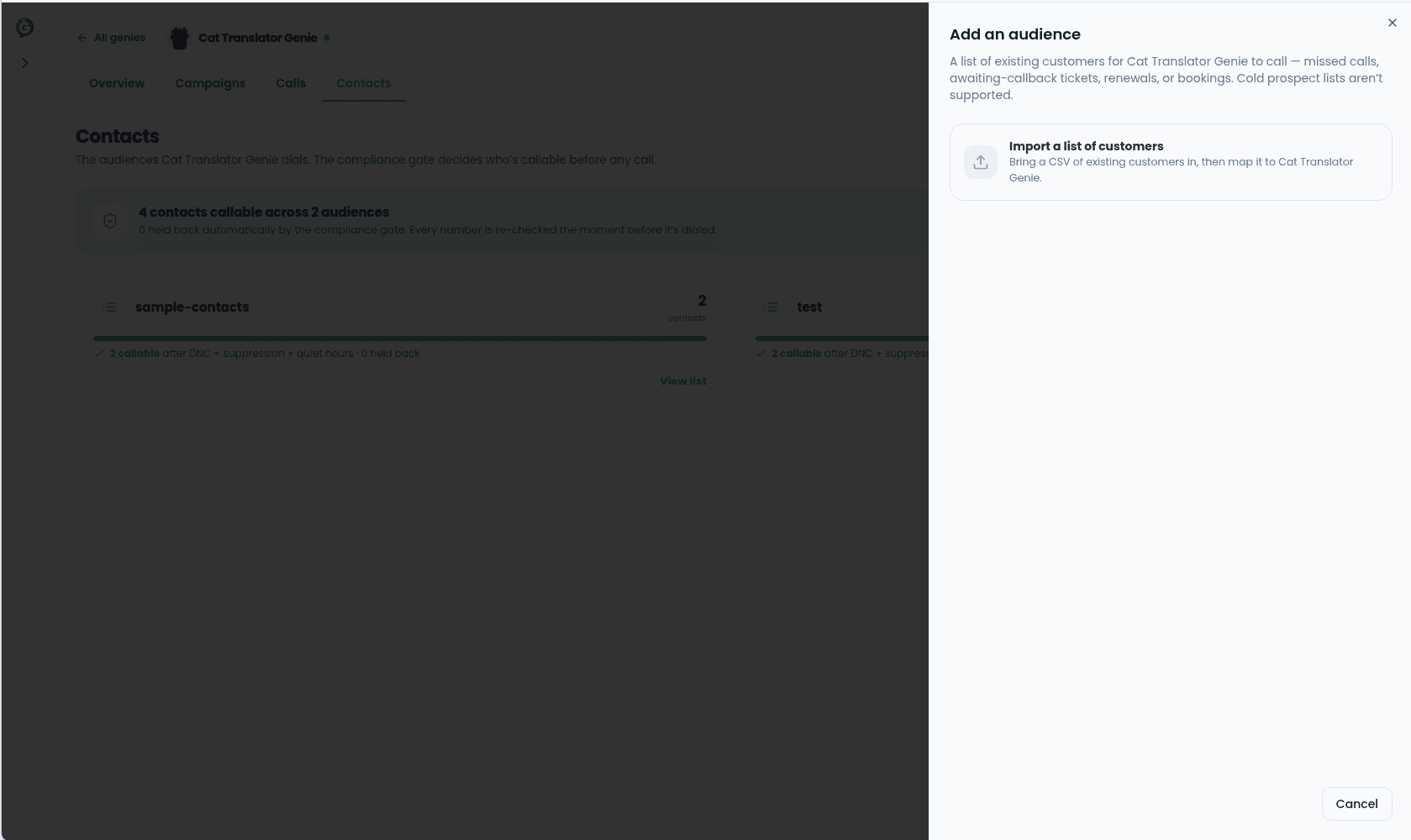
Choosing **Add an audience** opens a four-step flow:
Name the list and add an optional description.
Drop or choose a CSV of your existing customers.
The phone, name, email, and timezone columns are auto-mapped from your headers;
adjust them if needed, and set a default region (NZ, AU, US, or GB) so numbers
without a leading `+` parse correctly.
See how many rows parsed as valid contacts versus were skipped (missing, invalid, or
unparseable numbers).
## Adding an audience
Choosing **Add an audience** opens a four-step flow:
Name the list and add an optional description.
Drop or choose a CSV of your existing customers.
The phone, name, email, and timezone columns are auto-mapped from your headers;
adjust them if needed, and set a default region (NZ, AU, US, or GB) so numbers
without a leading `+` parse correctly.
See how many rows parsed as valid contacts versus were skipped (missing, invalid, or
unparseable numbers).
 Choose **Add audience** to import the valid contacts.
Numbers are validated to international dialling format at import time, but do-not-call,
suppression, and quiet-hours checks run at dial time, not here.
## Audience detail
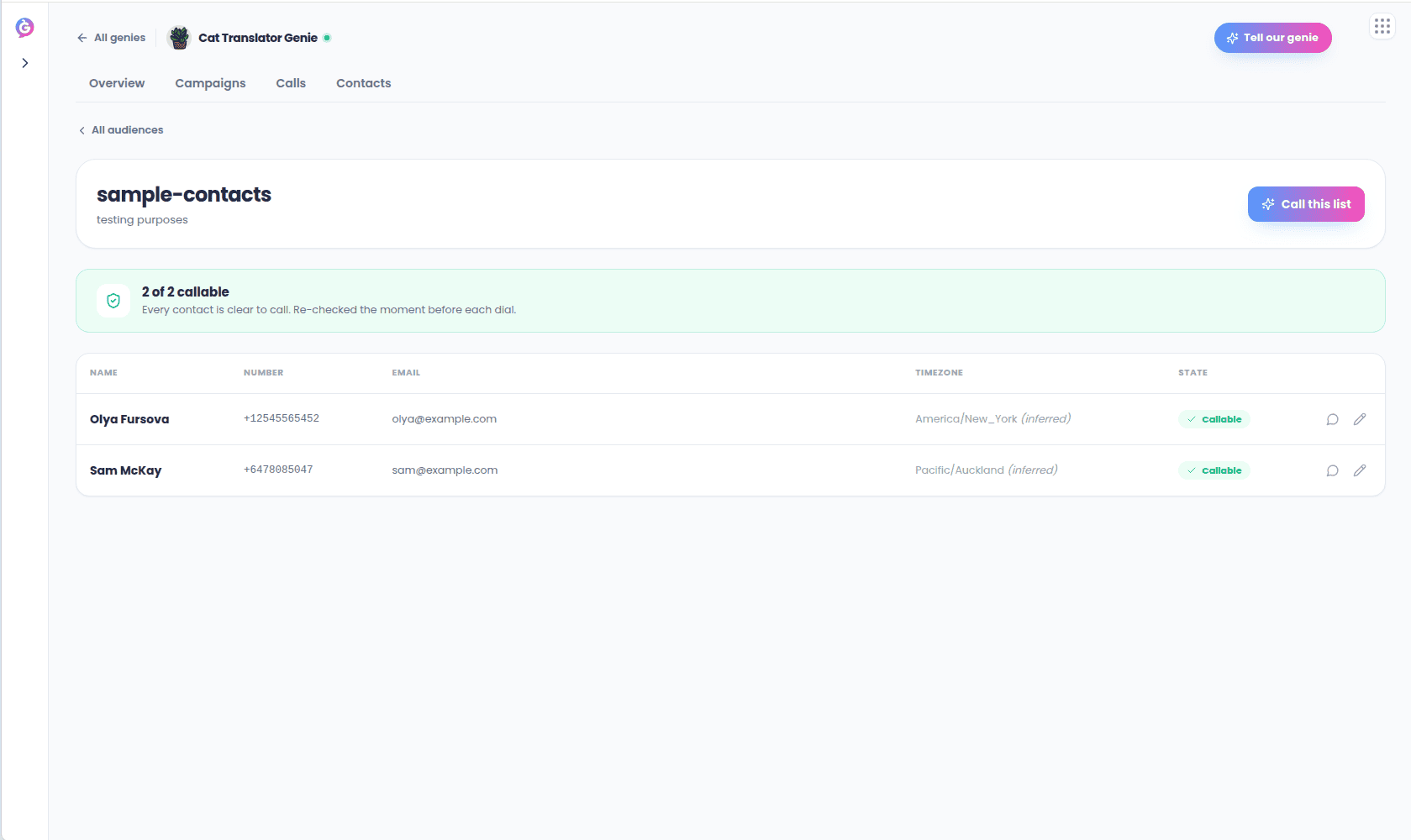
Opening an audience shows its name and description, a **Call this list** shortcut into
the launch flow, a reach summary ("N of M callable," with a plain-language reason for any
held back), and a table of every contact with their number, email, timezone, and state
(Callable, Held · quiet hours, or On DNC).
Choose **Add audience** to import the valid contacts.
Numbers are validated to international dialling format at import time, but do-not-call,
suppression, and quiet-hours checks run at dial time, not here.
## Audience detail
Opening an audience shows its name and description, a **Call this list** shortcut into
the launch flow, a reach summary ("N of M callable," with a plain-language reason for any
held back), and a table of every contact with their number, email, timezone, and state
(Callable, Held · quiet hours, or On DNC).
 From this table you can:
* **Message a contact** — opens the [SMS thread](/outbound-guide/sms) for that number.
* **Edit a contact's details.**
## Timezone handling
If a contact's row didn't include a timezone, Outbound falls back to one inferred from
their phone number, or your workspace timezone — whichever your compliance settings
specify — so what's shown here matches what the compliance gate uses at dial time.
From this table you can:
* **Message a contact** — opens the [SMS thread](/outbound-guide/sms) for that number.
* **Edit a contact's details.**
## Timezone handling
If a contact's row didn't include a timezone, Outbound falls back to one inferred from
their phone number, or your workspace timezone — whichever your compliance settings
specify — so what's shown here matches what the compliance gate uses at dial time.