> ## Documentation Index
> Fetch the complete documentation index at: https://docs.helpgenie.ai/llms.txt
> Use this file to discover all available pages before exploring further.
# Your genies
> Choose which genies go on the phones and open one to work with it
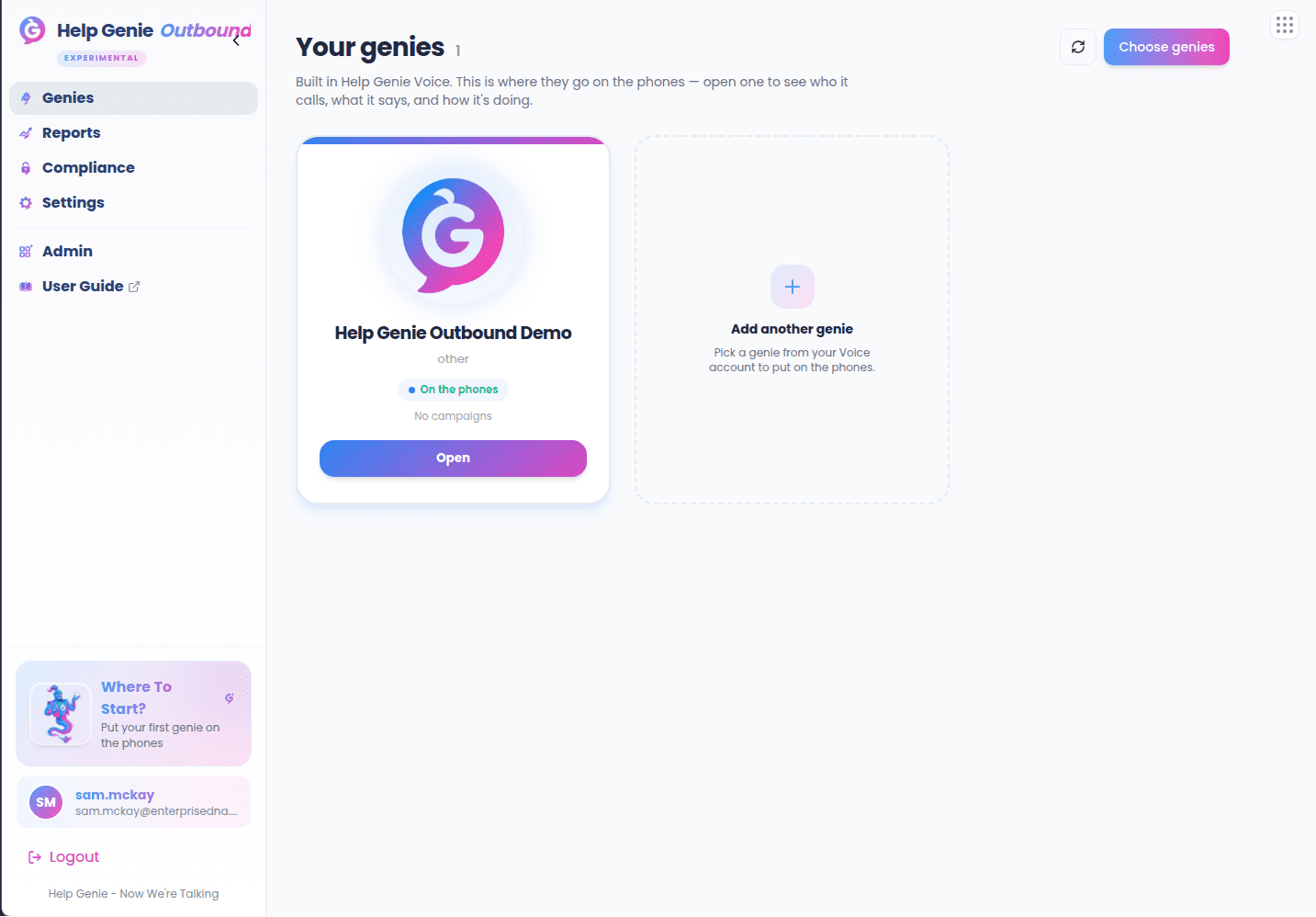
**Your genies** is the first screen you see in Outbound. It shows the genies you've
chosen to put on the phones.
Genies are always built in Help Genie Voice — Outbound never creates or edits one; it
only decides which of them make calls.
## The genie gallery
Each genie appears as a card with its mascot, name, what it does on calls, a status,
and a short summary of its week. The number next to the page title is how many genies
you've picked.
| Status | Meaning |
| - | - |
| On the phones | The genie is live and can make calls |
| Paused | The genie isn't making calls right now |
Click a card (or its **Open** button) to go into that genie and see who it calls, what
it says, and how it's doing.
 ## Choosing your genies
The first time you arrive, nothing is picked yet and you'll see **Pick your genies to
get started**.
Click **Choose genies** (or the **Add another genie** tile at the end of the
gallery).
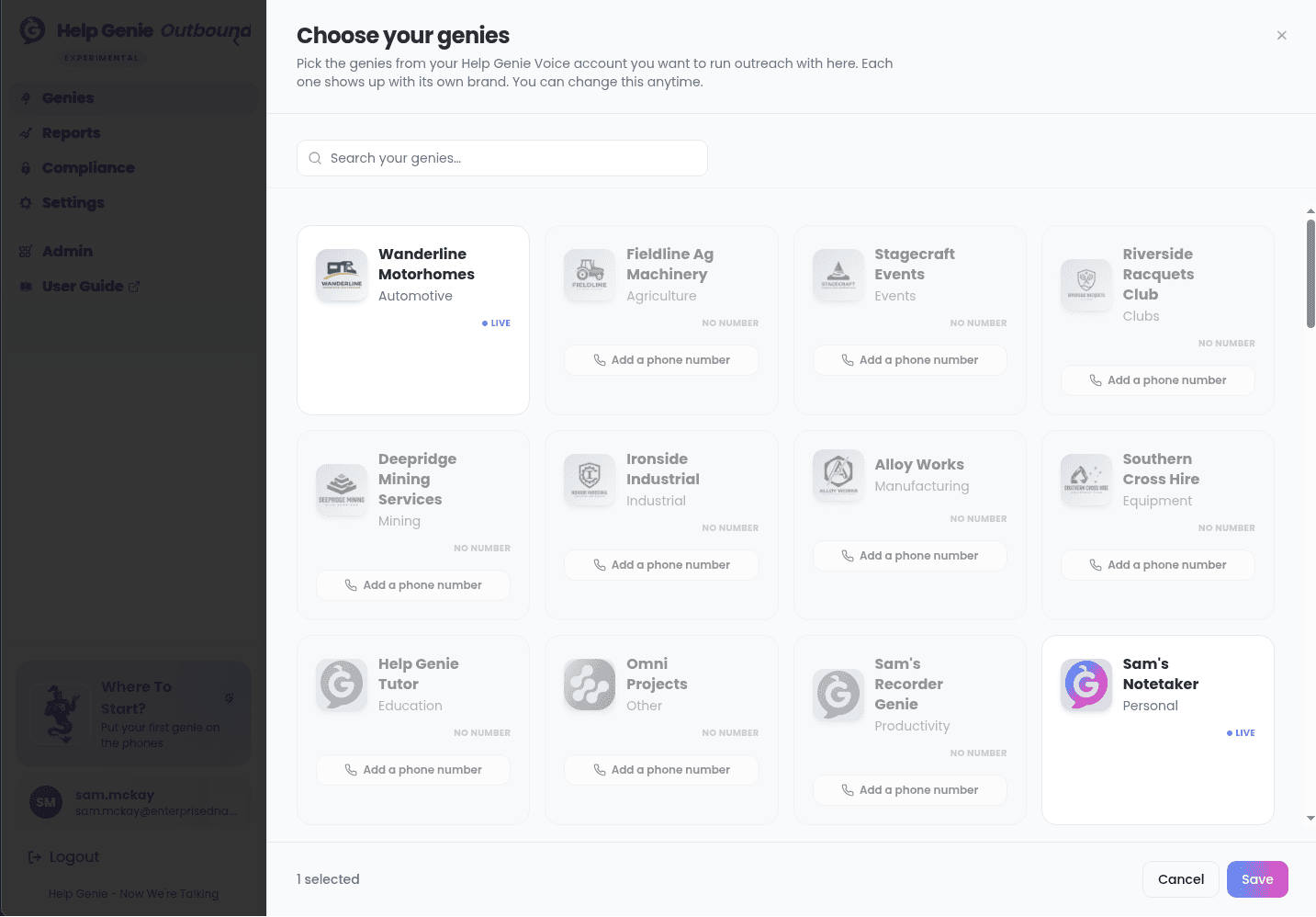
Select the genies you want. Each one shows its own brand, and whether it's **Live**
or **Paused**. If you have more than six genies, a search box lets you filter by
name, role, or brand.
Click **Save**.
You can reopen **Choose genies** at any time to add or remove genies. The selection is
shared by everyone in your workspace, not saved per person.
## Choosing your genies
The first time you arrive, nothing is picked yet and you'll see **Pick your genies to
get started**.
Click **Choose genies** (or the **Add another genie** tile at the end of the
gallery).
Select the genies you want. Each one shows its own brand, and whether it's **Live**
or **Paused**. If you have more than six genies, a search box lets you filter by
name, role, or brand.
Click **Save**.
You can reopen **Choose genies** at any time to add or remove genies. The selection is
shared by everyone in your workspace, not saved per person.
 ### Genies without a phone number
A genie needs a phone number before it can be picked. Genies without one are greyed out
and marked **No number**, with an **Add a phone number** link that opens the phone setup
for that genie in Help Genie Voice.
If a genie you'd already picked loses its number in Voice, it's dropped from your
selection the next time you save.
## Refreshing
The refresh button next to **Choose genies** reloads your genies from Help Genie Voice.
Use it after you've created a genie, renamed one, or assigned a phone number in Voice.
## If your genies don't appear
| What you see | What to do |
| - | - |
| **No genies in your Voice account yet** | Build a genie in Help Genie Voice, then come back |
| A message that Outbound isn't connected to your Voice workspace yet | An admin needs to finish the connection — your genies appear automatically once it's done |
| A prompt to sign in from Help Genie Voice | Sign in to Outbound from Help Genie Voice so your genies can be brought across |
| **Something went wrong on our side** | Wait a moment and refresh |
This documentation is built and hosted on [Mintlify](https://mintlify.com), a developer documentation platform.
### Genies without a phone number
A genie needs a phone number before it can be picked. Genies without one are greyed out
and marked **No number**, with an **Add a phone number** link that opens the phone setup
for that genie in Help Genie Voice.
If a genie you'd already picked loses its number in Voice, it's dropped from your
selection the next time you save.
## Refreshing
The refresh button next to **Choose genies** reloads your genies from Help Genie Voice.
Use it after you've created a genie, renamed one, or assigned a phone number in Voice.
## If your genies don't appear
| What you see | What to do |
| - | - |
| **No genies in your Voice account yet** | Build a genie in Help Genie Voice, then come back |
| A message that Outbound isn't connected to your Voice workspace yet | An admin needs to finish the connection — your genies appear automatically once it's done |
| A prompt to sign in from Help Genie Voice | Sign in to Outbound from Help Genie Voice so your genies can be brought across |
| **Something went wrong on our side** | Wait a moment and refresh |
This documentation is built and hosted on [Mintlify](https://mintlify.com), a developer documentation platform.