> ## Documentation Index
> Fetch the complete documentation index at: https://docs.helpgenie.ai/llms.txt
> Use this file to discover all available pages before exploring further.
# A Genie's Page
> The tabs on every genie's own page, and what each one is for.
Once you've [picked which genies to manage](/sync-guide/genies-dashboard), clicking **Manage this genie** on any card takes you into that genie's own page. This is where all the real, saved configuration happens.
Everything else in Sync — the workspace-wide Capabilities and Data collection pages — is the same information, just viewed across every genie at once instead of one at a time.
A genie's page has six tabs.
## Overview
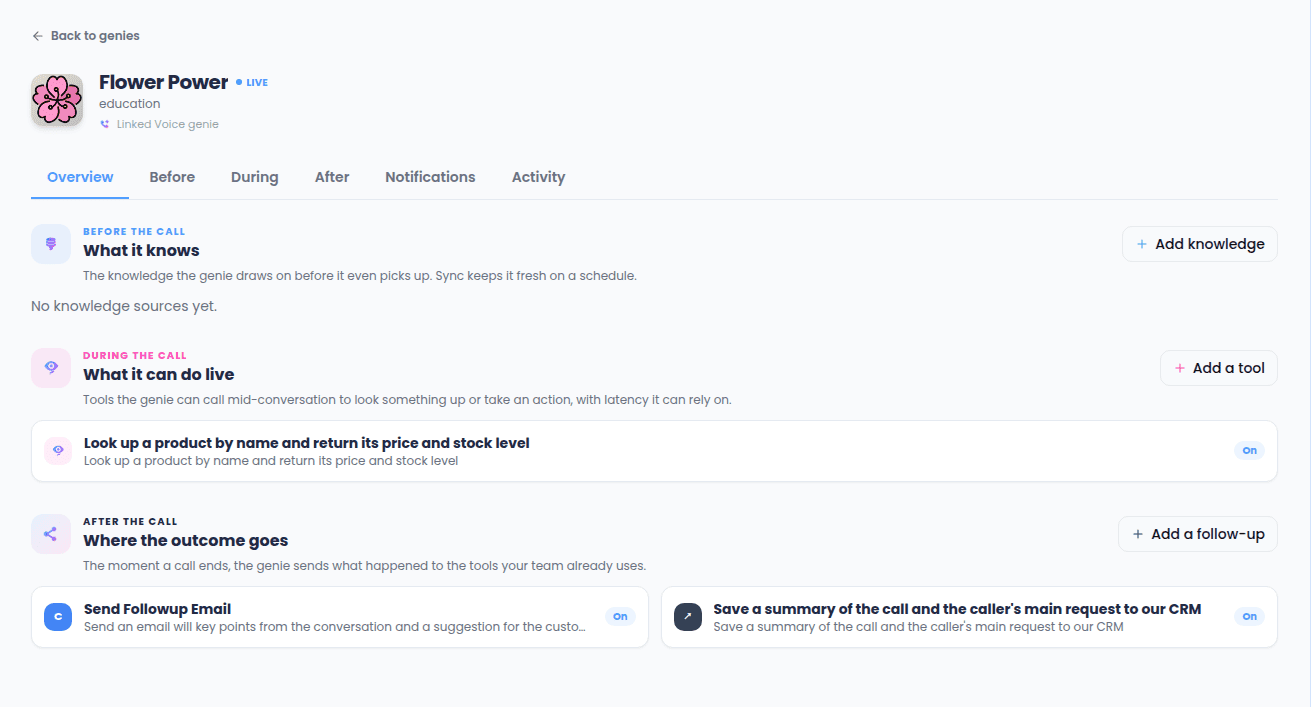
A condensed view of the other three lifecycle tabs at a glance — a few items from Before, During, and After each, with a link into the full tab if there's more than what's shown. Use this as a quick "what does this genie actually have set up" check.
 ## Before — "What it knows"
Everything that keeps this genie's knowledge current:
* **Knowledge sources** — the [knowledge syncs](/sync-guide/knowledge-sync) feeding this genie, each with its status and an on/off toggle.
* **Scheduled refreshes** — named, scheduled jobs tied to this genie.
There's also a link out to Help Genie Voice's own knowledge base editor for this genie — that's where you'd go to edit the knowledge content itself, rather than how it's kept up to date.
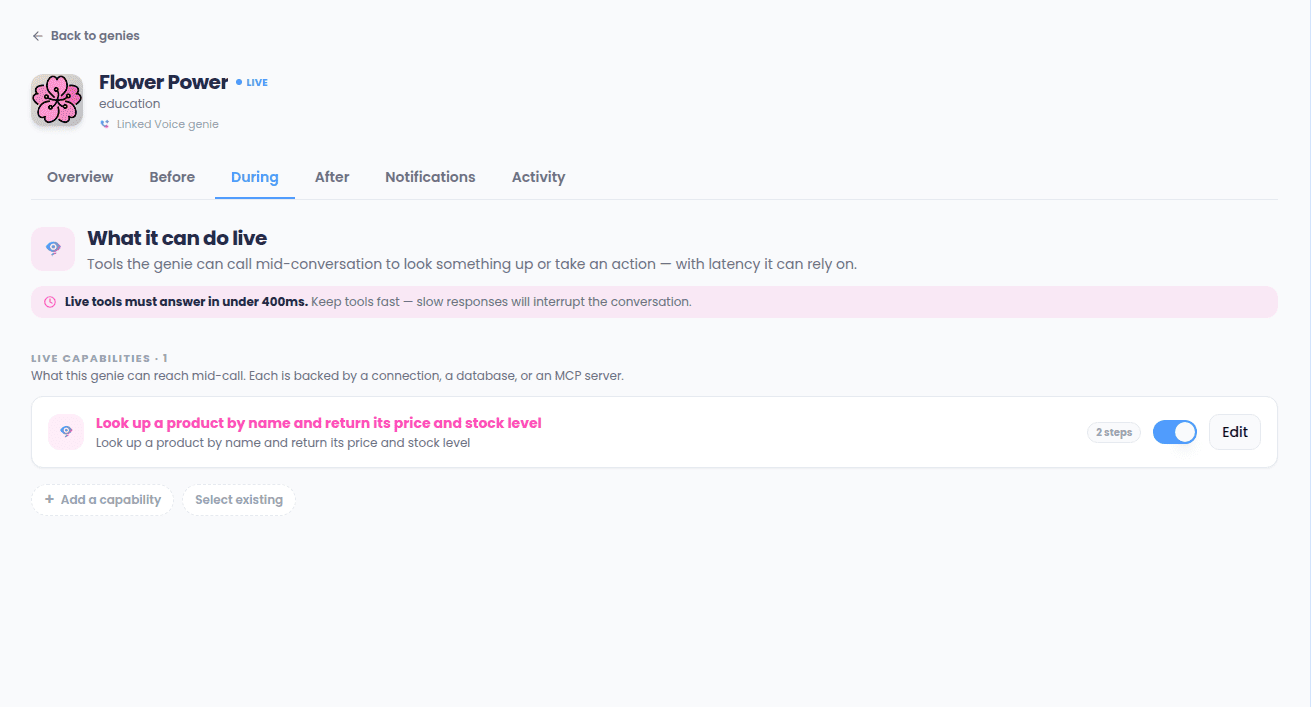
## During — "What it can do live"
The [capabilities](/sync-guide/capabilities) this genie can call mid-conversation, each with an on/off toggle. A reminder banner on this tab calls out the 400-millisecond response budget live tools have to work within.
From here you can either build a brand-new capability for this genie, or attach one that already exists (built for a different genie, or built generically) instead of starting from scratch.
## Before — "What it knows"
Everything that keeps this genie's knowledge current:
* **Knowledge sources** — the [knowledge syncs](/sync-guide/knowledge-sync) feeding this genie, each with its status and an on/off toggle.
* **Scheduled refreshes** — named, scheduled jobs tied to this genie.
There's also a link out to Help Genie Voice's own knowledge base editor for this genie — that's where you'd go to edit the knowledge content itself, rather than how it's kept up to date.
## During — "What it can do live"
The [capabilities](/sync-guide/capabilities) this genie can call mid-conversation, each with an on/off toggle. A reminder banner on this tab calls out the 400-millisecond response budget live tools have to work within.
From here you can either build a brand-new capability for this genie, or attach one that already exists (built for a different genie, or built generically) instead of starting from scratch.
 ## After — "Where the outcome goes"
The [post-call actions](/sync-guide/post-call-actions) that fire automatically once a call with this genie ends, each with its own on/off toggle. This tab also has a ready-made **HTTP request** starting point if your team wants to send the call outcome to your own system in your own way, instead of using one of the built-in action types.
## Notifications — "Notify me"
Turn on or off any of your account's already-connected [notification channels](/sync-guide/notification-channels) for this specific genie, and see a history of what's been sent.
Setting up a channel itself always happens on the account-wide Connections page — this tab only controls whether *this* genie uses it.
## Activity
This genie's own slice of the [Activity log](/sync-guide/activity-and-replay): a quick stats strip (knowledge syncs run, tools used, follow-ups fired) followed by a day-by-day timeline of everything that happened on this genie's calls and syncs. Use this when you want to know what one specific genie has been doing, without filtering through everyone else's activity too.
## After — "Where the outcome goes"
The [post-call actions](/sync-guide/post-call-actions) that fire automatically once a call with this genie ends, each with its own on/off toggle. This tab also has a ready-made **HTTP request** starting point if your team wants to send the call outcome to your own system in your own way, instead of using one of the built-in action types.
## Notifications — "Notify me"
Turn on or off any of your account's already-connected [notification channels](/sync-guide/notification-channels) for this specific genie, and see a history of what's been sent.
Setting up a channel itself always happens on the account-wide Connections page — this tab only controls whether *this* genie uses it.
## Activity
This genie's own slice of the [Activity log](/sync-guide/activity-and-replay): a quick stats strip (knowledge syncs run, tools used, follow-ups fired) followed by a day-by-day timeline of everything that happened on this genie's calls and syncs. Use this when you want to know what one specific genie has been doing, without filtering through everyone else's activity too.