> ## Documentation Index
> Fetch the complete documentation index at: https://docs.helpgenie.ai/llms.txt
> Use this file to discover all available pages before exploring further.
# Your Genies (Dashboard)
> Curate which of your Voice genies show up here and jump into managing each one.
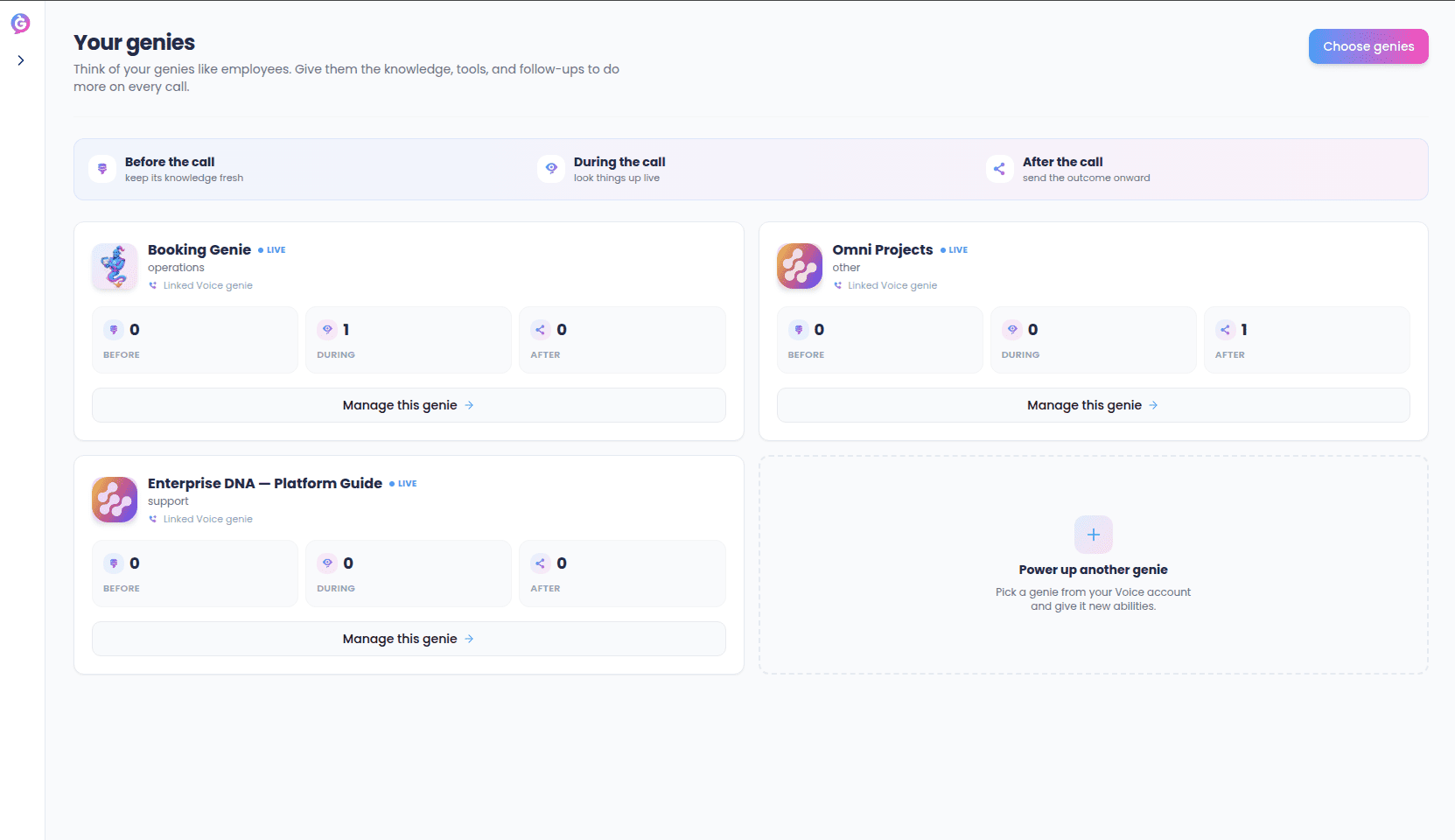
The Genies dashboard is the home page of Sync. It's where you decide which of the genies from your Help Genie Voice account you want to power up here — and where you jump in to manage each one day to day.
Think of each genie card as an employee. The dashboard is the team roster.
 ## The Before / During / After legend
At the top of the page, a small legend shows the three moments in every call your genies work across:
* **Before the call** — keep its knowledge fresh.
* **During the call** — look things up live.
* **After the call** — send the outcome onward.
Every card underneath uses the same three-part shape, so at a glance you can see how much each of your genies has been given at each stage.
## Each genie's card
Every card on the roster shows:
* The **genie's own brand** — its avatar, name, and colors, pulled straight from your Voice account so each one keeps its own identity.
* Its **role** and whether it's currently **Live** or **Paused**.
* Three counts: **Before** (knowledge sources), **During** (tools it can use mid-call), and **After** (follow-up actions).
* A **Manage this genie** button that takes you into that genie's own workspace to edit its knowledge, tools, and follow-ups.
## Choosing which genies appear
You probably have more genies in your Voice account than you want to think about here. The **Choose genies** button (top-right of the page, and also the empty state when you first arrive) opens a side panel with every genie in your Voice account. Tick the ones you want to show up on the dashboard and save.
## The Before / During / After legend
At the top of the page, a small legend shows the three moments in every call your genies work across:
* **Before the call** — keep its knowledge fresh.
* **During the call** — look things up live.
* **After the call** — send the outcome onward.
Every card underneath uses the same three-part shape, so at a glance you can see how much each of your genies has been given at each stage.
## Each genie's card
Every card on the roster shows:
* The **genie's own brand** — its avatar, name, and colors, pulled straight from your Voice account so each one keeps its own identity.
* Its **role** and whether it's currently **Live** or **Paused**.
* Three counts: **Before** (knowledge sources), **During** (tools it can use mid-call), and **After** (follow-up actions).
* A **Manage this genie** button that takes you into that genie's own workspace to edit its knowledge, tools, and follow-ups.
## Choosing which genies appear
You probably have more genies in your Voice account than you want to think about here. The **Choose genies** button (top-right of the page, and also the empty state when you first arrive) opens a side panel with every genie in your Voice account. Tick the ones you want to show up on the dashboard and save.
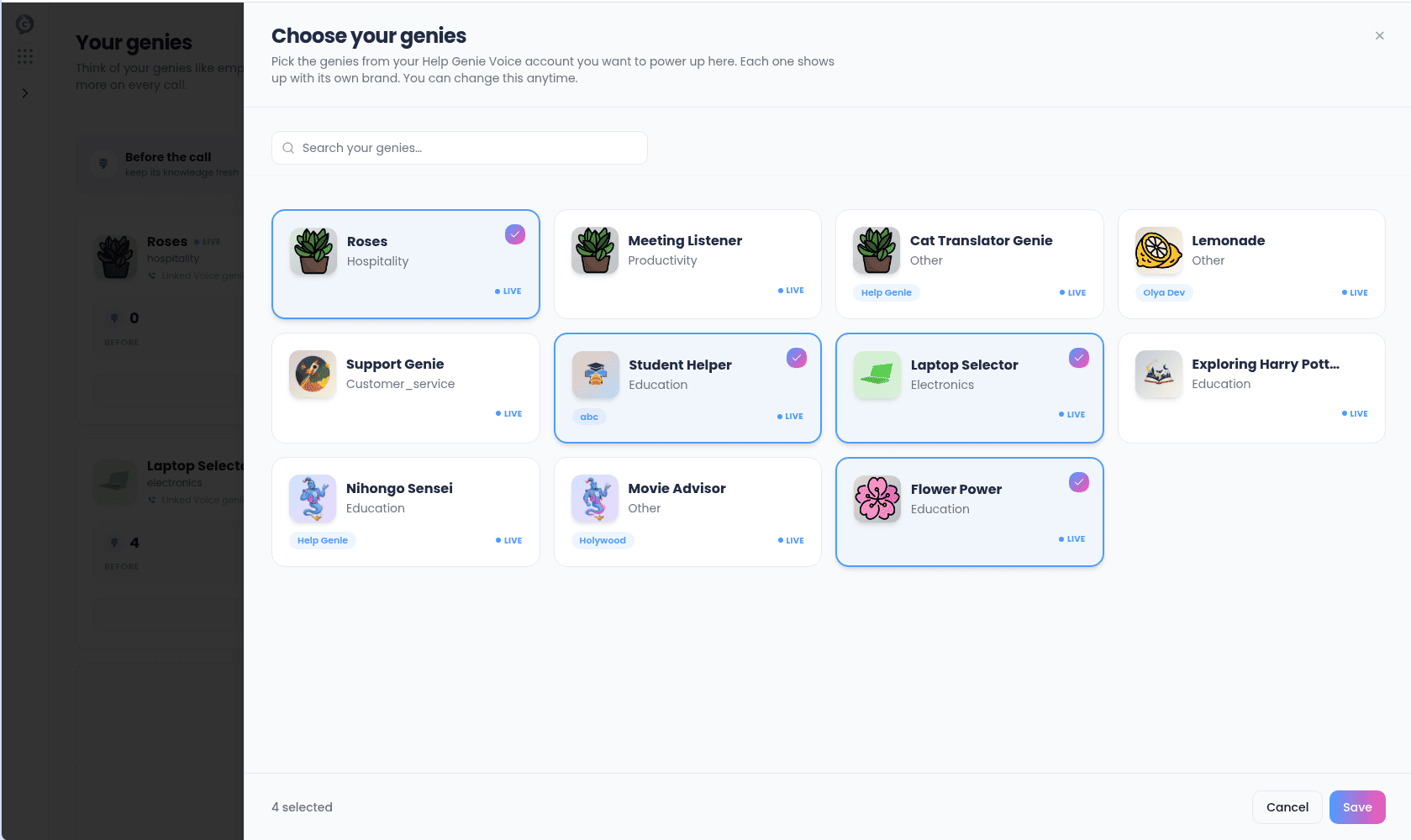 The picks stick — the next time you come back, the same genies are there. You can change the selection any time from the same button.
There's also a **Power up another genie** tile at the end of your roster that opens the same picker, in case you want to add one without hunting for the top-right button.
## When there's nothing to show yet
Depending on where you are in setting things up, the dashboard shows one of three empty states instead of a roster:
* **You haven't linked your Voice account yet** — you'll see a card asking for a Help Genie Voice API key. Paste it in and the dashboard will start listing your real genies.
* **Your Voice account has no genies yet** — you'll see a prompt to go build one in Voice and come back. Nothing to configure here until there's a genie to power up.
* **You've linked Voice and have genies, but haven't picked any** — you'll see a friendly **Pick your genies to get started** panel with a **Choose genies** button that opens the same picker described above.
## What to do from here
Once your roster is set, most of your work moves *into* each genie — click **Manage this genie** on any card to give it new knowledge, connect a tool, or set up a follow-up action. The dashboard's job is just to be the doorway in.
The picks stick — the next time you come back, the same genies are there. You can change the selection any time from the same button.
There's also a **Power up another genie** tile at the end of your roster that opens the same picker, in case you want to add one without hunting for the top-right button.
## When there's nothing to show yet
Depending on where you are in setting things up, the dashboard shows one of three empty states instead of a roster:
* **You haven't linked your Voice account yet** — you'll see a card asking for a Help Genie Voice API key. Paste it in and the dashboard will start listing your real genies.
* **Your Voice account has no genies yet** — you'll see a prompt to go build one in Voice and come back. Nothing to configure here until there's a genie to power up.
* **You've linked Voice and have genies, but haven't picked any** — you'll see a friendly **Pick your genies to get started** panel with a **Choose genies** button that opens the same picker described above.
## What to do from here
Once your roster is set, most of your work moves *into* each genie — click **Manage this genie** on any card to give it new knowledge, connect a tool, or set up a follow-up action. The dashboard's job is just to be the doorway in.