> ## Documentation Index
> Fetch the complete documentation index at: https://docs.helpgenie.ai/llms.txt
> Use this file to discover all available pages before exploring further.
# Activation
> Turn any Genie into ready-to-ship activation assets — a branded microsite, one smart link, QR codes, print packs, email signatures, and launch copy.
Activation is where you get a Genie out into the world. Every Genie comes with an **activation pack**: a bundle of ready-made ways for people to reach it — a branded activation page, a single smart link, QR codes and print materials, an email signature, a website embed snippet, and ready-to-paste launch copy. You pick what you want, download it, and share it.
You'll find it under **Genie Hub → Activation** (`/genie-hub/activation`). You can also jump straight to a Genie's pack from that Genie's workspace, from a conversation's side panel, or right after finishing setup.
 ## The Activation list
The list shows every Genie you have, each as a card with its avatar, name, and a status line — either **Phone connected** or **Activation pack ready**. Use the search box to filter by name; the count next to **Your Genies** shows how many match.
Select any card to open that Genie's activation pack. If the Genie doesn't have a pack yet, one is created automatically with sensible defaults the first time you open it — see [Creating an activation pack](/activation-create).
If you don't have any Genies yet, the list shows an empty state instead. Choose **Go to My Genies** to create your first Genie — its activation pack is generated for you as part of setup.
## The activation pack
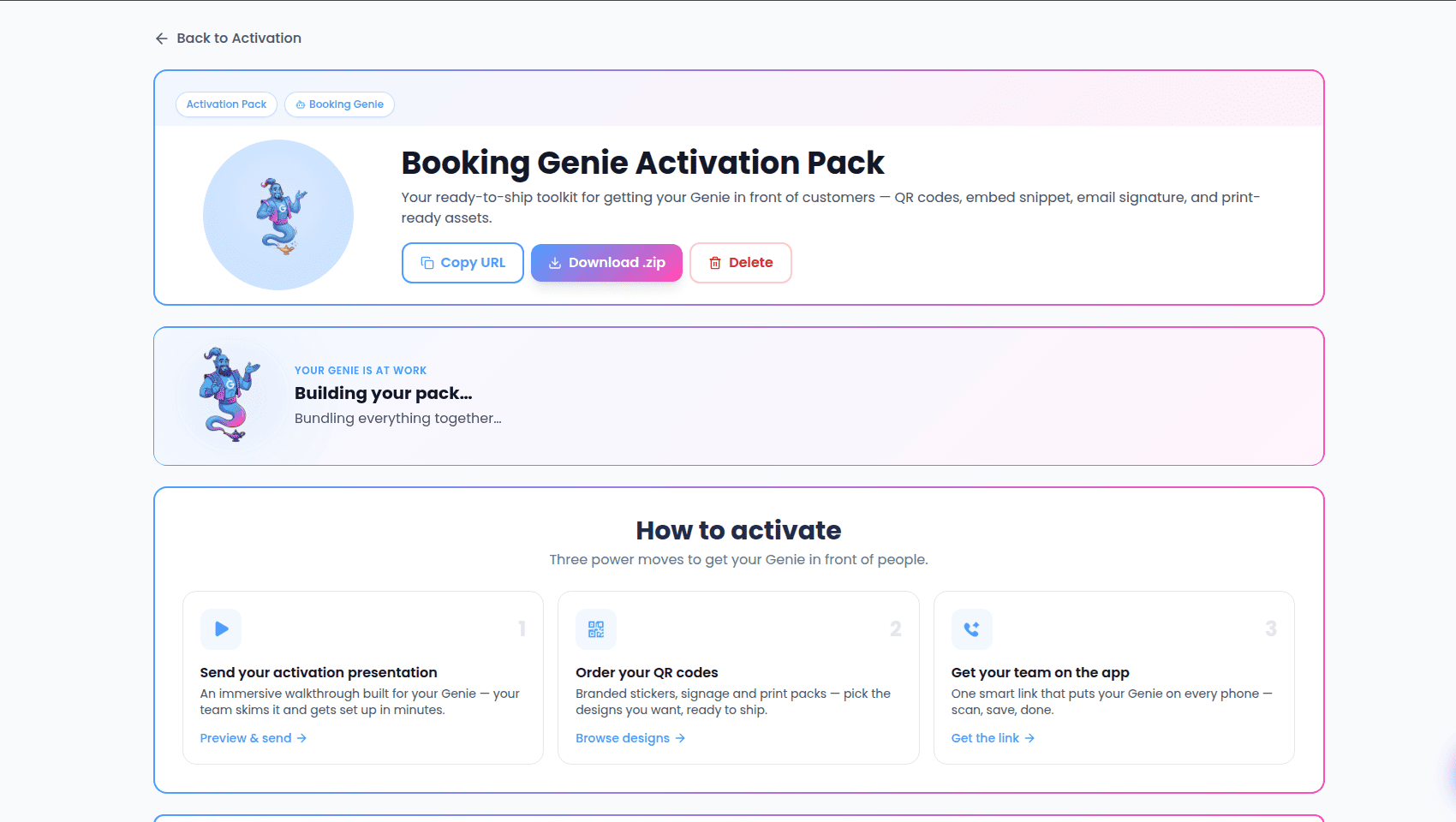
Opening a pack lands you on its detail page. The header shows the Genie (or portal) it belongs to, the pack name and description, and four quick actions:
* **Copy URL** — copies the pack's main web link to your clipboard.
* **Download .zip** — downloads the entire pack as a single archive (covered below).
* **Save Changes** — appears only when you have unsaved edits in **Pack settings**.
* **Delete** — removes the pack after a confirmation prompt. This can't be undone.
A pack may briefly show a "still building" strip the first time you open it, while its assets and launch copy finish generating in the background. Everything becomes available on its own — you don't need to refresh.
## How to activate
The top of the page lays out the three highest-value moves. Each one jumps you to the section that does the work.
### 1. Send your activation presentation
The **Activation presentation** is an immersive, branded walkthrough built for your Genie — a guided page your team can skim in a few minutes, ending with one-tap setup. Preview it by selecting the branded card, then **Copy link** to send it in a message or email. Whoever opens it can download the app, scan the QR code, or save the link straight from the last page.
### 2. Order your QR codes
The **Lookbook** is a set of print-ready designs — stickers, signage, and counter cards — each branded with your Genie. Flip through the gallery with the arrows or thumbnails, expand any design full-screen, and **Download PDF** to get a print-ready file of all designs.
**Order printed packs** — having us print and ship the designs to your door — is coming soon. For now, download the PDF and print it yourself or send it to your printer.
### 3. Get your team on the app
This section gives you one **smart link** that sends each person to the right place for their device — the app on a phone, or straight into your Genie on the web. Copy the link to share it anywhere, use the App Store and Google Play badges, or download a branded **install poster** as an image or a print-ready PDF.
Just below, **Activate in app** shows a live, on-brand QR code for the same smart link. Print it on stickers, counter cards, and signage — scanning it drops people straight into a conversation with your Genie. **Download poster** saves it as an image.
## Promote
The **Promote** section gives you ready-to-paste launch copy, written automatically from your Genie's name, description, and link. There's a card for each of:
* **Launch Email** — announce your Genie to customers and prospects (includes a subject line).
* **Social Post** — a post to share with your network.
* **Customer SMS** — a short text for existing customers.
* **Team Announcement** — an internal note so staff know how it works (includes a subject line).
* **Website Banner** — short copy for a homepage strip or popup.
Each card has a **tone** switch — **Professional**, **Friendly**, or **Punchy**. Switching tone drafts that version the first time you pick it. Use **Copy** to grab the text, or the refresh button to draft a fresh version. Each card shows when it was last generated.
## Your Pack — download everything
The **Your Pack** section bundles everything into one download. **Download .zip** gives you a single archive containing your QR codes, lookbook, app poster, sticker PDF, social card, email signature, website embed snippet, the ready-to-paste launch copy, and a start-here guide. The **What's inside** list shows each item; text items like the email signature and embed snippet have their own **Copy** button so you can grab them without downloading.
## Pack settings
Configuration lives in the collapsible **Pack settings** panel at the bottom — expand it to review or change how the pack is built. Each block has its own **Edit** toggle, and your changes are held until you choose **Save Changes** in the header.
* **Pack Overview** — the pack name and description. (The Genie or portal a pack targets is fixed once the pack exists and can't be switched here.)
* **Contact Channels** — which ways of reaching your Genie the pack promotes: **Web Widget**, **Phone Call**, **SMS**, and **WhatsApp**.
* **Materials** — which assets to generate, split into **Physical Materials** (QR Code Sticker) and **Digital Assets** (Email Signature, Social Card).
* **Customization** — a **Tagline** shown on stickers and marketing materials, the **Sticker Size** (2"×2", 3"×3", or 4"×4" — shown only when QR stickers are on), whether to **include your logo in QR codes**, and whether to **show your phone number on materials**.
* **Quick Links** — copyable links: the pack's target URL, its activation page, and the Genie's phone number when one is connected.
For a walkthrough of these same settings while first building a pack, see [Creating an activation pack](/activation-create).
## Deleting a pack
Select **Delete** in the header and confirm in the dialog. Deleting a pack removes it and its generated assets. It doesn't affect the underlying Genie — you can always open Activation again to generate a fresh pack for that Genie.
## The Activation list
The list shows every Genie you have, each as a card with its avatar, name, and a status line — either **Phone connected** or **Activation pack ready**. Use the search box to filter by name; the count next to **Your Genies** shows how many match.
Select any card to open that Genie's activation pack. If the Genie doesn't have a pack yet, one is created automatically with sensible defaults the first time you open it — see [Creating an activation pack](/activation-create).
If you don't have any Genies yet, the list shows an empty state instead. Choose **Go to My Genies** to create your first Genie — its activation pack is generated for you as part of setup.
## The activation pack
Opening a pack lands you on its detail page. The header shows the Genie (or portal) it belongs to, the pack name and description, and four quick actions:
* **Copy URL** — copies the pack's main web link to your clipboard.
* **Download .zip** — downloads the entire pack as a single archive (covered below).
* **Save Changes** — appears only when you have unsaved edits in **Pack settings**.
* **Delete** — removes the pack after a confirmation prompt. This can't be undone.
A pack may briefly show a "still building" strip the first time you open it, while its assets and launch copy finish generating in the background. Everything becomes available on its own — you don't need to refresh.
## How to activate
The top of the page lays out the three highest-value moves. Each one jumps you to the section that does the work.
### 1. Send your activation presentation
The **Activation presentation** is an immersive, branded walkthrough built for your Genie — a guided page your team can skim in a few minutes, ending with one-tap setup. Preview it by selecting the branded card, then **Copy link** to send it in a message or email. Whoever opens it can download the app, scan the QR code, or save the link straight from the last page.
### 2. Order your QR codes
The **Lookbook** is a set of print-ready designs — stickers, signage, and counter cards — each branded with your Genie. Flip through the gallery with the arrows or thumbnails, expand any design full-screen, and **Download PDF** to get a print-ready file of all designs.
**Order printed packs** — having us print and ship the designs to your door — is coming soon. For now, download the PDF and print it yourself or send it to your printer.
### 3. Get your team on the app
This section gives you one **smart link** that sends each person to the right place for their device — the app on a phone, or straight into your Genie on the web. Copy the link to share it anywhere, use the App Store and Google Play badges, or download a branded **install poster** as an image or a print-ready PDF.
Just below, **Activate in app** shows a live, on-brand QR code for the same smart link. Print it on stickers, counter cards, and signage — scanning it drops people straight into a conversation with your Genie. **Download poster** saves it as an image.
## Promote
The **Promote** section gives you ready-to-paste launch copy, written automatically from your Genie's name, description, and link. There's a card for each of:
* **Launch Email** — announce your Genie to customers and prospects (includes a subject line).
* **Social Post** — a post to share with your network.
* **Customer SMS** — a short text for existing customers.
* **Team Announcement** — an internal note so staff know how it works (includes a subject line).
* **Website Banner** — short copy for a homepage strip or popup.
Each card has a **tone** switch — **Professional**, **Friendly**, or **Punchy**. Switching tone drafts that version the first time you pick it. Use **Copy** to grab the text, or the refresh button to draft a fresh version. Each card shows when it was last generated.
## Your Pack — download everything
The **Your Pack** section bundles everything into one download. **Download .zip** gives you a single archive containing your QR codes, lookbook, app poster, sticker PDF, social card, email signature, website embed snippet, the ready-to-paste launch copy, and a start-here guide. The **What's inside** list shows each item; text items like the email signature and embed snippet have their own **Copy** button so you can grab them without downloading.
## Pack settings
Configuration lives in the collapsible **Pack settings** panel at the bottom — expand it to review or change how the pack is built. Each block has its own **Edit** toggle, and your changes are held until you choose **Save Changes** in the header.
* **Pack Overview** — the pack name and description. (The Genie or portal a pack targets is fixed once the pack exists and can't be switched here.)
* **Contact Channels** — which ways of reaching your Genie the pack promotes: **Web Widget**, **Phone Call**, **SMS**, and **WhatsApp**.
* **Materials** — which assets to generate, split into **Physical Materials** (QR Code Sticker) and **Digital Assets** (Email Signature, Social Card).
* **Customization** — a **Tagline** shown on stickers and marketing materials, the **Sticker Size** (2"×2", 3"×3", or 4"×4" — shown only when QR stickers are on), whether to **include your logo in QR codes**, and whether to **show your phone number on materials**.
* **Quick Links** — copyable links: the pack's target URL, its activation page, and the Genie's phone number when one is connected.
For a walkthrough of these same settings while first building a pack, see [Creating an activation pack](/activation-create).
## Deleting a pack
Select **Delete** in the header and confirm in the dialog. Deleting a pack removes it and its generated assets. It doesn't affect the underlying Genie — you can always open Activation again to generate a fresh pack for that Genie.