> ## Documentation Index
> Fetch the complete documentation index at: https://docs.helpgenie.ai/llms.txt
> Use this file to discover all available pages before exploring further.
# Genie Trust Center
> Stress-test a Genie's behaviour across the conversations it might face — run full audits, targeted evaluations, and manual tests, then review the results and export a report.
The Genie Trust Center is where you check how a Genie behaves across the awkward, tricky, and off-script conversations it might face in the real world. You run audits and tests against a Genie, then review scenario-by-scenario transcripts to see where it held up and where it slipped.
You'll find it under **Genie Hub → Genie Trust Center** (`/genie-hub/brand-integrity`).
 You need at least one Genie before you can run anything here. If you have none, the page points you to **My Genies** to create one first.
## The main page
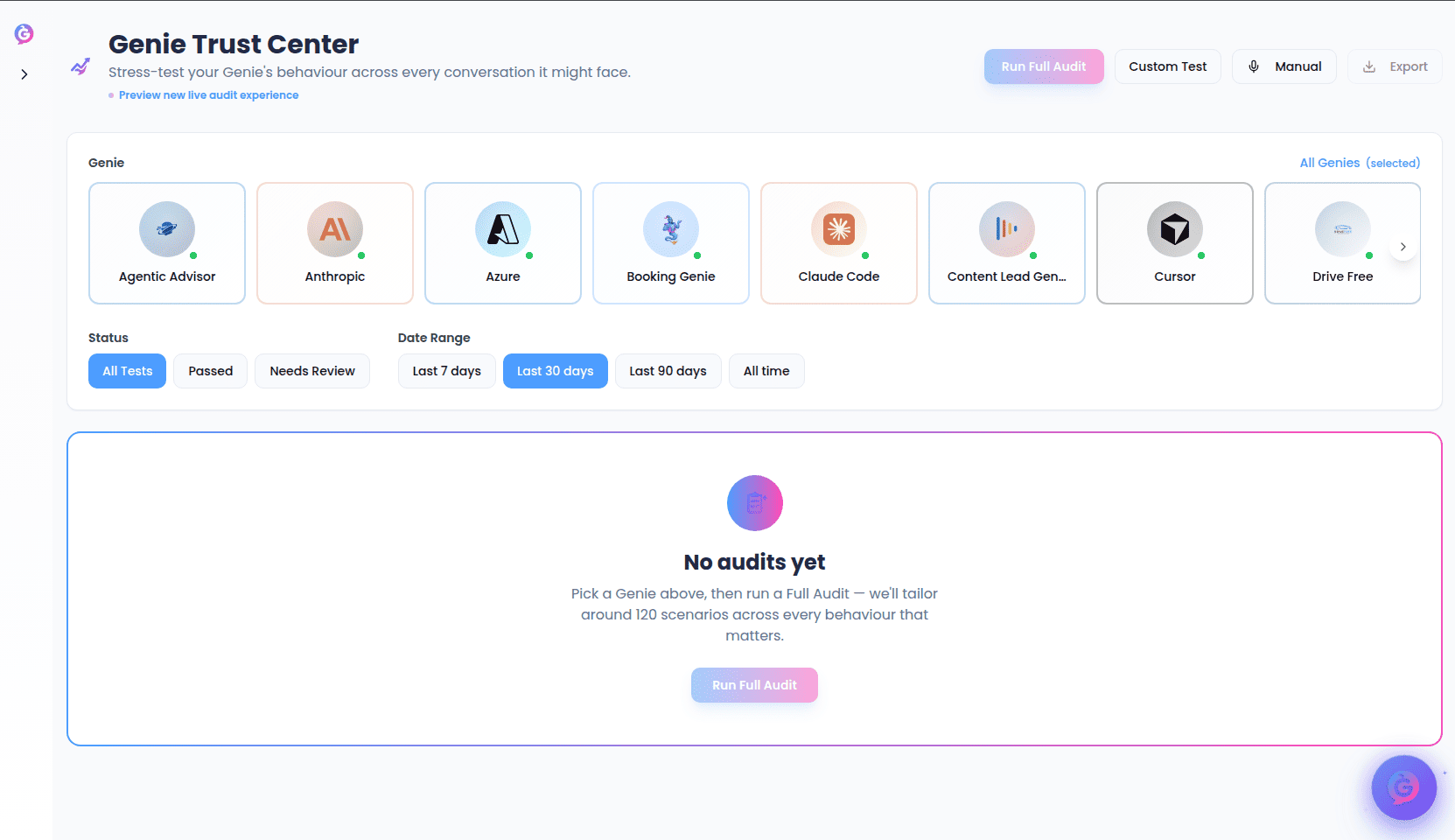
At the top you'll see the **Genie Trust Center** heading and four actions:
* **Run Full Audit** — the primary action. Runs a comprehensive, tailored audit against the selected Genie (see [Running a full audit](#running-a-full-audit)). You must pick a Genie first — until you do, the button is disabled and hovering it shows a "Select a genie first" hint.
* **Custom Test** — opens the evaluation builder, where you pick exactly which tests to run (see [Running a custom evaluation](#running-a-custom-evaluation)).
* **Manual** — start a live voice conversation with a Genie and save the transcript for review (see [Manual tests](#manual-tests)).
* **Export** — download a spreadsheet report for the selected Genie (see [Exporting results](#exporting-results)). Also requires a Genie to be selected.
There's also a **Preview new live audit experience** link near the heading — see [The live audit experience (preview)](#the-live-audit-experience-preview).
### Filters
Below the header, a filter panel controls which results you see:
* **Genie** — pick a single Genie to focus on, or choose **All Genies**. Selecting a Genie here is also what enables **Run Full Audit** and **Export**.
* **Status** — **All Tests**, **Passed**, or **Needs Review**.
* **Date Range** — **Last 7 days**, **Last 30 days**, **Last 90 days**, or **All time**.
### Results list
Past runs appear as a list, newest first, with more loading as you scroll. A count at the bottom shows how many of the total runs you're viewing. Each card shows the Genie's avatar and name, when the run happened, and a status summary that depends on the run type:
* **Full Audit** runs show a **Full Audit** tag and, once finished, an overall **Score out of 100** and an **Audit Complete** badge.
* **Evaluation** runs show a passed/needs-review count and a badge — **All Passed**, or **\ Need Review**.
* **Manual** runs show a **Manual Test** badge and a microphone icon.
* Runs still in progress show a **Running** (or **Audit Running**) badge. Full audits also show a **Watch Live** button that opens the [live audit experience](#the-live-audit-experience-preview).
* Runs that didn't finish show a **Failed** badge.
Select any card to expand it. Inside you'll see:
* For full audits, an **Audit summary** with the overall score and a short written narrative.
* For runs that failed, a card explaining what went wrong.
* The individual results, grouped by category (for example, **Competitor Handling**, **Pricing & Objections**, **Jailbreak Resistance**). Each result shows whether it **Passed** or **Needs Review** — or, for manual tests, a **View Transcript** link with the number of conversation turns.
Select an individual result to open a drawer with the full details and transcript for that scenario.
## Running a full audit
Select a Genie in the filters, then choose **Run Full Audit**. A panel opens that's tailored to that Genie.
* The audit reads the Genie's own setup — its prompt, knowledge base, goal, and tone — and generates bespoke scenarios written specifically for it.
* Scenarios are spread across **11 review areas**: Competitor Handling, Pricing & Objections, Off-Topic Deflection, Data Security, Service Accuracy, Professional Boundaries, Edge Cases, Brand Voice Consistency, Jailbreak Resistance, Hallucination Resistance, and Lead Capture & Escalation.
* Each area starts with a recommended number of scenarios, which you can adjust from **1 to 20** per area. The panel shows the running total it will generate.
Every scenario runs as a real conversation with your Genie. When it finishes you get an overall score, a breakdown by area, and the exact transcripts where the Genie slipped.
Select **Run Full Audit** to start. Audits typically take **3–5 minutes** and continue in the background — you can close the panel or leave the Genie Trust Center entirely, and you'll be notified when results are ready. While it runs, the panel shows two phases: **Tailoring your audit** (writing the scenarios) and **Running scenarios** (holding the conversations). A progress card also appears at the top of the results list.
From the running panel you can select **Watch live** to follow the audit conversation-by-conversation in the [live audit experience](#the-live-audit-experience-preview).
When the audit completes, the panel shows:
* A **score out of 100** with a plain-language band: **Strong** (85+), **Worth a look** (65–84), or **Needs attention** (below 65).
* The number of scenarios tested.
* **View Detailed Results**, which jumps you to that run in the list so you can read every transcript.
A branded, one-click **Executive PDF** is marked "Coming soon" in the completed view. For now, use **View Detailed Results** or the [Export](#exporting-results) option for a shareable report.
If an audit can't finish, the panel shows the reason and a **Try the audit again** option.
## Running a custom evaluation
**Custom Test** opens the **Run Evaluation** builder, where you choose exactly which checks to run rather than a full audit.
1. **Select a Genie.** The Genie must be set up for voice conversations; if it isn't, you'll see a note and won't be able to run the evaluation.
2. A summary card shows how many tests are selected out of the **maximum of 30 per run**. Choose **Customize** to open the test picker.
3. Pick from three groups:
* **Core Tests** — the standard set of behaviour checks, all selected by default.
* **Recommended** — tests tailored to this specific Genie. Use **Regenerate** to refresh them.
* **My Custom Tests** — tests you've written yourself. Use **Add Test** to create a new one (see [Creating a custom test](#creating-a-custom-test)).
4. Use **Select All** / **Deselect All** to adjust quickly. If you go over 30, the builder tells you how many to remove.
Select **Run** to start. The evaluation runs in the background, and you can navigate away — progress shows in the results list and the sidebar.
### Creating a custom test
From the evaluation builder, **Add Test** opens a form to write your own scenario:
* **Test Name** (required) — for example, "Return Policy Questions".
* **Description** — a short summary of what the test checks.
* **Test Prompts** — the messages a simulated user will send to your Genie. Add at least one; add more to cover different phrasings of the same scenario.
Select **Create Test** to save it. It's added to your custom tests and selected for the current run. Your custom test then simulates a conversation using those prompts and evaluates how the Genie handles it.
## Manual tests
**Manual** opens a live voice test. Pick a Genie that's set up for voice, then select the avatar (or **Start Conversation**) to begin talking to it directly — a real, spoken conversation, up to 20 minutes long.
When you're done, select the avatar again or **End & Save Conversation**. The transcript is saved to the Genie Trust Center as a **Manual Test** run, where you can reopen it later. If the conversation drops unexpectedly, it's saved automatically so you don't lose it.
## Exporting results
Select a Genie in the filters, then choose **Export** to download a spreadsheet report for that Genie over the current date range. You can choose what to include:
* **Include Conversation Transcripts** — full turn-by-turn logs for each test.
* **Include Criteria Breakdown** — detailed pass/fail results for each evaluation criterion, with reasoning.
The report contains an executive summary, a list of test runs, detailed results, an issues analysis, and — depending on your choices — transcripts and a criteria breakdown. Select **Export Excel** to download. If there's no test data in range, you'll be told there's nothing to export.
## The live audit experience (preview)
The **Preview new live audit experience** link opens `/genie-hub/brand-integrity/preview`, a real-time view of an audit running scenario-by-scenario — live conversation tiles, a running scenario count, elapsed time, and a feed of recent verdicts (passed or flagged, with the reason).
This is an early-access preview and is labelled as such in the product. It may change, and some details may still be evolving — treat it as a look ahead rather than final, stable behaviour. The stable way to run and review audits is the [full audit flow](#running-a-full-audit) described above.
There are two ways you'll land here:
* **Static preview** — opening the link on its own shows a **Preview** badge and a looping sample audit with placeholder data, so you can see how the experience looks. A note on the page confirms it's a static preview.
* **Live view** — opening it from a running full audit's **Watch live** or **Watch Live** button shows a **Live** badge and streams that audit's real scenarios as they complete. When the audit finishes you'll see a completion card with the score and number of flagged scenarios, plus **View full report**; if it stops early, you'll see why.
Use **Back to Trust Center** at any time to return to the main page.
You need at least one Genie before you can run anything here. If you have none, the page points you to **My Genies** to create one first.
## The main page
At the top you'll see the **Genie Trust Center** heading and four actions:
* **Run Full Audit** — the primary action. Runs a comprehensive, tailored audit against the selected Genie (see [Running a full audit](#running-a-full-audit)). You must pick a Genie first — until you do, the button is disabled and hovering it shows a "Select a genie first" hint.
* **Custom Test** — opens the evaluation builder, where you pick exactly which tests to run (see [Running a custom evaluation](#running-a-custom-evaluation)).
* **Manual** — start a live voice conversation with a Genie and save the transcript for review (see [Manual tests](#manual-tests)).
* **Export** — download a spreadsheet report for the selected Genie (see [Exporting results](#exporting-results)). Also requires a Genie to be selected.
There's also a **Preview new live audit experience** link near the heading — see [The live audit experience (preview)](#the-live-audit-experience-preview).
### Filters
Below the header, a filter panel controls which results you see:
* **Genie** — pick a single Genie to focus on, or choose **All Genies**. Selecting a Genie here is also what enables **Run Full Audit** and **Export**.
* **Status** — **All Tests**, **Passed**, or **Needs Review**.
* **Date Range** — **Last 7 days**, **Last 30 days**, **Last 90 days**, or **All time**.
### Results list
Past runs appear as a list, newest first, with more loading as you scroll. A count at the bottom shows how many of the total runs you're viewing. Each card shows the Genie's avatar and name, when the run happened, and a status summary that depends on the run type:
* **Full Audit** runs show a **Full Audit** tag and, once finished, an overall **Score out of 100** and an **Audit Complete** badge.
* **Evaluation** runs show a passed/needs-review count and a badge — **All Passed**, or **\ Need Review**.
* **Manual** runs show a **Manual Test** badge and a microphone icon.
* Runs still in progress show a **Running** (or **Audit Running**) badge. Full audits also show a **Watch Live** button that opens the [live audit experience](#the-live-audit-experience-preview).
* Runs that didn't finish show a **Failed** badge.
Select any card to expand it. Inside you'll see:
* For full audits, an **Audit summary** with the overall score and a short written narrative.
* For runs that failed, a card explaining what went wrong.
* The individual results, grouped by category (for example, **Competitor Handling**, **Pricing & Objections**, **Jailbreak Resistance**). Each result shows whether it **Passed** or **Needs Review** — or, for manual tests, a **View Transcript** link with the number of conversation turns.
Select an individual result to open a drawer with the full details and transcript for that scenario.
## Running a full audit
Select a Genie in the filters, then choose **Run Full Audit**. A panel opens that's tailored to that Genie.
* The audit reads the Genie's own setup — its prompt, knowledge base, goal, and tone — and generates bespoke scenarios written specifically for it.
* Scenarios are spread across **11 review areas**: Competitor Handling, Pricing & Objections, Off-Topic Deflection, Data Security, Service Accuracy, Professional Boundaries, Edge Cases, Brand Voice Consistency, Jailbreak Resistance, Hallucination Resistance, and Lead Capture & Escalation.
* Each area starts with a recommended number of scenarios, which you can adjust from **1 to 20** per area. The panel shows the running total it will generate.
Every scenario runs as a real conversation with your Genie. When it finishes you get an overall score, a breakdown by area, and the exact transcripts where the Genie slipped.
Select **Run Full Audit** to start. Audits typically take **3–5 minutes** and continue in the background — you can close the panel or leave the Genie Trust Center entirely, and you'll be notified when results are ready. While it runs, the panel shows two phases: **Tailoring your audit** (writing the scenarios) and **Running scenarios** (holding the conversations). A progress card also appears at the top of the results list.
From the running panel you can select **Watch live** to follow the audit conversation-by-conversation in the [live audit experience](#the-live-audit-experience-preview).
When the audit completes, the panel shows:
* A **score out of 100** with a plain-language band: **Strong** (85+), **Worth a look** (65–84), or **Needs attention** (below 65).
* The number of scenarios tested.
* **View Detailed Results**, which jumps you to that run in the list so you can read every transcript.
A branded, one-click **Executive PDF** is marked "Coming soon" in the completed view. For now, use **View Detailed Results** or the [Export](#exporting-results) option for a shareable report.
If an audit can't finish, the panel shows the reason and a **Try the audit again** option.
## Running a custom evaluation
**Custom Test** opens the **Run Evaluation** builder, where you choose exactly which checks to run rather than a full audit.
1. **Select a Genie.** The Genie must be set up for voice conversations; if it isn't, you'll see a note and won't be able to run the evaluation.
2. A summary card shows how many tests are selected out of the **maximum of 30 per run**. Choose **Customize** to open the test picker.
3. Pick from three groups:
* **Core Tests** — the standard set of behaviour checks, all selected by default.
* **Recommended** — tests tailored to this specific Genie. Use **Regenerate** to refresh them.
* **My Custom Tests** — tests you've written yourself. Use **Add Test** to create a new one (see [Creating a custom test](#creating-a-custom-test)).
4. Use **Select All** / **Deselect All** to adjust quickly. If you go over 30, the builder tells you how many to remove.
Select **Run** to start. The evaluation runs in the background, and you can navigate away — progress shows in the results list and the sidebar.
### Creating a custom test
From the evaluation builder, **Add Test** opens a form to write your own scenario:
* **Test Name** (required) — for example, "Return Policy Questions".
* **Description** — a short summary of what the test checks.
* **Test Prompts** — the messages a simulated user will send to your Genie. Add at least one; add more to cover different phrasings of the same scenario.
Select **Create Test** to save it. It's added to your custom tests and selected for the current run. Your custom test then simulates a conversation using those prompts and evaluates how the Genie handles it.
## Manual tests
**Manual** opens a live voice test. Pick a Genie that's set up for voice, then select the avatar (or **Start Conversation**) to begin talking to it directly — a real, spoken conversation, up to 20 minutes long.
When you're done, select the avatar again or **End & Save Conversation**. The transcript is saved to the Genie Trust Center as a **Manual Test** run, where you can reopen it later. If the conversation drops unexpectedly, it's saved automatically so you don't lose it.
## Exporting results
Select a Genie in the filters, then choose **Export** to download a spreadsheet report for that Genie over the current date range. You can choose what to include:
* **Include Conversation Transcripts** — full turn-by-turn logs for each test.
* **Include Criteria Breakdown** — detailed pass/fail results for each evaluation criterion, with reasoning.
The report contains an executive summary, a list of test runs, detailed results, an issues analysis, and — depending on your choices — transcripts and a criteria breakdown. Select **Export Excel** to download. If there's no test data in range, you'll be told there's nothing to export.
## The live audit experience (preview)
The **Preview new live audit experience** link opens `/genie-hub/brand-integrity/preview`, a real-time view of an audit running scenario-by-scenario — live conversation tiles, a running scenario count, elapsed time, and a feed of recent verdicts (passed or flagged, with the reason).
This is an early-access preview and is labelled as such in the product. It may change, and some details may still be evolving — treat it as a look ahead rather than final, stable behaviour. The stable way to run and review audits is the [full audit flow](#running-a-full-audit) described above.
There are two ways you'll land here:
* **Static preview** — opening the link on its own shows a **Preview** badge and a looping sample audit with placeholder data, so you can see how the experience looks. A note on the page confirms it's a static preview.
* **Live view** — opening it from a running full audit's **Watch live** or **Watch Live** button shows a **Live** badge and streams that audit's real scenarios as they complete. When the audit finishes you'll see a completion card with the score and number of flagged scenarios, plus **View full report**; if it stops early, you'll see why.
Use **Back to Trust Center** at any time to return to the main page.