> ## Documentation Index
> Fetch the complete documentation index at: https://docs.helpgenie.ai/llms.txt
> Use this file to discover all available pages before exploring further.
# Setting Up a Genie
> How the guided setup flow works — pick a starting point, describe your Genie, review the details, and create it.
Genie Setup is the guided flow that turns an idea into a working Genie. You describe what you need, we build a draft configuration for you, and you review and adjust it before your Genie goes live.
You'll reach it under **Genie Hub → Set Up a Genie** (`/user-hub/genie-setup`), from the **New Genie** buttons around the app, or by choosing a ready-made Genie from the [template catalogue](/genie-templates). It opens full-screen so you can focus on the setup.
 ## Choosing how to start
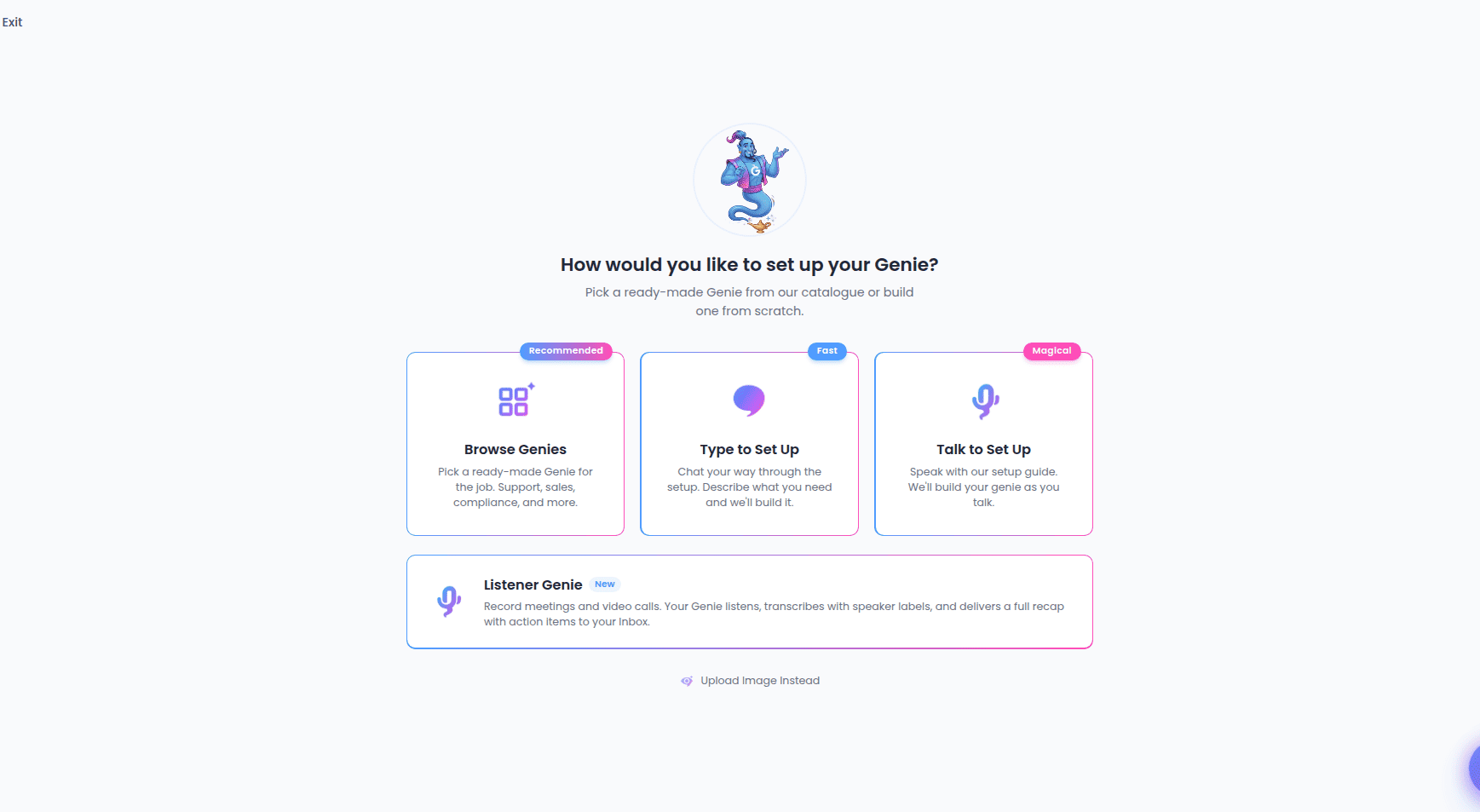
When the flow opens, you pick a starting point:
* **Browse Genies** *(Recommended)* — open the [template catalogue](/genie-templates) and pick a ready-made Genie for the job. It arrives pre-configured, and you land straight in the review step to add your own touches.
* **Type to Set Up** *(Fast)* — set up by chatting. Describe what you need in text and Your Genie builds the configuration as you go.
* **Talk to Set Up** *(Magical)* — speak with the setup guide out loud. It asks a few questions and builds your Genie as you talk. See [Setting up by voice](/genie-setup-voice-flow).
* **Listener Genie** *(New)* — a different kind of Genie that records and transcribes meetings and video calls rather than answering callers. It has its own short form. See [The Listener Genie form](/genie-setup-listener-form).
* **Upload Image Instead** — upload a photo of your business (a storefront, a menu, a flyer) and we extract the details to pre-fill your Genie.
You can leave setup at any time using the **Exit** button in the top-left corner; you'll return to where you came from.
## The three stages
However you start, setup moves through the same three stages.
### 1. Describe
You tell us what the Genie is for — by talking, typing, uploading an image, or starting from a template. The setup guide gathers what it needs: the Genie's purpose, tone, first thing it says, and more.
When you finish a voice or chat conversation, we analyze it to draft your Genie's settings. A status message and loading screen keep you posted while this runs. If anything goes wrong, your conversation is saved safely and you can pick up where you left off — see [Resuming a setup](#resuming-a-setup).
Starting from a template or an uploaded image skips straight to the review stage — the draft is built for you, so there's nothing to describe first.
### 2. Review
This is the **Review Your Genie** screen, where you confirm and fine-tune everything before creating the Genie. It's organized into steps you can move through one at a time, or switch to **All Fields** to see everything on one page. See [Reviewing and creating your Genie](/genie-setup-listener-form#reviewing-and-creating-your-genie) for a full walkthrough of this stage.
The steps cover:
* **Branding** — avatar and visual identity.
* **Identity** — name, category, and what the Genie is for.
* **Voice** — the voice it speaks with and its personality traits.
* **Insights** — what it should collect and who gets notified.
* **Knowledge** — documents and resources it can draw on.
* **Advanced** — finer conversation settings and pronunciations.
* **Ownership** — who owns the Genie.
* **Review** — a final summary before you create.
You can jump back to any completed step to make changes, and a setup advisor panel opens alongside to suggest improvements as you go.
### 3. Confirmation
When you select **Create Genie**, we build it and show a success screen. From there you can:
* **Test Your Genie** — opens your new Genie in a live session in a new tab.
* **View My Genies** — go to your [My Genies](/my-genies) list.
* **Create Another** — start a fresh setup.
Creating a Genie requires an active subscription. If your plan isn't active, you'll be taken to My Genies to review your options.
## Resuming a setup
Setup is designed so you never lose your work. If analysis fails or you leave mid-way, your conversation is stored and can be resumed:
* A **Resume Setup** button appears on the setup screen if something interrupted the analysis. Selecting it rebuilds your draft from the saved conversation and drops you into the Review stage.
* You can also resume an unfinished setup later from your Genies list — it reopens on the review screen with your details ready to confirm.
If you decide not to keep a draft, the review screen's **Discard** option clears it and returns you to the start.
## Choosing how to start
When the flow opens, you pick a starting point:
* **Browse Genies** *(Recommended)* — open the [template catalogue](/genie-templates) and pick a ready-made Genie for the job. It arrives pre-configured, and you land straight in the review step to add your own touches.
* **Type to Set Up** *(Fast)* — set up by chatting. Describe what you need in text and Your Genie builds the configuration as you go.
* **Talk to Set Up** *(Magical)* — speak with the setup guide out loud. It asks a few questions and builds your Genie as you talk. See [Setting up by voice](/genie-setup-voice-flow).
* **Listener Genie** *(New)* — a different kind of Genie that records and transcribes meetings and video calls rather than answering callers. It has its own short form. See [The Listener Genie form](/genie-setup-listener-form).
* **Upload Image Instead** — upload a photo of your business (a storefront, a menu, a flyer) and we extract the details to pre-fill your Genie.
You can leave setup at any time using the **Exit** button in the top-left corner; you'll return to where you came from.
## The three stages
However you start, setup moves through the same three stages.
### 1. Describe
You tell us what the Genie is for — by talking, typing, uploading an image, or starting from a template. The setup guide gathers what it needs: the Genie's purpose, tone, first thing it says, and more.
When you finish a voice or chat conversation, we analyze it to draft your Genie's settings. A status message and loading screen keep you posted while this runs. If anything goes wrong, your conversation is saved safely and you can pick up where you left off — see [Resuming a setup](#resuming-a-setup).
Starting from a template or an uploaded image skips straight to the review stage — the draft is built for you, so there's nothing to describe first.
### 2. Review
This is the **Review Your Genie** screen, where you confirm and fine-tune everything before creating the Genie. It's organized into steps you can move through one at a time, or switch to **All Fields** to see everything on one page. See [Reviewing and creating your Genie](/genie-setup-listener-form#reviewing-and-creating-your-genie) for a full walkthrough of this stage.
The steps cover:
* **Branding** — avatar and visual identity.
* **Identity** — name, category, and what the Genie is for.
* **Voice** — the voice it speaks with and its personality traits.
* **Insights** — what it should collect and who gets notified.
* **Knowledge** — documents and resources it can draw on.
* **Advanced** — finer conversation settings and pronunciations.
* **Ownership** — who owns the Genie.
* **Review** — a final summary before you create.
You can jump back to any completed step to make changes, and a setup advisor panel opens alongside to suggest improvements as you go.
### 3. Confirmation
When you select **Create Genie**, we build it and show a success screen. From there you can:
* **Test Your Genie** — opens your new Genie in a live session in a new tab.
* **View My Genies** — go to your [My Genies](/my-genies) list.
* **Create Another** — start a fresh setup.
Creating a Genie requires an active subscription. If your plan isn't active, you'll be taken to My Genies to review your options.
## Resuming a setup
Setup is designed so you never lose your work. If analysis fails or you leave mid-way, your conversation is stored and can be resumed:
* A **Resume Setup** button appears on the setup screen if something interrupted the analysis. Selecting it rebuilds your draft from the saved conversation and drops you into the Review stage.
* You can also resume an unfinished setup later from your Genies list — it reopens on the review screen with your details ready to confirm.
If you decide not to keep a draft, the review screen's **Discard** option clears it and returns you to the start.