> ## Documentation Index
> Fetch the complete documentation index at: https://docs.helpgenie.ai/llms.txt
> Use this file to discover all available pages before exploring further.
# Genie Templates
> Browse a catalogue of ready-made Genies by business function and deploy one pre-configured in a couple of minutes.
The Genie Templates catalogue is a menu of ready-made Genies, each built for a specific job. Instead of starting from a blank setup, you pick the Genie that matches the work you need done — support, sales, bookings, compliance, and more — and it arrives pre-configured. You add your branding and knowledge, then switch it on.
You'll find it under **Genie Hub → Templates** (`/genie-hub/templates`), or by choosing **Browse Genies** on the [setup start screen](/genie-setup-overview#choosing-how-to-start).
 ## Browsing the catalogue
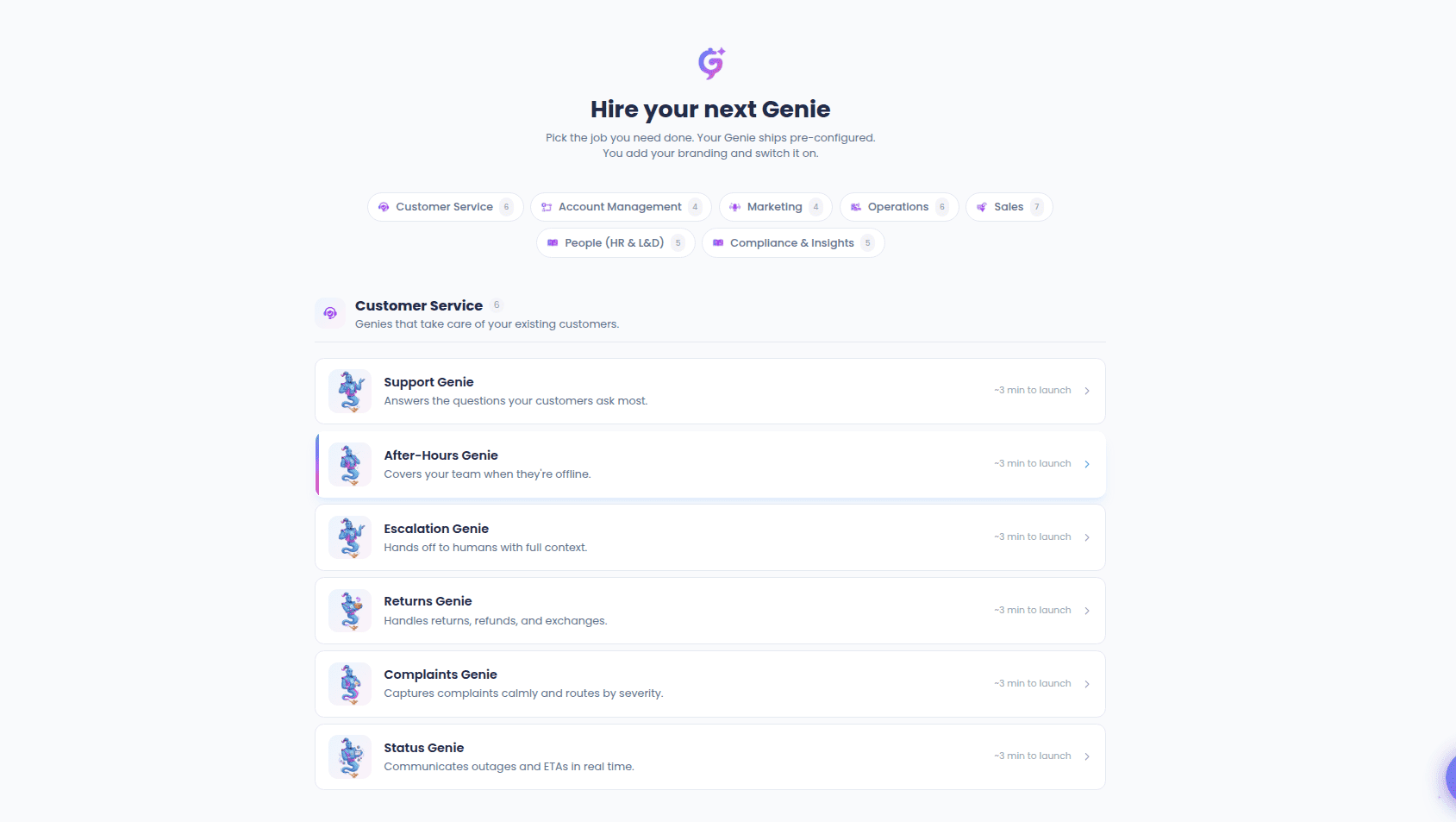
The catalogue is organized like a menu, with Genies grouped under business functions:
* **Customer Service** — Genies that take care of your existing customers.
* **Account Management** — Genies that grow and retain your customer base.
* **Marketing** — Genies that get you in front of the right people.
* **Operations** — Genies that run the back-office work that eats your week.
* **Sales** — Genies that win new business: qualify, quote, dial, close.
* **People (HR & L\&D)** — Genies for hiring, employee experience, and learning.
* **Compliance & Insights** — Genies that make sure nothing slips and capture the signal.
Each section stacks its Genies as a list. A row shows the Genie's mascot, its name, a one-line description of what it does, and roughly how long it takes to launch. A **jump-to-section** bar at the top lets you skip straight to a category — each one shows a count of how many Genies it holds — without losing your place.
Select any Genie to open its details.
## The Genie preview
Choosing a Genie opens a preview (the "kickstart" screen) so you know exactly what you're getting before committing. It shows:
* The Genie's mascot, name, and tagline.
* A fuller description of how the Genie works.
* **What this Genie will do for you** — a short list of the concrete jobs it handles.
* **What happens when you deploy** — a reminder that the template is cloned pre-wired, then you add your branding, point it at your knowledge, and connect your channels.
From here you can go **Back to catalogue** to keep browsing, or **Deploy this Genie** to set it up.
## Deploying a template
Selecting **Deploy this Genie** takes you into [Genie Setup](/genie-setup-overview) with the template already loaded. Behind the scenes this opens the setup flow with the template applied (`/user-hub/genie-setup?template=`), so you skip the "describe your Genie" stage entirely.
The template pre-fills your draft with:
* The Genie's **name** and **purpose**.
* A ready-made **first message** and conversation prompt.
* Sensible **conversation settings** and category.
* Any **tools** and **knowledge** the template comes with.
You land directly on the **Review Your Genie** screen, where the whole configuration is filled in and ready to customize. Everything is editable — swap the voice, adjust the wording, add your branding, attach your own documents — before you select **Create Genie**. See [Reviewing and creating your Genie](/genie-setup-listener-form#reviewing-and-creating-your-genie) for the full review walkthrough.
Deploying a template never creates a Genie on its own — it only pre-fills the setup. Nothing goes live until you review the details and choose **Create Genie**.
## Browsing the catalogue
The catalogue is organized like a menu, with Genies grouped under business functions:
* **Customer Service** — Genies that take care of your existing customers.
* **Account Management** — Genies that grow and retain your customer base.
* **Marketing** — Genies that get you in front of the right people.
* **Operations** — Genies that run the back-office work that eats your week.
* **Sales** — Genies that win new business: qualify, quote, dial, close.
* **People (HR & L\&D)** — Genies for hiring, employee experience, and learning.
* **Compliance & Insights** — Genies that make sure nothing slips and capture the signal.
Each section stacks its Genies as a list. A row shows the Genie's mascot, its name, a one-line description of what it does, and roughly how long it takes to launch. A **jump-to-section** bar at the top lets you skip straight to a category — each one shows a count of how many Genies it holds — without losing your place.
Select any Genie to open its details.
## The Genie preview
Choosing a Genie opens a preview (the "kickstart" screen) so you know exactly what you're getting before committing. It shows:
* The Genie's mascot, name, and tagline.
* A fuller description of how the Genie works.
* **What this Genie will do for you** — a short list of the concrete jobs it handles.
* **What happens when you deploy** — a reminder that the template is cloned pre-wired, then you add your branding, point it at your knowledge, and connect your channels.
From here you can go **Back to catalogue** to keep browsing, or **Deploy this Genie** to set it up.
## Deploying a template
Selecting **Deploy this Genie** takes you into [Genie Setup](/genie-setup-overview) with the template already loaded. Behind the scenes this opens the setup flow with the template applied (`/user-hub/genie-setup?template=`), so you skip the "describe your Genie" stage entirely.
The template pre-fills your draft with:
* The Genie's **name** and **purpose**.
* A ready-made **first message** and conversation prompt.
* Sensible **conversation settings** and category.
* Any **tools** and **knowledge** the template comes with.
You land directly on the **Review Your Genie** screen, where the whole configuration is filled in and ready to customize. Everything is editable — swap the voice, adjust the wording, add your branding, attach your own documents — before you select **Create Genie**. See [Reviewing and creating your Genie](/genie-setup-listener-form#reviewing-and-creating-your-genie) for the full review walkthrough.
Deploying a template never creates a Genie on its own — it only pre-fills the setup. Nothing goes live until you review the details and choose **Create Genie**.