> ## Documentation Index
> Fetch the complete documentation index at: https://docs.helpgenie.ai/llms.txt
> Use this file to discover all available pages before exploring further.
# A Genie's Knowledge
> View, coach, and manage the documents attached to a single Genie.
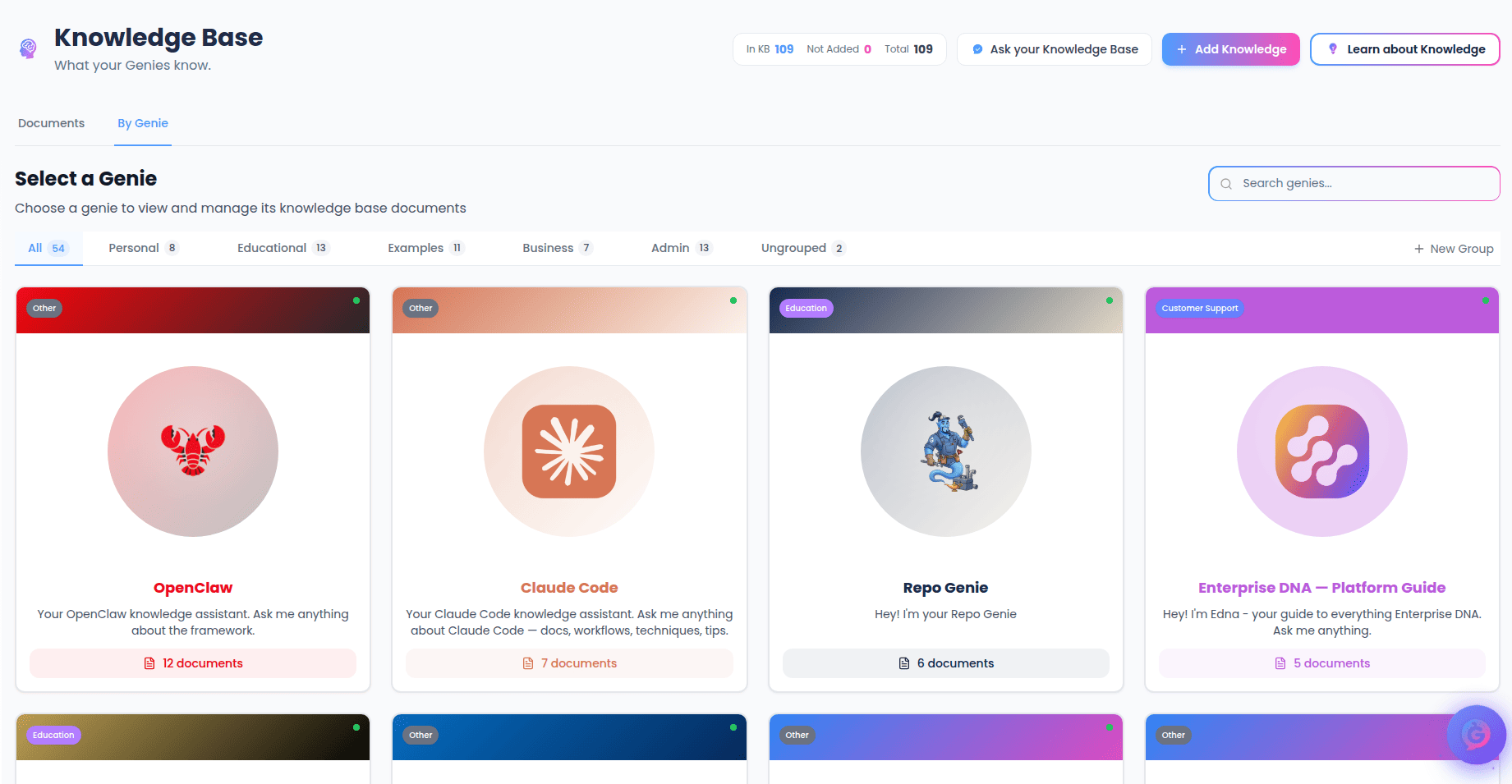
Each Genie has its own knowledge view — a focused page showing only the documents that Genie draws on, along with tools to coach and manage them. It's the best place to see what one Genie actually knows and to fill in the gaps.
You reach it from the Knowledge Base **By Genie** tab (`/genie-hub/knowledge-base`): select a Genie card to open its knowledge view at `/genie-hub/knowledge-base/:genieId`. Select **Back to Knowledge Base** at the top to return.
 ## What you'll see
At the top, a header card shows the Genie's name, description, category, active status, and branding. Below it:
* **A statistics bar** — the number of documents in this Genie's knowledge base and when it was last updated.
* **The document list** — every document attached to this Genie, newest activity first.
If the Genie has no documents yet, you'll see a prompt to go add some from the main Knowledge Base.
Each document shows its name, an icon for its type, its description (if any), the date it was added, and a status badge — **In Knowledge Base** or **Not in KB**.
## Coach this Genie's knowledge
Near the top of the page is a **Coach {'{'}Genie{'}'}'s knowledge** card. It hands this Genie's document list and recent conversations to Your Genie and asks for concrete advice on what to add, fix, or remove.
* **Coach this genie's knowledge** — the main button, for a full prioritized review.
* Quick prompts for focused help: **What's missing?** (gap analysis), **Suggest 3 docs to add** (a prioritized list), **Draft an FAQ** (ready to upload), and **Audit what's there** (a quality check).
Selecting any of these opens Your Genie with the request ready to run.
## Actions on a document
Each document row has a set of controls:
* **View source** — opens the original file or page in a new tab (when a source is available).
* **Edit** — opens the document's details so you can change its name, description, and settings.
* **Unlink from genie** — removes the document from this Genie. The document stays in your knowledge base and can be re-attached later; you'll be asked to confirm first.
* **Delete** — permanently removes the document everywhere. You'll be asked to confirm first.
**Unlink** and **Delete** are different. Unlinking only detaches the document from this Genie — it's still in your knowledge base. Deleting removes it entirely and can't be undone.
### Full details
Select **View Full Details & Content** on a document to expand it in place and see its full content and metadata. Select **Hide Full Details** to collapse it again.
## Adding documents to a Genie
You don't add new documents from this view — you attach existing ones. To do that, go back to the main **Knowledge Base**, then either use **Assign to Genie** in the bulk toolbar, or choose this Genie when you upload new content. Newly attached documents then appear here.
## What you'll see
At the top, a header card shows the Genie's name, description, category, active status, and branding. Below it:
* **A statistics bar** — the number of documents in this Genie's knowledge base and when it was last updated.
* **The document list** — every document attached to this Genie, newest activity first.
If the Genie has no documents yet, you'll see a prompt to go add some from the main Knowledge Base.
Each document shows its name, an icon for its type, its description (if any), the date it was added, and a status badge — **In Knowledge Base** or **Not in KB**.
## Coach this Genie's knowledge
Near the top of the page is a **Coach {'{'}Genie{'}'}'s knowledge** card. It hands this Genie's document list and recent conversations to Your Genie and asks for concrete advice on what to add, fix, or remove.
* **Coach this genie's knowledge** — the main button, for a full prioritized review.
* Quick prompts for focused help: **What's missing?** (gap analysis), **Suggest 3 docs to add** (a prioritized list), **Draft an FAQ** (ready to upload), and **Audit what's there** (a quality check).
Selecting any of these opens Your Genie with the request ready to run.
## Actions on a document
Each document row has a set of controls:
* **View source** — opens the original file or page in a new tab (when a source is available).
* **Edit** — opens the document's details so you can change its name, description, and settings.
* **Unlink from genie** — removes the document from this Genie. The document stays in your knowledge base and can be re-attached later; you'll be asked to confirm first.
* **Delete** — permanently removes the document everywhere. You'll be asked to confirm first.
**Unlink** and **Delete** are different. Unlinking only detaches the document from this Genie — it's still in your knowledge base. Deleting removes it entirely and can't be undone.
### Full details
Select **View Full Details & Content** on a document to expand it in place and see its full content and metadata. Select **Hide Full Details** to collapse it again.
## Adding documents to a Genie
You don't add new documents from this view — you attach existing ones. To do that, go back to the main **Knowledge Base**, then either use **Assign to Genie** in the bulk toolbar, or choose this Genie when you upload new content. Newly attached documents then appear here.