> ## Documentation Index
> Fetch the complete documentation index at: https://docs.helpgenie.ai/llms.txt
> Use this file to discover all available pages before exploring further.
# Genie Appearance & Advanced Settings
> Fine-tune how your Genie looks and behaves — branding, page resources, closing page, response intelligence, conversation flow, tools, events, and private data sources.
The remaining cards on a Genie's configuration screen cover its look, the extra content on its page, and the finer controls over how it thinks and behaves. Most are read-only until you select **Edit**; **Save** confirms your changes and **Cancel** discards them.
This follows on from [Knowledge & distribution](/my-genies-knowledge-distribution).
 ## Branding
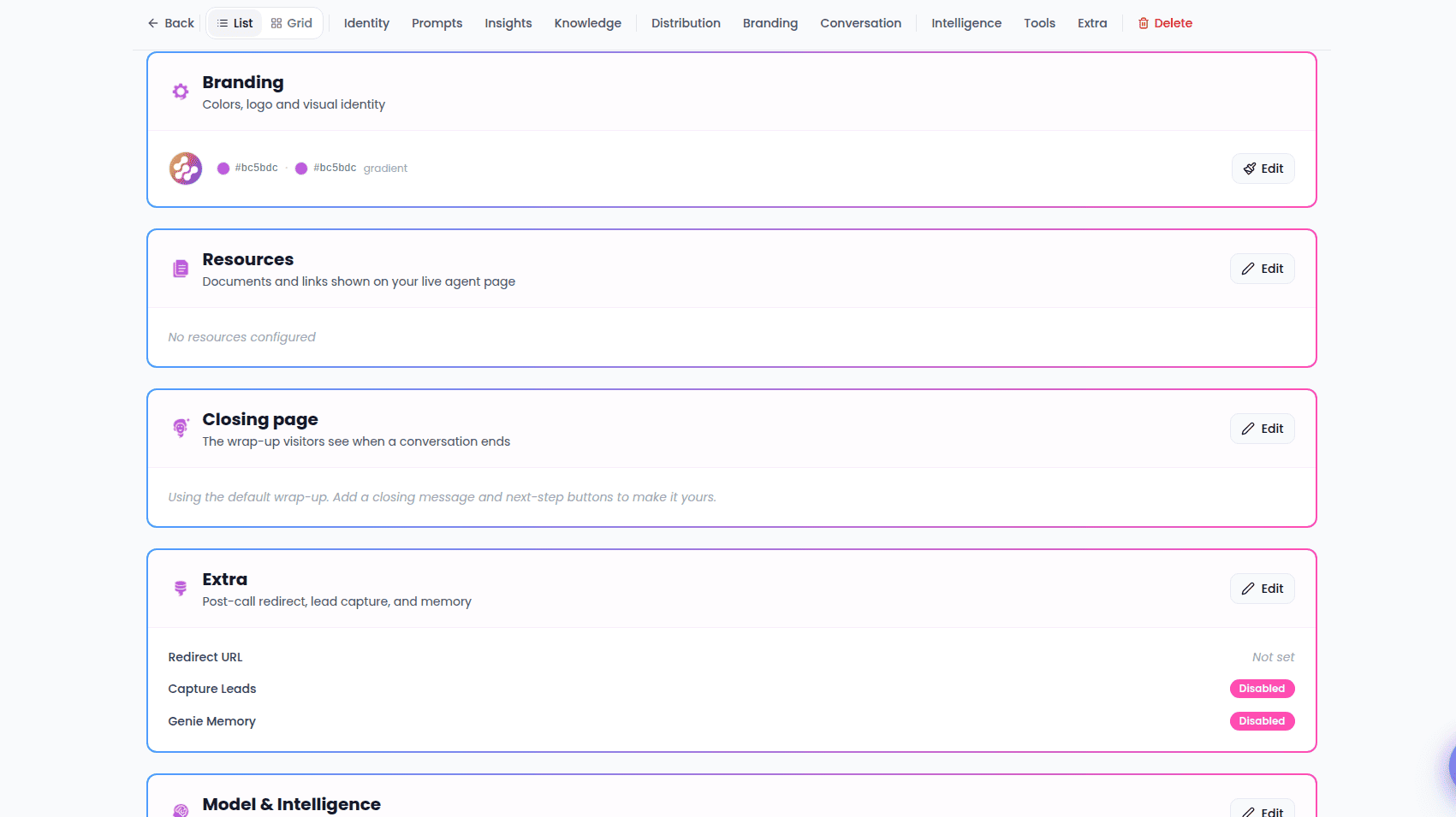
The **Branding** card sets your Genie's visual identity. It previews your logo (or a colored circle if none is set) and your primary color, plus a secondary color and a gradient tag when those are in use. Select **Edit** to open the branding editor, where you set colors, upload a logo, and enable a gradient.
## Resources
The **Resources** card manages the documents, links, and banner shown on your Genie's live page. Select **Edit** to configure three sections:
* **Documents** — upload up to **10** files (each under **25 MB**). Supported types include PDF, Word, PowerPoint, Excel, text, CSV, and images. Each file can be renamed or removed.
* **Banner Image** — paste an image URL to show a banner, with a live preview.
* **Links** — add up to **10** links, each with a **label** and a **URL** (validated as you add them).
## Closing page
The **Closing page** card is the wrap-up people see when a conversation ends. Select **Edit** to set:
* **Closing message** — a short message up to **240 characters** (a friendly default is used if you leave it blank).
* **Next-step buttons** — up to **4** call-to-action buttons, each with a **label** (such as "Book a call") and a **URL**.
Take-away documents and links on the closing page come from the **Resources** section above.
## Extra
The **Extra** card holds a few post-call options. Select **Edit** to configure:
* **Redirect After Call** — a web address to send people to when the conversation ends.
* **Capture Leads** — when on (the default), conversations automatically create lead records.
* **Genie Memory** — when on, the Genie remembers context from past conversations. Off by default.
## Model & Intelligence
The **Model & Intelligence** card tunes how your Genie generates responses. Select **Edit** to adjust:
* **Response intelligence** — choose the intelligence level for your Genie, from a fast everyday option to a more capable one for complex conversations.
* **Temperature** — a slider from **Precise** to **Creative** (0 to 2, default 0.7). Lower values keep answers focused and consistent; higher values make them more varied and creative. A live label reads **Very Precise**, **Balanced**, **Creative**, or **Very Creative**.
* **Max response length** — an optional cap on how long each response can be.
* **Knowledge Retrieval** — when on, the Genie pulls relevant material from its knowledge base while answering.
## Conversation Behavior
The **Conversation Behavior** card controls timing and turn-taking:
* **Max Duration** — the longest a single conversation can run, in seconds.
* **Turn Mode** — **Turn Based** (default) or **Silence Based**, which changes how the Genie decides a speaker has finished.
* **Turn Timeout** — how long to wait during a turn.
* **Silence End Call** — how much silence ends the call.
* **Text Only Mode** — run the conversation as text, without voice.
## External Tools
The **External Tools** card lists the capabilities your Genie can use during a conversation, each with a name and description. A badge shows how many are enabled. Select **Edit** to turn each capability on or off.
Some tools are marked **Managed by Sync** — these are set up automatically and can't be toggled here.
## Client Events
The **Client Events** card controls which events your Genie streams to connected applications, each with a label and description. A badge shows how many are enabled, and events that are on by default carry a **Default** badge. Select **Edit** to enable or disable each event.
## Private Context Source
The **Private Context Source** card attaches a connected data source your Genie can search privately during conversations:
* If you haven't set up any sources yet, you'll be pointed to the **Integrations** page to create your first one.
* If sources exist, use **Choose integration…** to pick one — each is tagged by type (**document**, **API**, or connected service) — and attach it.
* Once attached, a panel confirms the source and lists a few of its available resources. You can **Change** it, **Refresh** its capabilities, or **Detach** it.
For call limits and purchasing more capacity, see [Usage & billing](/my-genies-billing).
## Branding
The **Branding** card sets your Genie's visual identity. It previews your logo (or a colored circle if none is set) and your primary color, plus a secondary color and a gradient tag when those are in use. Select **Edit** to open the branding editor, where you set colors, upload a logo, and enable a gradient.
## Resources
The **Resources** card manages the documents, links, and banner shown on your Genie's live page. Select **Edit** to configure three sections:
* **Documents** — upload up to **10** files (each under **25 MB**). Supported types include PDF, Word, PowerPoint, Excel, text, CSV, and images. Each file can be renamed or removed.
* **Banner Image** — paste an image URL to show a banner, with a live preview.
* **Links** — add up to **10** links, each with a **label** and a **URL** (validated as you add them).
## Closing page
The **Closing page** card is the wrap-up people see when a conversation ends. Select **Edit** to set:
* **Closing message** — a short message up to **240 characters** (a friendly default is used if you leave it blank).
* **Next-step buttons** — up to **4** call-to-action buttons, each with a **label** (such as "Book a call") and a **URL**.
Take-away documents and links on the closing page come from the **Resources** section above.
## Extra
The **Extra** card holds a few post-call options. Select **Edit** to configure:
* **Redirect After Call** — a web address to send people to when the conversation ends.
* **Capture Leads** — when on (the default), conversations automatically create lead records.
* **Genie Memory** — when on, the Genie remembers context from past conversations. Off by default.
## Model & Intelligence
The **Model & Intelligence** card tunes how your Genie generates responses. Select **Edit** to adjust:
* **Response intelligence** — choose the intelligence level for your Genie, from a fast everyday option to a more capable one for complex conversations.
* **Temperature** — a slider from **Precise** to **Creative** (0 to 2, default 0.7). Lower values keep answers focused and consistent; higher values make them more varied and creative. A live label reads **Very Precise**, **Balanced**, **Creative**, or **Very Creative**.
* **Max response length** — an optional cap on how long each response can be.
* **Knowledge Retrieval** — when on, the Genie pulls relevant material from its knowledge base while answering.
## Conversation Behavior
The **Conversation Behavior** card controls timing and turn-taking:
* **Max Duration** — the longest a single conversation can run, in seconds.
* **Turn Mode** — **Turn Based** (default) or **Silence Based**, which changes how the Genie decides a speaker has finished.
* **Turn Timeout** — how long to wait during a turn.
* **Silence End Call** — how much silence ends the call.
* **Text Only Mode** — run the conversation as text, without voice.
## External Tools
The **External Tools** card lists the capabilities your Genie can use during a conversation, each with a name and description. A badge shows how many are enabled. Select **Edit** to turn each capability on or off.
Some tools are marked **Managed by Sync** — these are set up automatically and can't be toggled here.
## Client Events
The **Client Events** card controls which events your Genie streams to connected applications, each with a label and description. A badge shows how many are enabled, and events that are on by default carry a **Default** badge. Select **Edit** to enable or disable each event.
## Private Context Source
The **Private Context Source** card attaches a connected data source your Genie can search privately during conversations:
* If you haven't set up any sources yet, you'll be pointed to the **Integrations** page to create your first one.
* If sources exist, use **Choose integration…** to pick one — each is tagged by type (**document**, **API**, or connected service) — and attach it.
* Once attached, a panel confirms the source and lists a few of its available resources. You can **Change** it, **Refresh** its capabilities, or **Detach** it.
For call limits and purchasing more capacity, see [Usage & billing](/my-genies-billing).