> ## Documentation Index
> Fetch the complete documentation index at: https://docs.helpgenie.ai/llms.txt
> Use this file to discover all available pages before exploring further.
# Genie Branding
> Your Genie's visual identity — logo, colors, gradient, and email signature.
This follows on from [Insights & knowledge](/voice-guide/my-genies-insights-knowledge).
## Branding
The **Branding** card previews your logo (or a colored circle if none is set), primary color, secondary color, and a **Gradient** badge when in use. Select **Edit** to open the full branding editor.
 To set brand defaults that apply to every **newly created** Genie instead of just this one, see [Account Branding](/voice-guide/account-branding).
## Images
**Brand Logo** upload — used everywhere: your avatar, QR codes (center logo), web embed widgets, and marketing materials. Accepts JPEG/PNG/WebP/GIF up to 5MB; images are automatically resized, padded to a square, and optimized. A background-removal option offers **Standard** or **Advanced** modes.
Uploading a logo extracts a color palette automatically and applies it across colors, gradient, QR foreground, and web-embed header color — so everything matches your image out of the box.
### Generate a logo
Don't have a logo ready? Use the built-in **Smart Logo Generator** to create one:
Type the brand or business name for the logo. This is the only required field.
Pick from **Modern**, **Bold**, **Friendly**, **Tech**, **Luxury**, or **Classic**.
Optionally add a short **Description** and select an **Industry** to sharpen the result.
## Colors
* Color-swatch strips (if colors were extracted): click to set as **primary**, **gradient**, or **accent**.
* **Preset brand palettes** — 10 named two-color palettes.
* **Primary Color**, **Gradient Color** (only editable when gradient is enabled), **Accent Color** — each a color picker plus hex field.
* **Enable Gradient** toggle, and a **Gradient Angle** slider (0–360°, default 135°) when on.
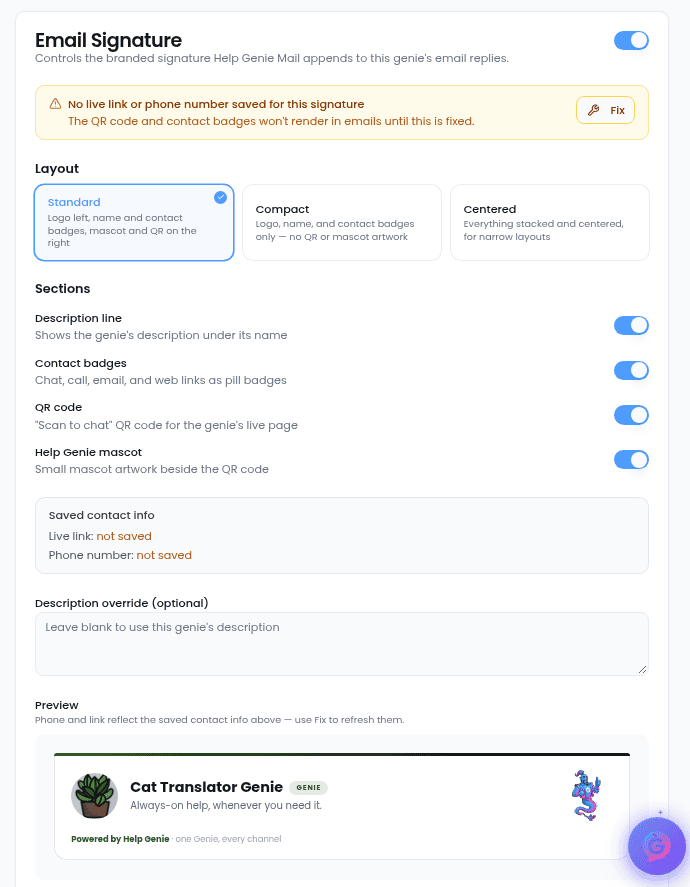
## Email Signature
Controls the branded signature Help Genie Mail appends to this Genie's email replies.
* An **Enabled** toggle in the card header.
* **Layout** — **Standard** (logo, name, contact badges, mascot and QR), **Compact** (logo, name, contact badges only), or **Centered**.
* Section toggles: **Description line**, **Contact badges**, **QR code**, **Help Genie mascot**.
* A live preview renders the exact signature that will be sent.
To set brand defaults that apply to every **newly created** Genie instead of just this one, see [Account Branding](/voice-guide/account-branding).
## Images
**Brand Logo** upload — used everywhere: your avatar, QR codes (center logo), web embed widgets, and marketing materials. Accepts JPEG/PNG/WebP/GIF up to 5MB; images are automatically resized, padded to a square, and optimized. A background-removal option offers **Standard** or **Advanced** modes.
Uploading a logo extracts a color palette automatically and applies it across colors, gradient, QR foreground, and web-embed header color — so everything matches your image out of the box.
### Generate a logo
Don't have a logo ready? Use the built-in **Smart Logo Generator** to create one:
Type the brand or business name for the logo. This is the only required field.
Pick from **Modern**, **Bold**, **Friendly**, **Tech**, **Luxury**, or **Classic**.
Optionally add a short **Description** and select an **Industry** to sharpen the result.
## Colors
* Color-swatch strips (if colors were extracted): click to set as **primary**, **gradient**, or **accent**.
* **Preset brand palettes** — 10 named two-color palettes.
* **Primary Color**, **Gradient Color** (only editable when gradient is enabled), **Accent Color** — each a color picker plus hex field.
* **Enable Gradient** toggle, and a **Gradient Angle** slider (0–360°, default 135°) when on.
## Email Signature
Controls the branded signature Help Genie Mail appends to this Genie's email replies.
* An **Enabled** toggle in the card header.
* **Layout** — **Standard** (logo, name, contact badges, mascot and QR), **Compact** (logo, name, contact badges only), or **Centered**.
* Section toggles: **Description line**, **Contact badges**, **QR code**, **Help Genie mascot**.
* A live preview renders the exact signature that will be sent.
 If branding is locked by your plan, each tab shows an upgrade overlay and the footer button becomes **Upgrade to Unlock**.
Next, see [Distribution](/voice-guide/my-genies-distribution) to put your Genie in front of people.
If branding is locked by your plan, each tab shows an upgrade overlay and the footer button becomes **Upgrade to Unlock**.
Next, see [Distribution](/voice-guide/my-genies-distribution) to put your Genie in front of people.