> ## Documentation Index
> Fetch the complete documentation index at: https://docs.helpgenie.ai/llms.txt
> Use this file to discover all available pages before exploring further.
# Genie Identity, Voice & Prompts
> Configure who your Genie is and how it speaks — name and profile, voice and speech, system prompt, welcome messages, and pronunciations.
Opening a Genie from [My Genies](/my-genies-list) brings you to its configuration screen, where everything about that Genie is organized into cards. This page covers the first group: **identity, voice, and prompts** — the settings that shape who your Genie is and how it sounds.
 ## Getting around the configuration screen
When you open a Genie, you land in one of two places:
* **Setup canvas** — new or unfinished Genies open on a guided, step-by-step canvas. Select **View all features** to reveal the full set of settings cards. Your choice is remembered.
## Getting around the configuration screen
When you open a Genie, you land in one of two places:
* **Setup canvas** — new or unfinished Genies open on a guided, step-by-step canvas. Select **View all features** to reveal the full set of settings cards. Your choice is remembered.
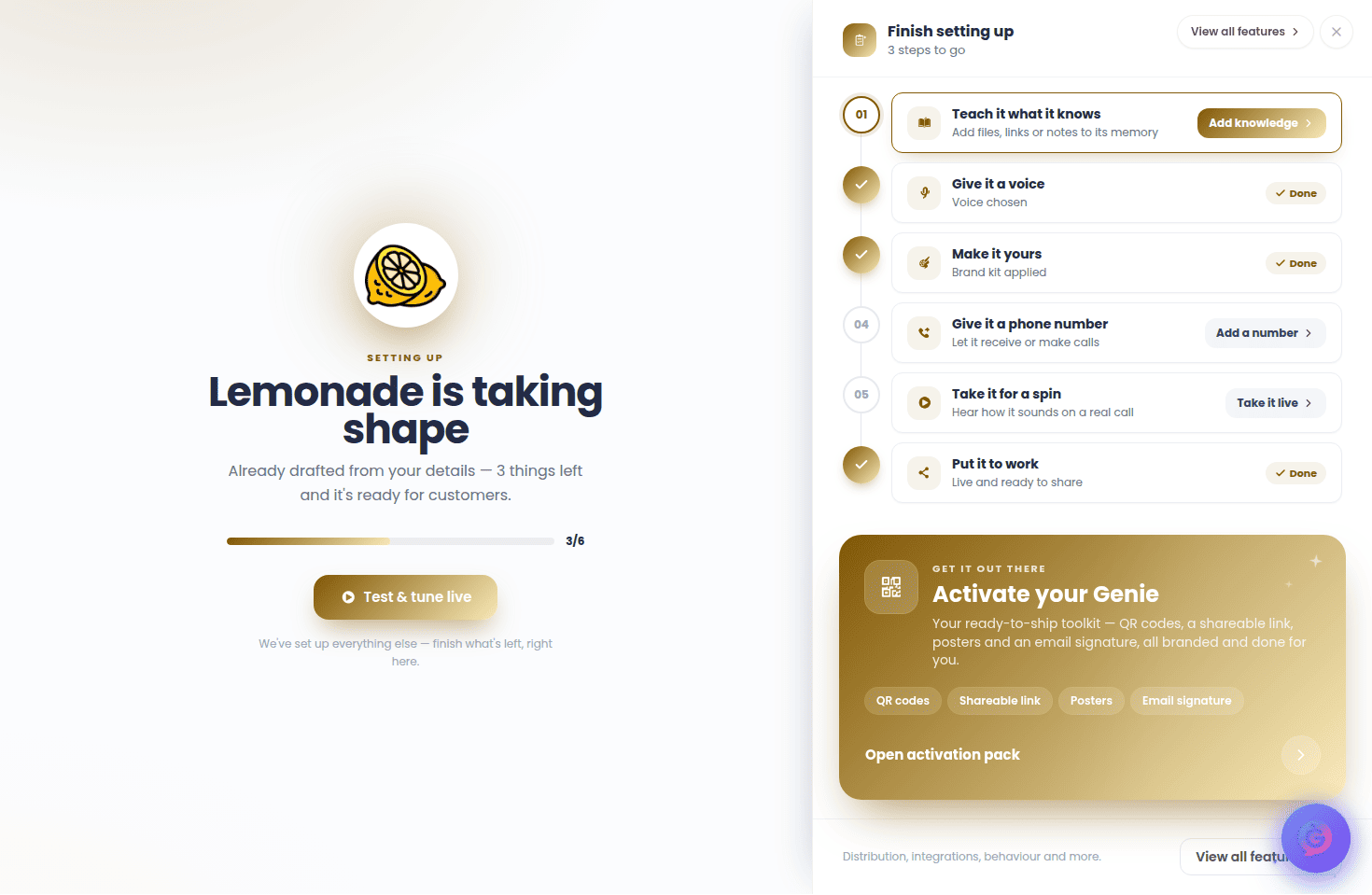 * **Full settings** — the complete stack of configuration cards. A **Back to setup** link returns you to the guided canvas at any time.
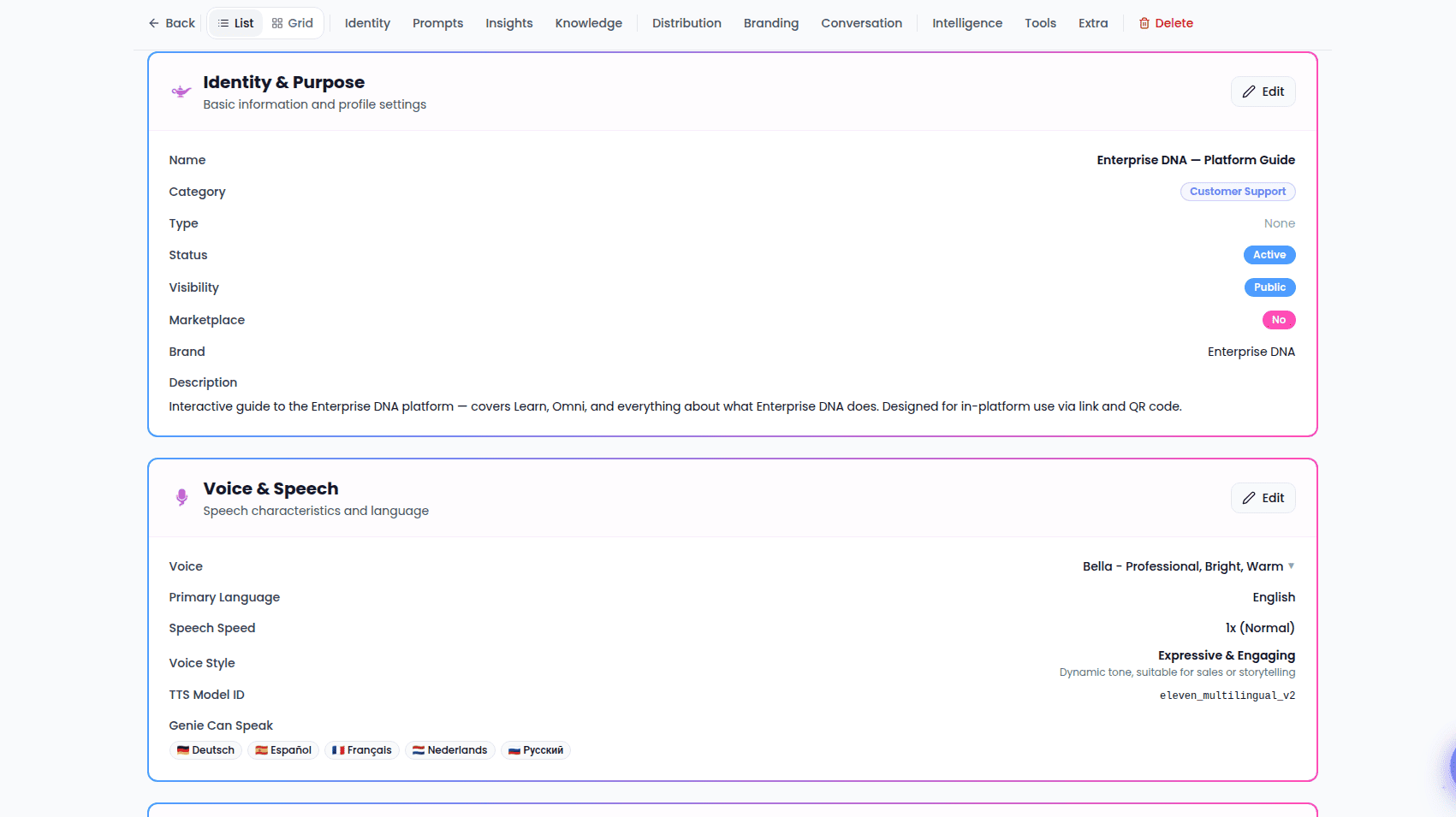
A toolbar runs along the top of the full settings view:
* **Back** returns to your Genies list.
* A **List / Grid** toggle changes how the cards are laid out (on desktop).
* Quick-jump links scroll you to each section: **Identity**, **Prompts**, **Insights**, **Knowledge**, **Distribution**, **Branding**, **Conversation**, **Intelligence**, **Tools**, and **Extra**.
* **Delete** permanently removes the Genie, after a confirmation. This action can't be undone.
* **Full settings** — the complete stack of configuration cards. A **Back to setup** link returns you to the guided canvas at any time.
A toolbar runs along the top of the full settings view:
* **Back** returns to your Genies list.
* A **List / Grid** toggle changes how the cards are laid out (on desktop).
* Quick-jump links scroll you to each section: **Identity**, **Prompts**, **Insights**, **Knowledge**, **Distribution**, **Branding**, **Conversation**, **Intelligence**, **Tools**, and **Extra**.
* **Delete** permanently removes the Genie, after a confirmation. This action can't be undone.
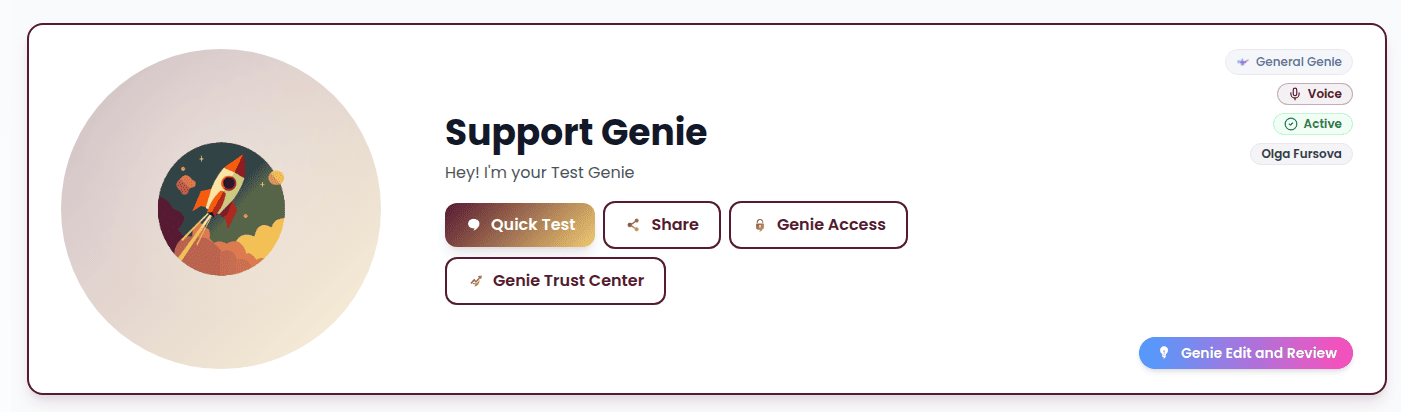
 At the top of the screen, the Genie's header shows its avatar, name, and welcome message, along with badges for its purpose, **Voice** or **Listener** type, **Active/Inactive** status, **Private** (when not public), and ownership. From here you can:
* **Quick Test** — start a test conversation (also available by tapping the avatar).
* **Share** — share the Genie's link, or open the sharing panel for a private Genie.
* **Genie Access** — manage who can use this Genie.
* **Genie Trust Center** — review the Genie's brand integrity and trust settings.
At the top of the screen, the Genie's header shows its avatar, name, and welcome message, along with badges for its purpose, **Voice** or **Listener** type, **Active/Inactive** status, **Private** (when not public), and ownership. From here you can:
* **Quick Test** — start a test conversation (also available by tapping the avatar).
* **Share** — share the Genie's link, or open the sharing panel for a private Genie.
* **Genie Access** — manage who can use this Genie.
* **Genie Trust Center** — review the Genie's brand integrity and trust settings.
 Most cards work the same way: they're read-only until you select **Edit**, which reveals the fields. **Save** confirms your changes and shows a brief confirmation; **Cancel** discards them.
## Identity & Purpose
The **Identity & Purpose** card holds your Genie's basic profile. In view mode it shows the name, category, purpose type, status, visibility, brand, and description, plus a read-only **Voice** or **Listener** badge showing which kind of Genie it is (defaults to **Voice**). Select **Edit** to change:
Most cards work the same way: they're read-only until you select **Edit**, which reveals the fields. **Save** confirms your changes and shows a brief confirmation; **Cancel** discards them.
## Identity & Purpose
The **Identity & Purpose** card holds your Genie's basic profile. In view mode it shows the name, category, purpose type, status, visibility, brand, and description, plus a read-only **Voice** or **Listener** badge showing which kind of Genie it is (defaults to **Voice**). Select **Edit** to change:
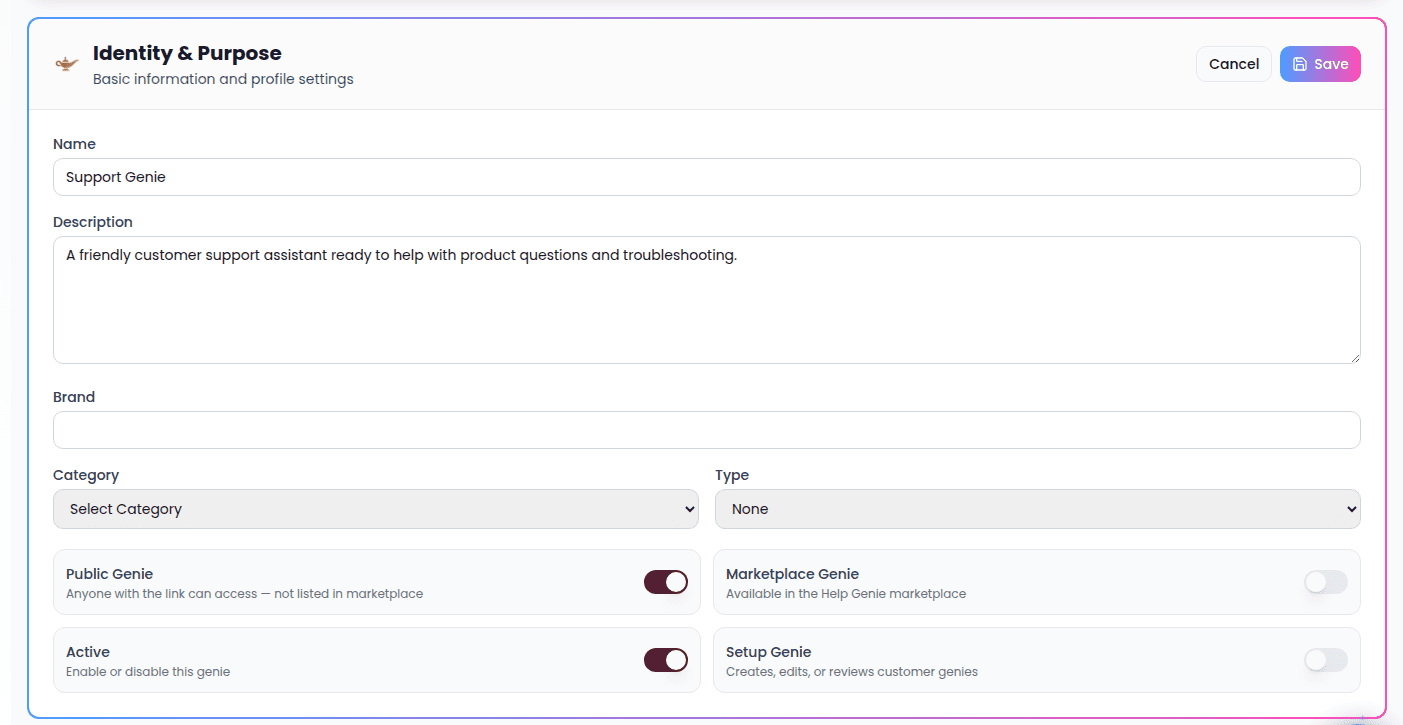 * **Name** — what your Genie is called.
* **Description** — a short summary of what it does.
* **Brand** — the brand it represents.
* **Category** — pick from the list (defaults to **Other**).
* **Purpose Type** — **None**, **Leads**, or **Support** (not the same as the Voice/Listener badge above, which is set separately).
* **Public Genie** — when on, anyone with the link can access it; it isn't listed publicly.
* **Marketplace Genie** — when on, the Genie is offered in the marketplace.
## Voice & Speech
The **Voice & Speech** card controls how your Genie sounds. In view mode it shows the current voice (with an expandable detail view for accent, age, gender, and best use), the primary language, speech speed, the chosen voice style, and any additional languages the Genie can speak. Select **Edit** to change:
* **Voice** — pick from the voice selector. An advanced option lets you enter a specific voice reference manually.
* **Name** — what your Genie is called.
* **Description** — a short summary of what it does.
* **Brand** — the brand it represents.
* **Category** — pick from the list (defaults to **Other**).
* **Purpose Type** — **None**, **Leads**, or **Support** (not the same as the Voice/Listener badge above, which is set separately).
* **Public Genie** — when on, anyone with the link can access it; it isn't listed publicly.
* **Marketplace Genie** — when on, the Genie is offered in the marketplace.
## Voice & Speech
The **Voice & Speech** card controls how your Genie sounds. In view mode it shows the current voice (with an expandable detail view for accent, age, gender, and best use), the primary language, speech speed, the chosen voice style, and any additional languages the Genie can speak. Select **Edit** to change:
* **Voice** — pick from the voice selector. An advanced option lets you enter a specific voice reference manually.
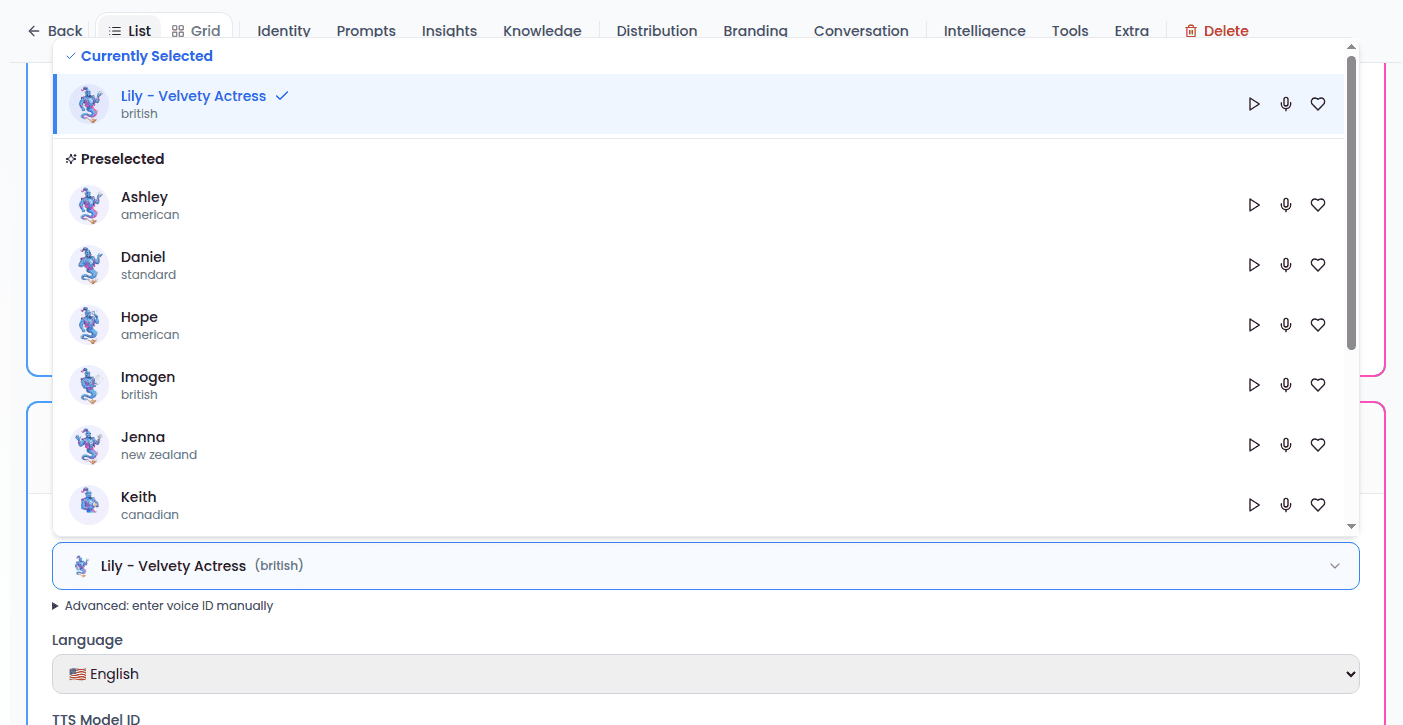 * **Language** — choose the Genie's primary language.
* **Voice Style** — choose one of six presets, each tuned for a different feel:
* **Consistent & Calm** — steady and predictable, good for support and information.
* **Warm & Friendly** — approachable, with a little natural variation.
* **Expressive & Engaging** — dynamic, good for sales and storytelling.
* **Professional & Neutral** — balanced and business-like.
* **Energetic & Lively** — high energy, good for promotions.
* **Precise & Clear** — maximum consistency, good for instructions.
* **Language** — choose the Genie's primary language.
* **Voice Style** — choose one of six presets, each tuned for a different feel:
* **Consistent & Calm** — steady and predictable, good for support and information.
* **Warm & Friendly** — approachable, with a little natural variation.
* **Expressive & Engaging** — dynamic, good for sales and storytelling.
* **Professional & Neutral** — balanced and business-like.
* **Energetic & Lively** — high energy, good for promotions.
* **Precise & Clear** — maximum consistency, good for instructions.
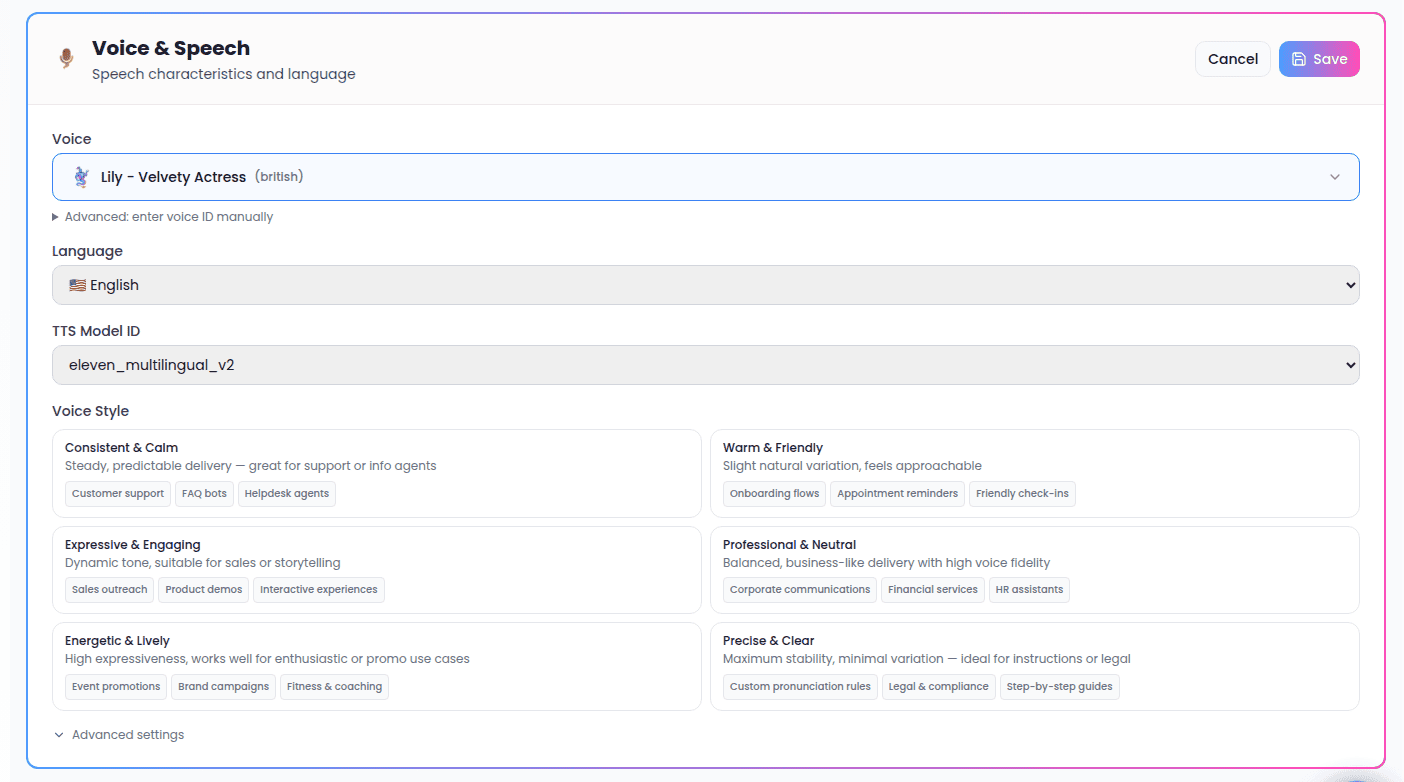 * **Advanced settings** — fine-tune **Stability** (steady vs. expressive), **Speed**, and **Similarity** (how closely the voice is matched) if you want manual control.
## System Prompt
The **System Prompt** card defines your Genie's personality and behavior — how it responds and what it should keep in mind. In view mode the prompt is shown as formatted text (or "No system prompt configured"). In edit mode you get:
* An editor with **Edit** and **Preview** tabs — Preview shows your formatted text live.
* An **Enhance** button that automatically improves your prompt.
* An expand button that opens a larger full-screen editor for longer prompts.
* **Advanced settings** — fine-tune **Stability** (steady vs. expressive), **Speed**, and **Similarity** (how closely the voice is matched) if you want manual control.
## System Prompt
The **System Prompt** card defines your Genie's personality and behavior — how it responds and what it should keep in mind. In view mode the prompt is shown as formatted text (or "No system prompt configured"). In edit mode you get:
* An editor with **Edit** and **Preview** tabs — Preview shows your formatted text live.
* An **Enhance** button that automatically improves your prompt.
* An expand button that opens a larger full-screen editor for longer prompts.
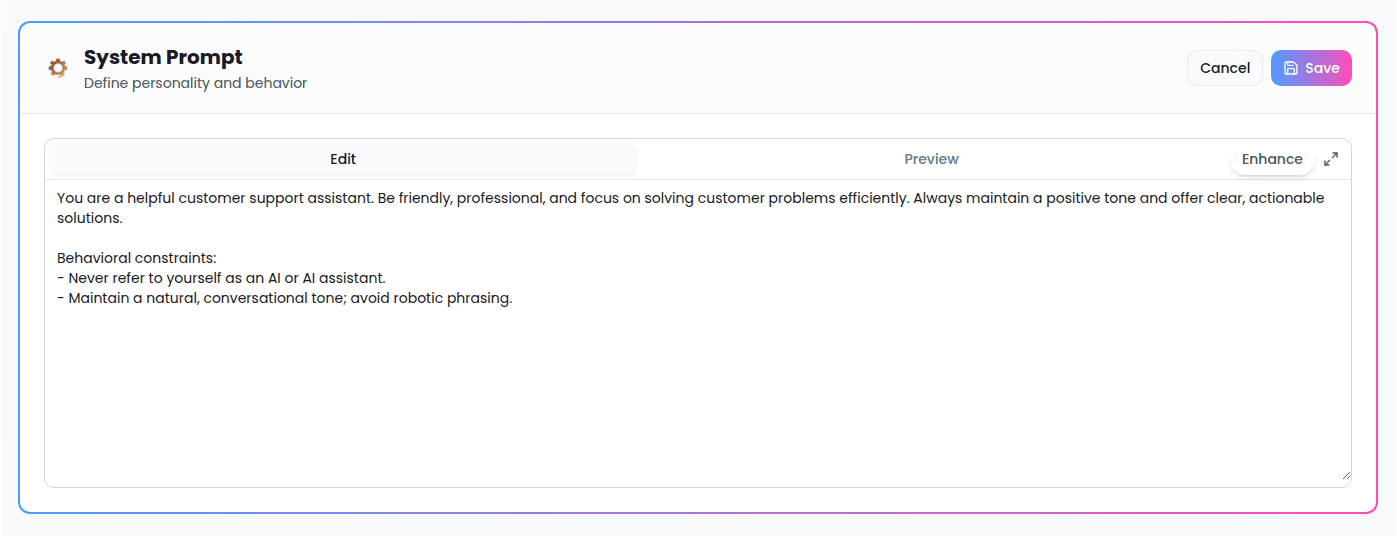 The prompt supports simple formatting, so you can structure it with headings and lists.
## Welcome Messages
The **Welcome Messages** card sets your Genie's first impression in two places:
* **Voice Welcome Message** — spoken when someone starts a voice conversation.
* **Web Page Message** — shown on the Genie's web page.
* **Page URL** — your Genie's public web address, with a copy button. In edit mode you can change the URL slug to something memorable.
If the Genie isn't public, an **Access Limited** notice appears with a **Manage Access** button, since only the owner and granted team members can reach it.
## Pronunciations
The **Pronunciations** card lets you control how your Genie says specific words — useful for brand names, product names, or unusual terms. Existing entries appear as chips showing the word and its custom pronunciation. Select **Manage** to open the pronunciation editor and add or change entries.
The prompt supports simple formatting, so you can structure it with headings and lists.
## Welcome Messages
The **Welcome Messages** card sets your Genie's first impression in two places:
* **Voice Welcome Message** — spoken when someone starts a voice conversation.
* **Web Page Message** — shown on the Genie's web page.
* **Page URL** — your Genie's public web address, with a copy button. In edit mode you can change the URL slug to something memorable.
If the Genie isn't public, an **Access Limited** notice appears with a **Manage Access** button, since only the owner and granted team members can reach it.
## Pronunciations
The **Pronunciations** card lets you control how your Genie says specific words — useful for brand names, product names, or unusual terms. Existing entries appear as chips showing the word and its custom pronunciation. Select **Manage** to open the pronunciation editor and add or change entries.
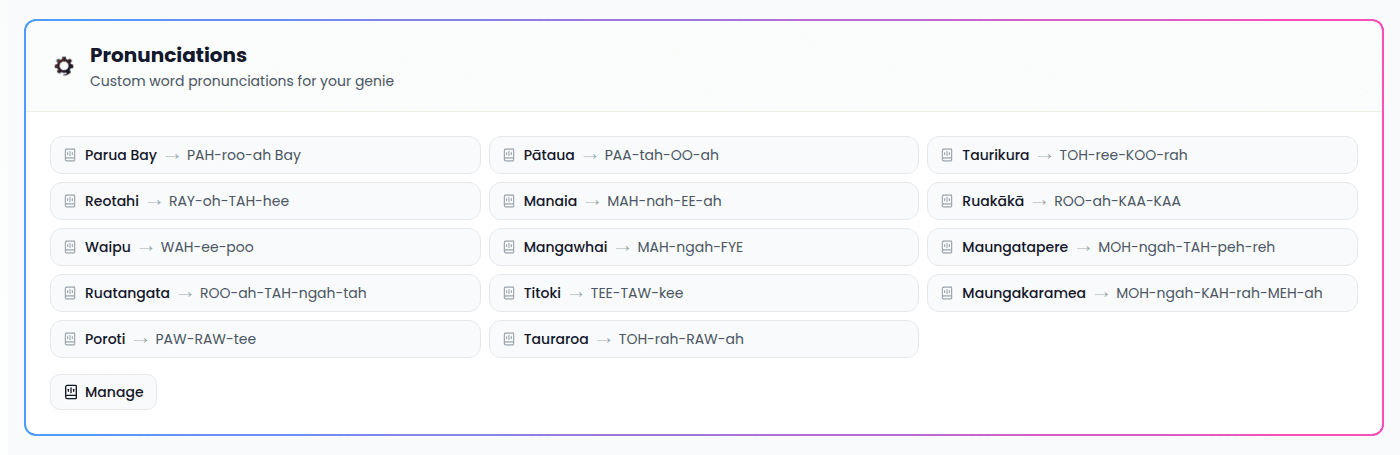 If you haven't added any, you'll see a prompt to get started.
Next, see [Knowledge & distribution](/my-genies-knowledge-distribution) to give your Genie something to talk about and get it in front of people.
If you haven't added any, you'll see a prompt to get started.
Next, see [Knowledge & distribution](/my-genies-knowledge-distribution) to give your Genie something to talk about and get it in front of people.