> ## Documentation Index
> Fetch the complete documentation index at: https://docs.helpgenie.ai/llms.txt
> Use this file to discover all available pages before exploring further.
# Genie Insights & Knowledge
> What your Genie extracts from conversations and what it knows — insights, knowledge base, branded documents, private data sources, page resources, closing page, and the Genie Page.
Once your Genie's [identity and voice](/voice-guide/my-genies-identity-voice) are set, the next group of cards on its configuration screen tells it what to collect from each conversation and gives it the knowledge to answer people.
 ## Insights
The **Insights** card defines what information your Genie extracts from each conversation — for example a caller's name, email, or the reason they got in touch.
* **Attached Insight** shows the insight currently in use, or a note that none is attached. When one is attached, you'll see how many fields it collects and a grid of those field labels.
* **Create Insight** opens a short form where you describe what you want to capture in plain language; the fields are generated for you and attached to the Genie.
* **Edit** adjusts an attached insight's name, description, and fields; **Remove** detaches it (without deleting the insight itself).
* **Manage Insights** opens the Insight Manager to view, edit, organize, and reuse insights across Genies.
Collected fields are extracted automatically after each conversation.
## Knowledge Base
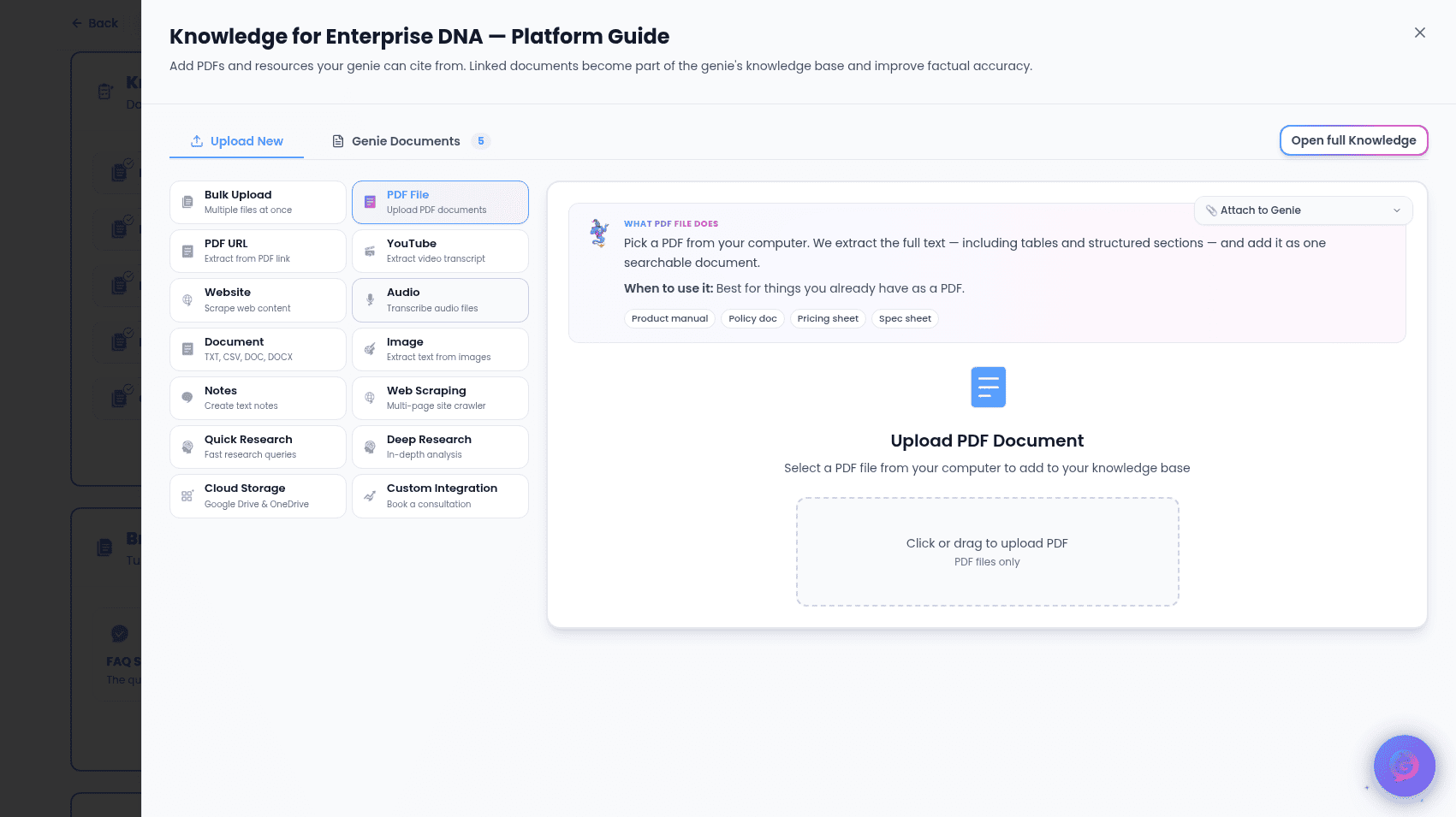
The **Knowledge Base** card lists the documents this Genie draws on to answer people. When empty, it prompts you to link documents. When documents are linked, each appears as a card where you can:
* **View** — open the original document in a new tab.
* **Edit** — open the document's details to update it, send it to (or remove it from) the Genie's live knowledge base, or delete it.
* **Detach** — remove it from this Genie without deleting the document.
Select **Manage Knowledge** to open a drawer where you link existing documents to this Genie. For the full library of content across all your Genies, see the [Knowledge Base](/voice-guide/knowledge-base).
## Branded Documents
The **Branded Documents** card turns your Genie's knowledge into a polished, co-branded guide you can share or print. You'll see a set of document templates, each with a name and short description. Select **Create a document** (or **Manage documents**, once you have some) to open the generator.
## Private Context Source
The **Private Context Source** card attaches a connected integration your Genie can search privately during conversations. There's no separate Edit mode — everything is interactive inline.
* If you haven't set up any integrations yet, you're pointed to **Integrations** to create your first one.
* If integrations exist, **Choose integration…** opens a dropdown — each entry is tagged by type (**document**, **API**, or connected service) — and picking one attaches it.
* Once attached: **Change** picks a different source, **Refresh** re-checks its available capabilities, **Detach** removes it (with a confirmation prompt).
## Resources
The **Resources** card manages the documents, links, and banner shown on your Genie's live page — separate from the knowledge base the Genie reads from to answer questions. Select **Edit** to configure:
* **Documents** — upload up to **10** files (each under **25 MB**). Supported: PDF, Word, PowerPoint, Excel, text, CSV, and images. Each can be renamed or removed.
* **Banner Image** — paste an image URL to show a banner, with a live preview.
* **Links** — add up to **10** links, each with a **label** and a **URL** (validated live).
These same documents and links appear as take-away resources on the Closing page below.
## Closing page
The **Closing page** card is the wrap-up people see when a conversation ends. Select **Edit** to set:
* **Closing message** — up to **240 characters** (a live counter shows `x/240`). Leave blank for a friendly default.
* **Next-step buttons** — up to **4** buttons, each a **label** (e.g. "Book a call") and a **URL**.
## Genie Page
The **Genie Page** card is a summary of, and a way into, the public page anyone can visit to get help from this Genie.
* A status badge shows **Live** or **Not public**, plus the page's web address.
* **Design page** — opens the full Genie Page editor, where the page's layout and content are actually configured (this card is a summary, not a second editor).
* **Open** — visits the live page. **Copy link** — copies the page URL.
Next, see [Branding](/voice-guide/my-genies-branding) for your Genie's visual identity, then [Distribution](/voice-guide/my-genies-distribution) to put it in front of people.
## Insights
The **Insights** card defines what information your Genie extracts from each conversation — for example a caller's name, email, or the reason they got in touch.
* **Attached Insight** shows the insight currently in use, or a note that none is attached. When one is attached, you'll see how many fields it collects and a grid of those field labels.
* **Create Insight** opens a short form where you describe what you want to capture in plain language; the fields are generated for you and attached to the Genie.
* **Edit** adjusts an attached insight's name, description, and fields; **Remove** detaches it (without deleting the insight itself).
* **Manage Insights** opens the Insight Manager to view, edit, organize, and reuse insights across Genies.
Collected fields are extracted automatically after each conversation.
## Knowledge Base
The **Knowledge Base** card lists the documents this Genie draws on to answer people. When empty, it prompts you to link documents. When documents are linked, each appears as a card where you can:
* **View** — open the original document in a new tab.
* **Edit** — open the document's details to update it, send it to (or remove it from) the Genie's live knowledge base, or delete it.
* **Detach** — remove it from this Genie without deleting the document.
Select **Manage Knowledge** to open a drawer where you link existing documents to this Genie. For the full library of content across all your Genies, see the [Knowledge Base](/voice-guide/knowledge-base).
## Branded Documents
The **Branded Documents** card turns your Genie's knowledge into a polished, co-branded guide you can share or print. You'll see a set of document templates, each with a name and short description. Select **Create a document** (or **Manage documents**, once you have some) to open the generator.
## Private Context Source
The **Private Context Source** card attaches a connected integration your Genie can search privately during conversations. There's no separate Edit mode — everything is interactive inline.
* If you haven't set up any integrations yet, you're pointed to **Integrations** to create your first one.
* If integrations exist, **Choose integration…** opens a dropdown — each entry is tagged by type (**document**, **API**, or connected service) — and picking one attaches it.
* Once attached: **Change** picks a different source, **Refresh** re-checks its available capabilities, **Detach** removes it (with a confirmation prompt).
## Resources
The **Resources** card manages the documents, links, and banner shown on your Genie's live page — separate from the knowledge base the Genie reads from to answer questions. Select **Edit** to configure:
* **Documents** — upload up to **10** files (each under **25 MB**). Supported: PDF, Word, PowerPoint, Excel, text, CSV, and images. Each can be renamed or removed.
* **Banner Image** — paste an image URL to show a banner, with a live preview.
* **Links** — add up to **10** links, each with a **label** and a **URL** (validated live).
These same documents and links appear as take-away resources on the Closing page below.
## Closing page
The **Closing page** card is the wrap-up people see when a conversation ends. Select **Edit** to set:
* **Closing message** — up to **240 characters** (a live counter shows `x/240`). Leave blank for a friendly default.
* **Next-step buttons** — up to **4** buttons, each a **label** (e.g. "Book a call") and a **URL**.
## Genie Page
The **Genie Page** card is a summary of, and a way into, the public page anyone can visit to get help from this Genie.
* A status badge shows **Live** or **Not public**, plus the page's web address.
* **Design page** — opens the full Genie Page editor, where the page's layout and content are actually configured (this card is a summary, not a second editor).
* **Open** — visits the live page. **Copy link** — copies the page URL.
Next, see [Branding](/voice-guide/my-genies-branding) for your Genie's visual identity, then [Distribution](/voice-guide/my-genies-distribution) to put it in front of people.