> ## Documentation Index
> Fetch the complete documentation index at: https://docs.helpgenie.ai/llms.txt
> Use this file to discover all available pages before exploring further.
# My Genies
> Browse, search, group, and organize all of your Genies from one place — the home base for everything you've built.
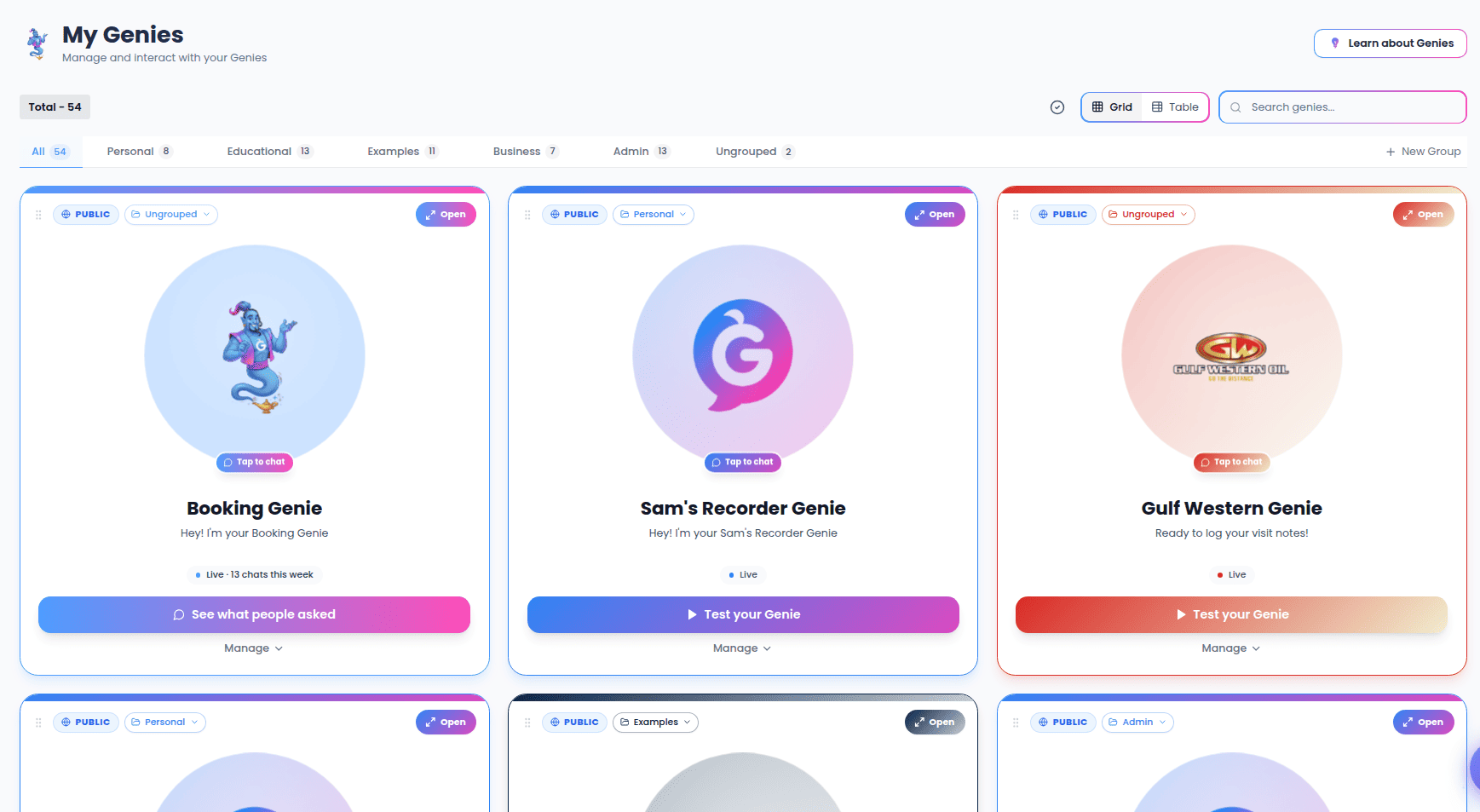
My Genies is your home base — a list of every Genie you own or have access to. From here you search, filter, group, reorder, and open any Genie to configure it.
You'll find it under **Genie Hub → My Genies** (`/genie-hub/my-genies`). Selecting a Genie opens its configuration screen; see [Identity, voice & prompts](/my-genies-identity-voice) to start.
 ## The page at a glance
Across the top you'll see:
* **My Genies** heading with a short subtitle.
* A **Genie limit** banner (only when you've hit your plan's cap) showing how many Genies you've used and an **Upgrade** button. See [When you reach your limit](#when-you-reach-your-limit).
* **Learn more** — a quick link to guidance for this area.
Below the heading is a controls bar, then your Genies in either grid or table view.
## Ownership filter
When one or more of your Genies belongs to a teammate, a count bar appears with three filters:
* **Total** — every Genie you can see.
* **Personal** — only Genies you own.
* **Team** — Genies owned by other members of your team that you've been given access to.
If nothing is shared with you, this simply shows your total count. Genies owned by someone else are marked with a **Team** badge wherever they appear.
## Searching
Use the **Search genies…** box to filter the list as you type. Search matches a Genie's name, description, welcome message, and category. If nothing matches, you'll see a "No genies found" message with a **Clear search** link to reset.
## Grid and table views
A view toggle switches between two layouts, and your choice is remembered for next time:
## The page at a glance
Across the top you'll see:
* **My Genies** heading with a short subtitle.
* A **Genie limit** banner (only when you've hit your plan's cap) showing how many Genies you've used and an **Upgrade** button. See [When you reach your limit](#when-you-reach-your-limit).
* **Learn more** — a quick link to guidance for this area.
Below the heading is a controls bar, then your Genies in either grid or table view.
## Ownership filter
When one or more of your Genies belongs to a teammate, a count bar appears with three filters:
* **Total** — every Genie you can see.
* **Personal** — only Genies you own.
* **Team** — Genies owned by other members of your team that you've been given access to.
If nothing is shared with you, this simply shows your total count. Genies owned by someone else are marked with a **Team** badge wherever they appear.
## Searching
Use the **Search genies…** box to filter the list as you type. Search matches a Genie's name, description, welcome message, and category. If nothing matches, you'll see a "No genies found" message with a **Clear search** link to reset.
## Grid and table views
A view toggle switches between two layouts, and your choice is remembered for next time:
 * **Grid** — a card per Genie, showing its avatar, name, status, and quick actions.
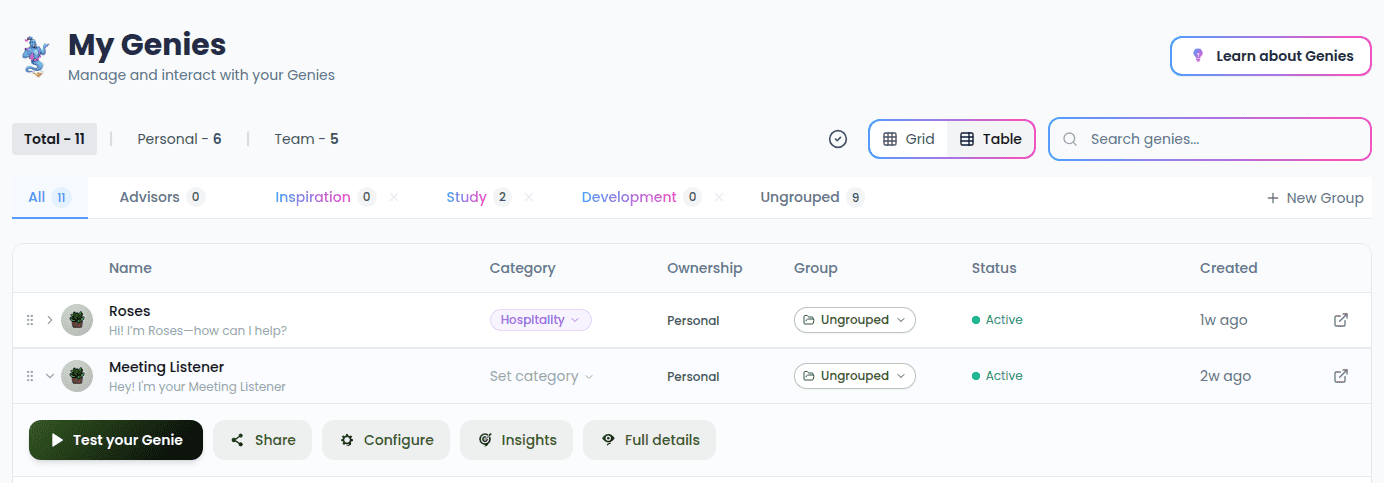
* **Table** — a compact row per Genie with columns for **Name**, **Category**, **Ownership** (Personal/Team), **Group**, **Status** (active or inactive), feature icons (a phone number is attached, knowledge is attached), and when it was **Created**.
In the table, select a row to expand it and reveal quick actions — **Test your Genie**, **Share**, **Configure**, **Insights**, and **Full details**.
* **Grid** — a card per Genie, showing its avatar, name, status, and quick actions.
* **Table** — a compact row per Genie with columns for **Name**, **Category**, **Ownership** (Personal/Team), **Group**, **Status** (active or inactive), feature icons (a phone number is attached, knowledge is attached), and when it was **Created**.
In the table, select a row to expand it and reveal quick actions — **Test your Genie**, **Share**, **Configure**, **Insights**, and **Full details**.
 ### What each Genie card shows
In grid view, each card adapts to the Genie's state:
* A **Public** or **Private** badge, and a **Team** badge for Genies owned by others.
* A **Voice** or **Listener** type badge, showing which kind of Genie it is.
* A status pill: **Inactive**, **Live**, **Live · Ready to share**, or **Live · N chats this week** (conversations in the last 7 days).
* **Open** to enter the Genie's configuration screen, and tapping the avatar opens the live Genie to chat or preview.
* One adaptive primary button that reflects what to do next — **Test your Genie** (inactive), **See what people asked** (live with recent chats), or **Activate this Genie** (live but quiet).
* A **Manage** toggle that expands **Share**, **Configure**, **Insights**, and **Full details**.
### What each Genie card shows
In grid view, each card adapts to the Genie's state:
* A **Public** or **Private** badge, and a **Team** badge for Genies owned by others.
* A **Voice** or **Listener** type badge, showing which kind of Genie it is.
* A status pill: **Inactive**, **Live**, **Live · Ready to share**, or **Live · N chats this week** (conversations in the last 7 days).
* **Open** to enter the Genie's configuration screen, and tapping the avatar opens the live Genie to chat or preview.
* One adaptive primary button that reflects what to do next — **Test your Genie** (inactive), **See what people asked** (live with recent chats), or **Activate this Genie** (live but quiet).
* A **Manage** toggle that expands **Share**, **Configure**, **Insights**, and **Full details**.
 **Share** copies the public link for a public Genie (or uses your device's share sheet on mobile); for a private Genie it opens a sharing panel for team and link access.
## Groups
Groups let you organize Genies into named collections. A row of tabs sits above the list:
* **All** and **Ungrouped** tabs, each with a count, plus a tab for every group you've created.
* Select a tab to filter the list to that group.
* Drag group tabs to reorder them.
* Each group tab has an **×** to delete it — you'll be asked to confirm, and any Genies inside are moved to **Ungrouped** (nothing is deleted). Team groups can't be deleted and are shown with a distinct style.
* **New Group** opens the group panel.
**Share** copies the public link for a public Genie (or uses your device's share sheet on mobile); for a private Genie it opens a sharing panel for team and link access.
## Groups
Groups let you organize Genies into named collections. A row of tabs sits above the list:
* **All** and **Ungrouped** tabs, each with a count, plus a tab for every group you've created.
* Select a tab to filter the list to that group.
* Drag group tabs to reorder them.
* Each group tab has an **×** to delete it — you'll be asked to confirm, and any Genies inside are moved to **Ungrouped** (nothing is deleted). Team groups can't be deleted and are shown with a distinct style.
* **New Group** opens the group panel.
 On smaller screens the group bar collapses under a **Genies Groups** header.
### Creating or editing a group
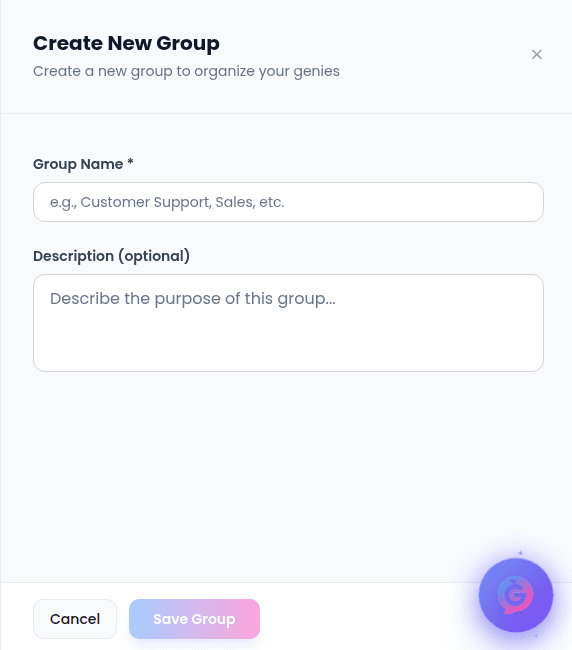
The group panel lets you set a **Group Name** (required, up to 50 characters) and an optional **Description** (up to 200 characters), with live character counters. **Save Group** is enabled once you've entered a name.
On smaller screens the group bar collapses under a **Genies Groups** header.
### Creating or editing a group
The group panel lets you set a **Group Name** (required, up to 50 characters) and an optional **Description** (up to 200 characters), with live character counters. **Save Group** is enabled once you've entered a name.
 ### Moving a Genie into a group
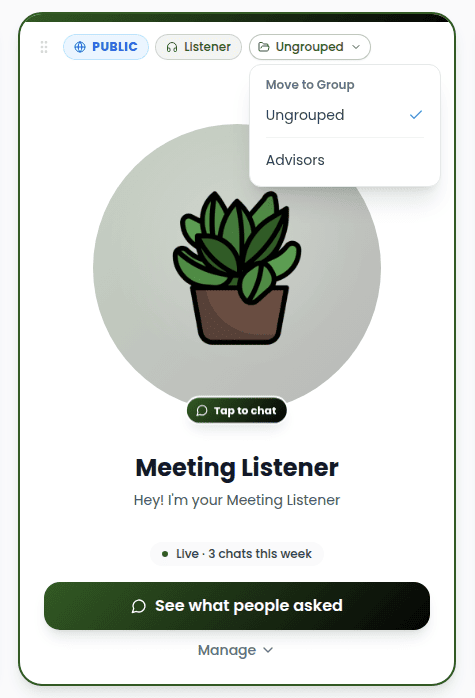
Each Genie has a group selector (a small pill showing its current group, or **Ungrouped**). Open it to pick a group and reassign the Genie. Personal Genies can only join personal groups, and team Genies can only join team groups.
### Moving a Genie into a group
Each Genie has a group selector (a small pill showing its current group, or **Ungrouped**). Open it to pick a group and reassign the Genie. Personal Genies can only join personal groups, and team Genies can only join team groups.
 ## Reordering
Drag any Genie card (grid) or row (table) using its grip handle to change the order they appear in. Your new order is saved automatically.
Reordering is turned off while a search term is active — clear the search to drag Genies again.
## Creating a new Genie
* The **Unlock your next genie** card at the bottom of the list starts a new setup. See [Setting Up a Genie](/genie-setup-overview).
* The **Unfinished setups** button (a checkmark icon in the controls bar) takes you to Genies whose setup you haven't finished.
* If you have no Genies yet, an empty state offers **Create Your First Genie**.
## When you reach your limit
Your plan includes a maximum number of Genies. When you reach it:
* A **Genie limit reached** banner appears at the top with your current count and an **Upgrade** button.
* An upgrade card replaces the "create" prompt, showing how many Genies you've used and the benefits of upgrading (unlimited Genies, advanced customization, priority support and analytics).
* **Upgrade to Premium** takes you to the pricing page.
Existing Genies keep working — the limit only affects creating new ones.
## Reordering
Drag any Genie card (grid) or row (table) using its grip handle to change the order they appear in. Your new order is saved automatically.
Reordering is turned off while a search term is active — clear the search to drag Genies again.
## Creating a new Genie
* The **Unlock your next genie** card at the bottom of the list starts a new setup. See [Setting Up a Genie](/genie-setup-overview).
* The **Unfinished setups** button (a checkmark icon in the controls bar) takes you to Genies whose setup you haven't finished.
* If you have no Genies yet, an empty state offers **Create Your First Genie**.
## When you reach your limit
Your plan includes a maximum number of Genies. When you reach it:
* A **Genie limit reached** banner appears at the top with your current count and an **Upgrade** button.
* An upgrade card replaces the "create" prompt, showing how many Genies you've used and the benefits of upgrading (unlimited Genies, advanced customization, priority support and analytics).
* **Upgrade to Premium** takes you to the pricing page.
Existing Genies keep working — the limit only affects creating new ones.