

Outbound never supports cold-prospect lists; every contact must already have a
relationship with your business.
The Contacts tab
Your Genie’s Contacts tab shows every audience as a card, with a reach banner across the top tallying how many contacts are callable right now across all audiences after the compliance gate (do-not-call screening, suppression, quiet hours). Choose Add an audience to import a new list.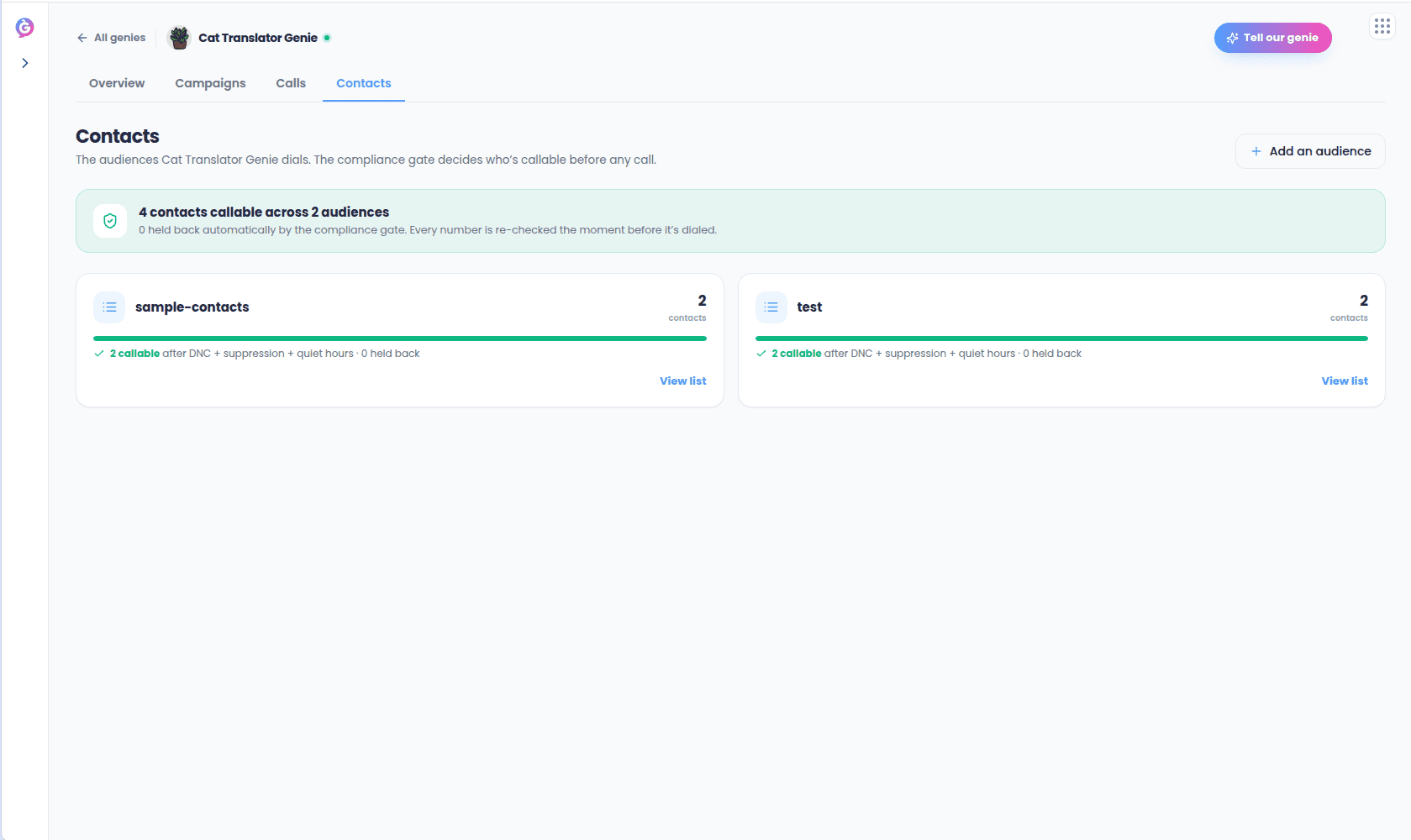
Adding an audience
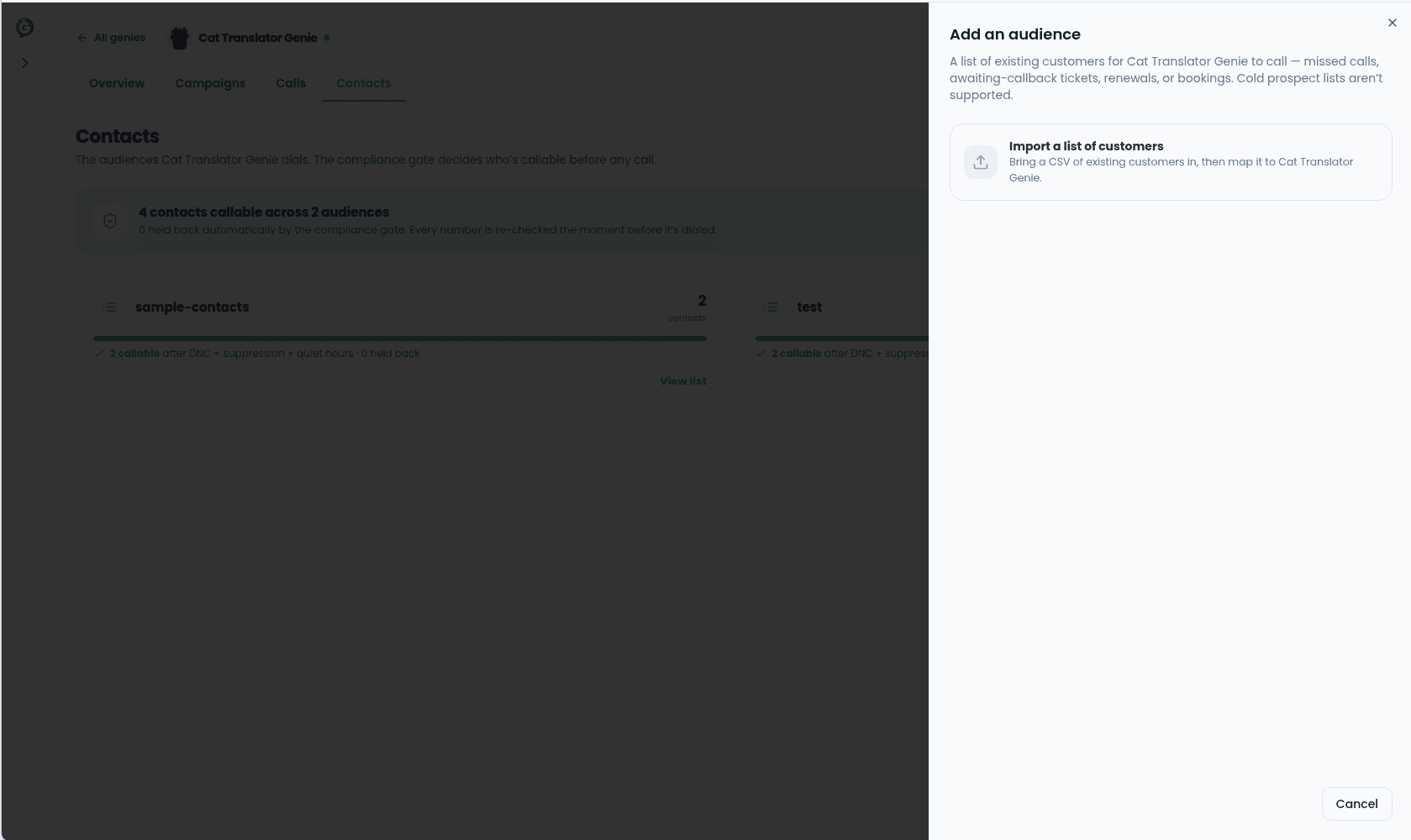
Choosing Add an audience opens a four-step flow:1
List details
Name the list and add an optional description.
2
Upload
Drop or choose a CSV of your existing customers.
3
Map the columns
The phone, name, email, and timezone columns are auto-mapped from your headers;
adjust them if needed, and set a default region (NZ, AU, US, or GB) so numbers
without a leading
+ parse correctly.4
Review
See how many rows parsed as valid contacts versus were skipped (missing, invalid, or
unparseable numbers).
Numbers are validated to international dialling format at import time, but do-not-call,
suppression, and quiet-hours checks run at dial time, not here.
Audience detail
Opening an audience shows its name and description, a Call this list shortcut into the launch flow, a reach summary (“N of M callable,” with a plain-language reason for any held back), and a table of every contact with their number, email, timezone, and state (Callable, Held · quiet hours, or On DNC).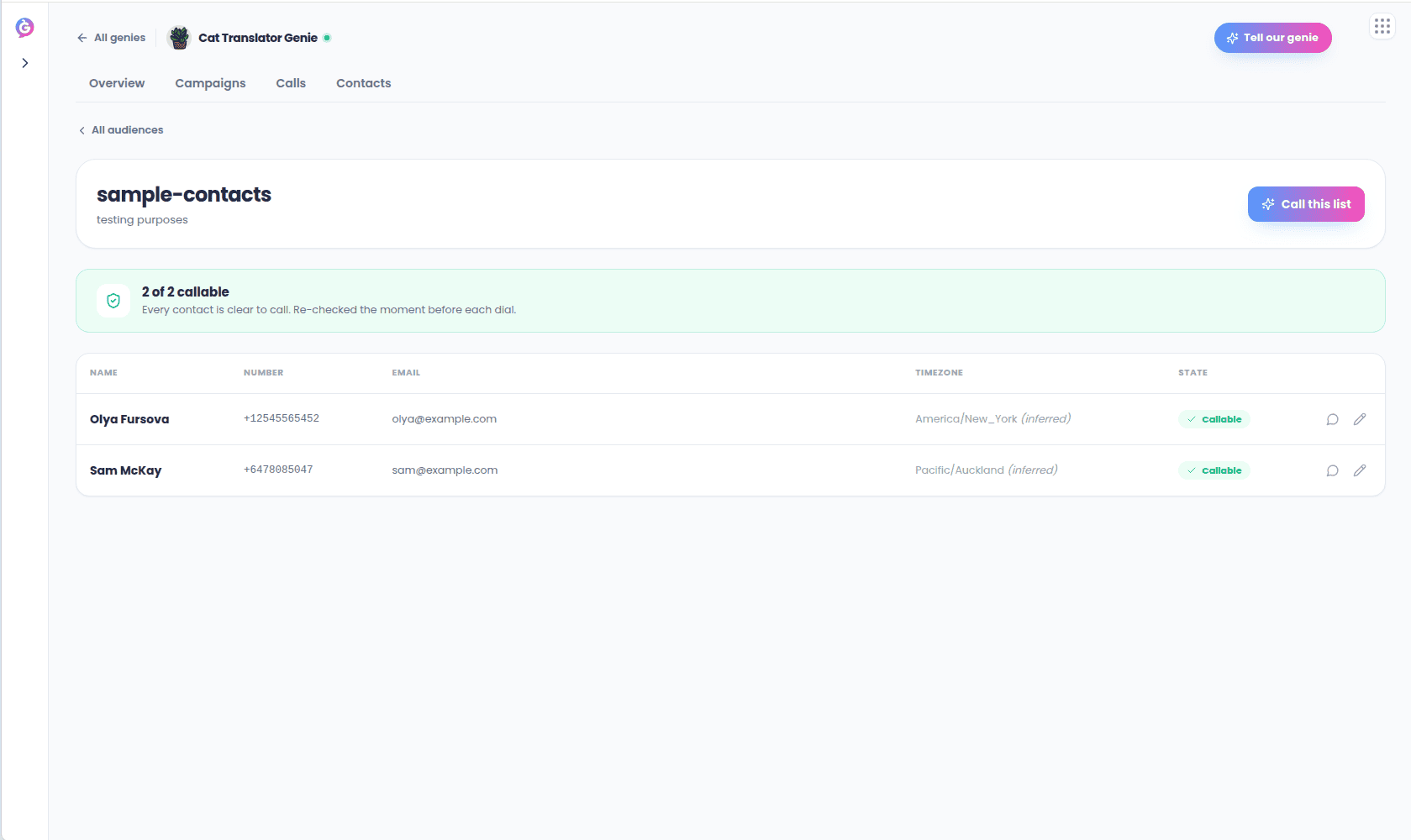
- Message a contact — opens the SMS thread for that number.
- Edit a contact’s details.