The Campaigns tab
From your Genie’s Campaigns tab you see a summary strip — Running now, Contacts in flight, Reached this week, Resolved this week — followed by a list of your campaigns, active ones first. Each row shows a live progress bar and its outcomes (Reached / Resolved). Select a campaign to open its detail view.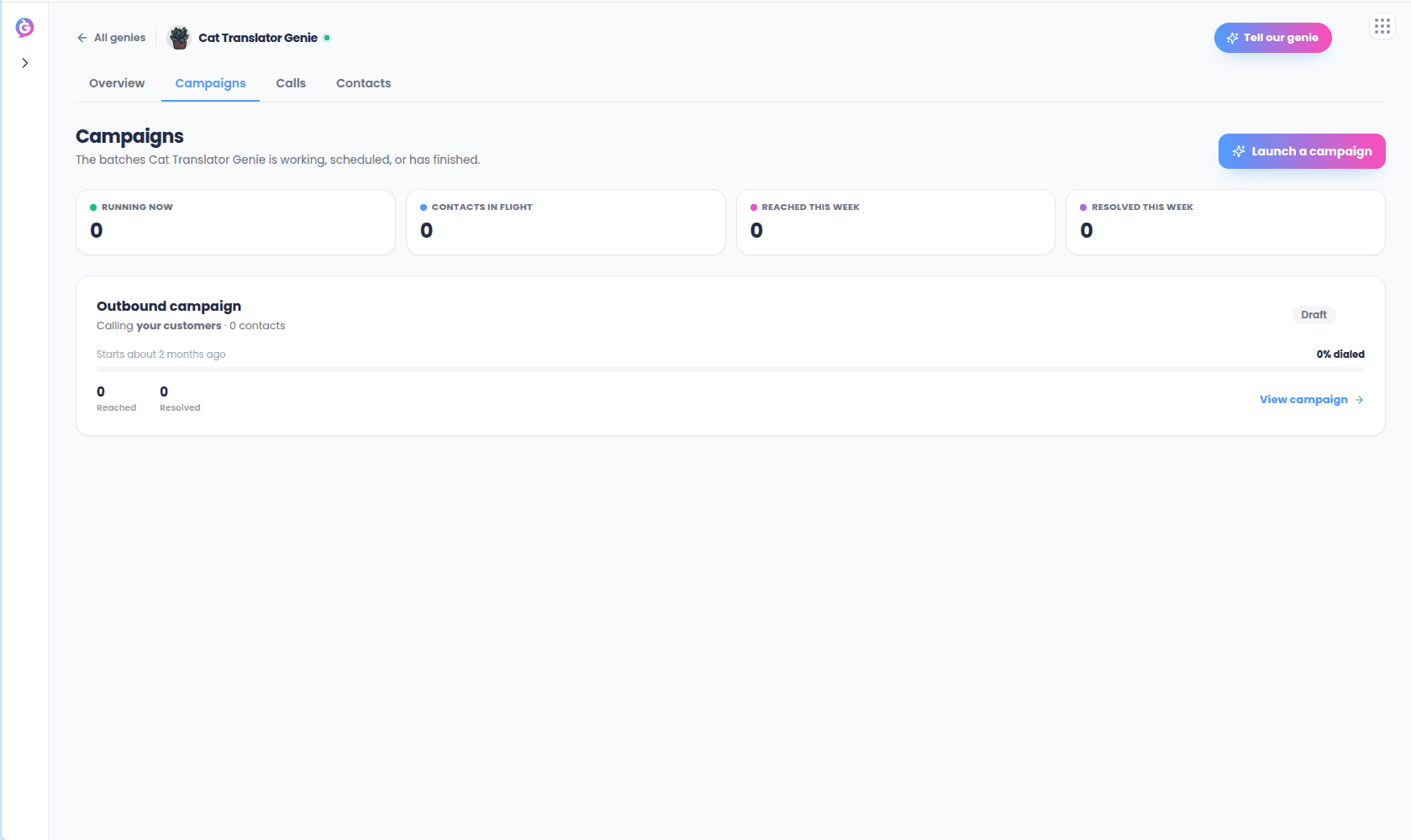
Launching a campaign
Choose Launch a campaign to open the one-page launch screen. It confirms three things before it lets you start calling, each editable in place:1
The audience — who it calls
Pick or swap the contact list; a compliance strip shows how many contacts are
callable after do-not-call, suppression, and quiet-hours checks. See
Audiences and Contacts.
2
The goal and how it opens — what it says
Review the opening line and the goal; choose Edit script to change it.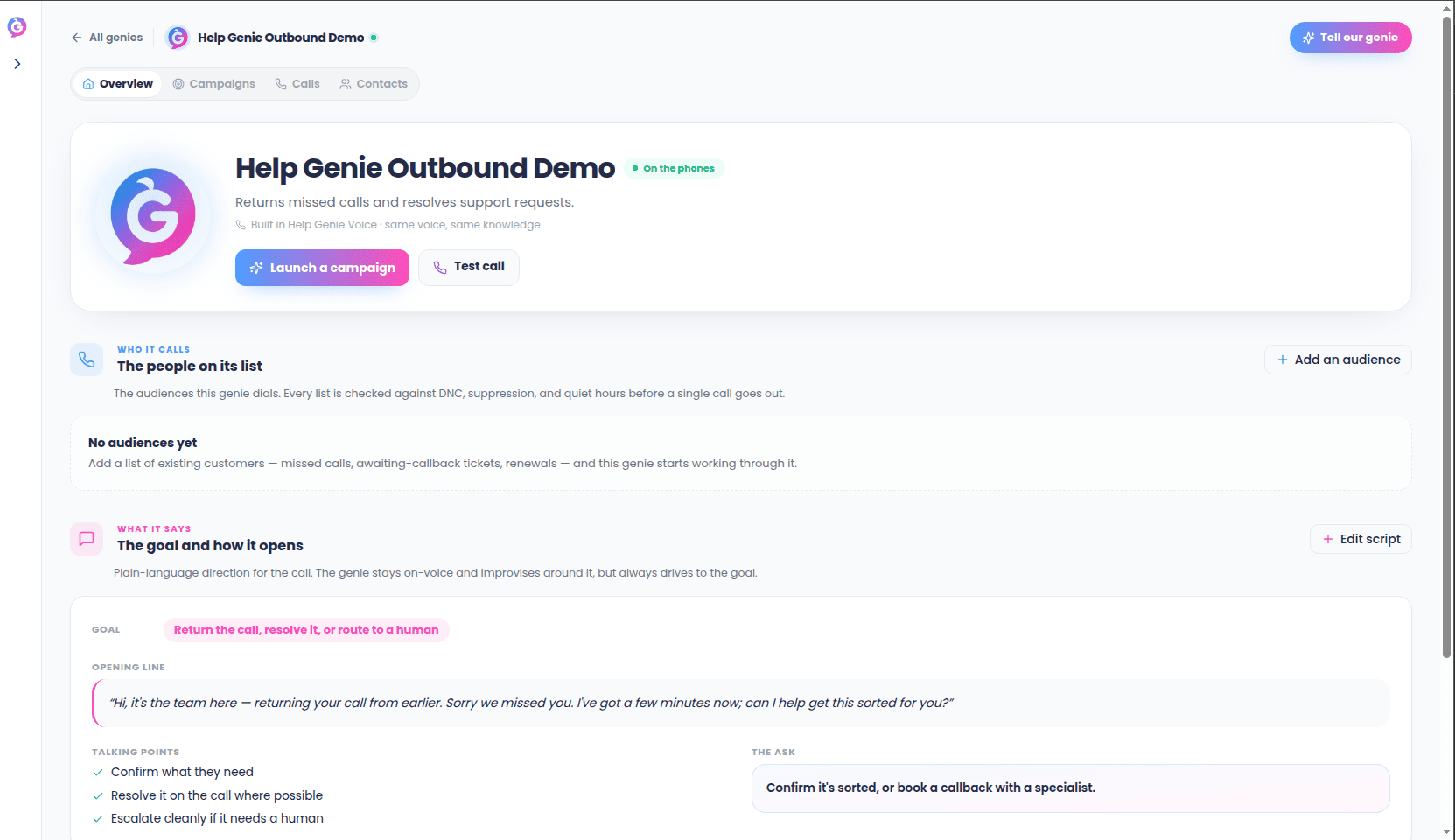
3
Schedule and limits — when + guardrails
Review the calling window, daily call cap, and max attempts per contact; choose
Adjust to change them.
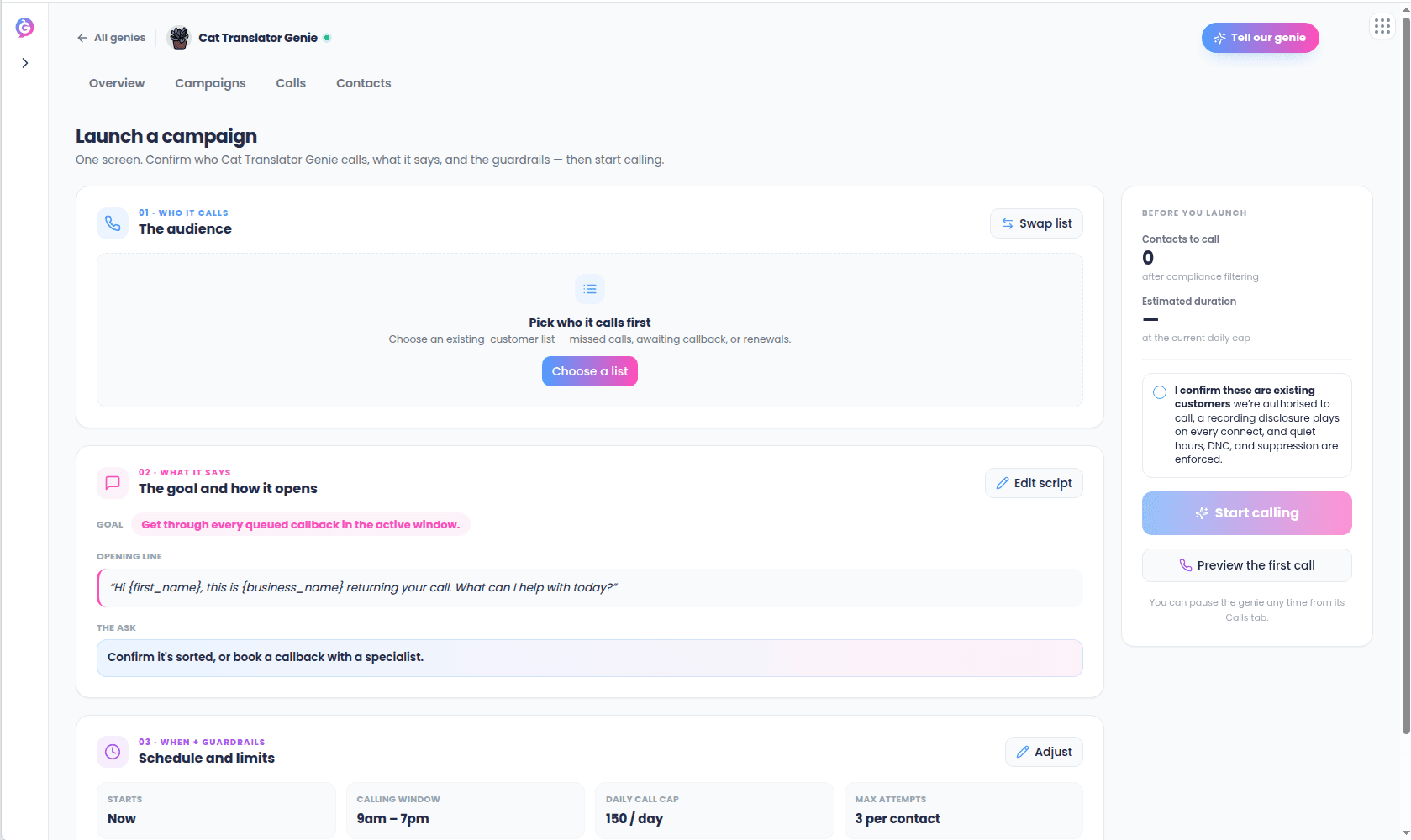
The Start calling button only enables once you’ve picked an audience, confirmed the
attestation, and the list has at least one callable contact.
Campaign statuses
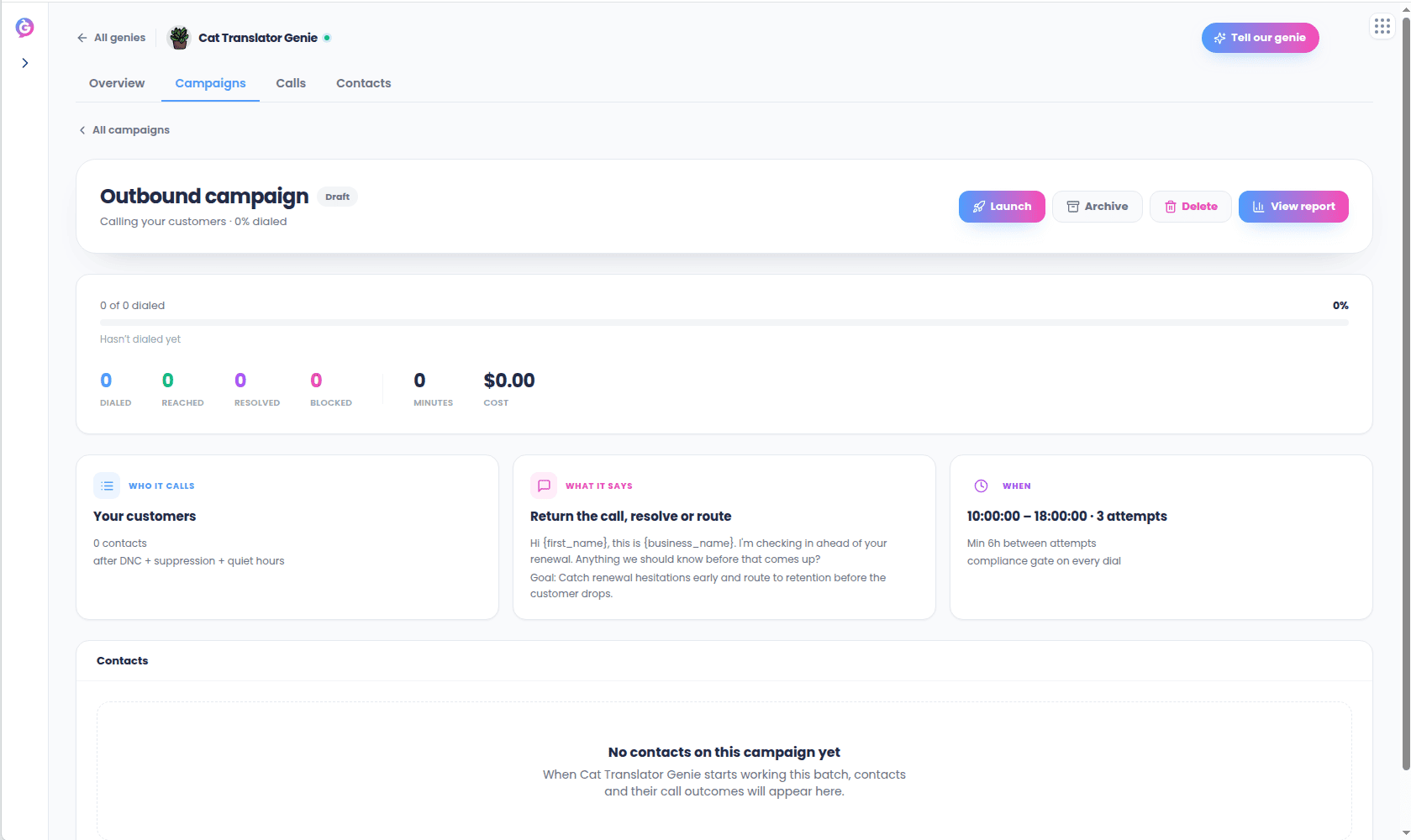
A campaign can be draft, active, paused, done, or archived. There is no separate “scheduled” status — a draft with a future start time simply shows when it’s due to start.Monitoring a campaign
Open a campaign from the list to see its detail view:- A status pill with actions (Pause/Resume/Archive/Reopen/Delete/Relaunch, depending on status).
- A live progress and outcomes strip.
- A plain-language summary of who it calls / what it says / when.
- A contacts table showing each contact’s state (On a call, Resolved, Blocked, Opted out, No answer, Pending) and attempt count.