Where to start
If this is your first time here, do these in order:1
Link your Help Genie Voice account
Sync connects to Voice automatically once you sign in with the same account — see Getting Started.
2
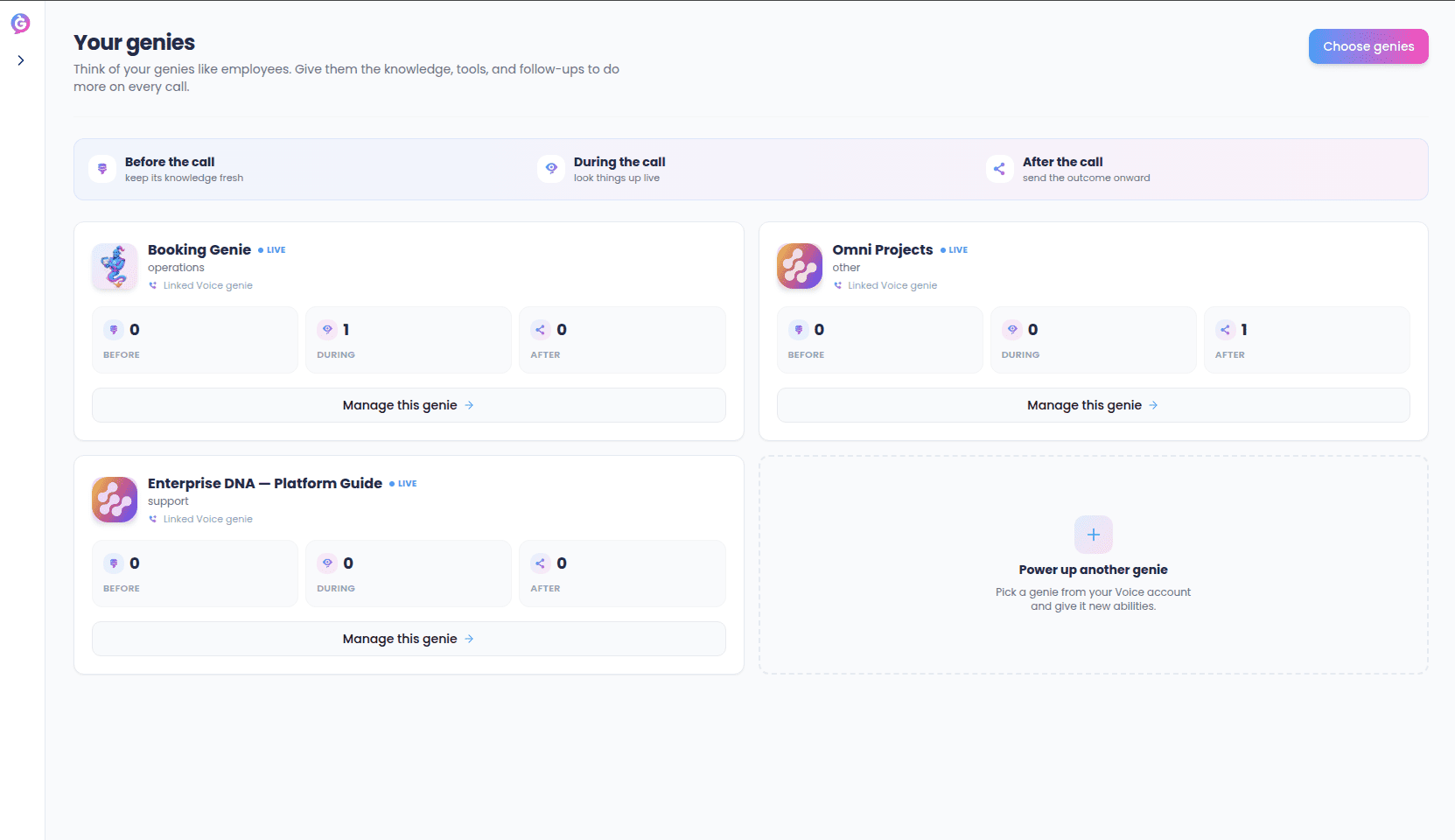
Pick which genies to manage
Sync doesn’t create genies — it powers up genies that already exist in Voice. See Your Genies.
3
Connect a system
Link HubSpot, Slack, a database, or anything else your genie should read from or act on. See Connections.
4
Set up what happens before, during, and after a call
Knowledge, live lookups, and follow-ups — all from that genie’s own page. See A Genie’s Page.
Before the call
Your genie needs to walk into every conversation already knowing your business — your policies, your prices, your product catalog, whatever your customers ask about. Sync keeps that knowledge fresh automatically, so your genie is never caught quoting last month’s information. See Knowledge Sync for how this works.During the call
Some questions can’t be answered from memory alone — “what’s the status of my order,” “do you have this in stock.” For those, your genie can reach out mid-call and check, live, then answer with the real answer instead of a guess. See Capabilities for how this works.After the call
Once a call ends, there’s often follow-up work: logging a note in your CRM, posting a summary to your team, sending a recap email. Sync can trigger all of that automatically the moment the call wraps up, so nothing falls through the cracks. See Post-Call Actions for how this works.The pieces underneath
Two things sit underneath all three stages:Connections
The links between Sync and your business’s other systems (HubSpot, a database, a website, anything else). Every knowledge sync and every capability that reaches outside Sync goes through a connection.
Notification Channels
Separate from connections, these are how you and your team get pinged about what a genie did (Slack, Telegram, and others), turned on per genie.
Who this is for
Anyone responsible for keeping their genie useful and accurate day to day — no engineering background required. Everything in Sync is configured through a visual interface. If you can use a spreadsheet, you can configure a genie. See A Genie’s Page for where all of this actually gets configured once you’re managing a specific genie.