

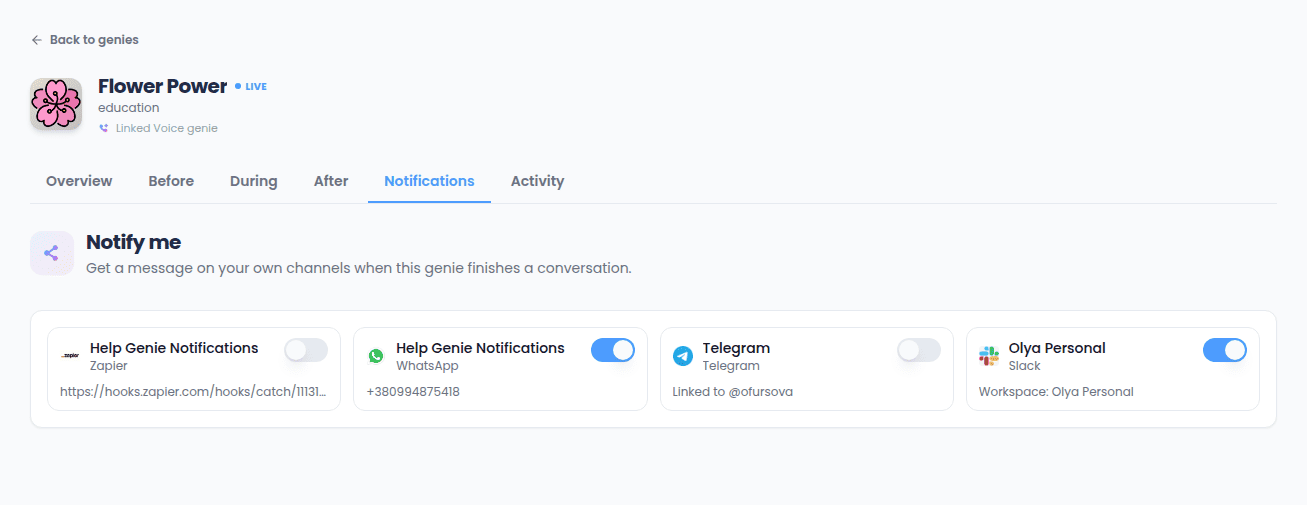
The five channel types
Slack
No fields to fill in — click to connect, sign in to Slack, and approve access. Sync can then post messages and share files in the channels you allow.Telegram
No fields to fill in. Instead, Sync gives you a link that opens Telegram and starts a conversation with the Sync bot. Open the link, tap start, and the connection completes automatically on Sync’s end — nothing to copy or paste.+ (for example, +14155551234).
WhatsApp notifications currently run through a shared testing number rather than your own business number, which means there’s a one-time extra step: you need to send a specific join message to that number from your WhatsApp before notifications will reach you, and you may need to repeat that step if you haven’t received anything from it in a while. The exact message and number to use are shown on the setup screen. That number belongs to Help Genie’s WhatsApp delivery partner, so the chat shows up under the delivery partner’s name rather than Help Genie’s — that’s expected, and your notifications arrive in that same chat.
Zapier
Two fields:- Webhook URL (required) — the Zapier webhook address that starts your Zap. Must be an
https://address. - Signing secret (optional) — if you set one, every request Sync sends is signed with it so you can verify on your end that it genuinely came from Sync, instead of sending the secret itself in each request.
Make
Same two fields as Zapier — a requiredhttps:// webhook URL and an optional signing secret — just pointed at a Make scenario instead.
Connecting one
1
Open the Notification Channels tab
It’s on the Connections page.
2
Pick a channel type
Fill in whatever it asks for — some ask for nothing at all (see above).
3
Check its status
Once connected, a channel shows as Active. If something’s wrong with the setup, it shows Error instead, and you can fix and retry.
A channel being connected here doesn’t send anything to anyone by itself — nothing goes out until you turn it on for at least one genie.