

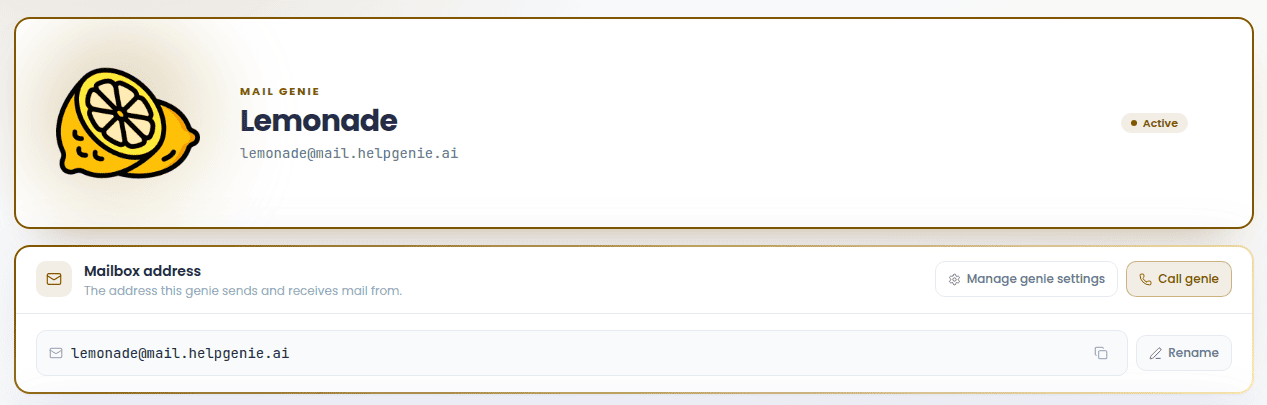
The header
At the top: the Genie’s avatar and name, the mailbox address in a card underneath, and a status pill on the right — Active, Paused, or Setting up.- Copy — copy the full mailbox address to your clipboard.
- Rename — edit the part before the
@. Names must be 2–40 characters, lowercase letters, digits, or hyphens, and can’t start or end with a hyphen. - Call this Genie — appears when the Genie is also set up for voice; opens the call surface in Help Genie Voice.
Tabs
Three tabs sit inside the mailbox panel: Activity, Overview, and Genie brain.Activity
A live feed of every email the Genie has processed for this mailbox. Click any row to open the Decision Inspector — what the Genie decided, why, and what it sent. Use Refresh in the tab header to re-pull the latest activity.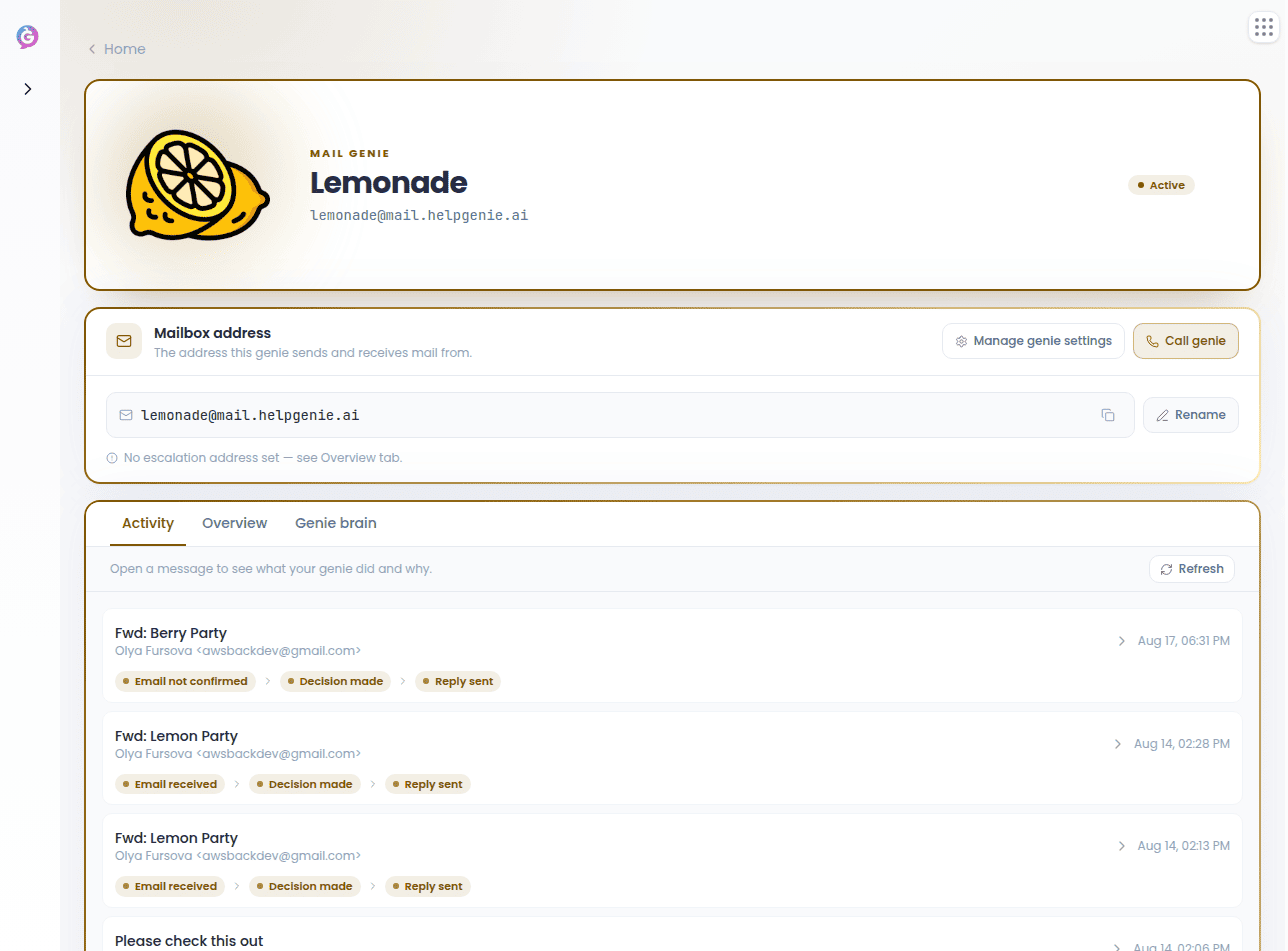
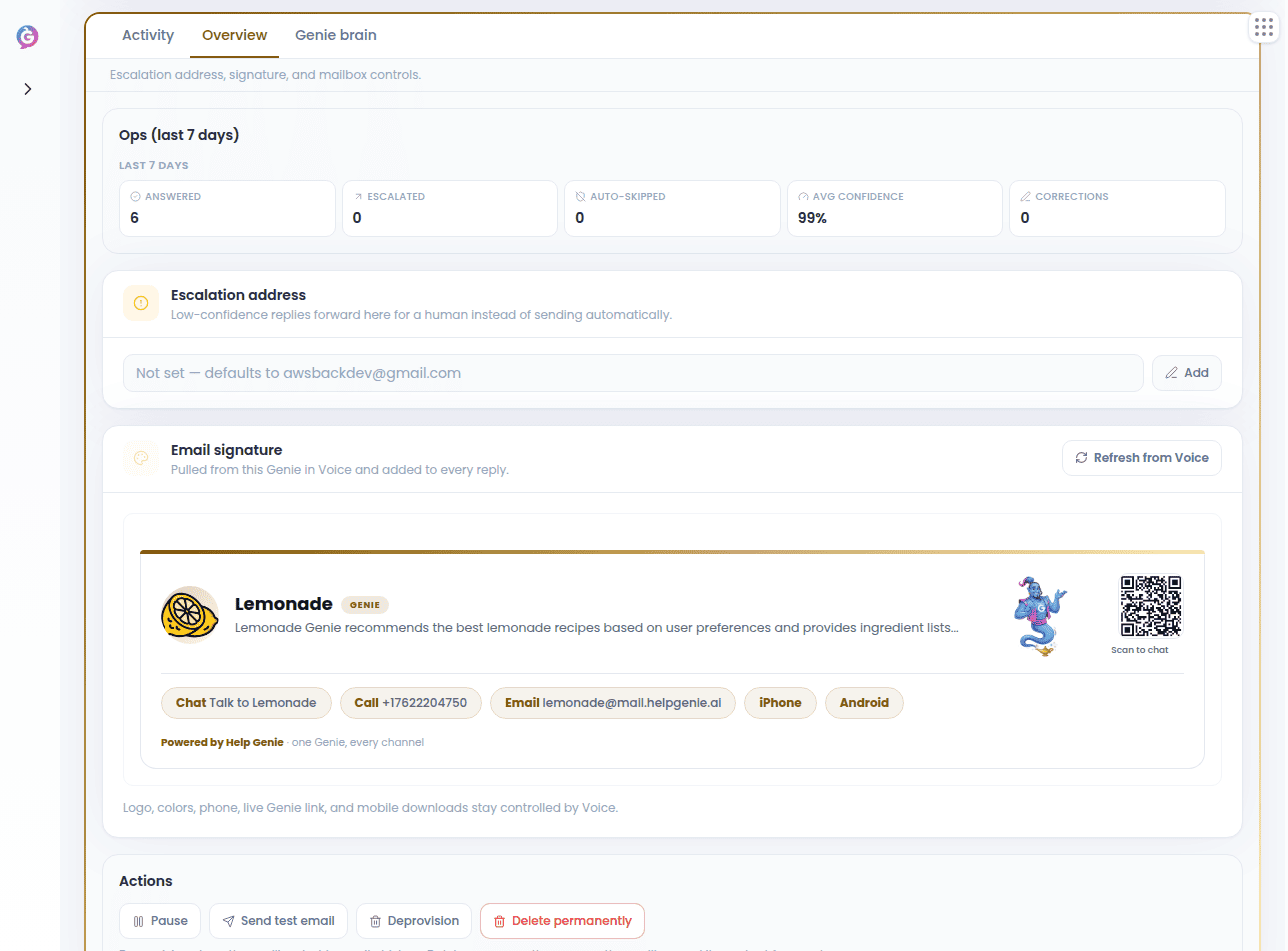
Overview
Everything that governs how the mailbox behaves day to day:- Ops (last 7 days) — a quick stats card showing volume and outcomes for the mailbox.
- Escalation address — where the Genie forwards anything it can’t confidently handle. Editable; leave blank to fall back to the account owner’s email.
- Genie signature — the block appended to every reply this Genie sends. The Genie’s brand colors show in the accents; the name and the “Powered by Help Genie” line use dark text for readability.
- Actions — mailbox controls (see below).
Emails already sent stay unchanged when you update the signature.
Genie brain
The instruction editor that governs how this specific mailbox replies: extra instructions, escalation address, reply caps, and rules. It’s the same editor used in Settings → Triage, scoped to just this one mailbox. See Genie Decisions & the Brain for what each field controls.Mailbox actions
The Actions card in Overview holds four operations:1
Pause / Resume
Stop or restart triage on new mail. Paused mailboxes still receive email, but the Genie won’t act on it until you resume.
2
Send test email
Send a real test message through the mailbox so you can see what recipients get.
3
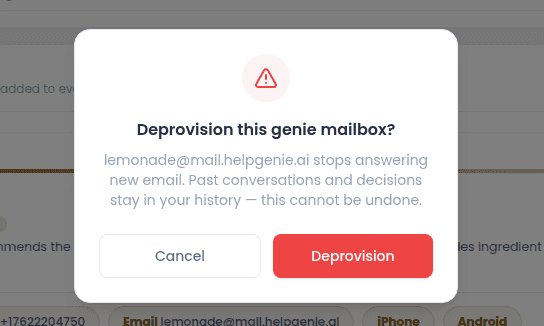
Deprovision
Stops the mailbox from answering new email. Past conversations and decisions stay in your history. This can’t be undone.
4
Delete permanently
Removes the mailbox and all its content for good. You’ll be asked to type the mailbox’s exact address to confirm; only the audit trail (who did what, and when) survives.
If Help Genie Voice still has this Genie provisioned, permanent deletion will fail with a link out to Voice to remove it there first.