

The Genie directory
Open Home from the sidebar. Genies are grouped into Mail connected and No mailbox yet, each with a count.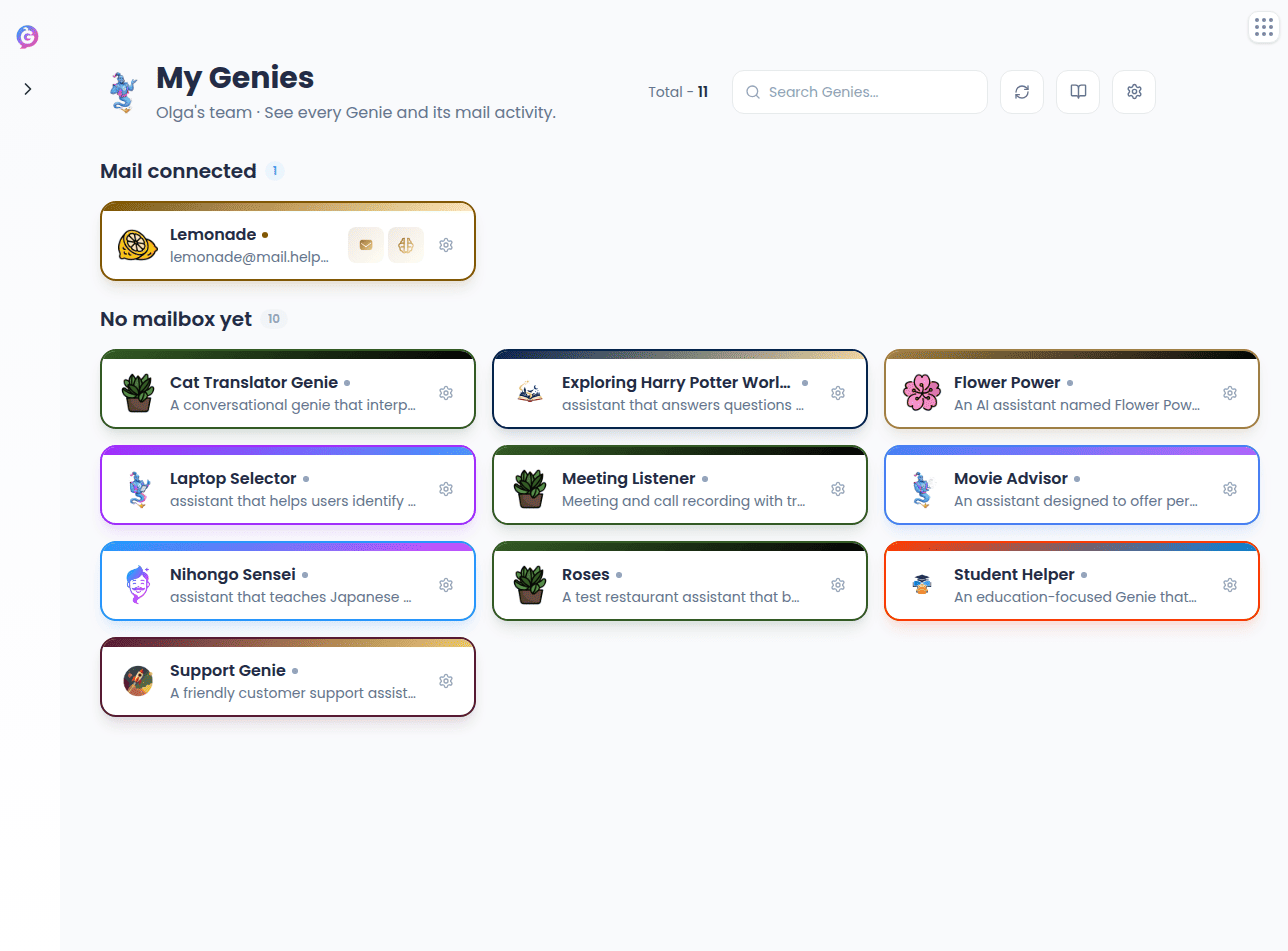
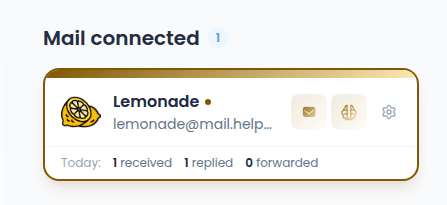
Creating a Genie mailbox
A Genie mailbox can’t be created from Mail — mailboxes are provisioned in Help Genie Voice.
1
Click the card's gear icon
This opens the Genie’s settings in Help Genie Voice with the Messaging section already selected.
2
Choose Create mailbox
Create mailbox is in the Messaging section. Voice provisions the mailbox for the Genie.
3
Sync back in Mail
Once it’s provisioned, the card moves into Mail connected the next time you sync.
Mailbox detail
Click a Genie’s name to open its mailbox page. At the top: the mailbox address (editable, with a copy button) and a status pill — Active, Paused, or Setting up.Activity
A feed of every email a Genie has processed for this mailbox. Click a row to open the Decision Inspector — what the Genie did and why.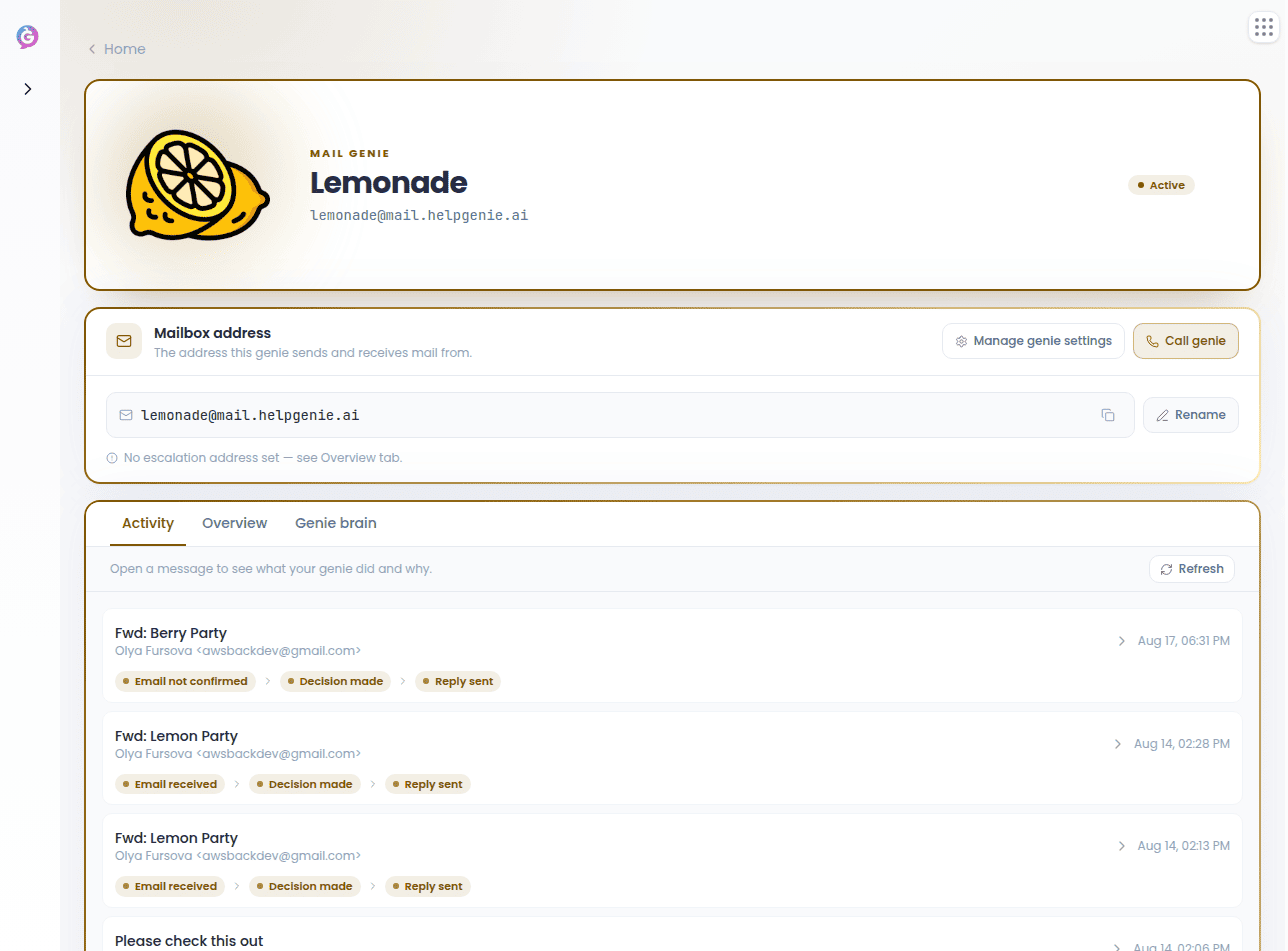
Overview
Ops stats for the last 7 days, an editable Escalation address (where a Genie forwards what it can’t confidently handle), an editable Genie signature, and the mailbox’s lifecycle actions.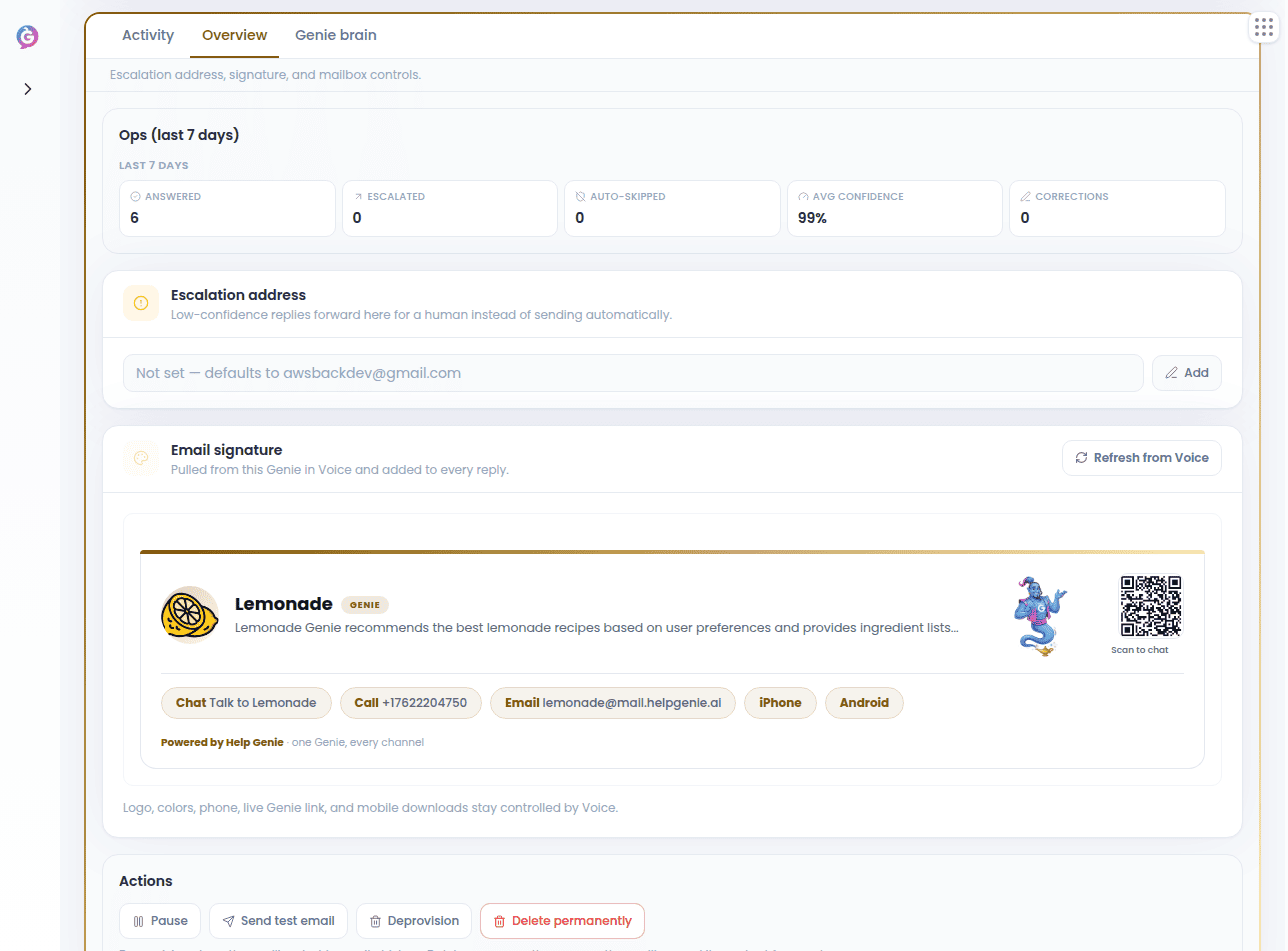
1
Pause / Resume
Stop or restart triage on new mail.
2
Send test email
Send a real test message through the mailbox.
3
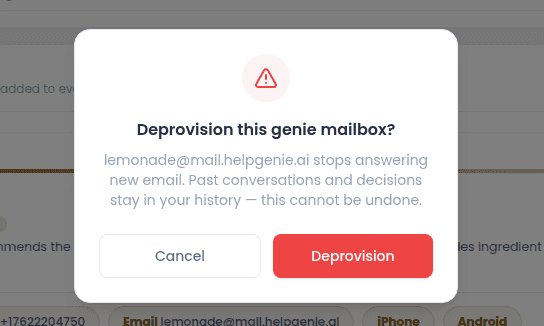
Deprovision
Stops the mailbox from answering new email; past conversations and decisions stay in your history. This can’t be undone.
4
Delete permanently
Removes the mailbox and all its content for good. You’ll need to type the mailbox’s exact email address to confirm. Only the audit trail (who did what) survives.
Your Genie’s email signature
Your Genie’s generated signature uses consistent text sizes and weights, with Poppins preferred and Arial or Helvetica used when the recipient’s mail app doesn’t support it. Gmail ignores remote fonts, and Outlook may use fallbacks too. Your Genie’s brand colors remain on the signature accents, while the name heading and “Powered by Help Genie” use dark text for readability. The attribution has a decorative Help Genie blue border regardless of your brand colors.Newly generated signatures use the updated styling automatically, even when your branding details are reused from a recent lookup. Emails you’ve already sent stay unchanged.