You can restart this walkthrough at any time from Settings → Preferences → Restart onboarding.
1
Meet your Genies
You’ll see the Genies set up for your team, each with either Mailbox ready or a Give it a mailbox link out to Help Genie Voice. If there aren’t any yet, you can create one from here. This step never blocks Continue — you can move on even if a mailbox isn’t provisioned yet.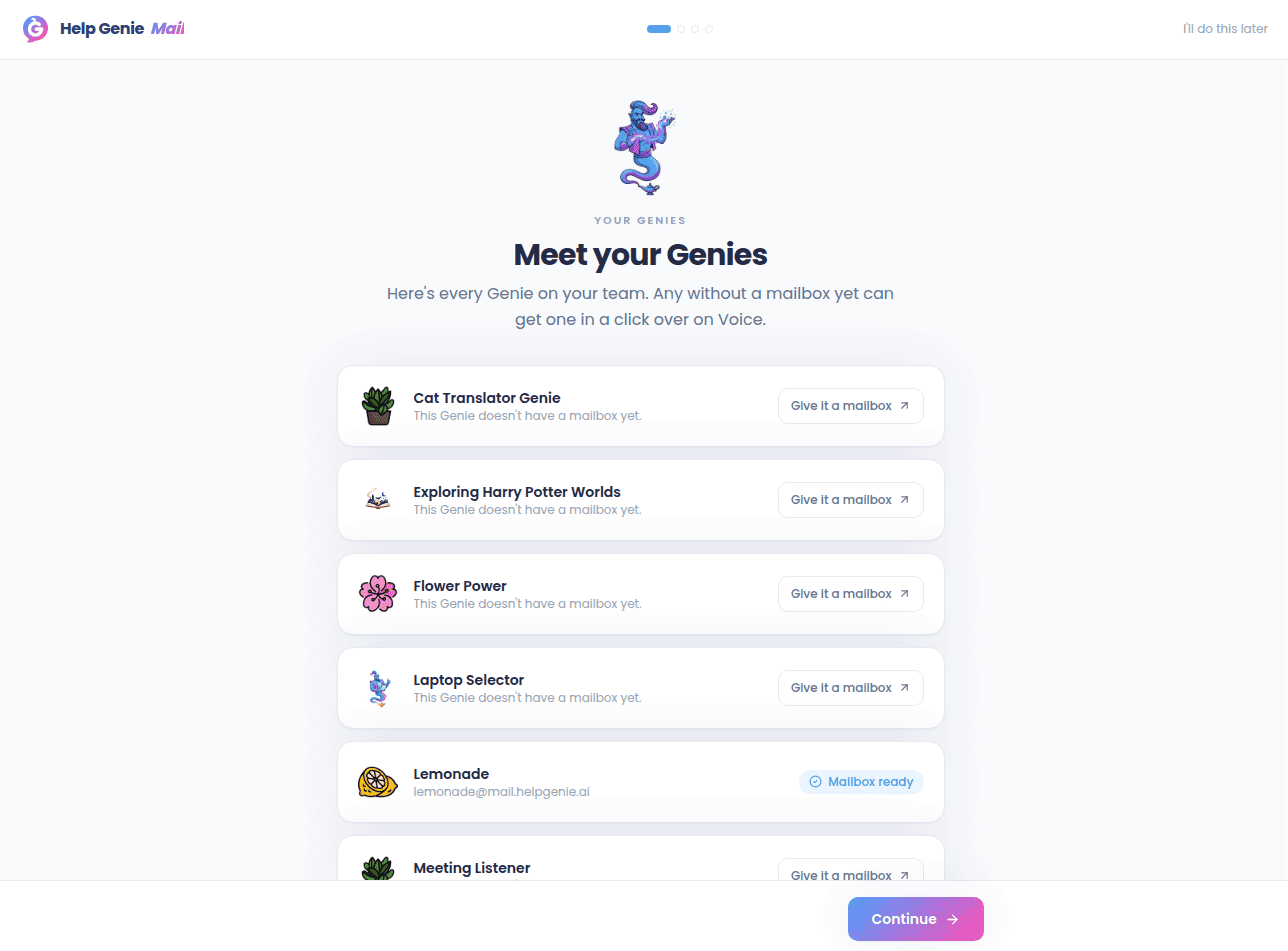
2
Connect your own inbox (optional)
If you’d like your personal Gmail or Outlook worked by a Genie too, this is where you connect it. Clicking a provider takes you to the official sign-in page — your password stays with your provider. Once connected, you’ll see your email listed with Reconnect and Disconnect buttons.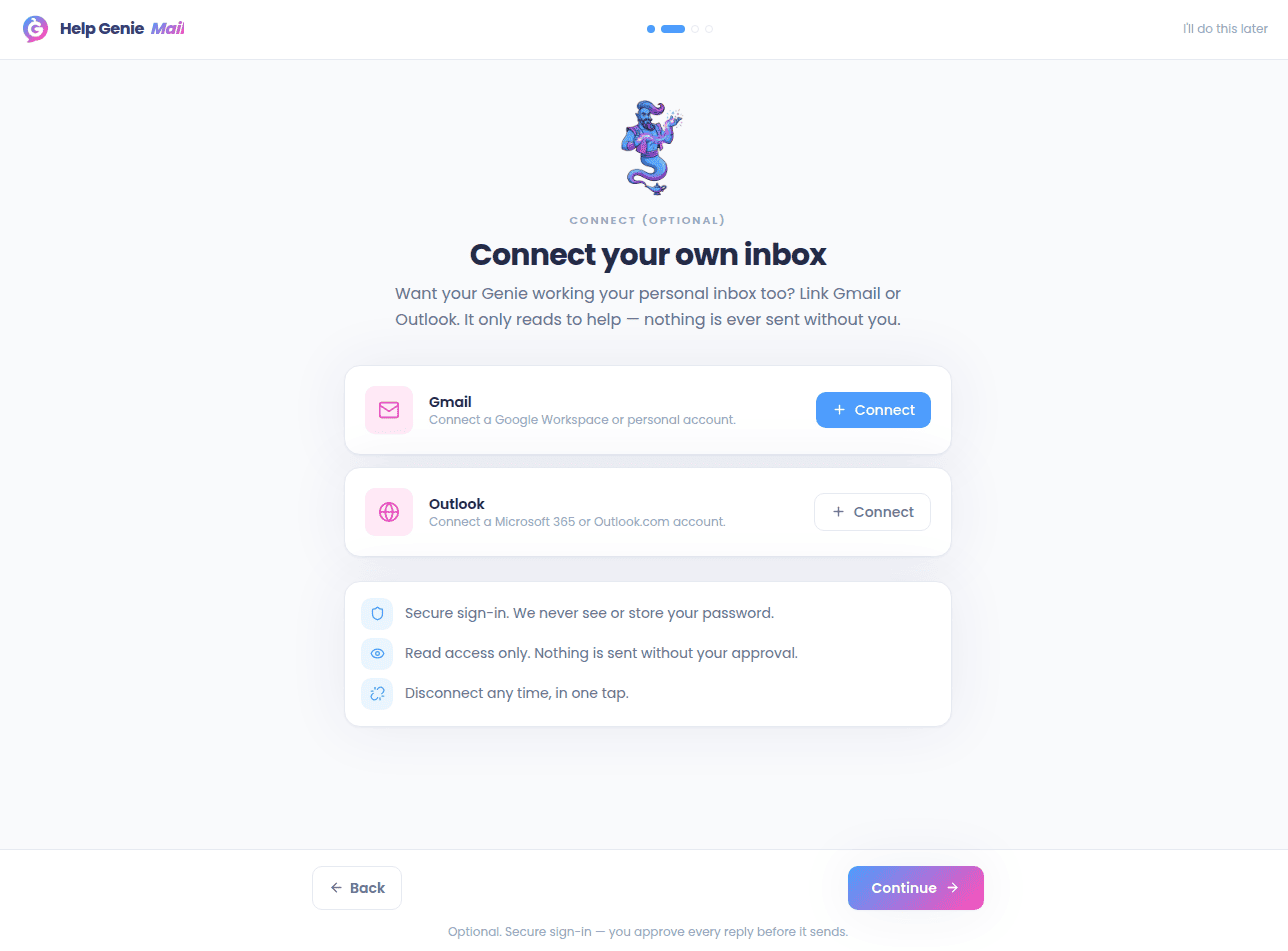
3
Give me a minute
A short animation plays while a Genie reads, learns, sorts, and drafts. Skip ahead is available the whole time, and the Genie keeps working in the background even if you move on.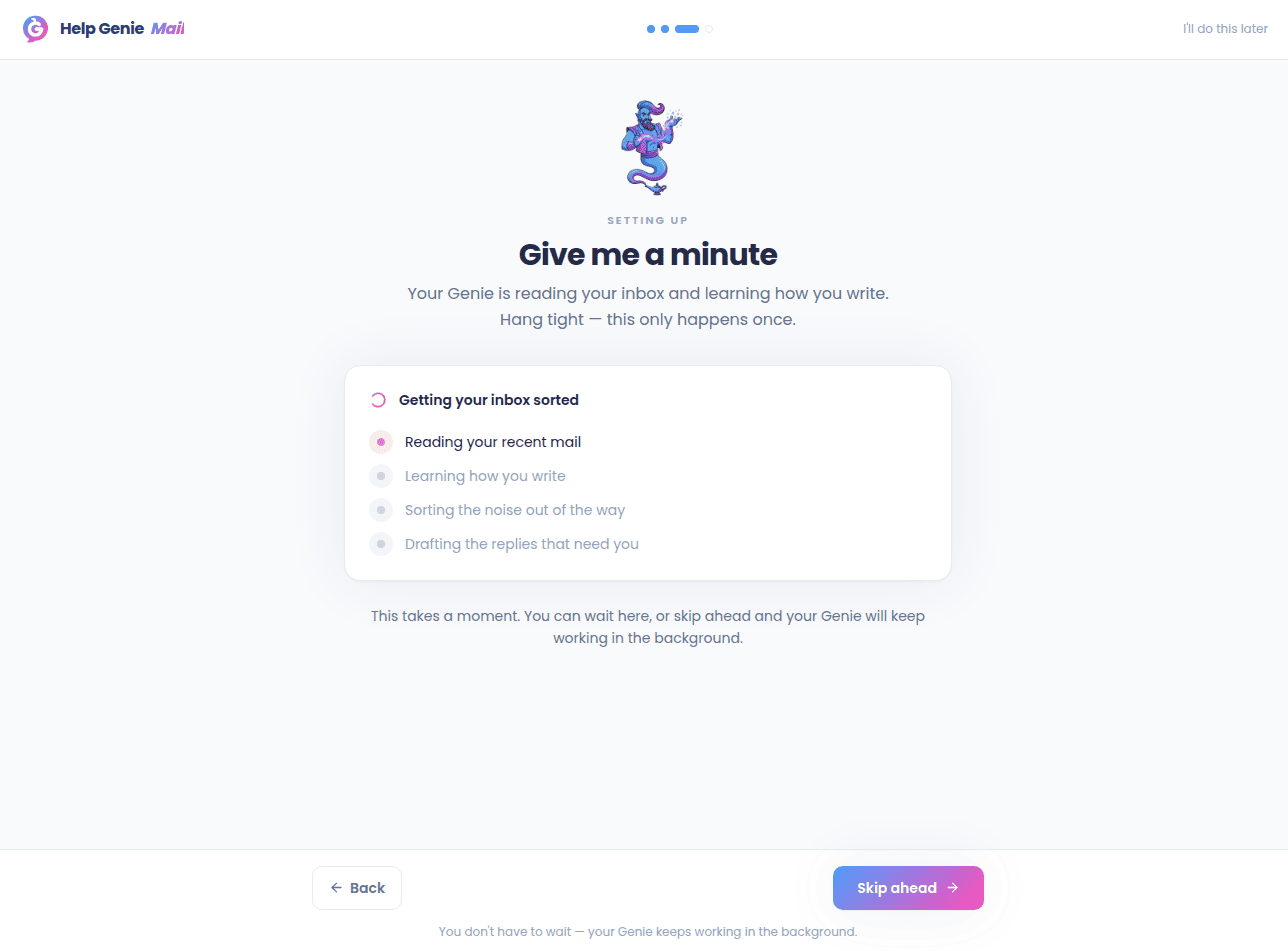
4
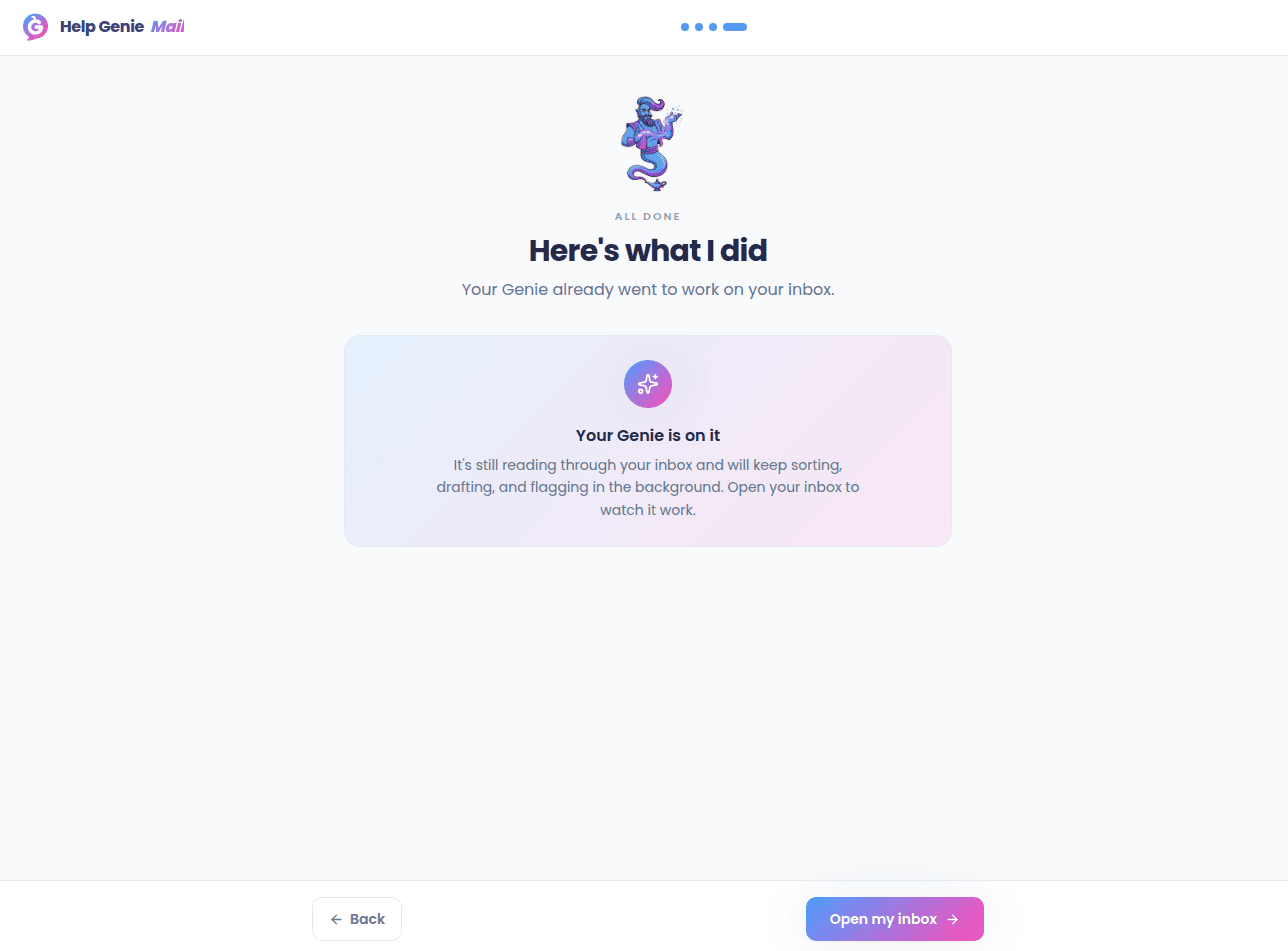
Here's what I did
A recap of what a Genie got done — or an honest “still working” state if things aren’t ready yet. Open my inbox finishes onboarding, kicks off a sync, and takes you to the Home page.