

Insights
The Insights card defines what information your Genie extracts from each conversation — for example a caller’s name, email, or the reason they got in touch.- Attached Insight shows the insight currently in use, or a note that none is attached. When one is attached, you’ll see how many fields it collects and a grid of those field labels.
- Create Insight opens a short form where you describe what you want to capture in plain language; the fields are generated for you and attached to the Genie.
- Edit adjusts an attached insight’s name, description, and fields; Remove detaches it.
- Manage Insights opens the Insight Manager to view, edit, organize, and reuse insights across Genies.
Knowledge Base
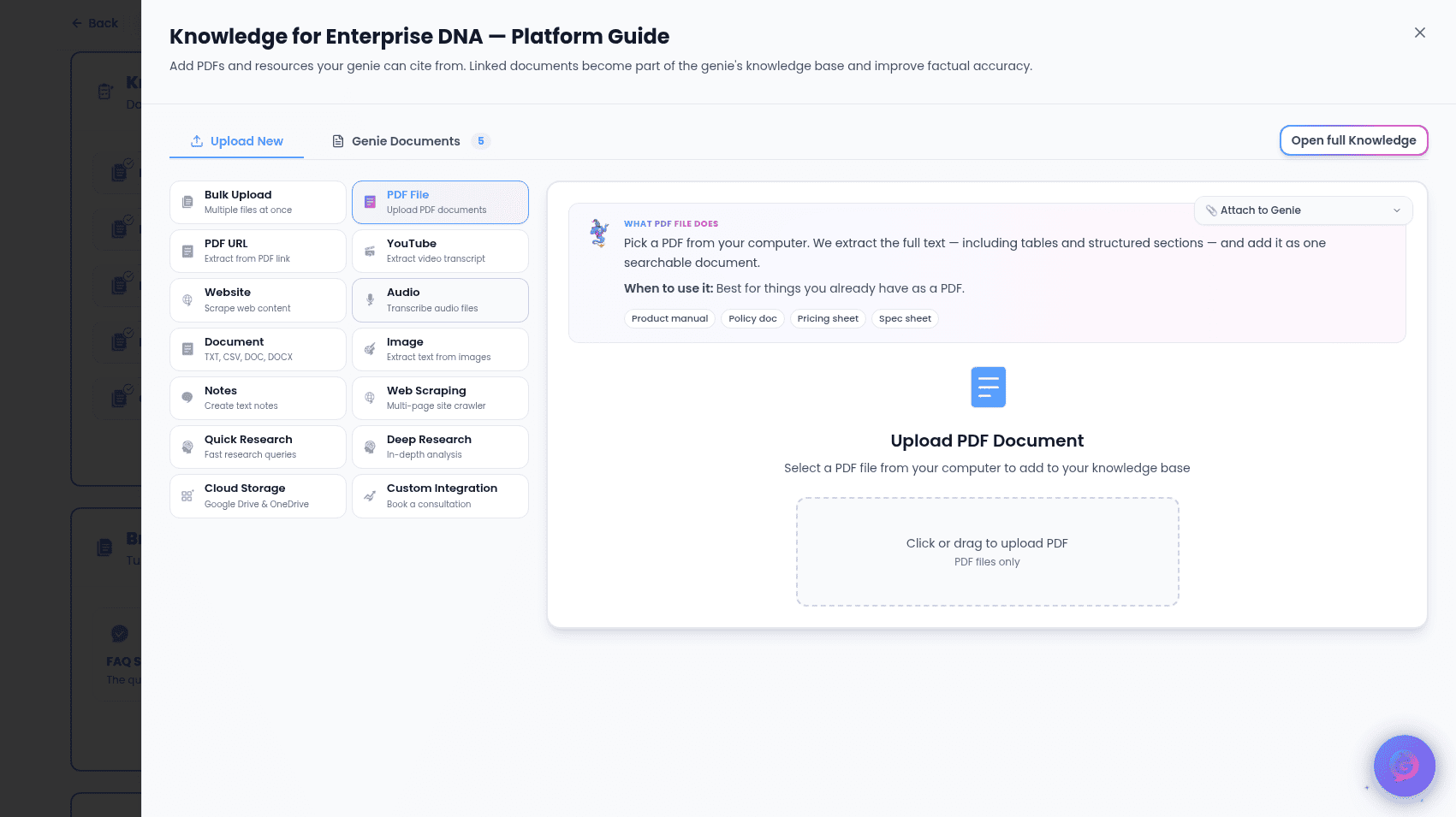
The Knowledge Base card lists the documents this Genie draws on to answer people. When empty, it prompts you to link documents. When documents are linked, each appears as a card where you can:- View — open the original document in a new tab.
- Edit — open the document’s details to update it.
- Delete — remove the document.
Branded Documents
The Branded Documents card turns your Genie’s knowledge into a polished, co-branded guide you can share or print. You’ll see a set of document templates, each with a name and short description. Select Create a document to open the generator and produce a branded guide from what your Genie knows.Distribution
The Distribution card is where you choose how people reach your Genie. A prominent Activation Pack banner links to a single page that bundles QR codes, an embed snippet, an email signature, and print-ready assets. Below that are individual channels:- Phone — manage phone numbers and call routing for the Genie.
- Web Embed — add the Genie to any website. See Embedding on your website.
- QR Code — create a scannable code people can use to start a conversation. See Sharing with a QR code.
- Access — manage users, access requests, and access QR codes.
Embedding on your website
The web embed panel offers two styles, each with copy-ready code in JavaScript, HTML, and React:- Popup Widget — a chat bubble that opens on your page. Pick a widget style and a popup size — Small (compact), Medium (balanced, recommended), Large (more room), or XL (a full-width panel) — with a live preview. Optionally add a Caption Bubble, a short prompt (like “Got a question? Just ask”) that appears next to the closed widget button after a delay, with its own text, size, and colors.
- Full Page Embed — embed the complete Genie interface into one of your pages.
Sharing with a QR code
The QR code panel lets you customize and download a code:- Style — choose a preset look.
- Label Text — the text shown with the code (including a “Talk to [your Genie]” option).
- Colors — set the code and background colors, with a Reset to your brand defaults.
- Options — show your logo, or use a transparent background.
- Format — download as PNG or SVG (downloads are higher resolution than the preview).
- Public Page URL — review or change the Genie’s web address before generating.
- Customer Invitation QR — when on, scanning invites the person to register and adds this Genie to their favorites.
A QR code becomes available once your Genie is fully set up. If setup isn’t finished, you’ll be prompted to complete it first.
Conversation Reports
The Conversation Reports card controls the summaries and alerts your team receives after conversations. In view mode it shows whether reporting is on, who receives email summaries, and which notification channels are connected. Select Edit to:- Turn reporting on or off.
- Manage Email Recipients — add or remove the email addresses that receive summaries.