

/genie-hub/inbox). The page has two tabs: Conversations and Views.
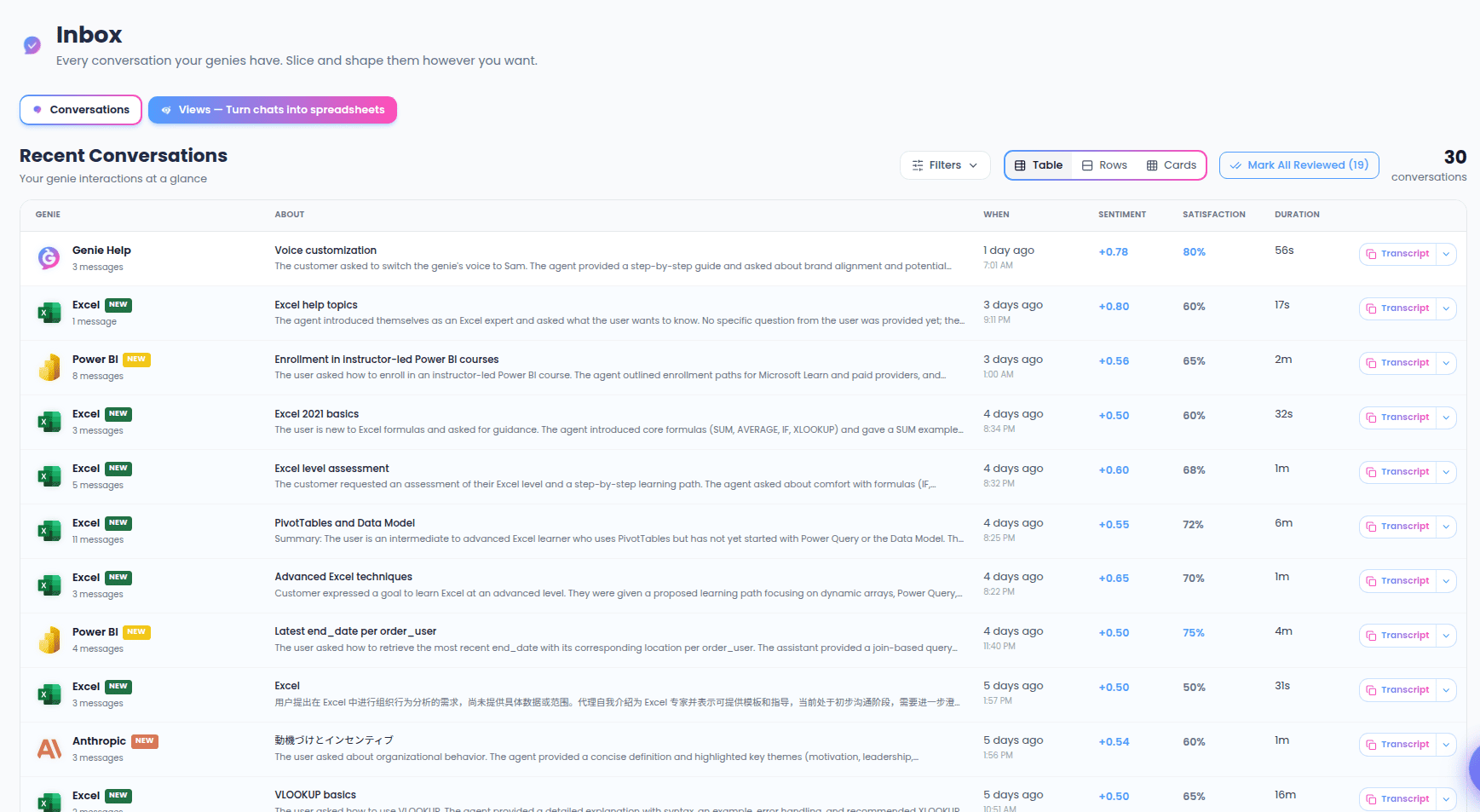
Conversations tab
The Conversations tab lists your Genies’ recent interactions, newest first. It’s the default view when you open the Inbox. Each entry summarizes a single conversation. Conversations you haven’t looked at yet are marked as unreviewed, and the list updates on its own as new conversations come in — you don’t need to refresh the page.Filtering and layout
- Filters — open the filter panel to narrow the list by Genie and by time range. The time range defaults to the last 7 days. A dot on the Filters button shows when a filter is active.
- View toggle — switch between table, rows, and card layouts. Your choice is remembered for next time.
- Count — the total number of conversations currently shown appears on the right.
Team queues
If you have a Listener Genie, the Conversations tab has four tabs for the calls and forwarded emails it hears:- All — every conversation, as above.
- Needs attention — calls and emails your Genie flagged as needing a reply that nobody has handled yet.
- Assigned to me — the ones you’ve taken, until you mark them handled.
- Handled — the ones your team replied to or marked handled.
Actions
- Open a conversation — select any conversation to open its full analysis page, where you can read the transcript and review the details.
- Mark All Reviewed — when you have unreviewed conversations, this button clears them all at once and shows how many were marked.
If you haven’t created a Genie yet, the Conversations tab prompts you to create your first Genie — conversations only appear once a Genie starts handling them.
Views tab
Views turn conversations into spreadsheets. You describe what you want to track, and your Genies read the transcripts and fill in the columns for you. It’s the standout feature of the Inbox, so it appears as a highlighted tab.Creating a View
At the top of the Views tab is a prompt box. Describe the spreadsheet you want in plain English — for example, “list every caller who asked about pricing, with their name and what they wanted.” Your Genies read the matching conversations, design the columns, and build the table. Before you submit, you can set the scope:- Genies — choose which Genies’ conversations to include, or leave it open to include all of them.
- Time range — choose how far back to look. New Views default to the last 30 days.
Getting suggestions
Not sure what to build? Select Suggest views for me (or Get ideas). Your Genies read your selected Genies’ recent conversations and propose three Views you could save with one click. You can regenerate the suggestions or change the Genie/time-range scope to get different ideas. If your Genies haven’t had any conversations yet, the Views tab tells you so — suggestions and Views appear once there are conversations to read.Your saved Views
Saved Views are listed below the prompt, each showing a preview of its rows. From the list you can:- Open a View — select it to expand the full table and refine it.
- Pin a View — keep your most-used Views at the top.
Working inside a View
Open a View to see its full table. Each row comes from one conversation; select a row to jump to that source conversation. From inside a View you can:- Refresh — bring in new conversations since your last refresh. Your existing rows, notes, and edits stay exactly as they are — Refresh only adds new rows. You’ll see how many new rows were added, or a note that the View is already up to date.
- Refine in plain English — type an instruction like “drop the cold leads,” “add a phone column,” or “group by pickup city.” Refinements can add columns or filter which rows you see. Suggested refinement chips appear beneath the box.
- Filter columns — filter any column by a search term. Active filters show as removable chips, along with how many rows are shown out of the total.
- Edit columns — rename or delete columns, or add a new one by describing what it should capture. Renaming a column offers to regenerate its data to match the new name.
- Rename the View and edit which Genies it analyzes.
- Download — download the current table as a CSV spreadsheet, a PDF report (headline numbers, a short summary, charts and the full table) or a JSON data file.
- Delete — remove the View after a confirmation.
A refresh brings in only conversations that arrived since the last one, so your existing rows are never overwritten. If your columns turn out too specific for what the conversations actually contain, the View tells you how many conversations it analyzed and suggests simplifying or rephrasing.
What happened to Leads, Support, and the other tabs?
The Inbox used to have separate tabs for things like Leads, Support, Bookings, Orders, Quotes, Surveys, Forms, Interviews, Reviews, and Training. These have all been folded into Views. Instead of a fixed tab for each, you now build exactly the breakdown you want by describing it. Want just your leads? Create a View for them. Want support questions with their outcomes? Describe that. Views replaces every one of those tabs with a single, flexible tool.Old links still work. If you follow a bookmark to one of the retired tabs (for example
/genie-hub/leads or /genie-hub/support), it automatically opens the Views tab so nothing breaks.