

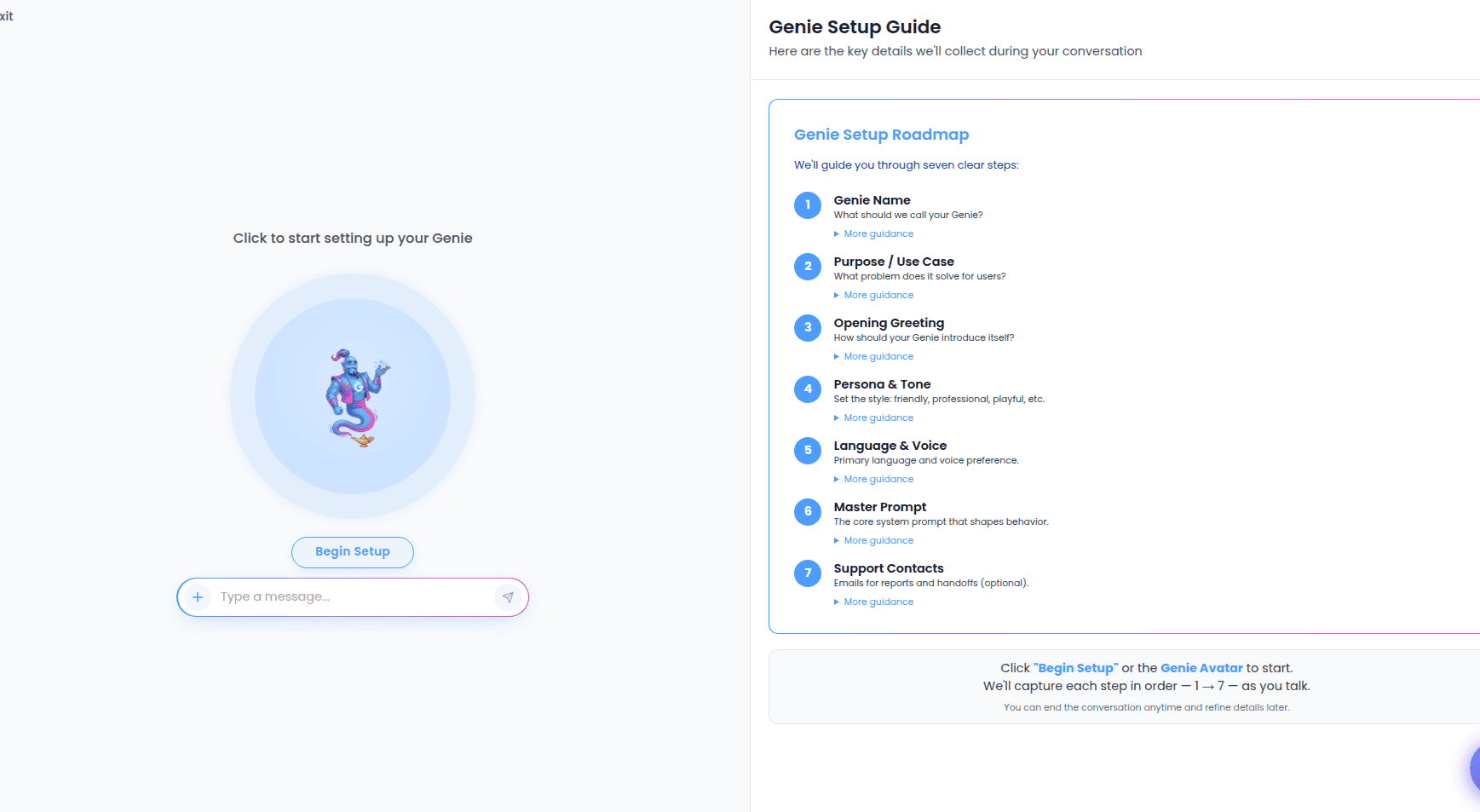
Starting the conversation
The talk step shows a large Genie avatar in the middle of the screen with a status message above it that tells you what’s happening (“Click to start setting up your Genie”, “Listening…”, “Thinking…”, and so on).- Select the avatar or Begin Setup to start. Your browser will ask for microphone permission the first time.
- Talk naturally — describe your business, who calls, and what you want the Genie to handle. The guide asks follow-up questions and responds out loud.
- A live transcript of the conversation appears alongside so you can follow along.
Typing instead, mid-conversation
You don’t have to stay hands-free. A text box sits below the controls: type a message and send it at any point, even during a spoken conversation. You can also attach an image (for example, a photo of a menu or price list) using the attachment button, and it’s included as context. You can mute all audio during the conversation if you need quiet — the Genie keeps listening and you keep the transcript.Finishing and analyzing
When you’re done, select End Setup & Analyze. We analyze the whole conversation to extract your Genie’s settings — its purpose, tone, first message, and more — and a loading screen keeps you posted. When it finishes, you land on the Review Your Genie screen to check and adjust everything before creating.If analysis is interrupted, your conversation is saved safely. A Resume Setup button appears so you can rebuild your draft without starting over. See Resuming a setup.
Keeping your screen awake
Voice setup needs your screen to stay on and your microphone active for as long as you’re talking. To prevent your device from going to sleep mid-conversation, the flow automatically keeps the screen awake while a conversation is running, and releases it the moment you end the conversation or leave the page. You don’t need to do anything to turn this on.The iPhone tap reminder
iPhones and iPads are especially aggressive about dimming and locking the screen, which can interrupt a voice conversation. To help, on those devices a small reminder appears periodically during a conversation, prompting you to tap the screen to keep things active.- The first reminder shows shortly after the conversation starts, then it repeats at intervals while you’re connected.
- Tapping the reminder (or anywhere on the screen) refreshes the screen-awake behavior and keeps your conversation going smoothly.
- The reminder only appears on iPhone and iPad — you won’t see it on a computer or Android device — and it stops automatically when the conversation ends.
If your iPhone screen does dim during a long conversation, a quick tap brings everything back — you won’t lose the conversation or your place in setup.