

Model & Intelligence
The Model & Intelligence card tunes how your Genie generates responses. Select Edit to adjust:- Response intelligence — choose the intelligence level for your Genie, from a fast everyday option to a more capable one for complex conversations.
- Temperature — a slider from Precise to Creative (0 to 2, default 0.7). Lower values keep answers focused and consistent; higher values make them more varied and creative. A live label reads Very Precise, Balanced, Creative, or Very Creative.
- Max response length — an optional cap on how long each response can be.
- Knowledge Retrieval — when on, the Genie pulls relevant material from its knowledge base while answering.
- Backup responses — when enabled, a response that fails to generate is automatically retried on a backup so the conversation keeps going instead of erroring out.
Conversation Behavior
The Conversation Behavior card controls timing and turn-taking:- Max Duration — the longest a single conversation can run, in seconds.
- Turn Mode — Turn Based (default) or Silence Based, which changes how the Genie decides a speaker has finished.
- Turn Timeout — how long to wait during a turn.
- Silence End Call — how much silence ends the call.
- Text Only Mode — run the conversation as text, without voice.
External Tools
The External Tools card lists the capabilities your Genie can use during a conversation, each with a name and description. A badge shows how many are enabled. Select Edit to turn each capability on or off.Some tools are marked Managed by Sync — these are set up automatically and can’t be toggled here.
Client Events
The Client Events card controls which events your Genie streams to connected applications, each with a label and description. A badge shows how many are enabled, and events that are on by default carry a Default badge. Select Edit to enable or disable each event.Extra
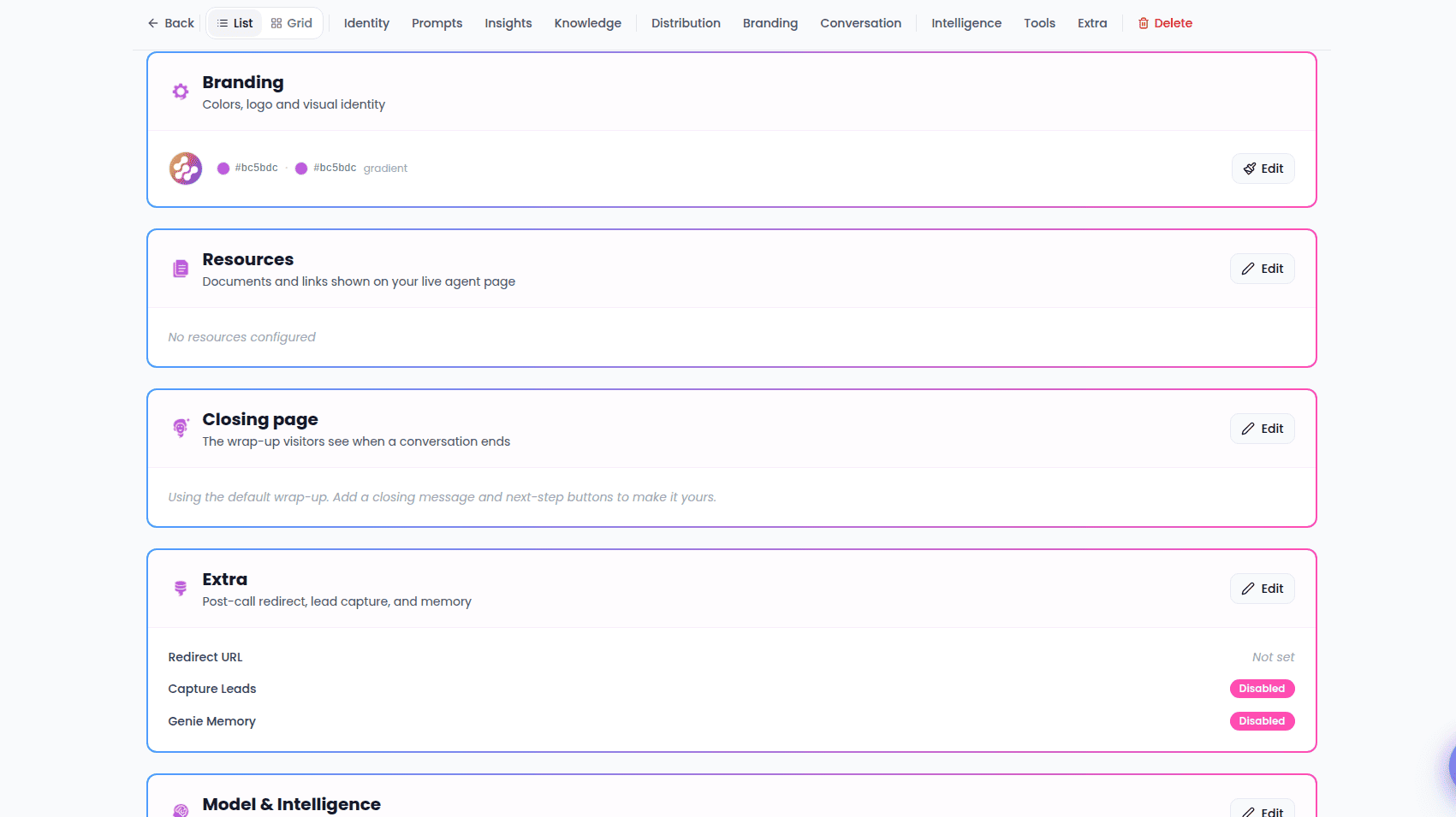
The Extra card holds a few post-call options. Select Edit to configure:- Redirect After Call — a web address to send people to when the conversation ends.
- Capture Leads — when on (the default), conversations automatically create lead records.
- Genie Memory — when on, the Genie remembers context from past conversations for 90 days. Off by default. Once enabled, a View memories button lets you review or forget individual memories (see Genie Memory).
Usage & Billing
The Usage & Billing card shows how much calling capacity the Genie has:- Current Daily Call Limit — the number of calls this Genie can handle per day, or Not set if no limit is applied.
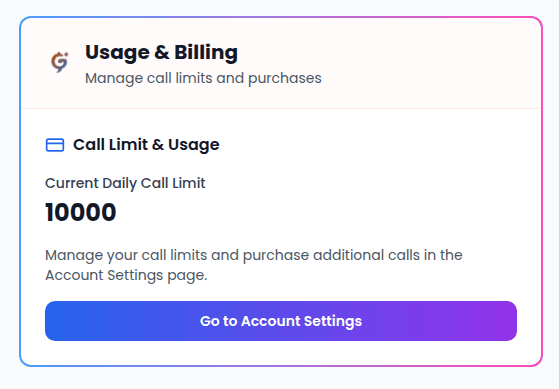
Usage and purchases are handled at the account level, not per Genie — topping up adds capacity you can use across all of your Genies. See Account Settings for the full billing and plan details.