

/genie-hub/activation). You can also jump straight to a Genie’s pack from that Genie’s workspace, from a conversation’s side panel, or right after finishing setup.
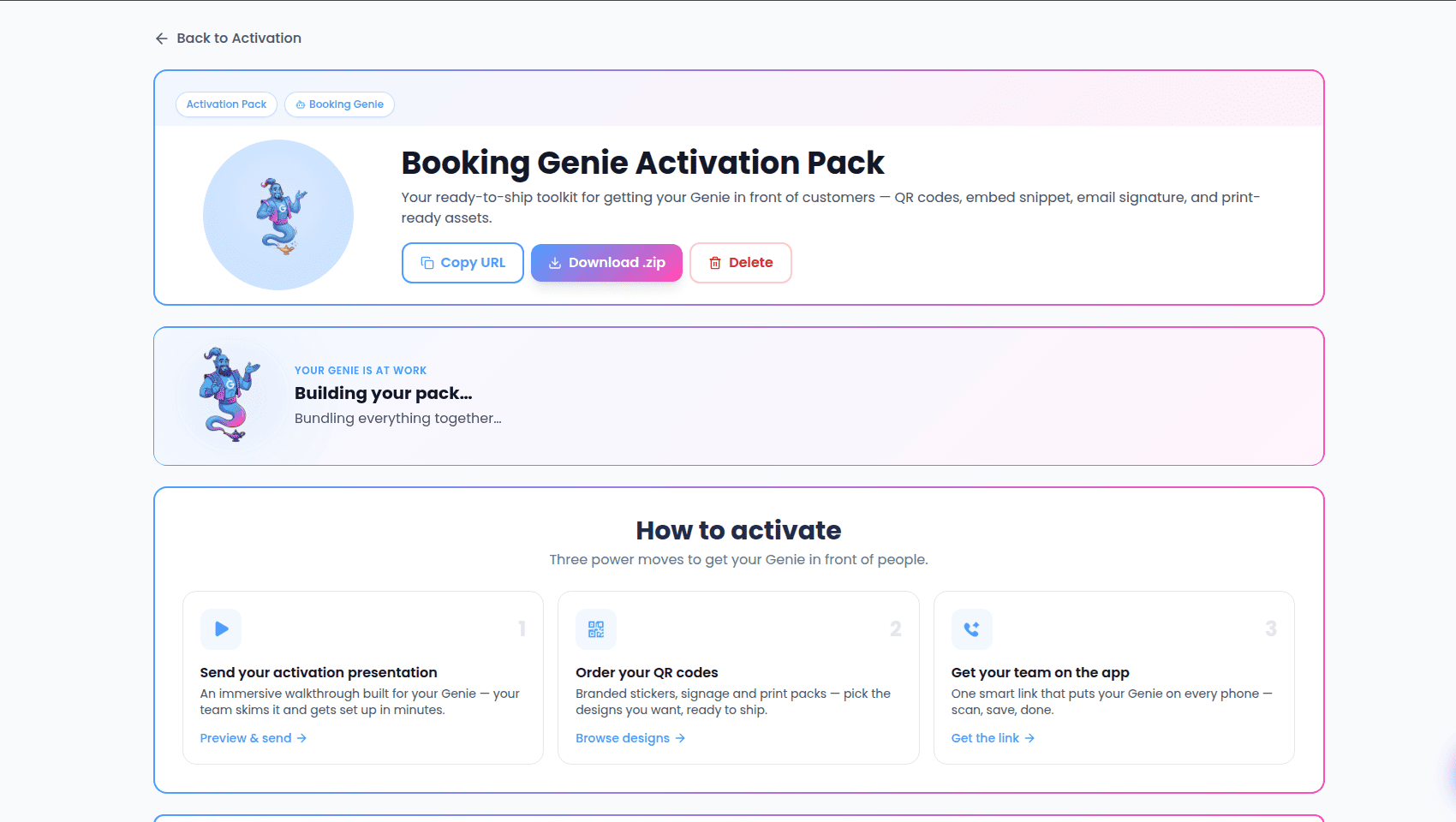
The Activation list
The list shows every Genie you have, each as a card with its avatar, name, and a status line — either Phone connected or Activation pack ready. Use the search box to filter by name; the count next to Your Genies shows how many match. Select any card to open that Genie’s activation pack. If the Genie doesn’t have a pack yet, one is created automatically with sensible defaults the first time you open it — see Creating an activation pack.If you don’t have any Genies yet, the list shows an empty state instead. Choose Go to My Genies to create your first Genie — its activation pack is generated for you as part of setup.
The fastest day-one workflow
At the top of a pack, How to activate links to the four highest-value moves:- Download the complete launch pack.
- Get people onto the mobile app.
- Share the tailored activation presentation.
- Add the email-signature widget.
Download the complete launch pack
Download everything builds and checks the full pack before downloading it. If an expected file cannot be created or fetched, the download reports the problem rather than silently producing a partial pack.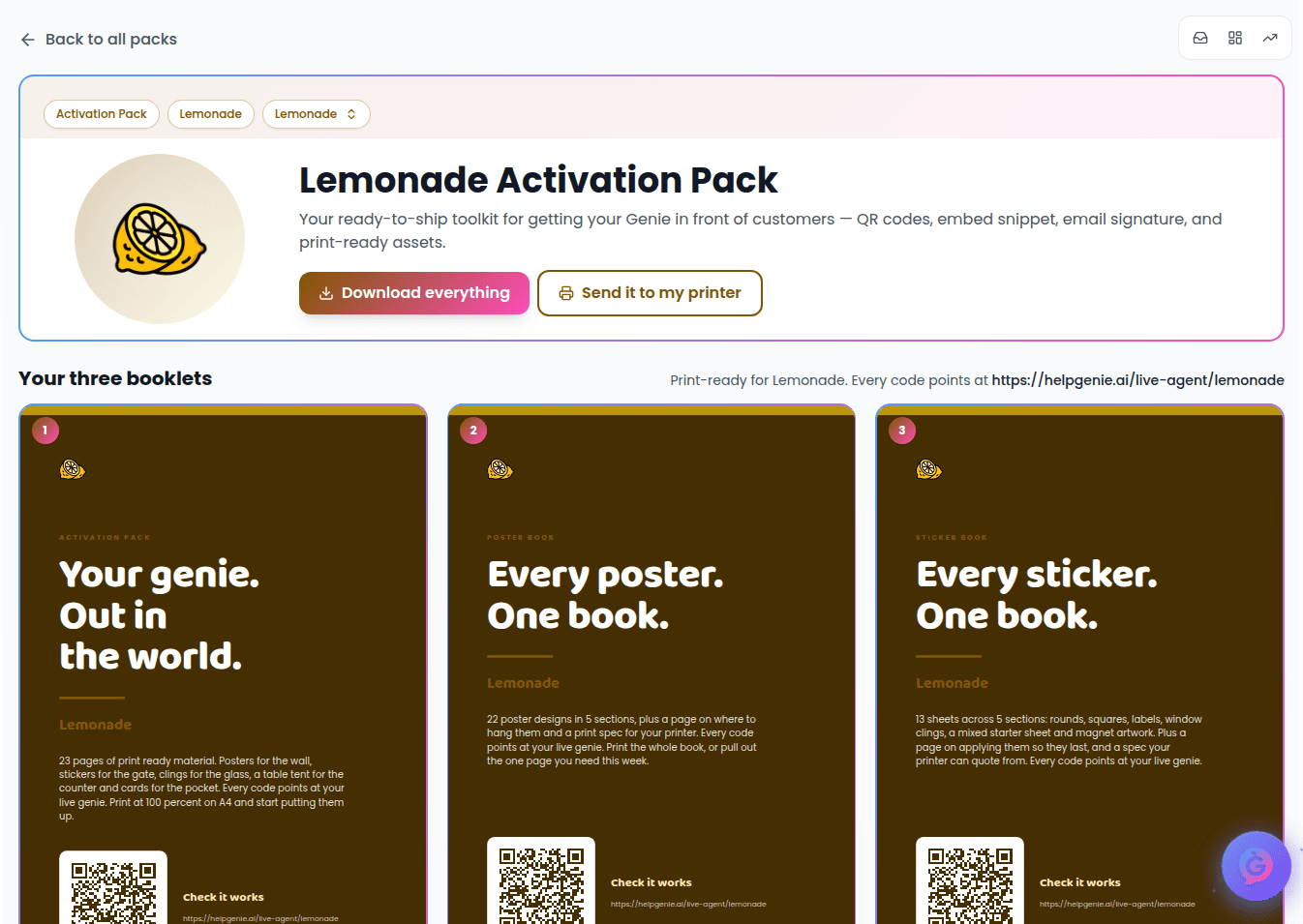
- Send to printer — the sticker PDF, A4 poster pack, and A4 mobile-app install poster.
- Placement inspiration — the lookbook showing where stickers, signs, cards, and QR placements can work. It is a reference guide, not manufacturing artwork.
- Digital launch assets — QR images, social artwork, the app-poster image, the email-signature HTML, and the website embed snippet.
- Promo copy — the available launch email, social, SMS, team, and website-banner drafts.
- START-HERE, PRINT-JOB, and MANIFEST — the launch order, starter quantities, production notes, expected files, and the exact files included.
The ZIP and printer-email workflow prepare and hand off a production job. Help Genie does not quote, manufacture, or ship printed materials. Your printer should confirm the final proof, stock, finish, price, lead time, and delivery address before going to print.
Get people onto the mobile app
The mobile activation section is intentionally near the top of the pack. Its smart link uses an install-first experience on iPhone and Android, with Continue on the web as a fallback. Desktop visitors can open the Genie on the web or send the install link to a phone.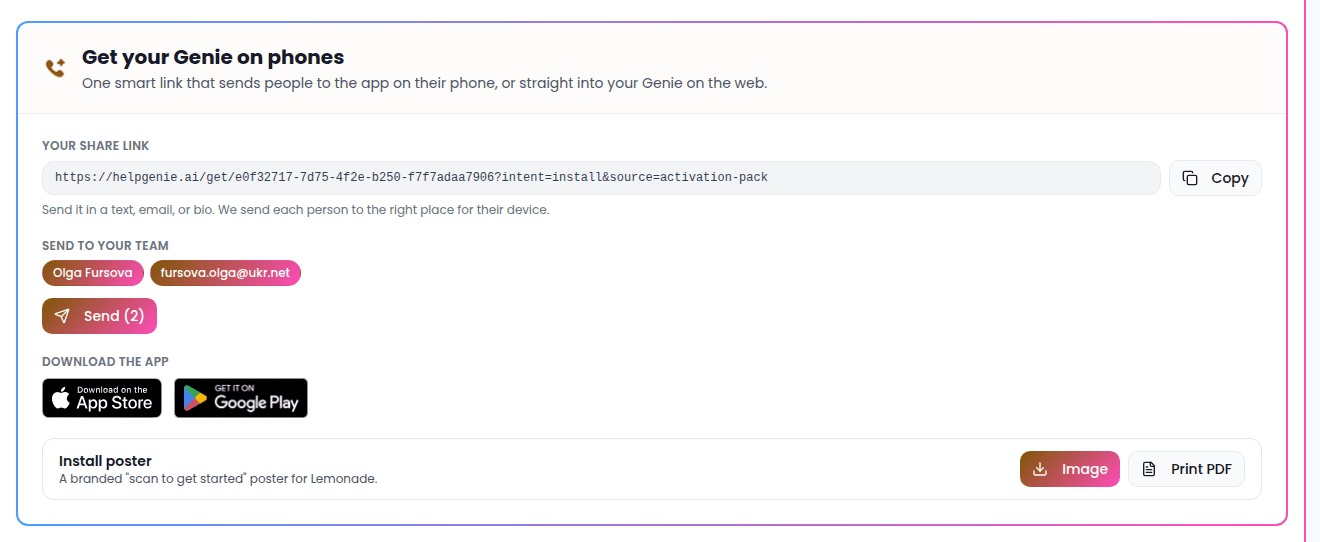
- copy the install link;
- use the App Store and Google Play links;
- download the branded app poster as PNG or 300-DPI A4 PDF;
- share or print the install QR code.
Send the production job to a printer
Order printed packs opens a draft printer handoff. A fresh draft starts with the recommended sticker and app-poster quantities and adds one poster design as the 20-poster starter run.
Share the tailored activation presentation
The activation presentation is built specifically for this Genie — it uses its public description, purpose, audience, welcome message, and business branding, and its example outcomes change with the Genie’s actual role.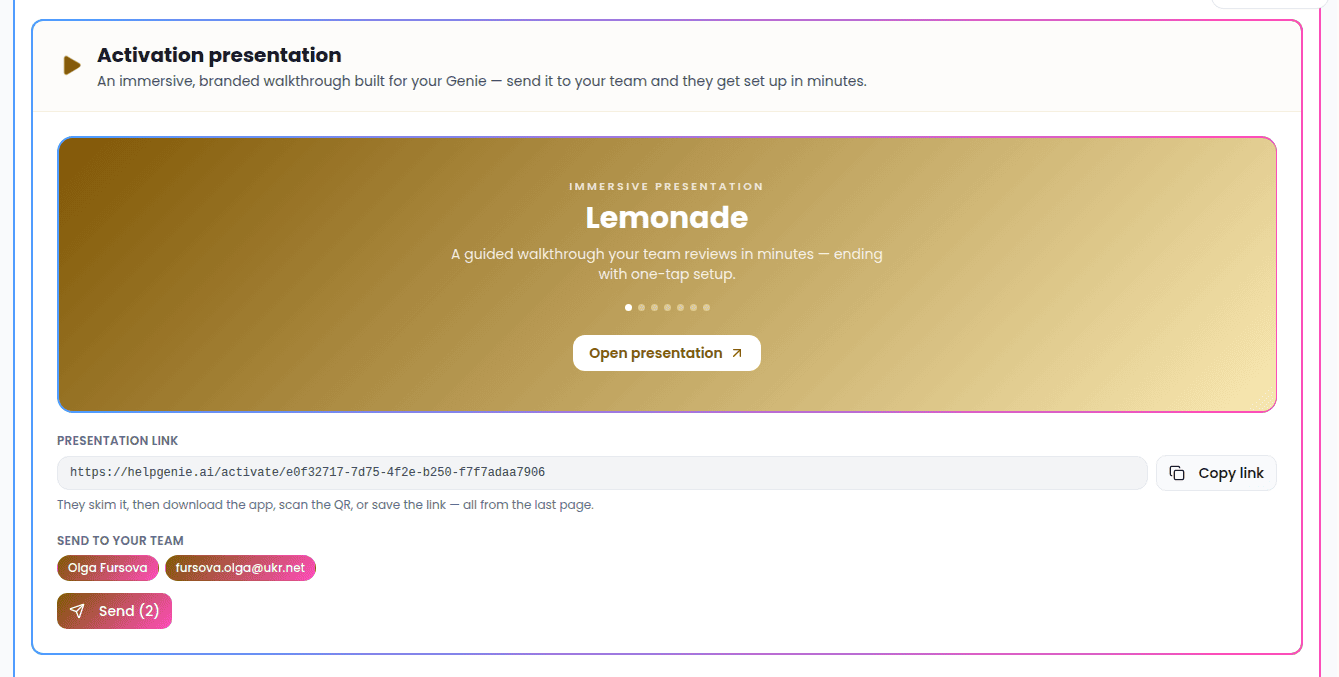
Add the email-signature widget
The email-signature section shows a live preview of a compact branded card with two clear actions: talk to the Genie and get it on a phone. It uses email-safe table markup and inline styles.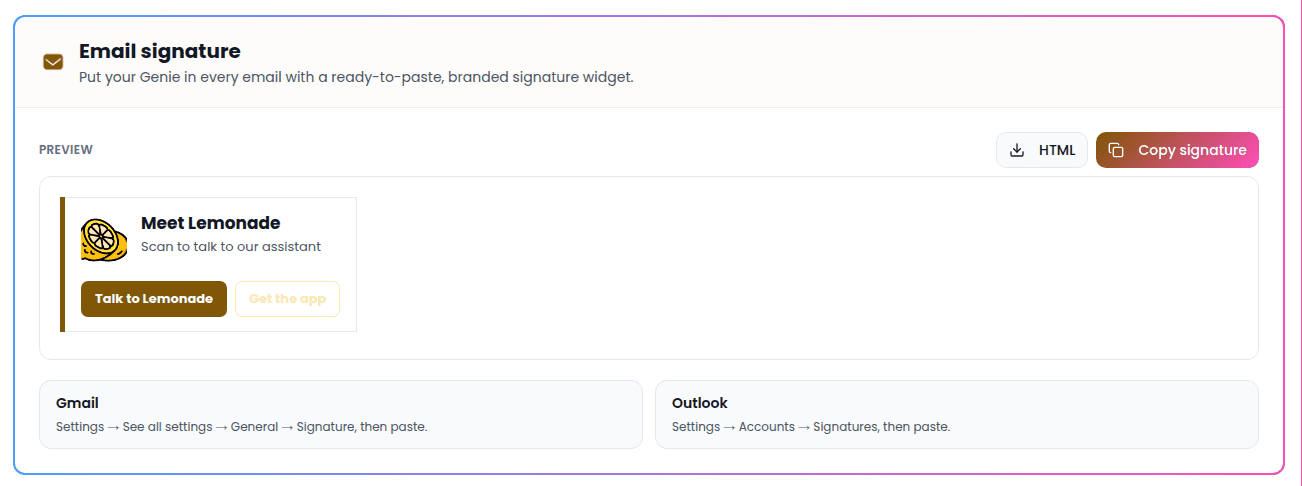
.html source when an IT team manages signatures centrally.
If a mail client strips the formatting, paste the plain-text version or use the installation hint shown in the section. No scripts or interactive embeds are used inside email signatures.
Activate customers by email
Activate customers accepts a pasted list or CSV of up to 300 customers and sends one combined onboarding email per recipient with the presentation, app-install link, and a working talk link when the pack belongs to a Genie. Duplicates are removed; malformed addresses are shown and must be corrected before sending, and a list over the limit is rejected rather than silently shortened. For a private Genie, each recipient gets their own reusable access, so their presentation, app setup, refreshes, and saved link keep working independently of everyone else in the campaign. Every campaign has a durable recipient ledger. A retry sends only addresses that are definitely known not to have been sent; confirmed deliveries and unconfirmed outcomes stay locked against automatic duplicates. Pending recipients are restored after a reload. If you intentionally start a new campaign while delivery is unknown, Help Genie warns that doing so may duplicate an email. The presentation-only and app-link team sends use the same safe retry model. Named Genie-access invitations are limited to 50 at a time, grant access to existing matching accounts before sending, and keep a distinct one-use talk link per invitee.This customer launch does not grant dashboard access. Use Manage access when a specific person needs to sign in and administer the Genie.
Placement ideas and posters
The Lookbook is a placement-inspiration guide showing ways the Genie can appear in the real world. Download it for the customer or use it to decide what to produce, but send the individual sticker, poster, or app-poster production file to the printer. The Posters gallery contains the standalone poster designs. Download the full poster PDF from the gallery or add a selected design directly to the printer handoff.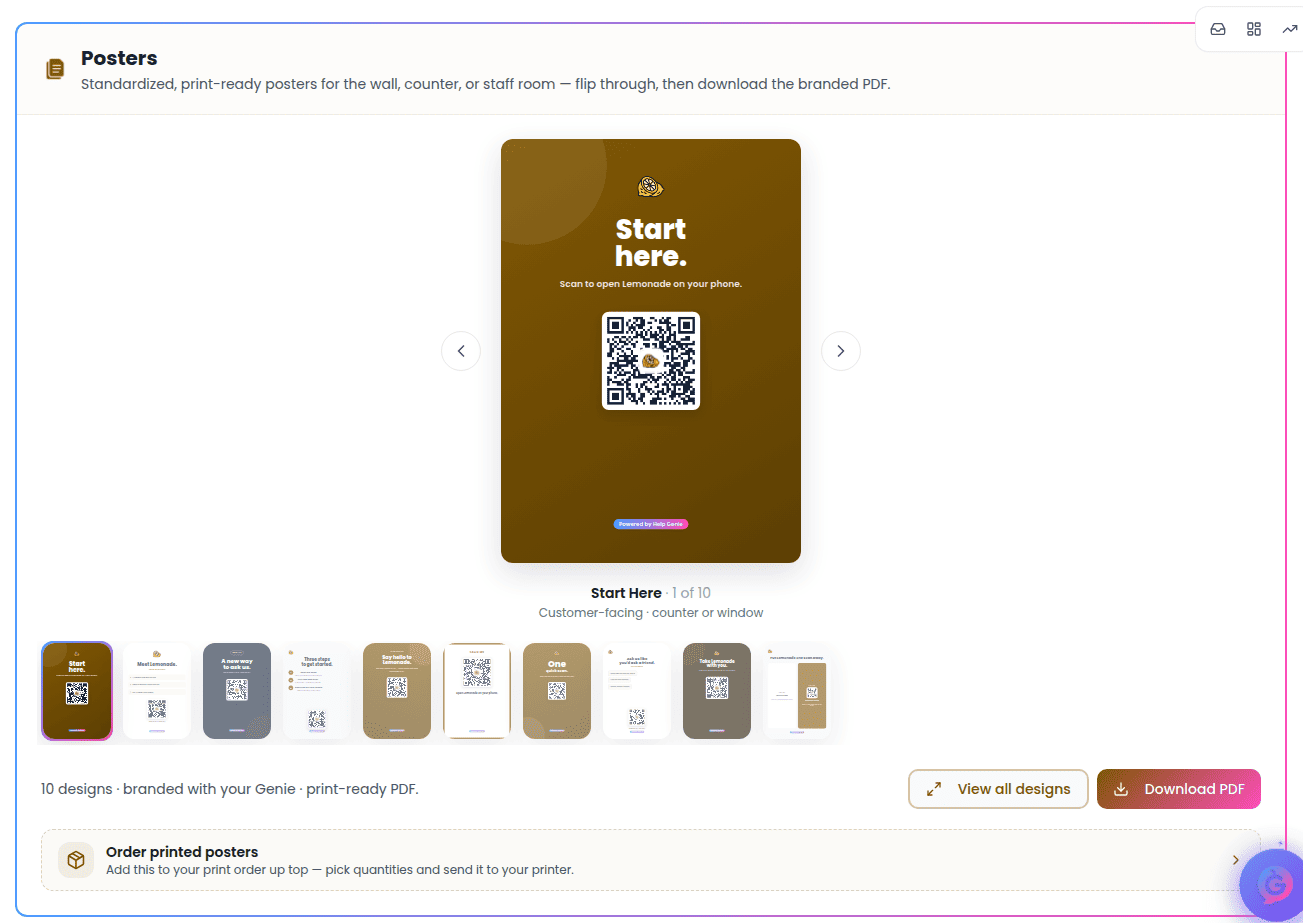
Promote
The Promote section gives you ready-to-paste launch copy written from your Genie’s name, description, and link. There’s a card for each of:- Launch Email — announce your Genie to customers and prospects (includes a subject line).
- Social Post — a post to share with your network.
- Customer SMS — a short text for existing customers.
- Team Announcement — an internal note so staff know how it works (includes a subject line).
- Website Banner — short copy for a homepage strip or popup.