

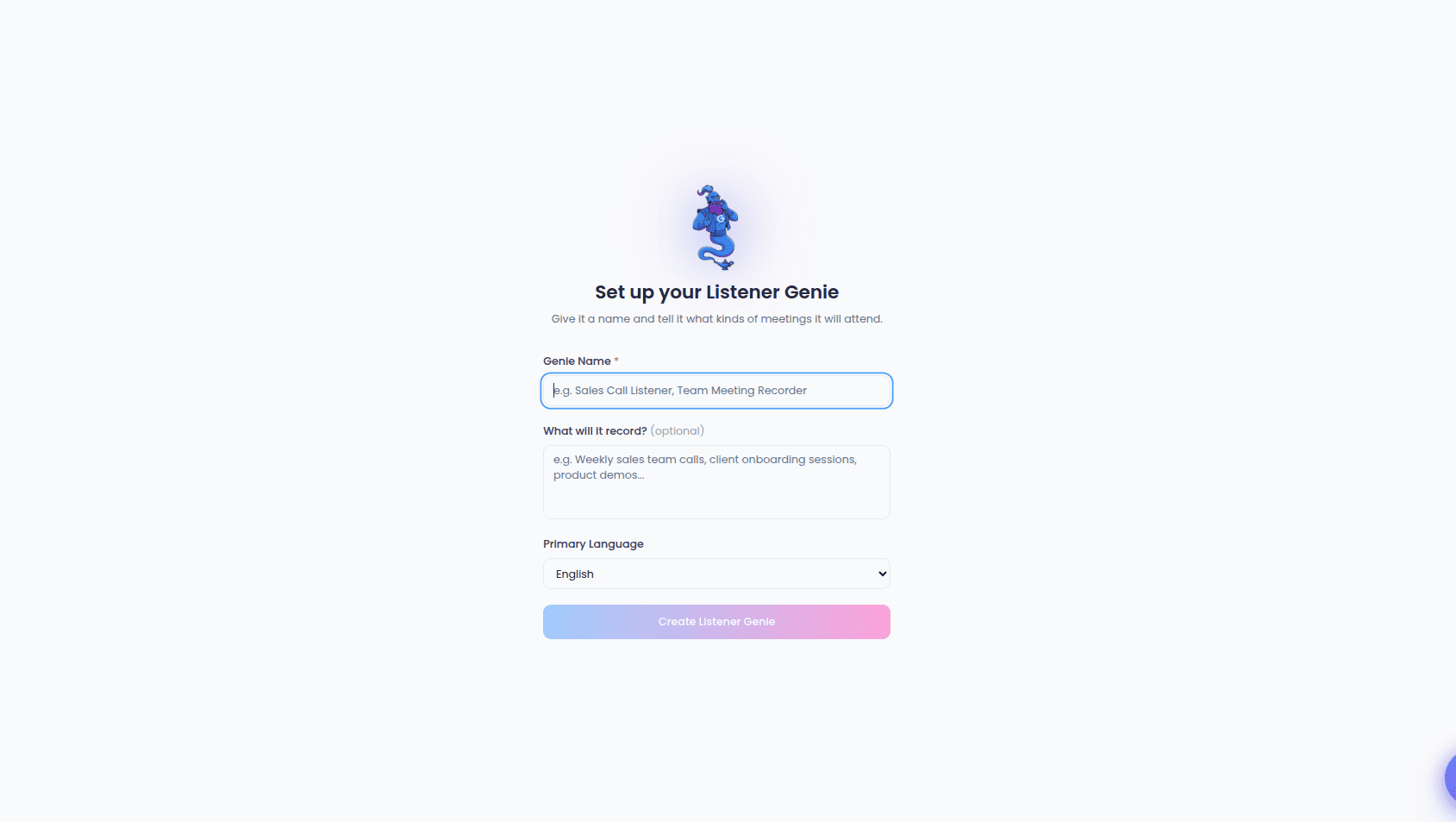
The Listener Genie form
A Listener Genie is a different kind of Genie: instead of answering callers, it sits in on your meetings and video calls, records them, transcribes with speaker labels, and sends you a full recap with action items. Because its job is simpler, it has its own short form rather than the full guided conversation. You reach it by choosing Listener Genie on the setup start screen. The form asks for just a few things:- Genie Name (required) — what you’ll call it, for example “Sales Call Listener” or “Team Meeting Recorder”.
- What will it record? (optional) — a short description of the meetings it will attend, such as weekly sales calls or client onboarding sessions. If you leave this blank, it defaults to general meeting and call recording.
- Primary Language — the main language spoken in your meetings. English, Spanish, French, German, Portuguese, Italian, Dutch, Polish, Hindi, Japanese, Korean, and Chinese (Mandarin) are available.
The name is the only required field. Everything else has a sensible default, so you can create a Listener Genie in seconds and refine it later.
Reviewing and creating your Genie
Every other setup path — voice, chat, image, or a template — ends on the Review Your Genie screen. This is where you confirm the draft we built and fine-tune it before the Genie is created.Two ways to work through it
A toggle in the top-right switches how the review is laid out:- Step-by-Step (default) — move through one section at a time with Continue and Back buttons. A progress bar and stepper at the top show where you are and which steps are done. Required steps are marked, and you can jump back to any completed step to change it.
- All Fields — see every section on a single scrolling page, handy for a quick once-over or small edits.
What you can set
The review is grouped into these sections:- Branding & Appearance — pick an avatar and visual identity. You can choose from example Genies or set your own image and colors.
- Identity & Purpose — the Genie’s name, category, and use case.
- Voice & Conversation — choose the voice your Genie speaks with, write the first message callers hear, and pick personality traits (Professional, Friendly, Empathetic, Direct, Patient, Energetic). We suggest a voice and pre-select traits based on your description, and a smart suggestion is offered for the first message.
- Insights & Outcomes — what the Genie should collect from conversations and who gets notified.
- Knowledge Base — attach documents so the Genie can answer from your own content. Documents still being processed are linked automatically once they’re ready. See the Knowledge Base guide.
- Advanced Settings — finer conversation settings and custom pronunciations for names or terms your Genie should say correctly.
- Ownership — choose who owns the Genie.
- Review & Create — a final summary of everything, with a link back to edit any section.
A setup advisor panel opens alongside the review to suggest improvements as you work. When it applies a change, you can Undo and Redo it from the buttons at the top.
Creating, discarding, or cancelling
- Create My Genie — builds the Genie and takes you to the success screen, where you can test it, view your Genies, or start another. If any documents were still processing, they’re attached automatically once ready.
- Discard — abandons the draft and returns you to the start. You’ll be asked to confirm first.
- Cancel (All Fields mode) — stops setup and clears your changes after a confirmation.