

/genie-hub/knowledge-base). The page begins with a guided knowledge-readiness area, followed immediately by the Documents and By Genie views.
Capture, shape, activate
The knowledge-readiness area turns building a useful Knowledge Base into three steps:- Capture — bring useful files, pages, recordings, notes, and research into one workspace.
- Shape — review and organize captured sources, including anything still waiting to be activated.
- Activate — make dependable sources available in the Knowledge Base and attach them to the right Genies.
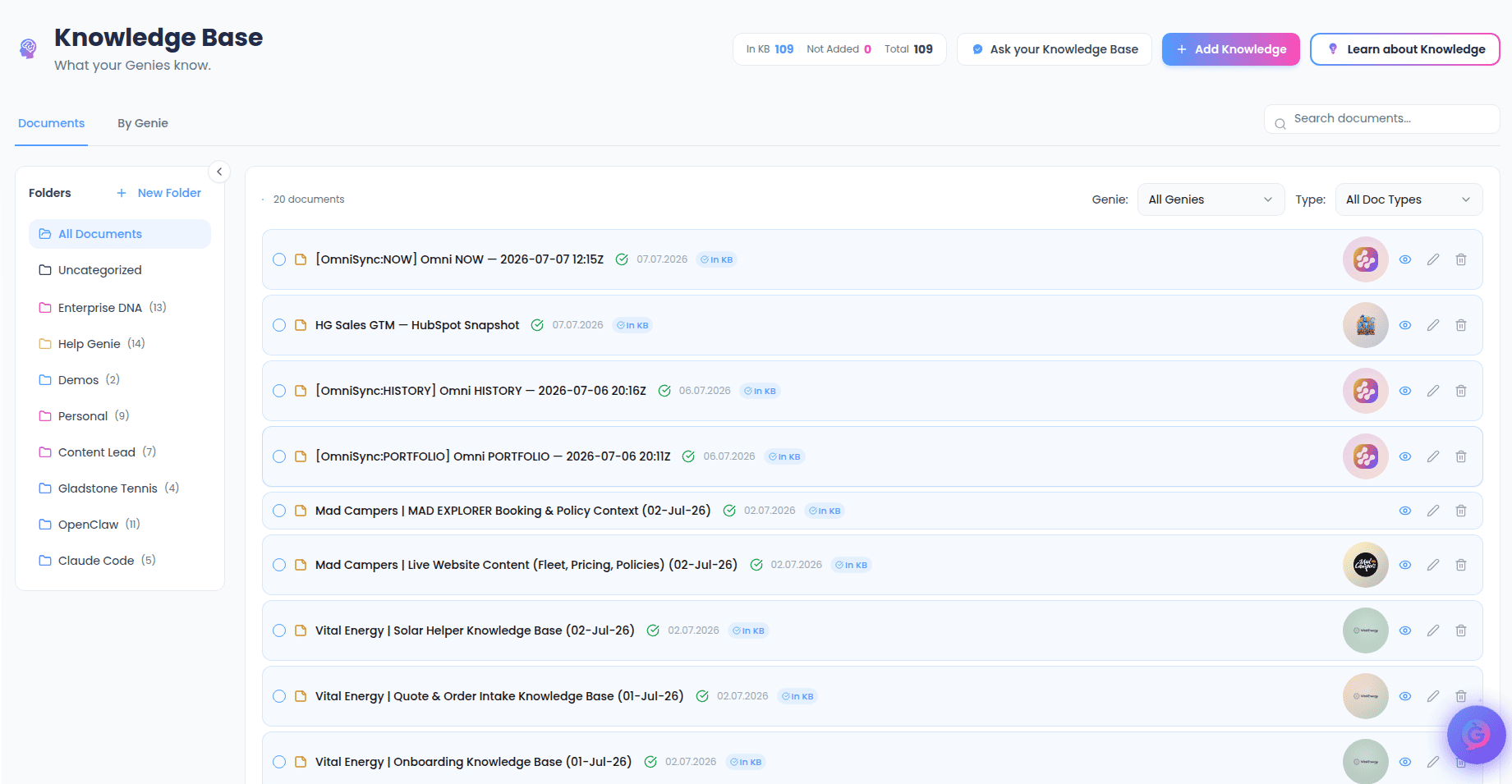
Documents tab
The Documents tab lists everything you’ve captured. Each row shows the document’s name, type, date added, and status:- In KB — the document is active in your Knowledge Base and available to your Genies.
- Not In KB — the document has been captured but hasn’t been activated yet.
Searching and filtering
- Search — use the search box to find documents by name. Results update as you type.
- Filter — narrow the list by Genie or document type. On mobile, filters open in a sheet. Select Clear to reset them.
- Folders — the sidebar (on the left on larger screens) lets you browse and organize documents into folders. You can collapse it to free up space.
Actions on a single document
Select a document to open its details, where you can view, edit, and manage it. From the row itself you can also:- View source — opens the original file or page in a new tab (when a source is available).
- Edit — change the document’s name, description, and settings.
- Add to Knowledge Base — activate a captured document so your Genies can use it.
- Delete — permanently removes the document after confirmation.
Bulk actions
Select the checkbox on one or more documents (or the header checkbox to select all) and a toolbar appears at the bottom of the screen. With multiple documents selected you can:- Move to Folder / Remove from Folder — organize the selected documents.
- Assign to Genie — attach active documents to a Genie. Documents must be in the Knowledge Base first; any that aren’t are skipped with a notice.
- Consolidate — merge selected documents into one combined document, with the option to remove the originals after merging.
- Delete — permanently remove all selected documents after a confirmation.
Consolidate needs at least two documents selected, and it won’t merge files larger than 5MB or with more than 100 pages. Oversized files are listed so you know which ones to leave out.
By Genie tab
The By Genie tab shows each of your Genies with its category, active status, and current document count. Use the search box to find a Genie by name, description, or category, and the group tabs to narrow the view. Select a Genie to open its dedicated knowledge view and manage only that Genie’s attached documents. See the Genie knowledge view for details.Adding knowledge
Select Add knowledge, or choose a pathway in the knowledge-readiness area, to open the acquisition panel. Pathways open directly on a useful method. You can switch methods using three labelled groups; on mobile, choose a group first to keep the list compact. Files & cloud includes:- Bulk Upload — add many files at once.
- PDF File — upload a PDF from your device.
- Document — upload TXT, CSV, DOC, or DOCX files.
- Image — extract text from an image.
- Cloud Storage — import files from a connected cloud drive.
- PDF URL — pull a PDF in from a link.
- Website — capture the content of one web page.
- Web Scraping — capture multiple pages from a site.
- YouTube — capture the transcript from a video.
- Audio — transcribe an audio file.
- Video — transcribe spoken content from a video file or link.
- Notes — write or paste a text note directly.
- Quick Research / Deep Research — gather a focused or detailed brief and save it as a document.
- Custom Integration — talk with the team about a tailored source.
Find knowledge gaps
Select Find knowledge gaps to open a side sheet of ready-made prompts that review your content and recent conversations. They help you spot what’s missing and decide what to work on next — for example:- What should I add this week? — top recommendations, ranked by impact.
- What does my Genie not know yet? — gaps drawn from recent calls.
- Which Genies have thin knowledge? — a coverage audit across your Genies.
- Which documents matter most? — your most-used, highest-value content.
- Are any documents contradicting? — a quality check for stale or conflicting content.
- Draft an FAQ I’m missing / Suggest a folder structure — content and organization help.