

/genie-hub/genie-access). Access is managed one Genie at a time, so you start by choosing which Genie to work on.
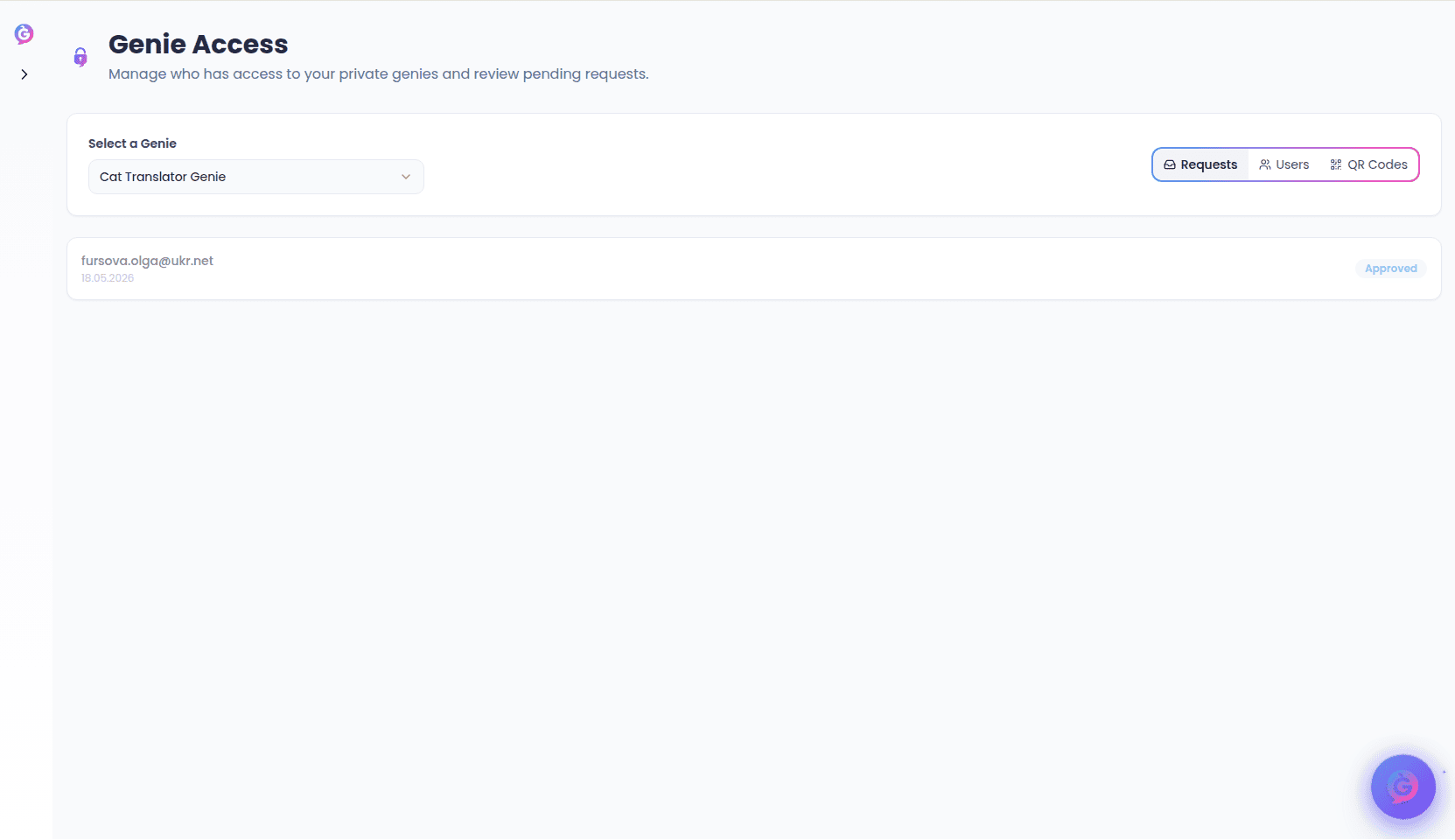
Choosing a Genie
At the top of the page, use the Select a Genie dropdown to pick which Genie’s access you want to manage. The list shows every Genie you own or have been given access to; Genies that belong to a teammate are marked with a Team label. Until you pick a Genie, the page prompts you to choose one — everything below is specific to the selected Genie. You can switch Genies at any time to manage another. Once a Genie is selected, three tabs appear: Requests, Users, and QR Codes. The Requests tab shows a small badge with the number of pending requests waiting on you.Requests
The Requests tab lists people who have asked for access to this Genie. It’s split into two groups:- Pending requests — each shows the person’s email and the date they asked. For each one you can choose Approve (grants them access) or Deny (turns them down).
- Resolved requests — requests you’ve already handled, shown dimmed with an Approved or Denied badge and the date you resolved them.
Users
The Users tab lists everyone who currently has direct access to this Genie. Each person shows their name (or email) and photo where available. Access granted by a teammate is marked with a Team badge. For each user you can:- Set or change an access expiry. Select the expiry field (it shows No expiry, a date, or Expired) to pick a date after which their access ends. Save the change with the check button, or discard it with the cancel button. To give someone open-ended access again, clear the date before saving. Expired access is flagged in red.
- Remove access. Select Remove to revoke this person’s access to the Genie.
Expiry is optional. Leave it as No expiry for access that doesn’t end on its own, or set a date when you only want to grant temporary access.
QR Codes
The QR Codes tab shows a record of every time someone scanned one of this Genie’s QR codes to reach it. Each entry lists what was scanned along with details captured at the time, which may include the device, platform, timezone, approximate location, and the email of the person who scanned it, plus the date and time. Use this to see how your printed and shared QR codes are being used. If no scans have been recorded for the selected Genie, the tab says so.Related
- Activation — create the QR codes, smart links, and print materials that people scan and use to reach your Genie.
- My Genies — where you set a Genie to public or private and manage everything else about it.