

/genie-hub/brand-integrity).
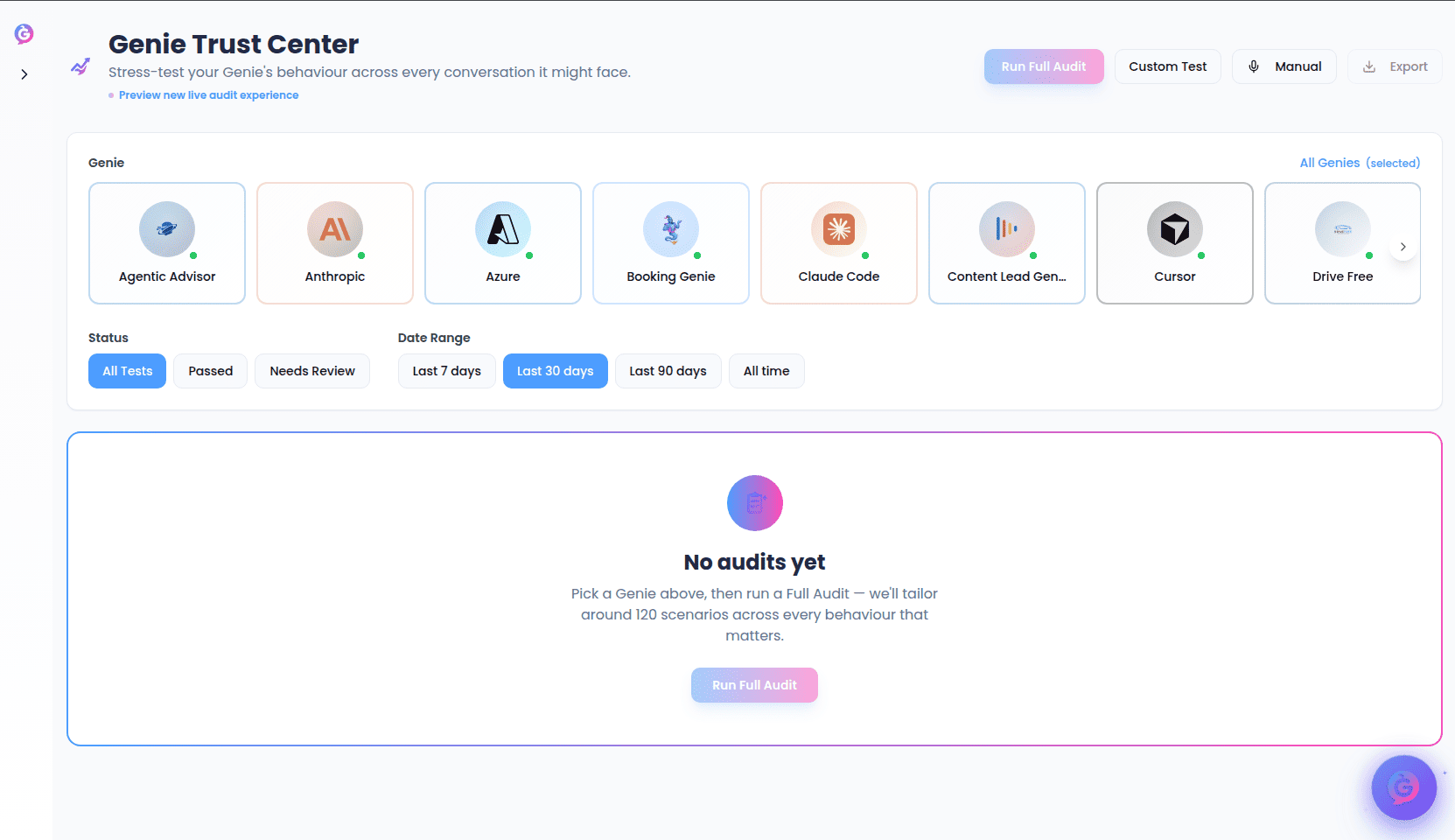
You need at least one Genie before you can run anything here. If you have none, the page points you to My Genies to create one first.
The main page
At the top you’ll see the Genie Trust Center heading and four actions:- Run Full Audit — the primary action. Runs a comprehensive, tailored audit against the selected Genie (see Running a full audit). You must pick a Genie first — until you do, the button is disabled and hovering it shows a “Select a genie first” hint.
- Custom Test — opens the evaluation builder, where you pick exactly which tests to run (see Running a custom evaluation).
- Manual — start a live voice conversation with a Genie and save the transcript for review (see Manual tests).
- Export — download a spreadsheet report for the selected Genie (see Exporting results). Also requires a Genie to be selected.
Filters
Below the header, a filter panel controls which results you see:- Genie — pick a single Genie to focus on, or choose All Genies. Selecting a Genie here is also what enables Run Full Audit and Export.
- Status — All Tests, Passed, or Needs Review.
- Date Range — Last 7 days, Last 30 days, Last 90 days, or All time.
Results list
Past runs appear as a list, newest first, with more loading as you scroll. A count at the bottom shows how many of the total runs you’re viewing. Each card shows the Genie’s avatar and name, when the run happened, and a status summary that depends on the run type:- Full Audit runs show a Full Audit tag and, once finished, an overall Score out of 100 and an Audit Complete badge.
- Evaluation runs show a passed/needs-review count and a badge — All Passed, or <n> Need Review.
- Manual runs show a Manual Test badge and a microphone icon.
- Runs still in progress show a Running (or Audit Running) badge. Full audits also show a Watch Live button that opens the live audit experience.
- Runs that didn’t finish show a Failed badge.
- For full audits, an Audit summary with the overall score and a short written narrative.
- For runs that failed, a card explaining what went wrong.
- The individual results, grouped by category (for example, Competitor Handling, Pricing & Objections, Jailbreak Resistance). Each result shows whether it Passed or Needs Review — or, for manual tests, a View Transcript link with the number of conversation turns.
Running a full audit
Select a Genie in the filters, then choose Run Full Audit. A panel opens that’s tailored to that Genie.- The audit reads the Genie’s own setup — its prompt, knowledge base, goal, and tone — and generates bespoke scenarios written specifically for it.
- Scenarios are spread across 11 review areas: Competitor Handling, Pricing & Objections, Off-Topic Deflection, Data Security, Service Accuracy, Professional Boundaries, Edge Cases, Brand Voice Consistency, Jailbreak Resistance, Hallucination Resistance, and Lead Capture & Escalation.
- Each area starts with a recommended number of scenarios, which you can adjust from 1 to 20 per area. The panel shows the running total it will generate.
- A score out of 100 with a plain-language band: Strong (85+), Worth a look (65–84), or Needs attention (below 65).
- The number of scenarios tested.
- View Detailed Results, which jumps you to that run in the list so you can read every transcript.
A branded, one-click Executive PDF is marked “Coming soon” in the completed view. For now, use View Detailed Results or the Export option for a shareable report.
Running a custom evaluation
Custom Test opens the Run Evaluation builder, where you choose exactly which checks to run rather than a full audit.- Select a Genie. The Genie must be set up for voice conversations; if it isn’t, you’ll see a note and won’t be able to run the evaluation.
- A summary card shows how many tests are selected out of the maximum of 30 per run. Choose Customize to open the test picker.
- Pick from three groups:
- Core Tests — the standard set of behaviour checks, all selected by default.
- Recommended — tests tailored to this specific Genie. Use Regenerate to refresh them.
- My Custom Tests — tests you’ve written yourself. Use Add Test to create a new one (see Creating a custom test).
- Use Select All / Deselect All to adjust quickly. If you go over 30, the builder tells you how many to remove.
Creating a custom test
From the evaluation builder, Add Test opens a form to write your own scenario:- Test Name (required) — for example, “Return Policy Questions”.
- Description — a short summary of what the test checks.
- Test Prompts — the messages a simulated user will send to your Genie. Add at least one; add more to cover different phrasings of the same scenario.
Manual tests
Manual opens a live voice test. Pick a Genie that’s set up for voice, then select the avatar (or Start Conversation) to begin talking to it directly — a real, spoken conversation, up to 20 minutes long. When you’re done, select the avatar again or End & Save Conversation. The transcript is saved to the Genie Trust Center as a Manual Test run, where you can reopen it later. If the conversation drops unexpectedly, it’s saved automatically so you don’t lose it.Exporting results
Select a Genie in the filters, then choose Export to download a spreadsheet report for that Genie over the current date range. You can choose what to include:- Include Conversation Transcripts — full turn-by-turn logs for each test.
- Include Criteria Breakdown — detailed pass/fail results for each evaluation criterion, with reasoning.
The live audit experience (preview)
The Preview new live audit experience link opens/genie-hub/brand-integrity/preview, a real-time view of an audit running scenario-by-scenario — live conversation tiles, a running scenario count, elapsed time, and a feed of recent verdicts (passed or flagged, with the reason).
There are two ways you’ll land here:
- Static preview — opening the link on its own shows a Preview badge and a looping sample audit with placeholder data, so you can see how the experience looks. A note on the page confirms it’s a static preview.
- Live view — opening it from a running full audit’s Watch live or Watch Live button shows a Live badge and streams that audit’s real scenarios as they complete. When the audit finishes you’ll see a completion card with the score and number of flagged scenarios, plus View full report; if it stops early, you’ll see why.