

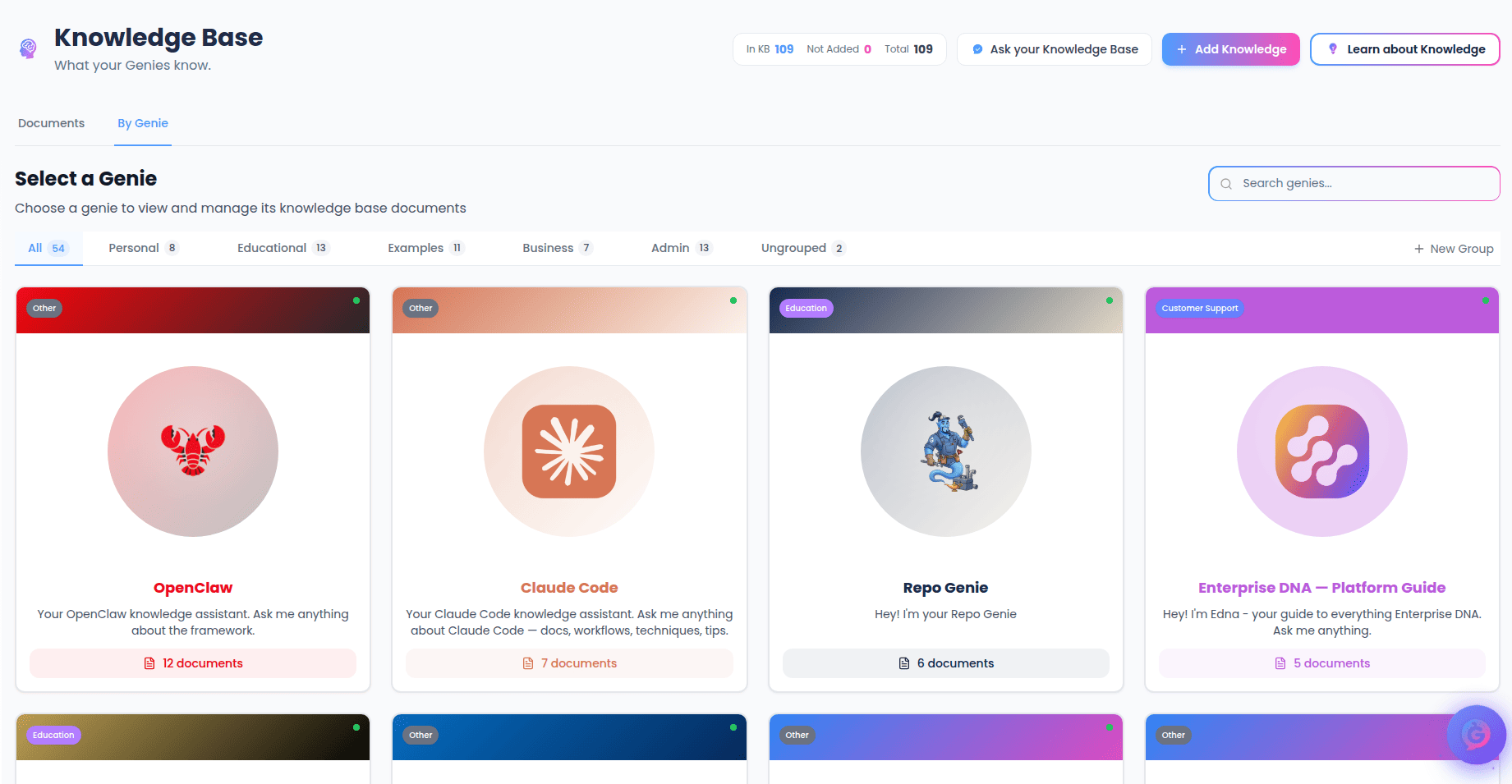
/genie-hub/knowledge-base): select a Genie card to open its knowledge view at /genie-hub/knowledge-base/:genieId. Select Back to Knowledge Base at the top to return.
What you’ll see
At the top, a header card shows the Genie’s name, description, category, active status, and branding. Below it:- A statistics bar — the number of documents in this Genie’s knowledge base and when it was last updated.
- The document list — every document attached to this Genie, newest activity first.
Coach this Genie’s knowledge
Near the top of the page is a Coach Genie’s knowledge card. It hands this Genie’s document list and recent conversations to Your Genie and asks for concrete advice on what to add, fix, or remove.- Coach this genie’s knowledge — the main button, for a full prioritized review.
- Quick prompts for focused help: What’s missing? (gap analysis), Suggest 3 docs to add (a prioritized list), Draft an FAQ (ready to upload), and Audit what’s there (a quality check).
Actions on a document
Each document row has a set of controls:- View source — opens the original file or page in a new tab (when a source is available).
- Edit — opens the document’s details so you can change its name, description, and settings.
- Unlink from genie — removes the document from this Genie. The document stays in your knowledge base and can be re-attached later; you’ll be asked to confirm first.
- Delete — permanently removes the document everywhere. You’ll be asked to confirm first.
Unlink and Delete are different. Unlinking only detaches the document from this Genie — it’s still in your knowledge base. Deleting removes it entirely and can’t be undone.