

Branding
The Branding card previews your logo (or a colored circle if none is set), primary color, secondary color, and a Gradient badge when in use. Select Edit to open the full branding editor.
To set brand defaults that apply to every newly created Genie instead of just this one, see Account Branding.
Images
Brand Logo upload — used everywhere: your avatar, QR codes (center logo), web embed widgets, and marketing materials. Accepts JPEG/PNG/WebP/GIF up to 5MB; images are automatically resized, padded to a square, and optimized. A background-removal option offers Standard or Advanced modes.Generate a logo
Don’t have a logo ready? Use the built-in Smart Logo Generator to create one:1
Enter a name
Type the brand or business name for the logo. This is the only required field.
2
Choose a style
Pick from Modern, Bold, Friendly, Tech, Luxury, or Classic.
3
Add optional detail
Optionally add a short Description and select an Industry to sharpen the result.
Colors
- Color-swatch strips (if colors were extracted): click to set as primary, gradient, or accent.
- Preset brand palettes — 10 named two-color palettes.
- Primary Color, Gradient Color (only editable when gradient is enabled), Accent Color — each a color picker plus hex field.
- Enable Gradient toggle, and a Gradient Angle slider (0–360°, default 135°) when on.
- Avatar Background — Full Solid Color toggle and a Color Opacity slider (0–100%, default 28%) controlling how strongly the primary color fills the avatar background; Default restores the standard light tint.
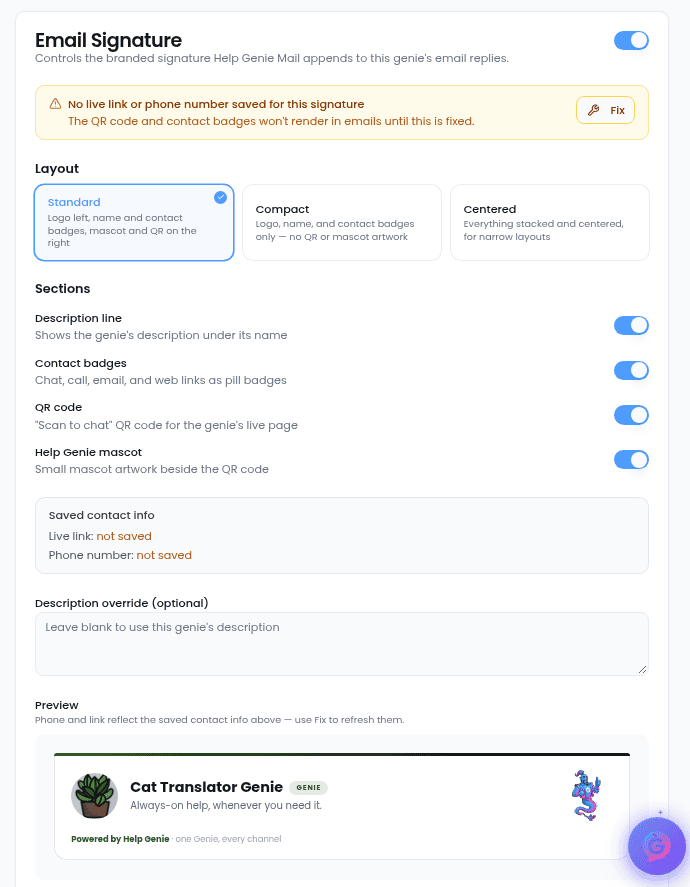
Email Signature
Controls the branded signature Help Genie Mail appends to this Genie’s email replies.- An Enabled toggle in the card header.
- Layout — Standard (logo, name, contact badges, mascot and QR), Compact (logo, name, contact badges only), or Centered.
- Section toggles: Description line, Contact badges, QR code, Help Genie mascot.
- A live preview renders the exact signature that will be sent.
If branding is locked by your plan, each tab shows an upgrade overlay and the footer button becomes Upgrade to Unlock.