

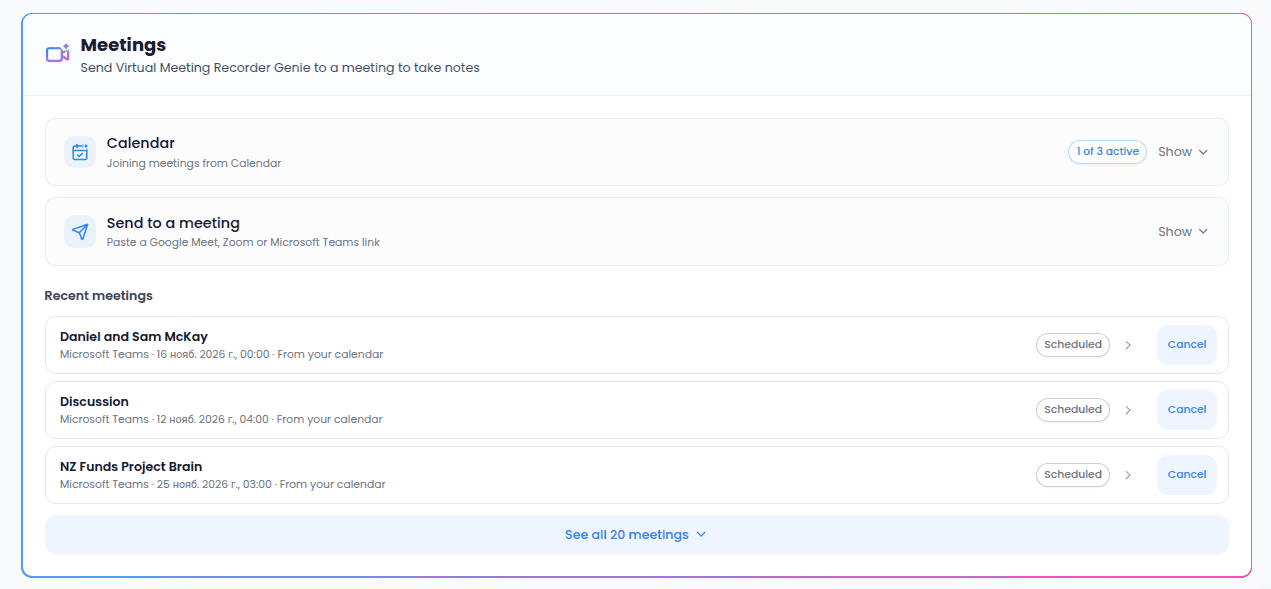
Send it to a meeting
Open Send to a meeting and fill in:- Meeting link (required) — a Google Meet, Zoom or Microsoft Teams link.
- What it’s about (optional) — a title, such as “Weekly planning”. Without one, the meeting is named after its app.
- When — Right now, or At a set time to pick a Join at date and time.
- Who’s attending (optional) — the attendees’ emails, separated by commas. They let your Genie file the notes against the right people, for example in your CRM through Help Genie Sync.
- Email the notes — when the meeting ends, the summary and action items are emailed to the Genie’s owner.
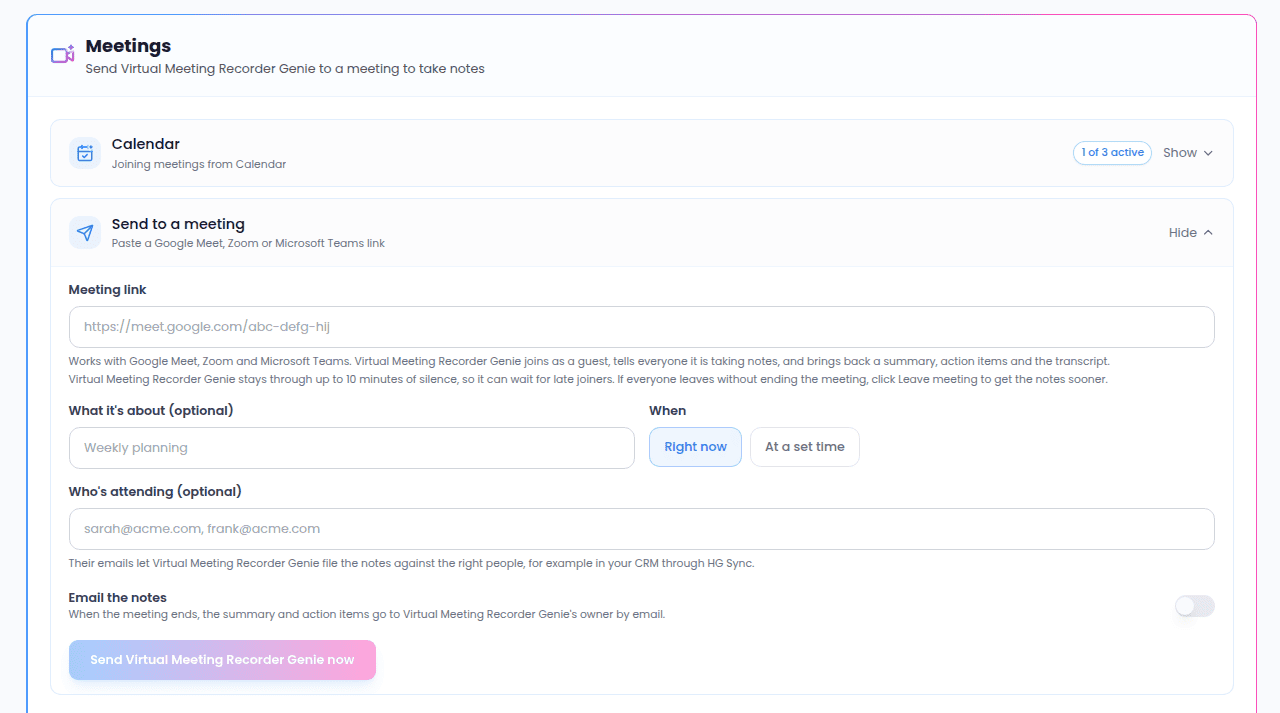
The Genie waits through up to 10 minutes of silence, so late joiners don’t miss it. If everyone leaves without ending the meeting, select Leave meeting to get the notes sooner.
Join from your calendar
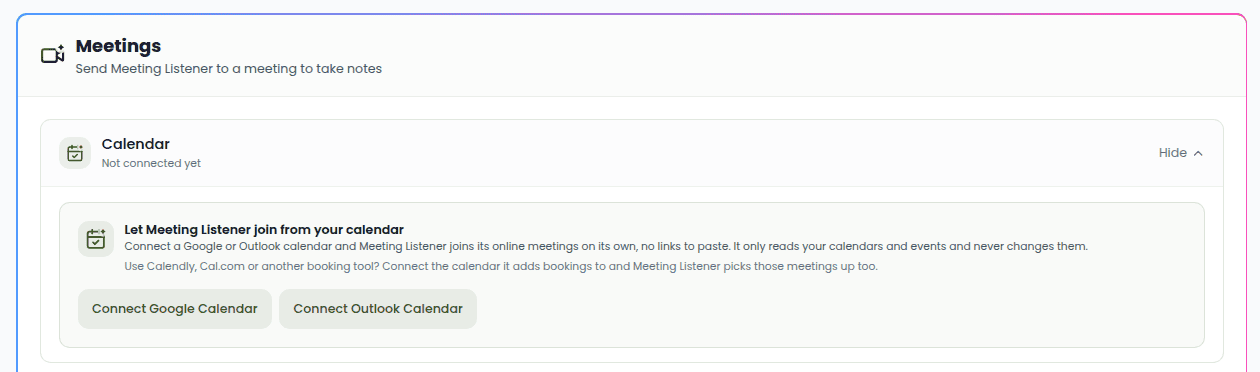
Connect your Google Calendar and your Genie joins its online meetings by itself, with no links to paste. It only reads your calendars and events and never changes them.1
Connect the calendar
Open Calendar on the Meetings card and select Connect Google Calendar. Sign in and allow Help Genie to see your calendars and events.
2
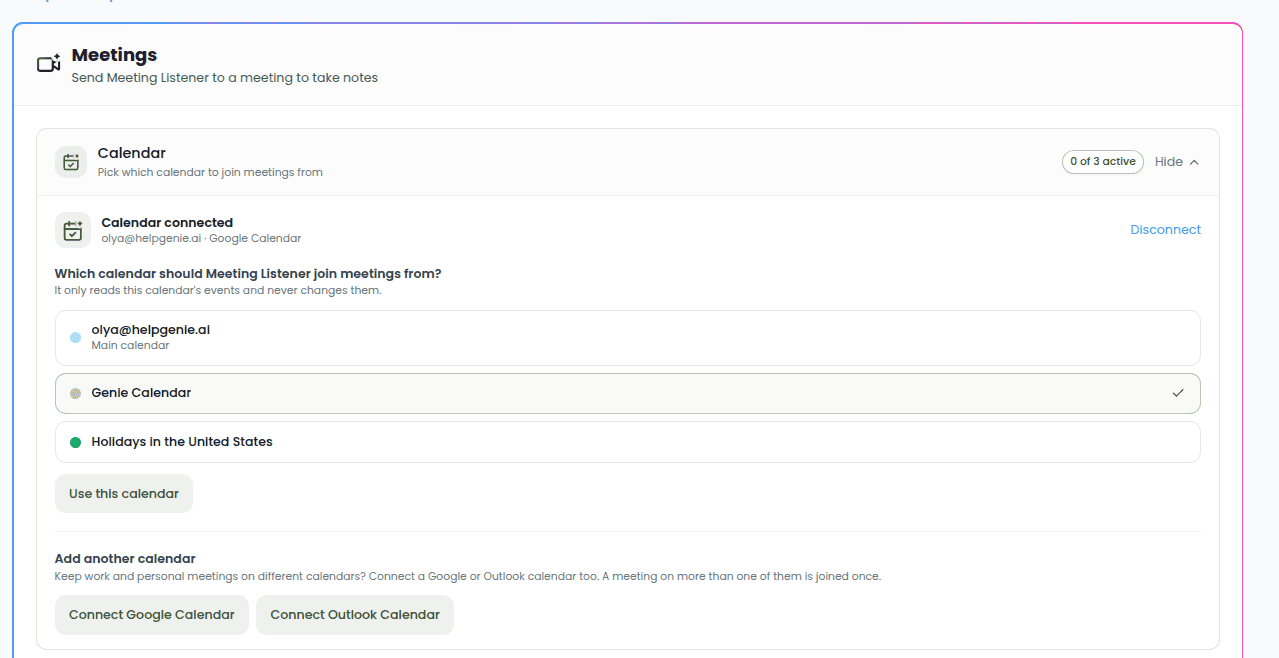
Pick a calendar
Choose which of the account’s calendars your Genie joins meetings from. You can switch later with Change calendar.
3
Choose which meetings it joins
Set the rules below. Your Genie books itself into every matching meeting for the next two weeks and keeps up as meetings are added, moved or cancelled.
Which meetings it joins
- Which meetings to join:
- Meetings I organize — only meetings you set up yourself. This is the default.
- Every meeting with a link — including meetings other people invite you to.
- Meetings with other companies — only when someone from outside your company is invited.
- Meeting size — Any size, or only meetings with 2, 3, 4, 5 or 10 or more people.
- Email the notes — emails the notes for every meeting joined from this calendar.
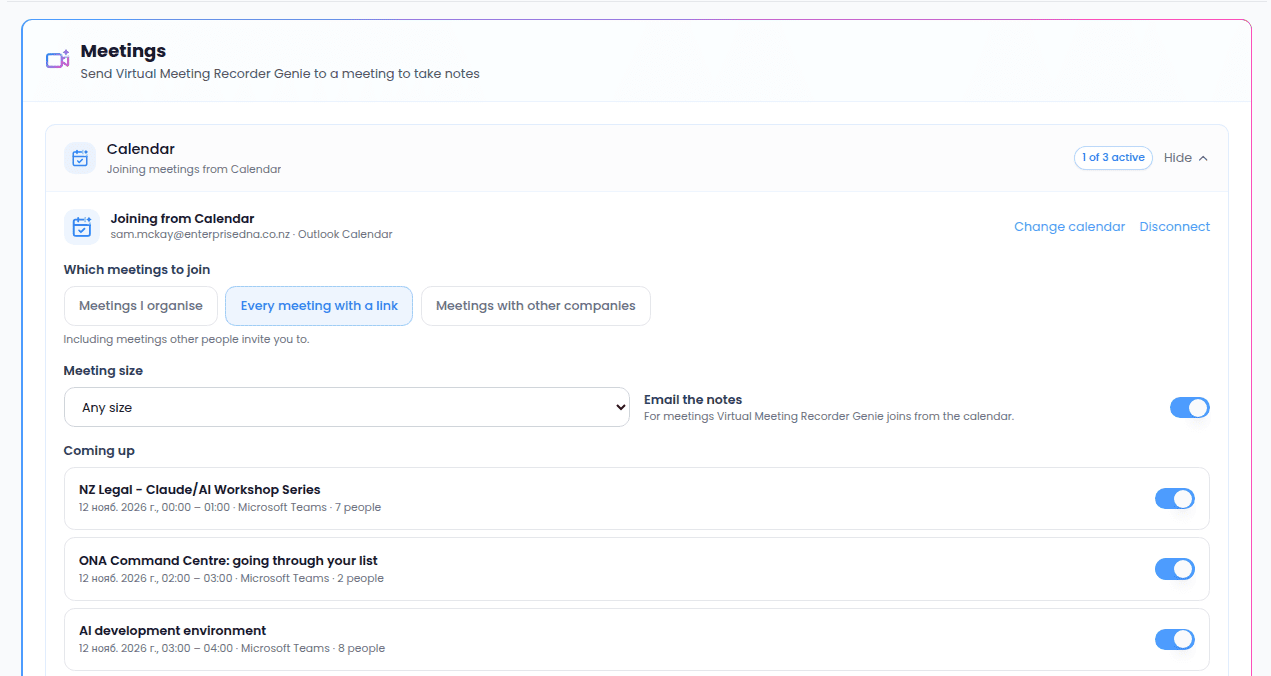
Coming up
Coming up lists the online meetings on the calendar for the next two weeks. Each one has a switch, so you can:- switch a meeting off to skip it. It stays skipped even if the rules would match it.
- switch a meeting on that the rules left out. It then follows the meeting if it is moved, and is cancelled if the meeting is removed from your calendar.
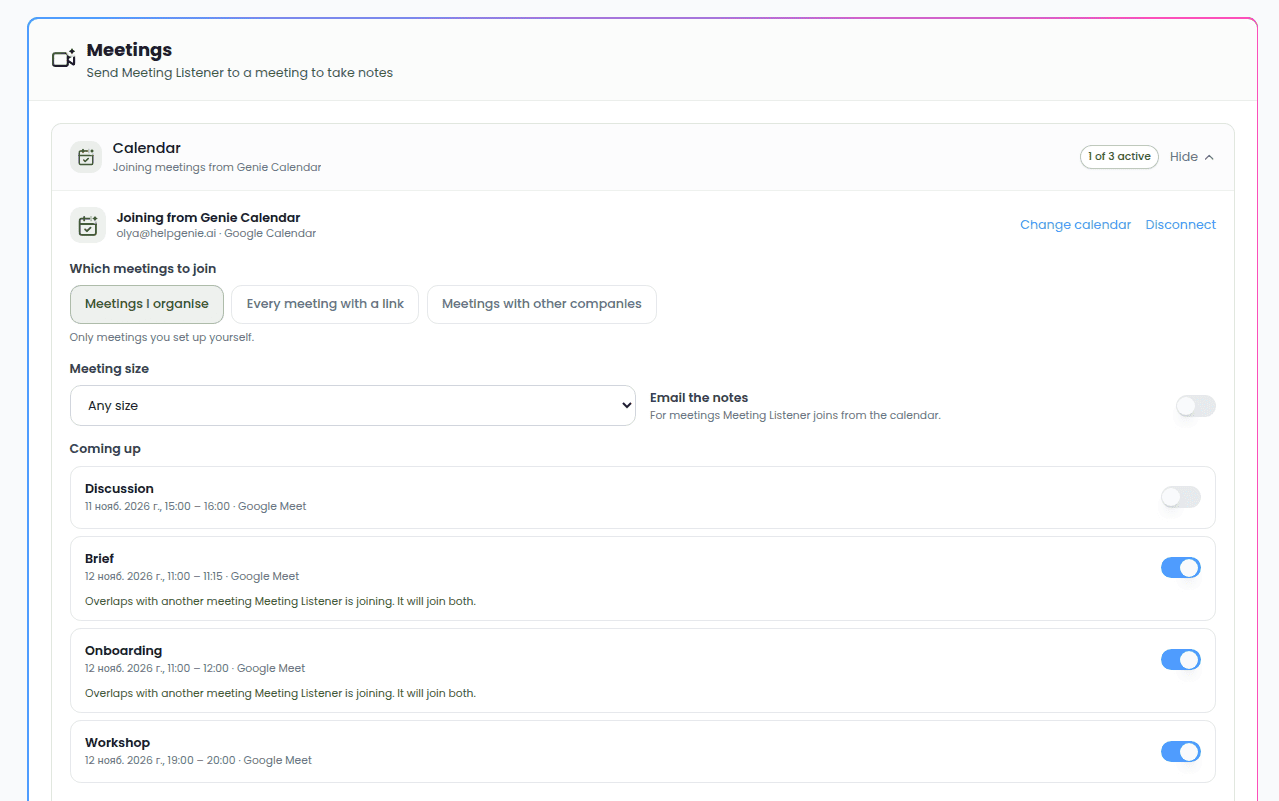
More than one calendar
Keep work and personal meetings on different calendars? Use Add another calendar to connect up to three, each with its own calendar and rules. A meeting that appears on more than one of them is joined only once, and the Coming up list says which calendar it is joined from. The Calendar heading shows how many of your calendars are active, for example 2 of 3 active.Reconnecting and disconnecting
If Help Genie loses access to a calendar (for example, you removed it in your Google account), your Genie stops joining its meetings and the card asks you to Reconnect Google Calendar. Disconnect stops your Genie joining that calendar’s meetings. Meetings it booked that haven’t started are cancelled; ones you switched on yourself stay.Recent meetings
The card lists your latest three meetings, with See all for the rest. Each one shows its app, time, length, whether it came From your calendar, and its status: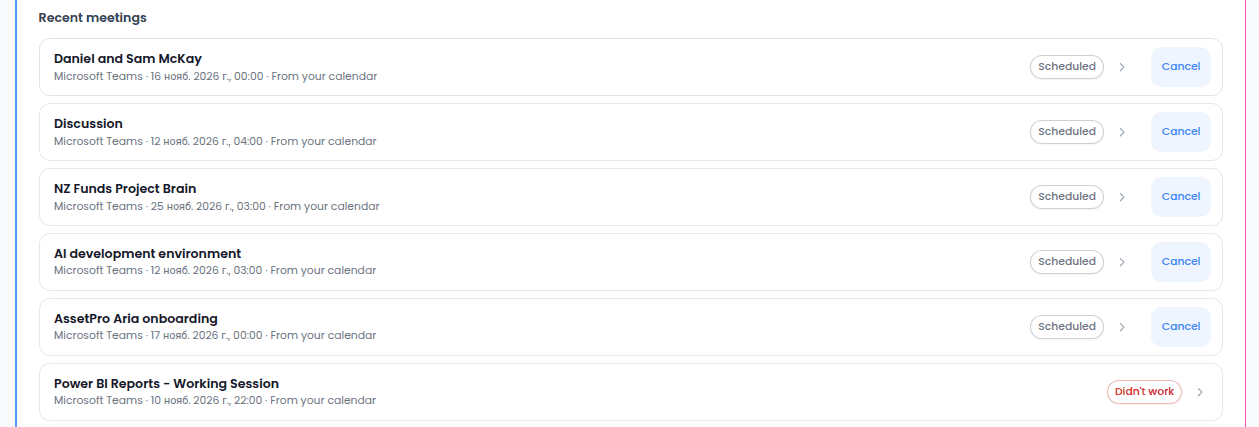
Meeting notes
Select a meeting to open its notes:- Summary and Action items.
- Transcript with speaker names and times. Copy it, or use the arrow next to the copy button to download it as a text file.
- Open the full analysis in the Inbox — the meeting’s conversation, with attendees, decisions, key takeaways and recommendations. See Conversation detail.
- Activity — each step the Genie took, such as joining, being let in and leaving.
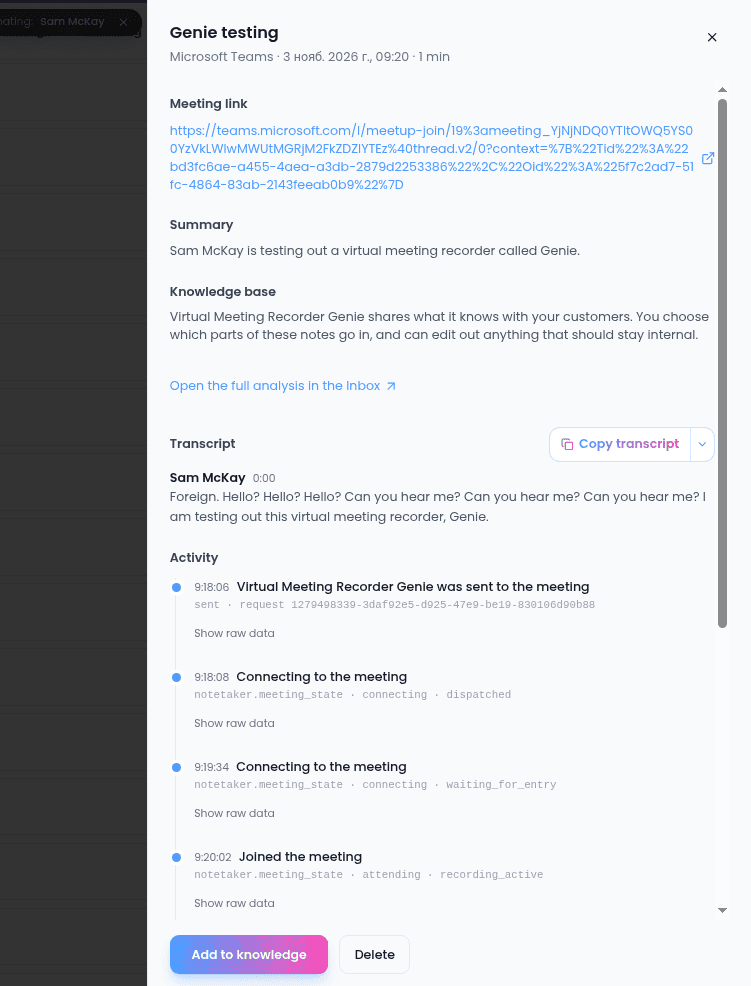
Add to knowledge
Your Genie can learn from a meeting, so it can use what was discussed when drafting replies. Select Add to knowledge to review what goes in first: the summary, the action items and the transcript each have a tick box and editable text. The summary and action items are ticked to start with; the transcript isn’t. Edit out anything that should stay internal, then select Add to knowledge. Nothing is added to the knowledge base automatically.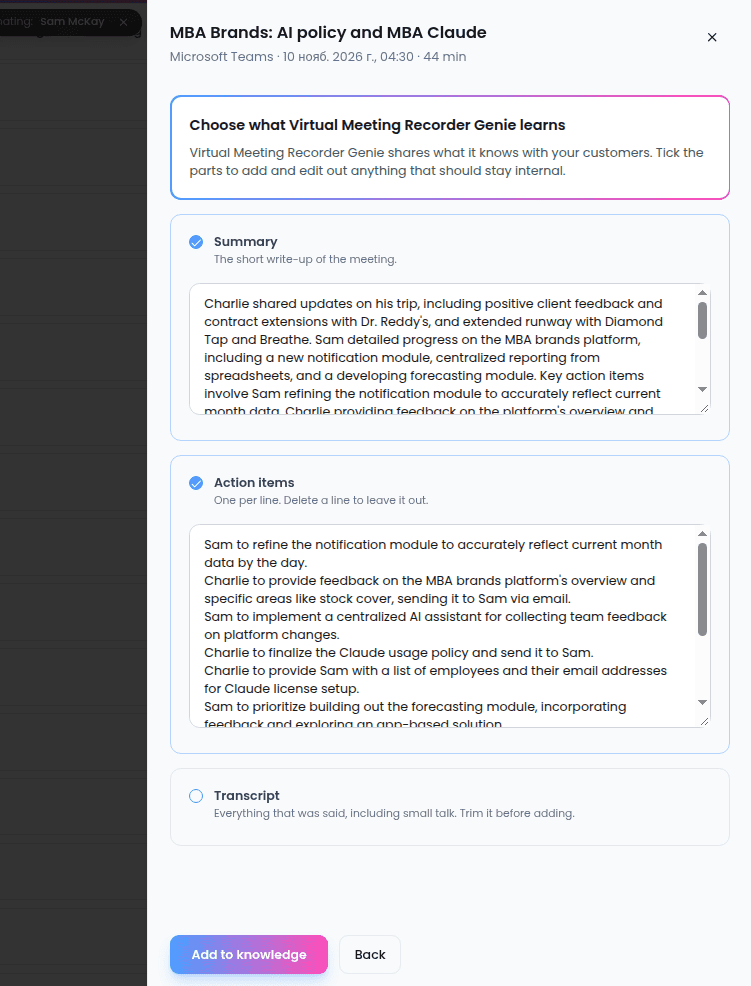
Force stop
If you asked the Genie to leave and it still shows as in the meeting, a Force stop button appears after a couple of minutes. It removes the Genie for good, and nothing it recorded is kept. Use it only when nobody is left in the meeting.Delete a meeting
Delete removes the meeting and its notes, along with its conversation in the Inbox.Meeting minutes
Meetings count towards your account’s monthly meeting minutes, shown on the Genie’s Usage card. When they are used up, your Genie doesn’t join new meetings until the 1st of the next month. Meetings it would have joined from your calendar show Didn’t work with the reason.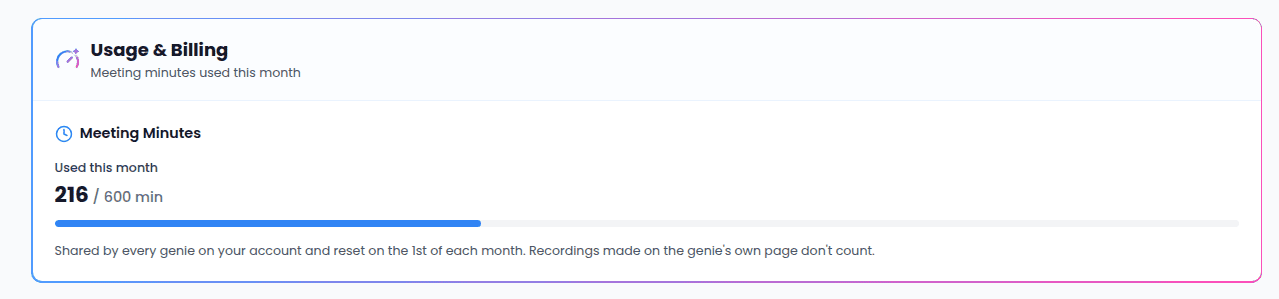
A Genie can have up to 10 meetings scheduled from links at once. Meetings booked from your calendar don’t count towards this.