

Phone listening
Open Distribution on the Genie’s page and select Phone Listening. Calls to the Genie’s number ring your team as usual. The Genie records both sides, then summarizes each call and flags anything that needs attention. The drawer has three tabs: Phone Number, Call Routing and Calls.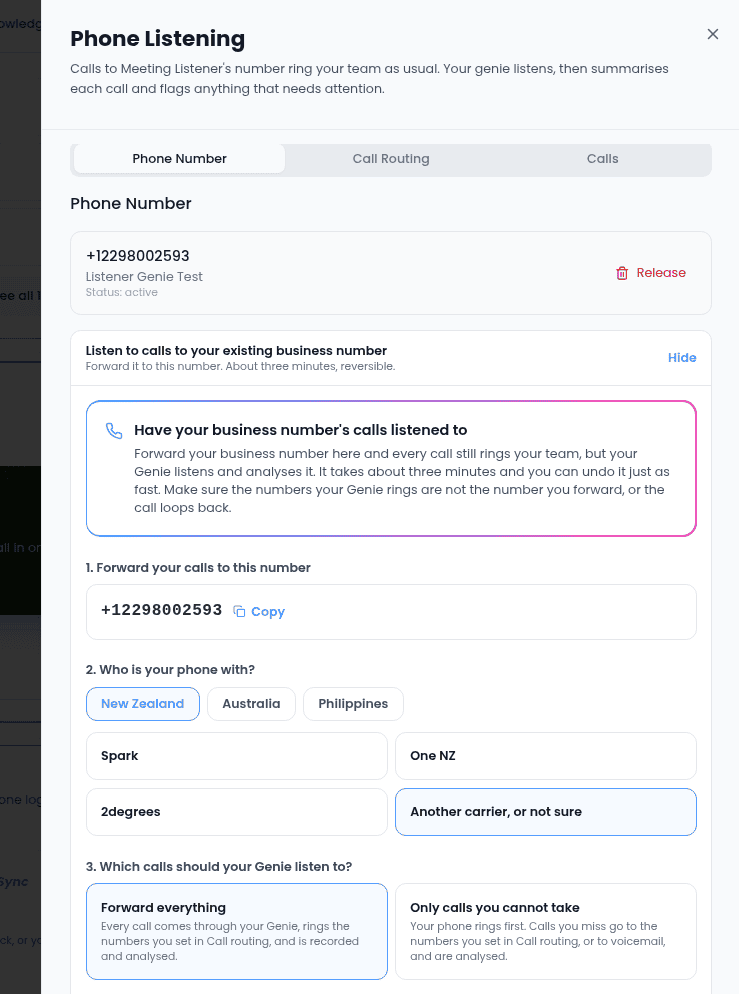
Get a number
You need a subscription to add a phone number. There are three ways to set one up:- Calls to a new number (Recommended) — works as soon as it’s set up, with nothing to change on your side. Give the new number to your customers, and every call rings your team and is listened to.
- Calls to my existing business number — you keep your number and forward it to your Genie’s new number. We show you the code to dial; it takes about three minutes and you can undo it. Your Genie hears nothing until forwarding is on, and calls must ring other phones, such as team mobiles, not the number you forward.
- Move my number to Help Genie permanently — you fill in a transfer request with your current provider’s details, and it can take up to five business days. Your Genie hears nothing until the transfer completes.
Call routing
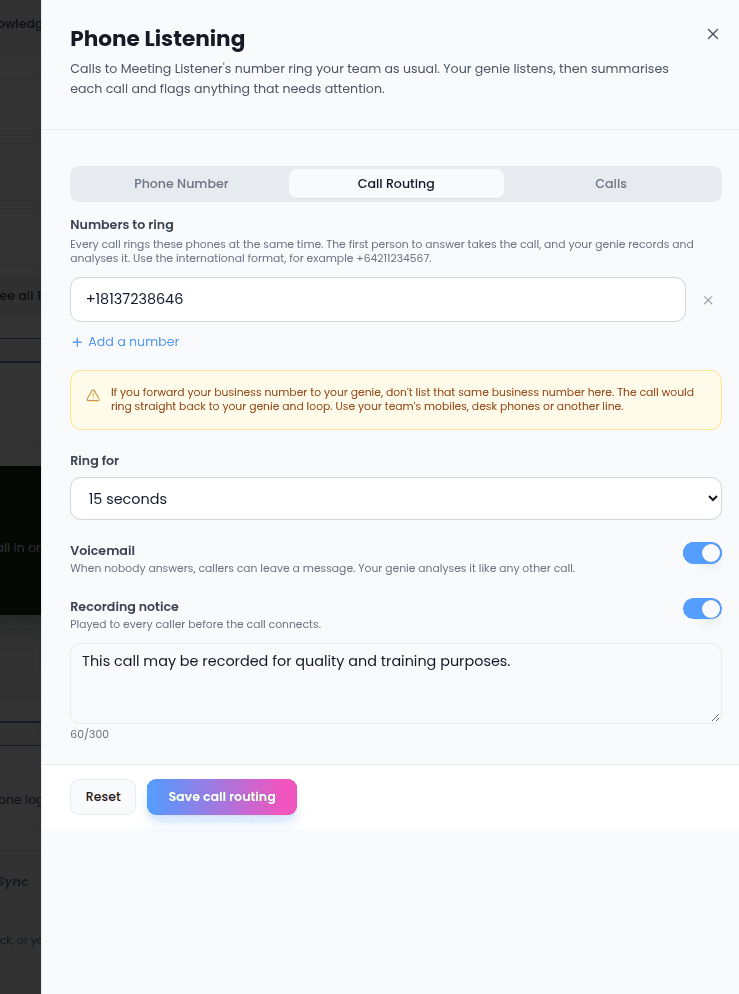
On Call Routing, choose what happens when someone calls:- Numbers to ring — up to three phones, rung at the same time. The first person to answer takes the call. Use the international format, for example +64211234567. With no numbers, every caller goes straight to voicemail.
- Ring for — how long the phones ring before the call goes to voicemail, from 10 to 60 seconds.
- Voicemail — when nobody answers, callers can leave a message. Your Genie analyzes it like any other call.
- Recording notice — played to every caller before the call connects. You can change its wording.
Calls
The Calls tab lists the calls your Genie has listened to. Each one is also a conversation in your Inbox, with the summary, transcript and a suggested follow-up. See Conversation detail.Email listening
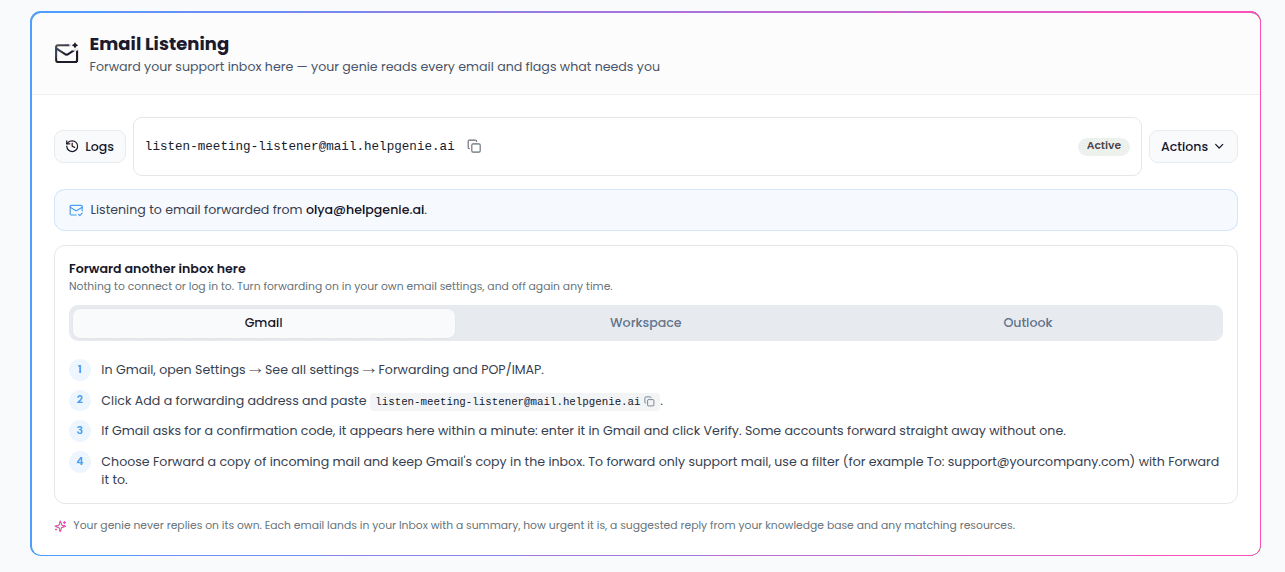
Forward your support inbox to your Genie and it reads every email. Each one lands in your Inbox with a summary, how urgent it is, a suggested reply from your knowledge base, and any matching resources. There’s nothing to connect or log in to: you turn forwarding on in your own email settings, and off again any time.Create the forwarding address
On the Email Listening card, select Create forwarding address. Its name starts withlisten- followed by your Genie’s name; select Change name first if you want a different one.

Forward your support inbox
Once the address exists, the card shows it with step-by-step instructions for your email provider:- Gmail
- Google Workspace
- Outlook
- In Gmail, open Settings → See all settings → Forwarding and POP/IMAP.
- Select Add a forwarding address and paste the Genie’s address.
- If Gmail asks for a confirmation code, it appears on the Email Listening card within a minute. Enter it in Gmail and select Verify, or use Or confirm in Gmail. Some accounts forward straight away without one.
- Choose Forward a copy of incoming mail and keep Gmail’s copy in the inbox. To forward only support mail, use a filter (for example To: support@yourcompany.com) with Forward it to.
A Genie mailbox set up before email listening existed still answers email by itself. The card offers to recreate it as a listen-only forwarding address; do that before you forward your support inbox to it.